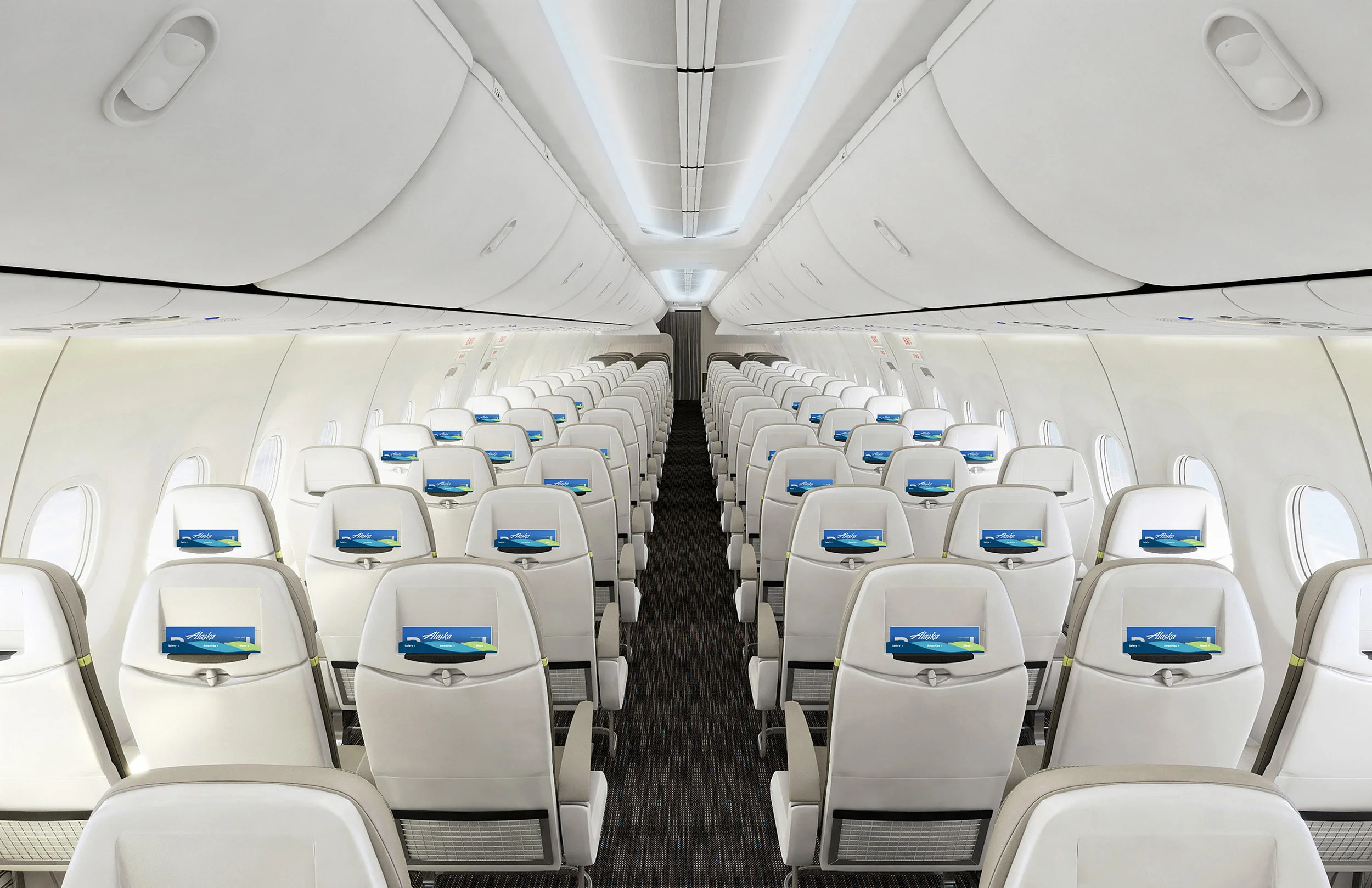
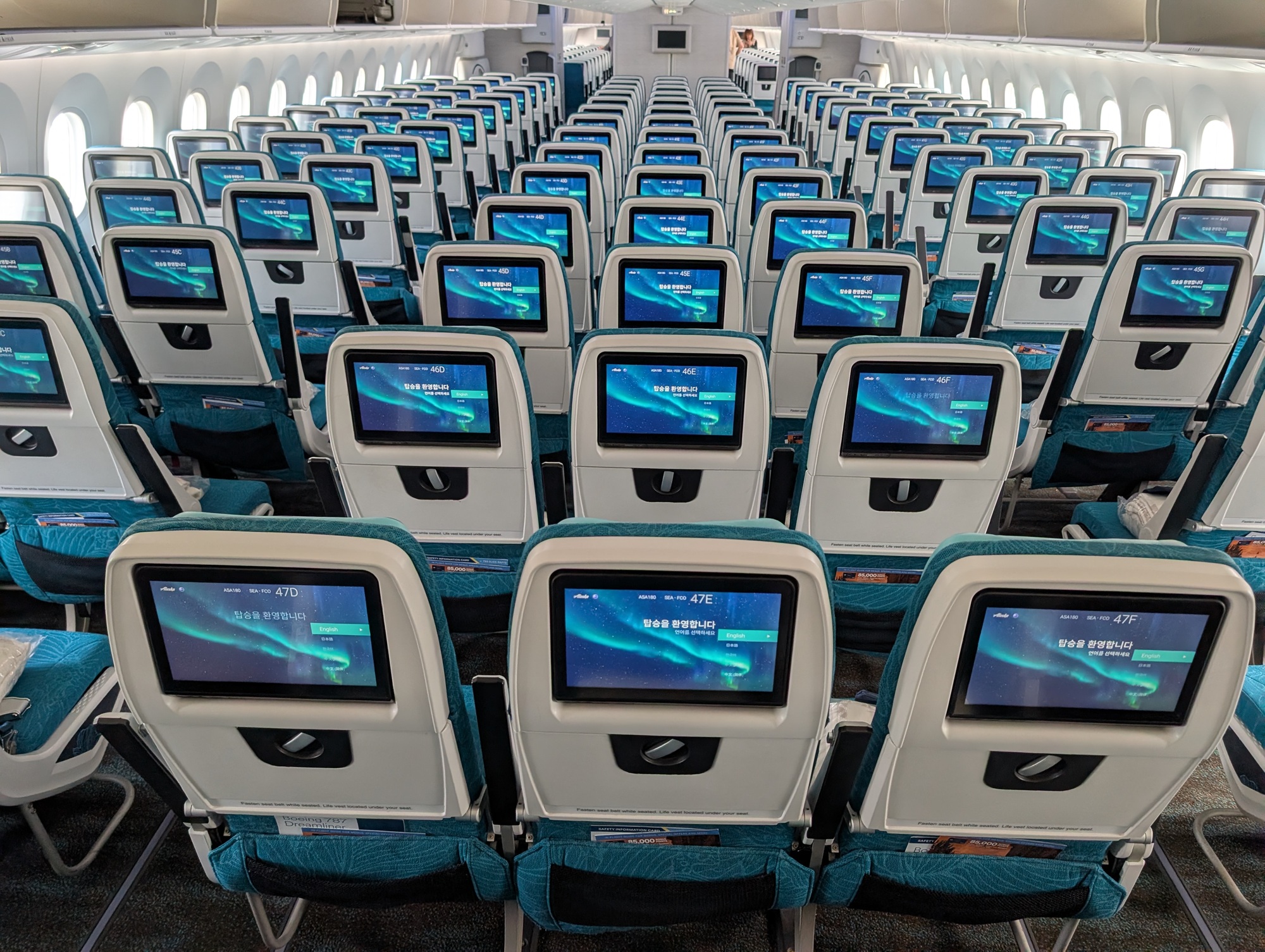
Alaska Airlines has largely moved away from traditional seatback televisions in favor of a "bring your own device" (BYOD) entertainment model. Instead of hardware screens integrated into the seat in front of you, the airline provides a wireless streaming platform that delivers movies, television shows, and live programming directly to your smartphone, tablet, or laptop.
Understanding how to access these services and preparing your devices before your flight is essential for a smooth travel experience. While some legacy aircraft in the fleet may still feature older hardware, the vast majority of Alaska Airlines’ current domestic and international operations rely on a combination of high-speed satellite internet and a robust onboard content portal to keep passengers entertained.
The Shift Toward Wireless Entertainment
In previous years, many legacy carriers invested heavily in seatback hardware, including screens, wired remote controls, and power-hungry electronic backplanes. Alaska Airlines chose a different path, opting to modernize its fleet by removing these systems. This strategic decision was based on three primary factors: weight reduction, maintenance simplicity, and technological longevity.
By removing heavy seatback hardware, the aircraft consumes less fuel, which directly contributes to the airline's sustainability goals and operational efficiency. Furthermore, seatback screens are notoriously difficult and expensive to maintain; pixels fail, touchscreens become unresponsive, and proprietary software requires constant, cumbersome updates. In contrast, by moving content to a passenger’s personal device, the airline ensures that the hardware is always up to date, as the passenger is responsible for their own tablet or phone’s performance.
How the Alaska Airlines Entertainment Portal Works
Because there are no seatback screens, the onboard entertainment experience is entirely browser-based. You do not need to download a specific app to view the library, although having the Alaska Airlines app installed is generally recommended for travel management.
To access the portal, follow these steps:
- Enable Airplane Mode: Ensure your device is in Airplane Mode, but keep your Wi-Fi radio active.
- Connect to the Network: Scan for available Wi-Fi networks and select the one labeled "Alaska_WiFi" or "gogoinflight."
- Launch Your Browser: Once connected, open your preferred web browser (e.g., Chrome, Safari, Edge).
- Navigate to the Landing Page: Most devices will automatically redirect you to the streaming portal. If it does not, visit
alaskawifi.com. - Select Your Content: Once on the portal, you can browse the catalog of movies and TV shows. Some content is free to stream, while other features might require a Wi-Fi connection if you intend to browse the wider internet.
Device Compatibility and Preparation
The success of the "bring your own device" model depends on your hardware being ready for the flight. Because you will be watching content for several hours, your device's power management and browser settings are critical.
Hardware Prerequisites
- Operating Systems: The portal is designed to be compatible with iOS, Android, macOS, and Windows. Ensure your operating system is updated to a version supported by modern web standards.
- Browser Requirements: Use a current, non-obscure web browser. It is advisable to clear your browser cache before your flight if you have experienced issues with web portals in the past.
- Headphones: You must provide your own wired or Bluetooth headphones. While the aircraft provides connectivity, they do not provide audio hardware.
Power Considerations
Since you are relying on your own battery, and streaming video is a power-intensive task, preparation is key. Most Alaska Airlines aircraft are equipped with power ports. However, the type of power available—and its reliability—can vary by aircraft type (e.g., Boeing 737 vs. Embraer 175). It is recommended to travel with a fully charged power bank, especially on long-haul flights or if you are seated in a row where the power outlet might be difficult to access.
Comparison: Seatback TVs vs. BYOD Streaming
| Feature | Traditional Seatback TVs | Alaska BYOD Streaming |
|---|---|---|
| Screen Quality | Variable (often low resolution) | High (dependent on your device) |
| Content Selection | Fixed/Limited | Updated monthly |
| Interface | Proprietary/Clunky | Familiar (your own device) |
| Power Needs | Provided by seat | Provided by your battery |
| Hardware Weight | High (increases fuel burn) | None (passenger-provided) |
| Maintenance | High (frequent repairs) | Low (portal-based) |
Troubleshooting Common Connectivity Issues
Even with a robust system, technological hiccups can occur. If you cannot connect to the entertainment portal, follow this systematic approach:
- Verify Wi-Fi Connection: Confirm that your device is actively connected to the onboard Wi-Fi signal. If you are connected to the internet but cannot access the portal, try disconnecting and reconnecting to the specific "Alaska_WiFi" network.
- Disable VPNs: Virtual Private Networks (VPNs) often interfere with captive portals. Disable any active VPN service before attempting to connect to the aircraft's entertainment network.
- Check Browser Permissions: Ensure that your browser is not blocking pop-ups or auto-redirects, which are often required for the landing page to load correctly.
- Restart the Browser: Sometimes, a simple refresh or a complete closure and restart of your browser application will resolve a stuck loading screen.
- Flight Deck Reset: If the entire aircraft is experiencing an outage, the flight crew may be able to reset the system. If you notice other passengers having the same issue, politely inform a flight attendant.
Entertainment Content and Licensing
Alaska Airlines curates its library to include a mix of new releases, classic films, and popular television series. The licensing agreements for these titles are dynamic, meaning the library changes on a monthly basis. Unlike physical DVD players or older fixed-loop video systems, the digital nature of this platform allows the airline to cycle through content efficiently.
While the streaming library is free, it is important to note that this is distinct from "In-Flight Wi-Fi," which provides access to the open internet (email, social media, web browsing). While the entertainment portal is accessible to all passengers regardless of a paid internet plan, accessing external websites or streaming services like Netflix or YouTube typically requires the purchase of an internet connectivity package.
Frequently Asked Questions
Do I need to pay for entertainment on Alaska Airlines?
No. The library of movies and television shows available through the "Alaska_WiFi" portal is free of charge for all passengers. You do not need to purchase an internet package to watch the provided library content.
Can I use Bluetooth headphones with the entertainment system?
Yes. Because you are using your own device (phone, tablet, or laptop), you can connect your Bluetooth headphones directly to your device as you normally would. The aircraft system does not need to "pair" with your headphones.
What if my device is low on battery?
Most Alaska Airlines aircraft are equipped with AC power outlets or USB ports under the seats. However, since availability can vary by aircraft configuration, always ensure your device is fully charged before departure and carry a portable battery bank as a backup.
Does the system allow for internet browsing?
The streaming library is hosted locally on the aircraft's server, which does not require an internet connection. If you wish to browse the wider internet (check email, etc.), you will need to purchase an internet pass through the same portal.
Are children's movies available?
Yes, the content catalog consistently features a "Kids" section, which includes animated films and family-friendly television programming. It is recommended to download any specific content your child prefers beforehand if you are concerned about connectivity, but the library is generally well-stocked.
Next Steps for Your Flight
To ensure the best experience, spend five minutes before you leave for the airport verifying that your primary device is updated. Check that your browser is current and that you have a set of comfortable headphones packed in your carry-on bag. If you have a tablet with a larger screen, prioritize using that over a phone, as the larger display will provide a better viewing experience for long-form movies. If you are traveling with children, ensure their devices are also prepared and, if necessary, protected by a durable case that allows for hands-free viewing when placed on the tray table. By taking these small, proactive steps, you can fully enjoy the convenience of modern, flexible in-flight entertainment.