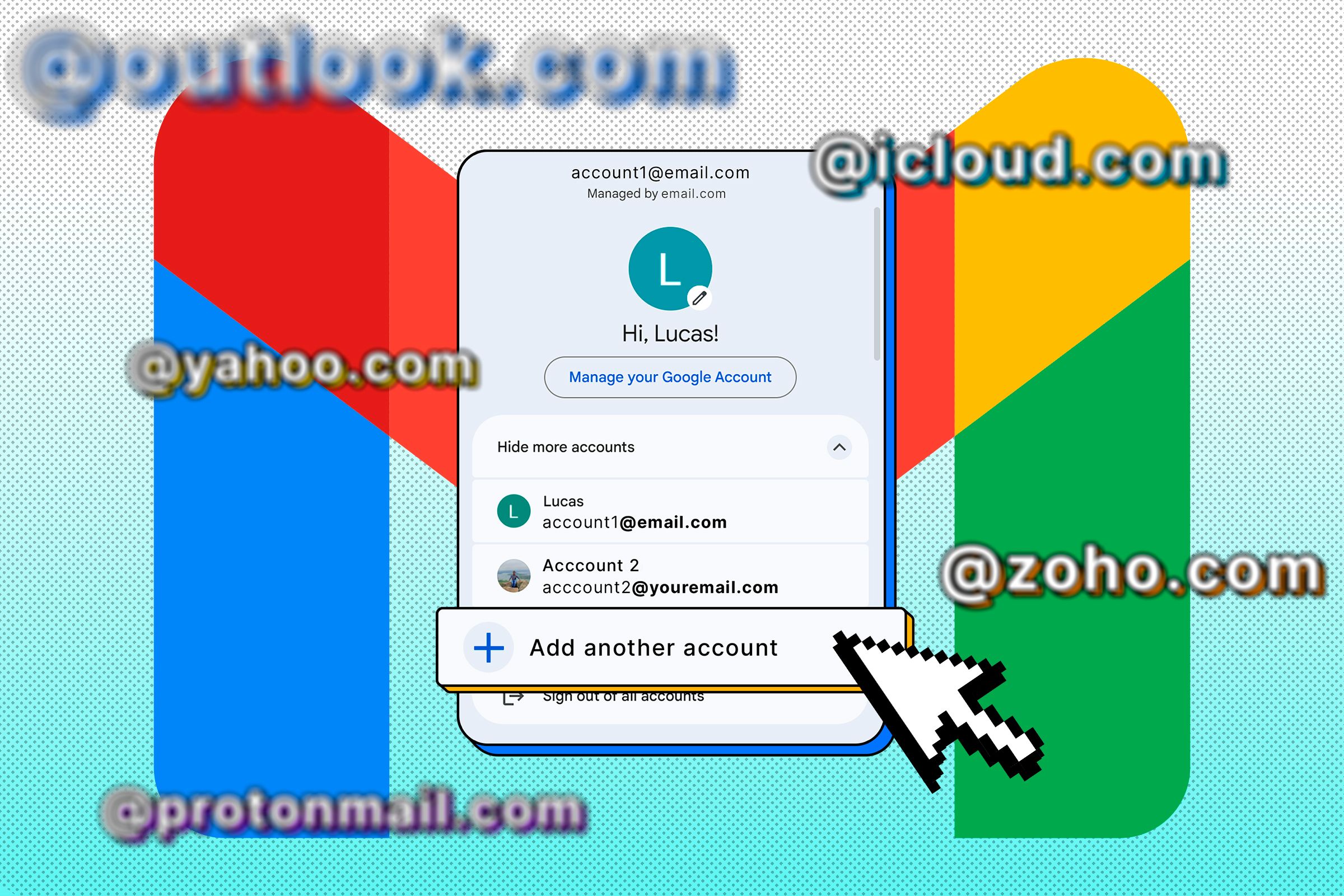
Adding a business email to Gmail allows you to send and receive messages from your custom domain address (such as you@yourcompany.com) directly within the familiar Gmail interface, utilizing either the free consumer version or Google Workspace. This process eliminates the need to check a separate webmail client or email hosting dashboard, streamlining your daily communication workflow while projecting a professional brand identity to clients, partners, and vendors.
Understanding Business Email Integration Options
Before configuring your custom domain address inside Gmail, it is essential to understand the structural differences between hosting a business email via Google Workspace versus connecting an external third-party email provider (such as Bluehost, GoDaddy, Hostinger, or cPanel hosting) to a standard free Gmail account.
Google Workspace vs. External Email Hosting Providers
When you use Google Workspace, your custom domain email is hosted natively on Google's infrastructure. In this scenario, you do not technically "add" an external business email; instead, your entire account operates under your domain name, and your inbox is already a native Gmail inbox.
Conversely, if your business email is hosted by an independent web hosting provider or a third-party mail server via Internet Message Access Protocol (IMAP) and Post Office Protocol (POP3), your primary Google account remains a personal address (e.g., name@gmail.com), but you configure Gmail to act as a client for your business mailbox. This allows you to fetch incoming mail from your external server and send outgoing mail through your external server's Simple Mail Transfer Protocol (SMTP) relay.
POP3 vs. IMAP: Choosing the Right Protocol
When linking an external business email provider to Gmail, you must choose how Gmail interacts with your remote server:
- POP3 (Post Office Protocol 3): Downloads your emails from the remote server directly into your Gmail inbox. Depending on your settings, it can leave a copy on the server or delete them once downloaded. POP3 is traditionally used when server storage limits are tight, but it does not synchronize read statuses, folders, or sent messages across multiple devices as fluidly as IMAP.
- IMAP (Internet Message Access Protocol): Keeps your emails stored on the remote server while synchronizing your view across all connected devices. However, standard free Gmail accounts handle external IMAP accounts primarily by allowing you to "Check mail from other accounts" using POP3, while utilizing external SMTP servers to send mail. Reviewing your specific hosting provider's documentation ensures you select the optimal connection parameters.
Prerequisites and Information Gathering
Successfully connecting your business email requires gathering several technical pieces of data from your current email or web hosting provider before touching your Gmail settings. Attempting to configure the connection without this information will lead to authentication failures and synchronization errors.
Required Technical Parameters
- Email Address: Your complete custom domain address (e.g.,
support@yourdomain.com). - Password: The dedicated password associated with your business email account, created within your hosting control panel.
- Incoming Mail Server (POP3/IMAP) Details: The hostname (e.g.,
mail.yourdomain.com), port number (typically port 995 for secure POP3 or port 993 for secure IMAP), and security encryption type (SSL or TLS). - Outgoing Mail Server (SMTP) Details: The hostname (e.g.,
mail.yourdomain.com), port number (commonly port 465 or 587), and security encryption type (SSL or TLS).
Account Security Requirements
Modern email security protocols require strict authentication. If your business email provider enforces Multi-Factor Authentication (MFA) or Two-Factor Authentication (2FA), you will typically need to generate an App Password or specific third-party client password within your host's security dashboard. Using your standard webmail password will often fail if MFA is active on the account. Furthermore, ensure that your domain's DomainKeys Identified Mail (DKIM), Sender Policy Framework (SPF), and Domain-based Message Authentication, Reporting, and Conformance (DMARC) records are properly configured with your DNS provider to prevent your outgoing messages from being flagged as spam by recipient servers.
Step-by-Step Guide: Adding an External Business Email to Gmail
Once you have gathered your server settings and credentials, follow this step-by-step procedure to integrate your business email into a standard Gmail account.
Step 1: Access Gmail Settings
- Open your web browser and navigate to Gmail.
- Log in to your personal or primary Google account where you want to add the business email.
- In the top-right corner of the interface, click on the Gear icon (Settings).
- Click on See all settings to open the full configuration menu.
Step 2: Configure "Send Mail As" (Outgoing Setup)
To send emails from your business address within Gmail, you must first register the address as an alias.
- In the Settings menu, navigate to the Accounts and Import tab.
- Locate the section labeled Send mail as: and click on the link that says Add another email address.
- A popup window will appear. Enter your name and your full business email address (
name@yourdomain.com). - Ensure the box labeled Treat as an alias is checked (this is standard practice unless you manage a completely separate persona that requires independent administrative control), then click Next Step.
- Enter your SMTP Server hostname, port, your full business email address as the username, and your password. Select the appropriate secure connection type (Secured connection using SSL is generally recommended if supported).
- Click Add Account.
- Gmail will send a verification email containing a confirmation code and a secure link to your business email address. Access your business email inbox (via your web host's webmail interface or wherever it is currently accessible), retrieve the code or click the link, and complete the verification in Gmail.
Step 3: Configure "Check mail from other accounts" (Incoming Setup)
To receive your business emails inside your Gmail inbox, you must set up mail fetching.
- Return to the Accounts and Import tab in Gmail Settings.
- Locate the section labeled Check mail from other accounts: and click Add a mail account.
- Enter your full business email address in the popup window and click Next.
- Select Import emails from my other account (POP3) and click Next.
- Fill out the requested parameters:
- Username: Your full business email address.
- Password: Your business email password (or App Password).
- POP Server: Your hosting provider's POP server hostname.
- Port: Select the correct port (usually 995 for SSL).
- Check the desired operational boxes based on your workflow preferences:
- Leave a copy of retrieved message on the server (recommended so your hosting backup remains intact).
- Always use a secure connection (SSL) when retrieving mail (highly recommended).
- Label incoming messages (useful for keeping business mail organized under a distinct tag).
- Click Add Account. Once verified, Gmail will begin pulling messages from your business inbox automatically.
Comparison of Business Email Integration Methods
Choosing the right approach depends on your organization's scale, budget, and technical requirements. The table below compares the primary methods for integrating a business email with Gmail.
| Integration Method | Primary Infrastructure | Setup Complexity | Cost Considerations | Device Synchronization | Best Suited For |
|---|---|---|---|---|---|
| Google Workspace | Native Google Cloud infrastructure | Low to Moderate | Monthly per-user subscription fee | Full synchronization across all devices and native apps | Businesses requiring a professional @yourcompany.com address with full Google ecosystem integration. |
| Gmail POP3/SMTP Fetching | External web host (cPanel, Bluehost, etc.) | Moderate | Included with existing web hosting fees | Limited (Incoming mail is fetched; sent items saved via SMTP) | Solo operators, freelancers, or small sites utilizing existing cPanel hosting who want a unified inbox. |
| Third-Party Email Client | Independent (Outlook, Apple Mail, Thunderbird) | Low | Free or bundled with OS/Software | Varies by client and protocol configuration | Users who prefer dedicated desktop applications over webmail interfaces. |
Troubleshooting Common Connection Errors
Configuring external mail servers can occasionally result in handshake failures, authentication blocks, or synchronization halts. Reviewing common error messages helps pinpoint and resolve issues rapidly.
Authentication Failed and Invalid Credentials
If Gmail returns an "Authentication failed" error:
- Verify that your username is the complete email address, not just the prefix before the
@symbol. - Confirm whether your host requires an App Password instead of your master control panel password due to security policies or 2FA enforcement.
- Check for accidental leading or trailing white spaces when pasting passwords into the configuration fields.
Connection Timed Out or Server Not Found
If Gmail cannot reach your mail server:
- Double-check your incoming and outgoing server hostnames. Many hosting providers use standard patterns like
mail.yourdomain.comor require the specific server node name provided in your welcome email (e.g.,server123.hostingprovider.com). - Ensure that your domain's MX (Mail Exchange) records point correctly to your email host if you are experiencing issues receiving mail.
Port and SSL Mismatches
Using incorrect ports or mismatched security settings will disrupt secure handshakes:
- If you select SSL, ensure you are using the designated SSL port (typically 995 for POP3, 465 for SMTP).
- If you select TLS, verify the corresponding port (typically 110 for POP3, 587 for SMTP).
Frequently Asked Questions
Can I send emails as my business address from the Gmail mobile app?
Yes. Once you successfully complete the "Send mail as" configuration on the desktop version of Gmail, your business email address will automatically appear as an option in the "From" dropdown menu when composing a new message on both the iOS and Android Gmail applications.
Will my clients see my personal Gmail address if I use an alias?
No. When configured correctly, recipients will only see your custom business email address in the sender field. However, technical headers of the email may occasionally display routing information indicating the underlying delivery mechanism, though this is rarely visible or relevant to standard end-users.
How often does Gmail check for new mail from external POP3 accounts?
Gmail automatically polls external POP3 accounts at variable intervals based on the account's historical activity volume—typically ranging from every few minutes to roughly once an hour. You cannot manually force a rigid, user-defined polling schedule, but you can click the Check mail link manually within the Accounts and Import settings to force an immediate fetch.
Is it better to use Google Workspace or free Gmail with a connected business email?
For serious commercial operations, Google Workspace is strongly recommended because it provides native domain administration, robust security compliance, shared team drives, professional branding without third-party relay limits, and dedicated live support. Free Gmail integration is best suited for low-volume personal projects, hobby sites, or budget-conscious solo operators who already maintain external web hosting.
What should I do if my outgoing emails go to recipient spam folders?
Ensure that your hosting provider has correctly published an SPF record and configured DKIM signing for your domain. Without proper cryptographic authentication in your DNS settings, major mailbox providers like Gmail, Yahoo, and Outlook may classify emails sent via external SMTP relays as unverified or suspicious.
Next Actions and Recommendations
To maintain a secure and efficient communication channel, review your integrated inbox configuration regularly. Test both sending and receiving functions immediately after setup by transmitting a test message to an external email address. If you scale your operations or find that POP3 fetching delays impede your workflow, consider migrating your domain infrastructure directly to Google Workspace for seamless, real-time messaging performance.