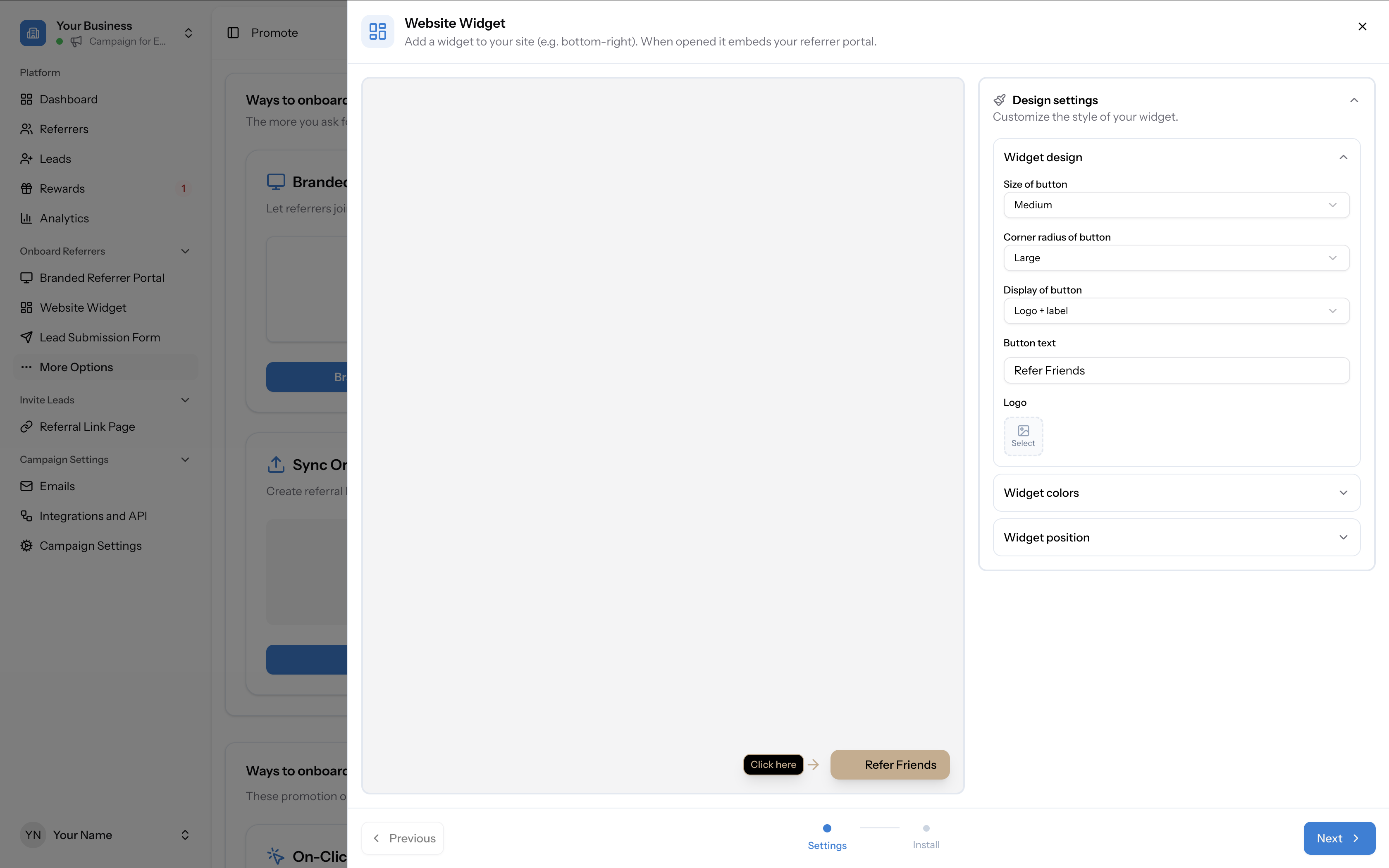
Adding an NPS widget to your site involves integrating a standardized survey tool that asks visitors how likely they are to recommend your service or product to others on a scale of zero to ten. This implementation requires selecting a compatible feedback platform, embedding a unique script or snippet into your website’s source code, and configuring the display logic to trigger the widget at strategic moments during the user journey.
Understanding the Net Promoter Score (NPS) Framework
Before technical implementation, it is essential to understand the metric you are collecting. The Net Promoter Score (NPS) is a widely recognized loyalty metric that categorizes respondents based on their answers: Promoters (9–10), Passives (7–8), and Detractors (0–6). By embedding a widget that captures this data, you gain a quantitative measure of customer sentiment that can be tracked over time.
An NPS widget typically consists of three distinct components: the initial scoring interface (the 0–10 scale), an optional follow-up qualitative question (usually a text box asking "Why?"), and a thank-you message. Implementing this correctly means ensuring that these elements do not disrupt the primary functionality of your website while remaining visible enough to encourage response.
Determining the Integration Method
There are three primary ways to add an NPS widget to your site, depending on your technical stack and existing infrastructure:
- Direct Embed Snippets: Most feedback-as-a-service (FaaS) platforms provide a JavaScript snippet. This code is placed within the
or just before the closingtag of your website. It is the most common method for static sites or platforms where you have direct access to the HTML. - Tag Management Systems: If your organization uses a tool like Google Tag Manager (GTM), you can deploy the NPS widget script through a tag. This is often preferred in enterprise environments because it allows marketing teams to manage the widget's deployment without needing to edit the codebase directly.
- CMS Plugins: If your site is built on platforms such as WordPress, Shopify, or Ghost, developers often provide dedicated plugins or apps. These handle the script injection automatically, reducing the risk of syntax errors.
Step-by-Step Implementation via JavaScript Snippet
If you are manually adding the widget, follow this structured process to ensure stability and performance.
1. Configuration and Script Retrieval
Log into your chosen feedback platform (e.g., Qualtrics, Delighted, or Hotjar). Configure the widget appearance—including color schemes, language settings, and the specific survey question text. Once saved, the platform will generate an installation snippet. This is typically an asynchronous JavaScript block to prevent the widget from slowing down your page load times.
2. Strategic Placement
Place the script in the global template file (e.g., footer.php, base.html, or header.js). Placing it globally ensures that the widget is available on every page, allowing for consistent data collection across the entire site architecture. If you only want to measure post-purchase sentiment, add a logic condition to the script to only execute on your "Thank You" or order confirmation pages.
3. Handling Dependencies and Conflicts
Ensure that your site does not have existing JavaScript errors that might block the execution of the NPS widget. If your site uses aggressive Content Security Policies (CSP), you may need to whitelist the domain of the feedback service provider to allow the script to load correctly.
Comparing Common NPS Widget Integration Approaches
| Method | Technical Difficulty | Flexibility | Maintenance |
|---|---|---|---|
| Manual Script Injection | Moderate | High | Manual updates required |
| Tag Manager (GTM) | Low | Very High | Centralized management |
| CMS Plugins | Very Low | Limited | Dependent on plugin updates |
| API Integration | High | Maximum | Requires ongoing development |
Critical Considerations: Trigger Logic and User Experience
The effectiveness of an NPS widget depends heavily on when it appears. A common mistake is displaying the widget immediately upon page load, which often causes users to close it out of frustration.
- Exit Intent: Trigger the widget when the user moves their mouse toward the browser's close button or address bar. This captures feedback from users who are finishing their session.
- Time-on-Page/Event-based: Trigger the widget after a specific event, such as a completed checkout or after the user has spent a minimum of 30 seconds reading a support article. This ensures the user has enough context to provide meaningful feedback.
- Frequency Capping: Never overwhelm your users. Ensure your widget settings include "frequency capping," which prevents a user from seeing the same survey more than once in a 30-to-90-day period.
Troubleshooting Common Implementation Issues
If the widget fails to appear, follow this logical order of operations to identify the root cause:
- Browser Console Logs: Open the developer tools (F12) in your browser. Look for "Blocked by CORS policy" or "403 Forbidden" errors. These indicate that your server or browser security settings are blocking the script.
- Z-Index Conflicts: Sometimes the widget is present in the DOM but hidden behind other page elements like sticky footers or chat bubbles. Inspect the element to see if its
z-indexneeds to be increased. - Caching: If you have recently updated the script, clear your browser cache and any server-side caching (e.g., Cloudflare, Varnish) to ensure the latest version of the code is being served to the client.
Data Privacy and Compliance
When adding an NPS widget, you are essentially collecting user data. In 2026, compliance with regulations like the GDPR (Europe) and CCPA (California) is non-negotiable. Ensure that your feedback tool does not store PII (Personally Identifiable Information) unless explicitly required and disclosed.
Always link to your privacy policy within the survey widget if possible, and ensure the data processing agreement with your feedback provider is current. If your target audience is international, verify that the widget tool supports localized languages and complies with local data residency requirements.
Frequently Asked Questions
How does an NPS widget affect site performance? Most modern NPS widgets use asynchronous loading, meaning they load in the background without blocking the rendering of your primary site content. However, loading too many third-party scripts can cumulatively impact Largest Contentful Paint (LCP) times. Always choose tools that serve scripts via a Content Delivery Network (CDN) and keep the file size minimal.
Should I use an NPS widget on mobile devices? Yes, but design matters. Ensure your chosen provider offers a responsive mobile view. A full-page modal on mobile can be intrusive; consider using a small floating button or a bottom-banner style widget that allows users to dismiss it easily without interrupting their navigation.
Can I integrate NPS data with my CRM? Most professional-grade feedback tools offer direct integrations with CRMs like Salesforce, HubSpot, or Zendesk. By mapping the NPS score to a specific customer profile, you can create automated workflows—such as alerting your account management team when a major client provides a "Detractor" score.
What is the minimum sample size for reliable NPS data? There is no single "magic number," but statistical significance generally requires a representative sample of your total active user base. For smaller websites, a minimum of 50 to 100 responses per quarter provides a baseline, but focus on the trend (whether the score is increasing or decreasing over time) rather than the absolute number.
How do I handle negative feedback from an NPS widget? The primary goal of an NPS widget is to identify detractors early. Use the qualitative follow-up question to understand their pain points. If the feedback is actionable, route it to your customer success team for immediate follow-up. Responding to a detractor effectively can often convert them into a promoter.
Recommended Next Actions
To successfully add an NPS widget to your site, start by auditing your current feedback requirements. If you require simple tracking, a CMS plugin is the most efficient route. If you are operating a complex web application with custom user journeys, invest in a robust feedback platform that supports event-based triggers and CRM synchronization.
Once installed, monitor the response rate over the first 14 days. If the rate is below 2%, revisit your trigger logic; it is likely that the widget is either not being seen or is being displayed at a point in the user journey where the user is not sufficiently engaged to provide a response. Periodically audit your widgets to ensure that the survey language remains aligned with your brand voice and that no technical updates have broken the script connection.