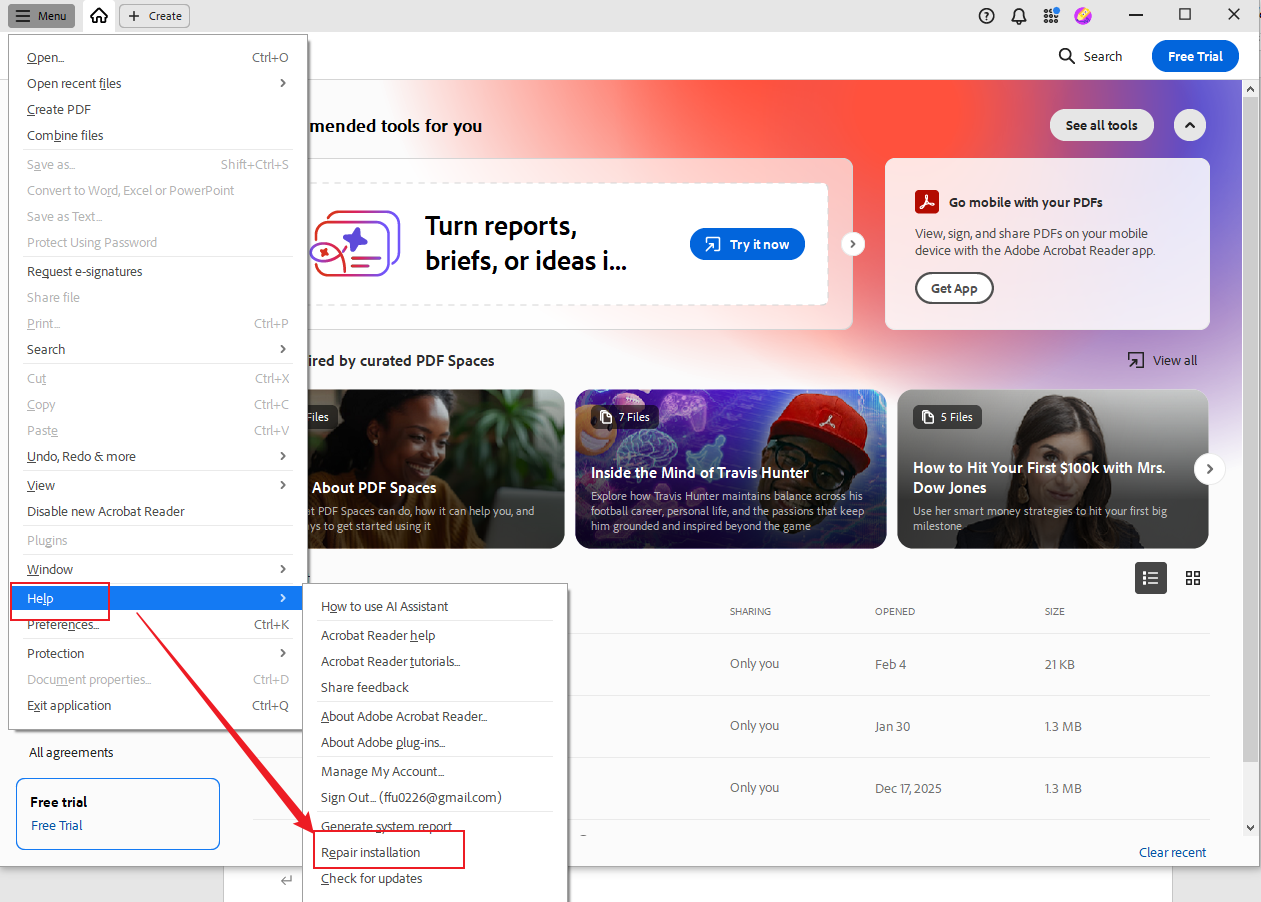
Fixing Adobe Acrobat issues requires a systematic approach ranging from simple application restarts to deep registry cleanses. Most common errors—including crashes, failure to launch, or PDF rendering bugs—are resolved by using the built-in "Repair Installation" tool, updating the Creative Cloud desktop app, or utilizing the official Adobe Acrobat Cleaner Tool for a fresh environment.
Adobe Acrobat remains the industry standard for PDF management, but its complexity often leads to performance bottlenecks and technical glitches. As of 2026, the software has integrated more AI-driven features and cloud-dependent services, which, while powerful, introduce new potential points of failure related to hardware acceleration and synchronization. When you encounter an "Adobe Acrobat fix" scenario, it is essential to distinguish between a simple configuration error and a corrupted installation that requires a more aggressive recovery strategy.
Initial Diagnostics and System Compatibility
Before applying technical fixes, you must verify that your system environment supports the current 2026 version of Adobe Acrobat. Software conflicts often arise because the underlying operating system or hardware drivers are out of sync with Acrobat’s high-performance rendering engine.
Checking System Requirements
In 2026, Adobe Acrobat Pro and Standard require significant resources, particularly if you are using generative AI tools for document summarization or advanced OCR (Optical Character Recognition). Ensure your machine has at least 8GB of RAM (16GB recommended) and that your graphics drivers are updated. Outdated GPU drivers are a frequent cause of the "Acrobat has stopped working" error, as the software relies on hardware acceleration to render complex vector graphics and high-resolution images.
The Role of the Creative Cloud Desktop App
For most users, Acrobat is managed via the Creative Cloud ecosystem. If Acrobat fails to launch or displays licensing errors, the problem often lies not within Acrobat itself, but in the Creative Cloud background processes. Ensure that the Creative Cloud Desktop app is running the latest build. A frequent "fix" involves simply signing out of the Creative Cloud app, restarting your computer, and signing back in to refresh the authentication tokens that Acrobat requires to operate.
Using the Built-In Repair Installation Tool
For Windows users, Adobe provides a native diagnostic utility that can resolve missing or corrupted DLL files without requiring a full uninstallation. This should always be your first step when the application feels "sluggish" or certain menu items are missing.
How to Run the Repair
To initiate this fix, open Adobe Acrobat and navigate to the Help menu in the top navigation bar. Select Repair Installation. The software will then run a self-check against its original manifest, identifying files that have been overwritten or deleted by other system processes. This process generally takes between five and ten minutes and requires administrative privileges.
Why Repairing Works
The repair tool is specifically designed to fix registry keys and file associations. Often, when other software is installed, PDF "ownership" is hijacked, or shared system files are modified. The Repair Installation tool re-establishes Acrobat as the primary handler for PDF extensions and ensures that the Adobe PDF Printer driver is correctly mapped to your system's print spooler. If the repair tool fails to launch, it indicates a deeper corruption of the core installer, necessitating a more comprehensive cleanup.
Addressing Crashes and Freezes via "Protected Mode"
One of the most common reasons for Adobe Acrobat crashes is a conflict with "Protected Mode," a sandboxing security feature designed to prevent malicious code in PDFs from accessing your system. While essential for security, this sandbox can sometimes conflict with anti-virus software or specific network configurations.
Troubleshooting Sandbox Conflicts
If Acrobat freezes immediately upon opening a file, try disabling Protected Mode temporarily to see if the issue persists. Navigate to Edit > Preferences > Security (Enhanced). Uncheck the box that says Enable Protected Mode at startup.
Caution: Disabling this feature reduces your protection against malicious PDF files. If this "fix" works, the permanent solution is not to leave the feature off, but to add the specific file path or folder to the "Privileged Locations" list within the same Security (Enhanced) menu. This tells Acrobat that files in those locations are trusted, allowing the sandbox to remain active for all other documents.
Hardware Acceleration Adjustments
If the application crashes during scrolling or when viewing high-resolution blueprints, the issue is likely related to 2D Graphics Acceleration. Under Preferences > Page Display, look for the "Rendering" section and toggle the Use hardware acceleration setting. On many modern systems in 2026, conflicts between Acrobat’s rendering engine and integrated laptop graphics can cause the "White Screen" bug, where the PDF content disappears while the UI remains visible.
The Adobe Acrobat Cleaner Tool: The "Nuclear" Fix
When standard uninstallation through the Windows Control Panel or macOS Applications folder fails to resolve recurring errors, the Adobe Acrobat Cleaner Tool is the most effective solution. This utility is designed to remove every trace of the application, including orphaned registry entries and hidden cache folders that a standard uninstall leaves behind.
Step-by-Step Cleanup Process
- Download: Obtain the official Acrobat Cleaner Tool from the Adobe Labs website.
- Selection: Run the utility and select "Acrobat" as the product you wish to clean.
- Execution: The tool will scan for all versions (Standard, Pro, or Reader). Confirm the deletion of all associated files.
- Reboot: You must restart your computer after the tool finishes to clear the system memory of any remaining hooks.
- Reinstall: Download a fresh installer from the Creative Cloud website or your Adobe account portal.
This method is particularly effective for fixing "Error 1603" or "Error 1722," which typically occur during failed updates. These errors usually mean that a previous version's files are "locked" and preventing the new version from writing necessary data to the disk.
Fixing PDF Rendering and Font Issues
Sometimes the "fix" isn't for the application itself, but for how it displays specific documents. If text appears as garbled characters or "boxes," the issue is usually related to font embedding or the local font cache.
| Issue Type | Symptom | Primary Fix |
|---|---|---|
| Font Distortion | Text displays as blocks or strange symbols. | Uncheck "Use local fonts" in Page Display Preferences. |
| Printing Failure | Acrobat freezes when hitting "Print." | Update printer drivers or use "Print as Image" in Advanced Print settings. |
| Plugin Conflicts | Acrobat won't start; third-party tools missing. | Move files from the Plugins folder to a backup and restart. |
| Slow Loading | Large PDFs take minutes to open. | Disable "Verify signatures on document open" in Signature Preferences. |
| Update Error | "Update failed" message persists. | Manually download the .msp patch file from the Adobe FTP or Help site. |
Refreshing the Font Cache
If Acrobat is struggling with text rendering, you can force it to rebuild its internal font map. On Windows, this involves navigating to C:\Users\[User]\AppData\Local\Adobe\Acrobat\DC and clearing the contents of the Cache folder. Upon the next launch, Acrobat will re-scan your system fonts, often resolving visual discrepancies in documents that do not have embedded fonts.
Resolving Network and Cloud Sync Errors
In 2026, much of Acrobat's functionality—such as E-signatures via Adobe Sign and cloud storage integration—relies on a stable connection to Adobe’s servers. If you find that you can open local PDFs but the program hangs when trying to save to the cloud, the fix usually involves network configuration.
Clearing Identity Caches
Acrobat stores login credentials in a local "Identity" folder. If this folder becomes corrupted, you may be caught in an endless login loop. To fix this, close all Adobe applications and delete the OOBE and AdobeSvc folders found in the AppData (Windows) or Application Support (Mac) directories. This forces the software to re-negotiate a secure handshake with the Adobe servers, clearing any stale session tokens.
Firewall and Proxy Settings
Corporate environments often use firewalls that block the specific ports Acrobat uses for its 2026 AI and cloud services. Ensure that the following domains are whitelisted in your security software: *.adobe.com, *.adobelogin.com, and *.adobe.io. If you are using a VPN, try disconnecting it to see if the software functions correctly; many "Adobe Acrobat fix" requests are resolved simply by bypassing a restrictive network tunnel that interferes with the software's background telemetry.
Frequently Asked Questions
Why does Adobe Acrobat keep asking me to sign in?
This is typically caused by a synchronization error between your local machine and the Adobe ID servers. To fix this, sign out of the Creative Cloud Desktop app, restart your machine, and sign back in. If the problem persists, use the Adobe Connection Error Fixer tool to ensure your host files haven't been modified to block Adobe's licensing servers.
How do I fix the "Acrobat cannot find its licensing component" error?
This error usually points to a failure in the "Adobe Genuine Software Integrity Service." Ensure this service is enabled in your Windows Services manager (services.msc). If it is already running, you may need to uninstall and reinstall the Creative Cloud Desktop app, as it handles the licensing background for Acrobat Pro and Standard.
Why won't Adobe Acrobat open my PDF files after a Windows update?
Windows updates frequently reset "Default App" associations. To fix this, right-click any PDF file, select "Open with," then "Choose another app." Select Adobe Acrobat, and ensure you check the box that says "Always use this app to open .pdf files." This re-registers the file association in the Windows Registry.
Can I fix Adobe Acrobat by rolling back to a previous version?
While Adobe generally encourages staying on the 2026 build for security reasons, you can install older versions via the "Other Versions" section in the Creative Cloud Desktop app. This is a common temporary fix if a specific update introduces a bug that interferes with your particular workflow or hardware.
What should I do if Acrobat freezes when I try to combine files?
Combining files is a memory-intensive process. If Acrobat freezes, try clearing your temporary files folder (%TEMP% in Windows) and ensuring you have enough disk space for the scratch files Acrobat creates during the merging process. Additionally, check if any of the files are password-protected, as this can halt the combination process without a clear error message.
How do I fix "Out of Memory" errors in Acrobat?
Despite having plenty of physical RAM, Acrobat may throw this error if the "Page File" (Virtual Memory) on your system is too small or if the specific PDF has an extremely high DPI. Try reducing the resolution of the images in the PDF or increasing your Windows Virtual Memory settings in the System Performance menu.
Practical Recommendations for Ongoing Stability
To prevent future issues and minimize the need for a complex "Adobe Acrobat fix," maintain a proactive maintenance schedule. First, always ensure that automatic updates are enabled within the application preferences. Adobe frequently releases out-of-band patches for zero-day vulnerabilities and critical performance bugs. Second, avoid installing excessive third-party plugins unless they are essential for your business, as these are the leading cause of application instability.
If you have exhausted all the steps above—including the use of the Acrobat Cleaner Tool and verifying your network settings—your next step should be to generate a system info log from within Acrobat (found under Help > About) and contact Adobe Technical Support. Providing them with this log allows their engineers to identify specific DLL conflicts unique to your hardware configuration.