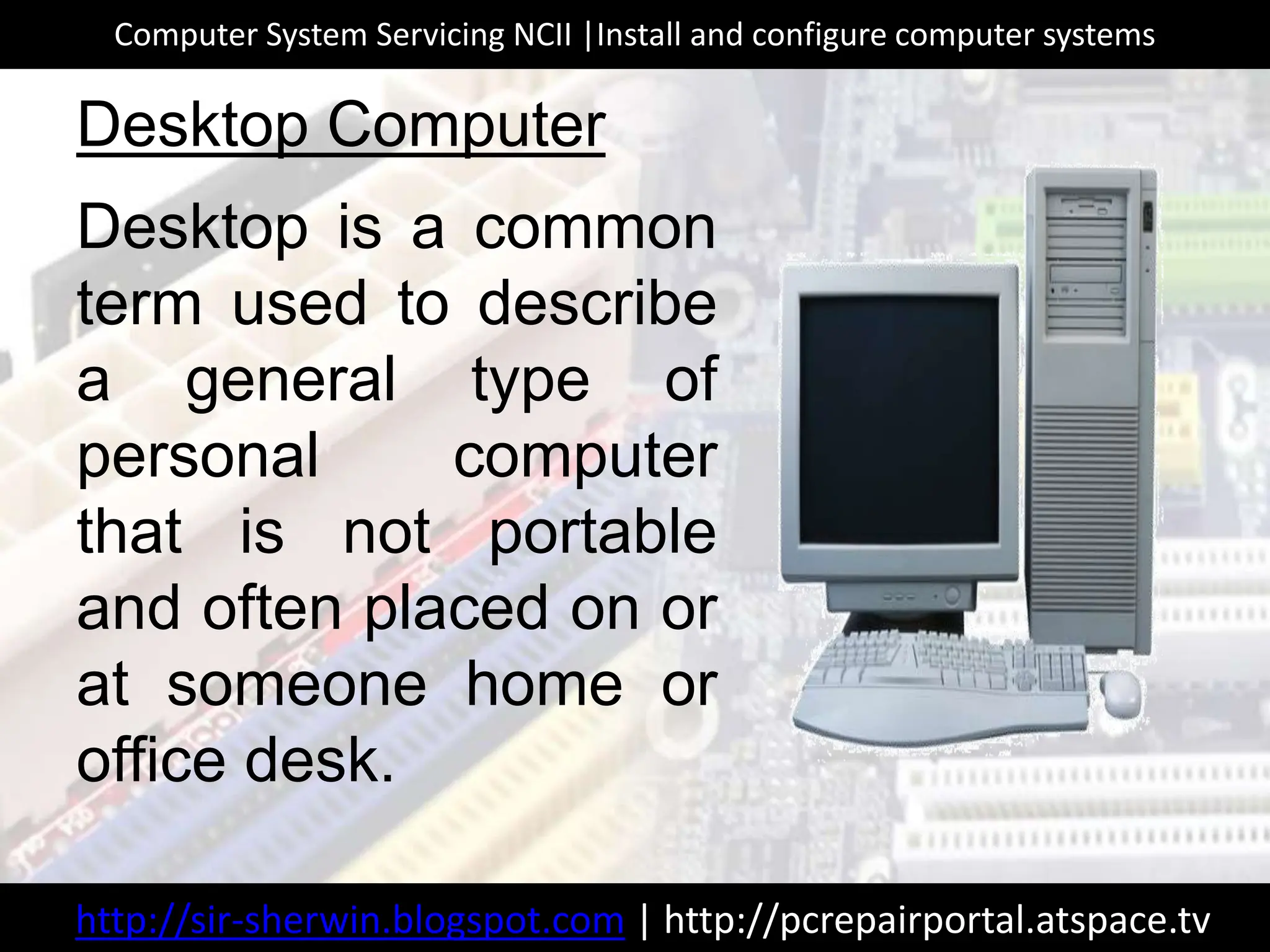
A personal computer (PC) is a multi-purpose computing device whose size, capabilities, and price make it feasible for individual use. It functions by processing data through a combination of hardware components and software instructions, enabling users to perform tasks ranging from professional document creation and data analysis to high-definition gaming and communication.
The Evolution and Definition of the Personal Computer
To understand the personal computer in 2026, one must recognize its fundamental purpose: to serve as an accessible, localized hub for digital activity. While the term "PC" was historically synonymous with IBM-compatible machines running Windows, it now encompasses a broader range of devices, including desktops, laptops, and highly portable workstations.
The core identity of a personal computer lies in its versatility. Unlike a specialized appliance (like a smart toaster) or a gaming console, a PC is designed to be programmed or configured to perform almost any digital task. This flexibility is provided by the modular nature of its hardware and the open environment of its operating system. Whether you are a student, a creative professional, or a casual browser, the PC adapts to your specific requirements through the installation of diverse software applications.
In 2026, the PC remains the primary tool for deep work. While smartphones and tablets excel at content consumption and light communication, the personal computer provides the tactile precision of a physical keyboard, the screen real estate necessary for multi-tasking, and the raw processing power required for complex computations.
Core Hardware Components: The Anatomy of a PC
Every personal computer relies on a specific set of hardware components to function. These parts work in a synchronized "fetch-execute" cycle to process information. Understanding these components is essential for troubleshooting and making informed purchasing decisions.
The Central Processing Unit (CPU)
Often referred to as the "brain" of the computer, the CPU executes the instructions of a computer program. In 2026, most CPUs are multi-core, meaning they contain multiple independent processing units on a single chip. Modern processors also include dedicated Neural Processing Units (NPUs) designed specifically to handle Artificial Intelligence (AI) workloads, such as real-time language translation or image enhancement, without taxing the main processing cores.
Motherboard
The motherboard is the computer's main circuit board. It acts as the central hub that connects the CPU, memory, storage, and all other peripherals. It dictates what kind of hardware can be installed, including the number of USB ports, the type of RAM supported, and the speed of the connection to the storage drives.
Random Access Memory (RAM)
RAM is the computer's short-term memory. It stores the data that the CPU is currently using. Because RAM is volatile, it loses its data when the power is turned off. In 2026, 16GB of RAM is considered the baseline for a smooth experience, while 32GB or 64GB is standard for professional workflows involving video editing or large-scale data sets.
Storage: SSD vs. HDD
Storage is where data is kept permanently.
- Solid State Drives (SSD): These use flash memory and have no moving parts. They are significantly faster than traditional drives and are the standard for 2026 PCs. Most modern PCs use NVMe (Non-Volatile Memory Express) SSDs, which plug directly into the motherboard for maximum speed.
- Hard Disk Drives (HDD): These use spinning magnetic platters. While they offer high capacity at a low cost, they are rarely used as primary boot drives in modern machines due to their relative slowness. They are now primarily used for bulk archiving.
The Graphics Processing Unit (GPU)
The GPU handles the rendering of images, animations, and videos. It can be "integrated" (built into the CPU) or "discrete" (a separate card). Integrated graphics are sufficient for office work and web browsing, while discrete GPUs are necessary for high-end gaming, 3D modeling, and advanced video production.
The Role of the Operating System (OS)
If hardware is the body of the computer, the operating system is its soul. The OS is the software that manages all hardware and other software on the computer. It provides the user interface (UI) that allows you to interact with the machine.
- Microsoft Windows: The most widely used OS globally, known for its compatibility with a vast range of software and hardware. In 2026, Windows continues to dominate the corporate and gaming sectors.
- macOS: Exclusive to Apple’s Mac hardware. It is known for its stability, sleek design, and deep integration with the Apple ecosystem (iPhone, iPad, iCloud).
- Linux: An open-source OS that is highly customizable. While it has a smaller market share among general users, it is the preferred choice for developers, servers, and privacy-conscious individuals.
- ChromeOS: A lightweight OS from Google designed primarily for web-based applications. It is common in education due to its simplicity and low hardware requirements.
The OS acts as an intermediary. When you click "Save" on a document, the software you are using tells the OS, and the OS, in turn, tells the hardware (the SSD) where and how to write that data.
Form Factors: Choosing the Right Shape
Personal computers come in various shapes and sizes, known as form factors. The best choice depends on whether you value portability or performance.
Desktop Computers
Desktops are designed to stay in one place, usually on or under a desk. They typically offer the best performance for the price and are the easiest to upgrade or repair.
- Towers: Large cases that offer maximum expansion.
- All-in-Ones (AiO): The computer components are built directly into the monitor housing (e.g., the Apple iMac).
- Mini-PCs: Compact units that can be mounted behind a monitor, ideal for space-saving office setups.
Laptops and Portables
Laptops integrate the screen, keyboard, and pointing device into a single battery-powered unit.
- Ultrabooks: Thin, light laptops focused on battery life and portability.
- Gaming Laptops: Heavier machines equipped with powerful GPUs and cooling systems.
- 2-in-1s: Devices with touchscreens that can fold back or detach to function as tablets.
Connectivity and Peripherals
A PC is rarely used in isolation. Connectivity allows it to interact with the world and other devices.
- Networking: Modern PCs utilize Wi-Fi 7 for high-speed wireless internet and Bluetooth 5.4 or 6.0 for connecting wireless mice, keyboards, and headphones. Physical Ethernet ports remain the gold standard for stable, lag-free connections.
- Input Devices: The keyboard and mouse (or trackpad) remain the primary ways we interact with a PC. However, 2026 has seen an increase in voice-to-text accuracy and gesture-based controls.
- Output Devices: Monitors are the primary output, with 4K resolution being the standard for desktop setups. Printers, speakers, and external storage drives further expand the PC's utility.
- Ports: USB-C has become the universal standard, often supporting Thunderbolt protocols that allow a single cable to carry power, data, and video signals simultaneously.
Comparative Specifications for 2026 PC Users
The following table outlines the recommended hardware specifications based on common user profiles in 2026.
| User Profile | Recommended CPU | Minimum RAM | Storage Type/Size | Graphics (GPU) |
|---|---|---|---|---|
| Basic/Student | Quad-core (e.g., Intel i3 / Ryzen 3) | 8GB - 16GB | 256GB NVMe SSD | Integrated |
| Office/Business | Hex-core (e.g., Intel i5 / Ryzen 5) | 16GB | 512GB NVMe SSD | Integrated |
| Creative Pro | Octa-core+ (e.g., Intel i7/i9 / M3/M4 Pro) | 32GB - 64GB | 1TB+ NVMe SSD | Discrete (RTX 40/50 series) |
| Gamer | High-clock Octa-core | 32GB | 1TB - 2TB NVMe SSD | Discrete (High-end) |
| AI Developer | CPU with high NPU TOPS rating | 64GB+ | 2TB NVMe SSD | Discrete (High VRAM) |
Maintenance, Security, and Longevity
To ensure a personal computer remains functional for its expected 5-to-7-year lifespan, regular maintenance is required.
Software Maintenance
Operating systems and applications require frequent updates. These updates are not just for new features; they often contain critical security patches that protect the system from malware and exploits. In 2026, most systems handle these updates automatically, but users should occasionally verify that their "System Update" settings are active.
Physical Care
Computers generate heat. Dust accumulation inside a desktop or laptop can clog fans and heat sinks, leading to thermal throttling (where the computer slows down to prevent damage) or hardware failure. Cleaning the vents with compressed air every few months is a simple but effective preventative measure.
Cybersecurity Basics
In an era of sophisticated phishing and ransomware, basic security hygiene is non-negotiable.
- Multi-Factor Authentication (MFA): Always use a second form of verification for sensitive accounts.
- Biometrics: Use Windows Hello or Apple TouchID/FaceID for secure, convenient logins.
- Backups: Use the "3-2-1 rule"—three copies of your data, on two different media types, with one copy off-site (cloud storage).
Troubleshooting Common Issues
Even the best PCs encounter problems. Most issues can be resolved with a few logical steps.
- The PC won't turn on: Check the power cables first. If it’s a laptop, ensure the battery isn't completely depleted. Listen for "beep codes" or look for diagnostic lights on the motherboard.
- The system is slow: Open the "Task Manager" (Windows) or "Activity Monitor" (macOS) to see if a specific program is consuming too many resources. Often, a simple restart will clear out temporary files and background processes that are causing the lag.
- Internet connection drops: Restart the router and the PC’s Wi-Fi adapter. If the problem persists, check for driver updates for the network card.
Frequently Asked Questions
What is the difference between RAM and storage?
RAM (Random Access Memory) is fast, temporary memory used for tasks currently in progress. Storage (SSD or HDD) is slower, permanent memory used for saving files and programs long-term. Think of RAM as your physical desktop where you lay out your work, and storage as the filing cabinet where you put it away at night.
Is it better to buy a desktop or a laptop?
It depends on your lifestyle. Choose a laptop if you need to work from different locations or attend classes. Choose a desktop if you want more power for your money, a larger screen, and the ability to easily upgrade parts like the GPU or storage in the future.
How long should a personal computer last?
A well-maintained PC typically lasts between 5 and 8 years. While the hardware might still function after this point, the software and operating system requirements may eventually outpace the older hardware's capabilities, leading to slower performance.
Can I build my own PC?
Yes, building a desktop PC is a popular hobby. It allows for complete customization and often results in a higher-quality machine for the same price as a pre-built one. However, it requires research into component compatibility and a basic understanding of hardware assembly.
Do I need a dedicated antivirus in 2026?
For most users, the built-in security features of Windows (Windows Security) and macOS (XProtect) are sufficient when combined with safe browsing habits. Third-party antivirus software is generally only necessary for high-risk environments or users who require advanced administrative controls.
What is an NPU and why do I need one?
A Neural Processing Unit (NPU) is a specialized processor designed for AI tasks. In 2026, many OS features—like background blur in video calls, live captions, and local AI assistants—rely on the NPU to run efficiently without draining the battery or slowing down the main CPU.
Next Actions for New Users
If you are looking to acquire or upgrade a personal computer, your first step should be to define your primary use case. Avoid "over-speccing" a machine for tasks you don't perform; for example, a student does not need a $3,000 gaming rig for word processing and research.
Once you have identified your needs, research the latest models from reputable manufacturers or visit an IEEE or ACM resource for deeper technical standards. Before purchasing, verify the warranty terms and ensure the device has the necessary ports (specifically USB-C/Thunderbolt) to support your existing peripherals.