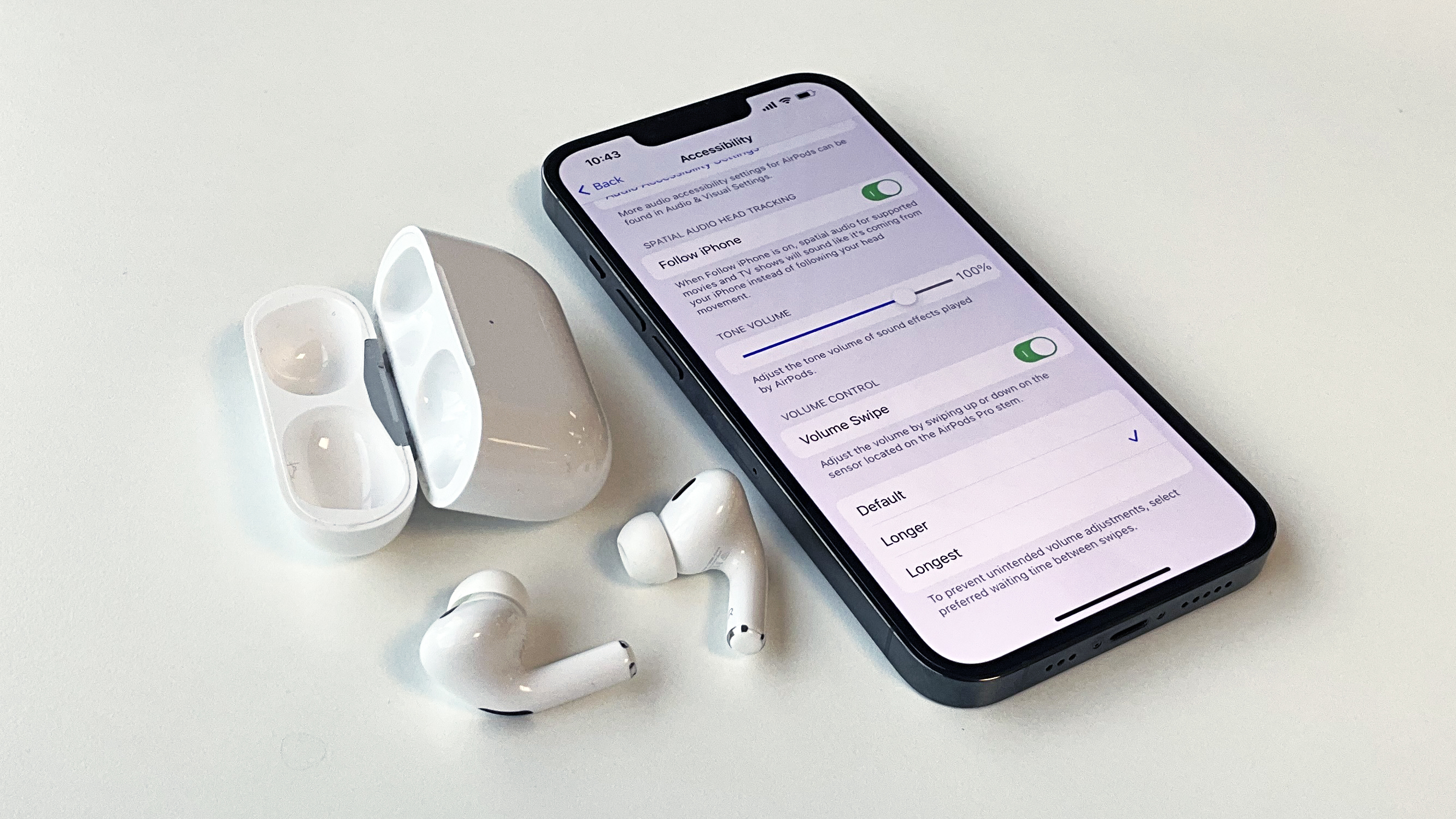
To increase the volume on your AirPods, use the physical volume buttons on your connected iPhone, Mac, or Apple Watch, or ask Siri to "Turn up the volume." For AirPods Pro (2nd Generation), you can swipe upward on the touch control sensor located on the stem. If the audio remains low, disable "Reduce Loud Sounds" in your iOS Headphone Safety settings or clean the speaker meshes to remove debris.
AirPods have redefined the wireless audio experience since their inception, but users frequently encounter situations where the maximum volume feels insufficient or inconsistent. As of 2026, Apple’s ecosystem offers a variety of hardware-based and software-driven methods to manage sound levels. Achieving the perfect volume involves more than just pressing a button; it requires an understanding of how Apple’s software interacts with hardware limitations, regional safety regulations, and the physical condition of the earbuds themselves.
Hardware-Specific Controls for AirPods Models
The method for adjusting volume directly on the hardware varies significantly depending on the specific model you own. While all AirPods can be controlled via the host device, only certain iterations allow for direct, on-device volume manipulation.
AirPods Pro (2nd Generation) and Beyond
The AirPods Pro (2nd Gen), including the USB-C versions refreshed in recent years, features a dedicated touch-sensitive layer on the stems. Unlike the first-generation Pro models, which only supported "squeezing" the force sensor to toggle noise cancellation or playback, the 2nd Gen allows for volume sliding.
To increase the volume, place your thumb on the back of either AirPod stem and use your index finger to lightly swipe upward on the indented touch control area on the front. You will hear a faint, clicking feedback tone in your ear for every increment the volume increases. It is important to use a light touch; excessive pressure often triggers the force sensor (the "squeeze" action) instead of the swipe gesture.
AirPods Max
Apple’s over-ear headphones utilize a physical interface borrowed from the Apple Watch: the Digital Crown. To increase the volume on the AirPods Max, rotate the Digital Crown upward (or forward, depending on how you have oriented the controls in your settings). The Digital Crown provides precise, granular control over the gain, making it the most tactile volume adjustment method in the entire AirPods lineup.
AirPods (1st, 2nd, 3rd, and 4th Generations)
Standard AirPods do not feature on-device volume gestures. Users with these models must rely on secondary methods. While the force sensors on the 3rd and 4th Generation models allow you to play, pause, or skip tracks, they do not register swipes. For these users, volume management is strictly handled via the connected device or voice commands.
Software Optimization and System Settings
Often, the reason AirPods feel "too quiet" is not a lack of hardware capability but rather a software restriction designed to protect hearing or normalize audio levels. Navigating these settings in iOS and iPadOS is the most effective way to "boost" the ceiling of your audio experience.
Disabling "Reduce Loud Sounds"
Apple includes a "Headphone Safety" feature intended to prevent long-term hearing damage. This feature monitors decibel levels and automatically caps the volume if it exceeds a certain threshold.
- Open Settings on your iPhone or iPad.
- Navigate to Sounds & Haptics.
- Select Headphone Safety.
- Check the status of Reduce Loud Sounds. If this is toggled on, your device will truncate any audio peaking above a set decibel level (e.g., 85 decibels). To achieve maximum raw volume, toggle this switch Off, or move the slider to 100 decibels. Note that doing so increases the risk of hearing fatigue or damage over extended periods.
Adjusting Headphone Accommodations
Hidden within the Accessibility menu is one of the most powerful tools for increasing perceived volume. Headphone Accommodations allows you to amplify soft sounds and tune specific frequencies, which can make music and podcasts sound significantly louder and clearer.
- Go to Settings > Accessibility.
- Scroll down to Audio/Visual.
- Tap on Headphone Accommodations and toggle it On.
- Select Balanced Tone, Vocal Range, or Brightness.
- Adjust the slider from "Slight" to Strong. Setting this to "Strong" provides a noticeable boost in the mid-to-high frequency ranges, which often makes the audio feel much more prominent without technically increasing the master decibel output of the device.
Equalizer (EQ) Adjustments
The Music app on iOS features a built-in Equalizer. Some EQ settings are naturally "louder" than others. For instance, the Late Night EQ setting compresses the dynamic range, bringing quiet sounds up to the level of loud sounds. This is a well-known "hack" for users who find their AirPods insufficient in noisy environments. To change this, go to Settings > Music > EQ and select Late Night.
Troubleshooting Low Volume Issues
If your AirPods were previously loud but have become quieter over time, the issue is likely mechanical or related to a software glitch rather than a settings configuration.
Cleaning the Acoustic Mesh
The most common cause of diminished volume is the accumulation of earwax and debris on the black speaker mesh. Because the AirPods sit deep in the ear canal, organic buildup acts as a physical muffler, significantly reducing the sound pressure level reaching your eardrum.
To clean them properly:
- Use a dry, soft-bristled toothbrush to gently scrub the mesh.
- Use a toothpick or a specialized cleaning tool to carefully remove debris from the edges of the mesh, being careful not to puncture the screen.
- Wipe the exterior with a cloth slightly dampened with 70% isopropyl alcohol, ensuring no liquid enters the speaker holes.
Recalibrating the Volume Link
Sometimes, the "handshake" between the AirPods and the iPhone becomes desynchronized. This results in the phone indicating the volume is at 100%, while the AirPods are only outputting at 50-60%.
To fix this calibration error:
- While wearing your AirPods and playing music, turn the volume all the way down to zero.
- Go to Settings > Bluetooth and tap the "i" icon next to your AirPods, then select Disconnect (do not "Forget" the device).
- Continue playing music on your iPhone (it will now play through the phone's speakers). Turn the iPhone volume to zero again.
- Reconnect your AirPods via the Bluetooth menu.
- Gradually increase the volume; the two devices should now be properly synced.
Volume Management Across Other Devices
While the iPhone is the primary hub for most users, AirPods are frequently used with Macs, Apple Watches, and even Android devices. Each platform has its own nuances for volume control.
Apple Watch
If you are exercising and do not want to reach for your phone, the Apple Watch is the most efficient controller. Open the Now Playing screen on your watch and rotate the Digital Crown. This provides an immediate response on the connected AirPods. In 2026, watchOS continues to prioritize this tactile feedback, making it a favorite for runners.
macOS
On a Mac, you can increase volume using the volume keys on the Magic Keyboard or the slider in the Control Center (top right of the menu bar). If the volume is still too low on a Mac, check the Sound section in System Settings. Ensure the "Output" balance is centered and that no third-party audio "hijacker" apps (like EQ Mac or Boom) are suppressing the gain.
Android and Windows
When using AirPods with non-Apple hardware, you may encounter the "Absolute Volume" bug. On Android, the phone's volume and the AirPods' internal volume can sometimes operate independently.
- Enable Developer Options on your Android phone.
- Search for Disable Absolute Volume and toggle it On.
- This allows you to control the AirPods' internal amplifier separately from the phone's Bluetooth stream, often resolving "quiet" audio issues.
Comparison of Volume Control Methods by AirPods Model
| AirPods Model | On-Device Volume Control | Primary Gesture | Recommended Boost Setting |
|---|---|---|---|
| AirPods (1st/2nd Gen) | No | Device Only / Siri | Headphone Accommodations |
| AirPods (3rd Gen) | No | Device Only / Siri | Late Night EQ |
| AirPods 4 / ANC | No | Device Only / Siri | Headphone Accommodations |
| AirPods Pro (1st Gen) | No | Device Only / Siri | Disable Reduce Loud Sounds |
| AirPods Pro (2nd Gen) | Yes | Swipe Stem (Up/Down) | N/A (Native Support) |
| AirPods Max | Yes | Digital Crown Rotation | N/A (Native Support) |
Frequently Asked Questions
Why is one AirPod louder than the other?
This is typically caused by a buildup of debris in the mesh of the quieter earbud or an accidental shift in the "Audio Balance" settings. To check the balance, go to Settings > Accessibility > Audio/Visual and ensure the slider is positioned exactly in the center between Left and Right. If the balance is correct, the issue is likely a physical blockage requiring cleaning.
Does Low Power Mode affect AirPods volume?
While Low Power Mode on your iPhone is designed to save battery by reducing background processes, it generally does not throttle the maximum volume of Bluetooth audio. However, it may disable certain features like "Hey Siri," making it more difficult to adjust volume hands-free.
Can I use Siri to increase volume if I'm offline?
As of 2026, most Siri commands related to device control, including volume adjustments, are processed on-device for models with the H2 chip or later (such as AirPods Pro 2 and AirPods 4). This means you can say "Siri, volume up" even without an active internet connection, provided your iPhone or iPad is nearby.
Why does my volume drop automatically when I start talking?
This is likely a feature called Conversation Awareness, available on newer AirPods Pro and AirPods 4 models. It automatically lowers the volume and enhances the voices of people in front of you when it detects you are speaking. You can disable this by going to your AirPods settings in the Control Center and toggling off "Conversation Awareness."
Is there a way to make AirPods louder than the "maximum" setting?
Beyond disabling safety limits and using the "Late Night" EQ or "Headphone Accommodations," there is no safe way to exceed the hardware's maximum gain. Using third-party "Volume Booster" apps is generally discouraged as they can cause digital clipping, which distorts audio and may permanently damage the tiny drivers inside the AirPods.
Practical Recommendation for 2026 Users
For the best audio experience in 2026, users should prioritize cleanliness and software calibration. If you are using a standard pair of AirPods (3rd or 4th Gen) and find them too quiet in public spaces, the most effective "instant" fix is enabling Headphone Accommodations with a Strong boost on Balanced Tone. This provides the necessary punch to overcome environmental noise without the distortion associated with third-party apps. For users planning an upgrade, the AirPods Pro (2nd Gen) remains the gold standard for volume management due to its intuitive on-stem swipe controls and superior Active Noise Cancellation, which lowers the noise floor so your music doesn't have to fight for attention.