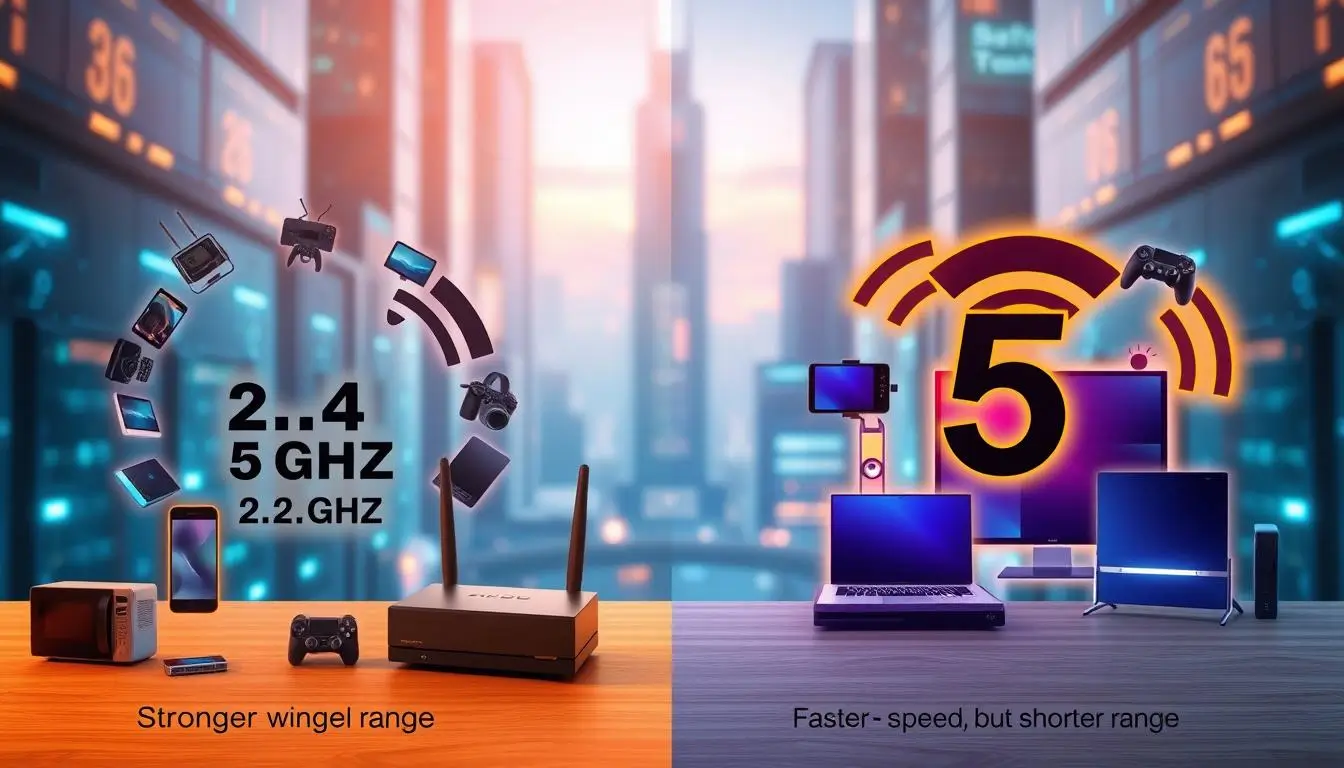
Choosing between the 2.4 GHz and 5 GHz Wi-Fi bands comes down to balancing range and speed; 2.4 GHz covers a wider area and penetrates walls easily, making it ideal for distant rooms and smart home devices, while 5 GHz delivers much faster data rates with lower latency for high-bandwidth activities like streaming and gaming, provided you are close to the router.
Navigating home wireless networks often brings users to a fundamental crossroads: deciding which frequency band should carry their internet traffic. Modern wireless routers broadcast signals across multiple frequencies, most commonly 2.4 GHz and 5 GHz. Understanding the core technical differences between these two bands allows homeowners to optimize their network layout, reduce interference, and ensure that every connected device—from desktop computers to smart lightbulbs—receives a stable, appropriate connection.
Decoding the Wireless Spectrum: The Basics of 2.4 GHz and 2.4 GHz
To understand how wireless signals behave inside a home, it helps to examine the physics of radio waves. Frequency is measured in gigahertz (GHz), representing billions of cycles per second. The 2.4 GHz band operates at a lower frequency, which yields longer wavelengths. These long waves bend easily around physical obstructions like walls, large furniture, and appliances, giving 2.4 GHz a broad coverage footprint capable of blanketing an entire multi-story house from a single central router location.
Conversely, the 5 GHz band operates at a higher frequency with much shorter wavelengths. While high-frequency waves can carry significantly more data per second, they struggle to pass through solid materials. Concrete walls, thick plaster, and metal appliances heavily attenuate 5 GHz signals, causing them to degrade rapidly over distance and when blocked by physical barriers. Consequently, a 5 GHz network requires closer proximity to the router or the deployment of access points and mesh nodes to maintain a reliable connection throughout a home.
Channel Capacity and Interference
Another critical distinction lies in channel availability and network congestion. The 2.4 GHz band offers a very narrow spectrum divided into just 11 channels in North America (or 13 internationally), with only three non-overlapping channels (1, 6, and 11). Because 2.4 GHz is heavily utilized not only by Wi-Fi networks but also by common household electronics—including Bluetooth devices, microwave ovens, baby monitors, and garage door openers—this band frequently suffers from severe interference and packet loss.
The 5 GHz band, by contrast, provides a much wider radio frequency spectrum divided into significantly more channels, many of which do not overlap. This abundance of channels drastically reduces the likelihood of interference from neighboring Wi-Fi networks or household gadgets. As a result, the 5 GHz band supports cleaner data transmissions, higher throughput rates, and more consistent performance, particularly in densely populated urban environments like apartment buildings where dozens of wireless networks compete for the same airwaves.
Performance Comparison: Speed, Range, and Latency
When evaluating performance metrics, the two bands serve distinct operational profiles. Speed is a primary advantage of the 5 GHz band. Because of its higher frequency and broader channels (often bonding multiple channels together), 5 GHz easily handles multi-gigabit speeds, making it the preferred path for downloading large files, streaming 4K or 8K video content, and participating in high-definition video conferences.
The 2.4 GHz band, constrained by its narrow bandwidth and legacy protocols, typically tops out at much lower data rates. While sufficient for checking emails, browsing text-based websites, or listening to streaming audio, a 2.4 GHz connection can quickly bottleneck when multiple high-demand users attempt to access the network simultaneously.
| Feature / Metric | 2.4 GHz Wi-Fi Band | 5 GHz Wi-Fi Band |
|---|---|---|
| Max Theoretical Speed | Lower (typically up to 450–600 Mbps depending on standard) | Much Higher (up to several Gbps) |
| Range / Coverage | Long range; blankets large areas easily | Shorter range; degrades quickly over distance |
| Wall Penetration | Excellent; bends around and passes through solid barriers | Poor; absorbed or reflected by walls and heavy objects |
| Interference Level | High (shared with Bluetooth, microwaves, baby monitors) | Low (cleaner spectrum, more non-overlapping channels) |
| Ideal Use Cases | Smart home devices, IoT gadgets, long-range browsing | 4K streaming, competitive gaming, large file downloads |
Latency—the delay time it takes for data packets to travel from a device to the router and back to the server—is another vital consideration. In competitive online gaming or real-time voice applications, low latency is essential to prevent stuttering and lag. The 5 GHz band consistently delivers lower latency due to less congestion and faster data processing. The 2.4 GHz band often exhibits higher and more volatile latency spikes because of background interference from non-Wi-Fi devices sharing the same frequency.
Mapping Devices to the Right Band
Because neither band is universally superior in every scenario, the optimal home network strategy involves categorizing devices based on their operational requirements and physical locations.
High-Demand and Stationary Devices
Desktop computers, gaming consoles, smart TVs used for streaming high-resolution media, and home office workstations should ideally connect to the 5 GHz band. Because these devices are often stationary or located within the same room as the wireless router, they benefit directly from the high throughput and low latency of the higher frequency. If a stationary device cannot maintain a stable 5 GHz link due to physical distance, utilizing a wired Ethernet connection remains the gold standard for performance.
Smart Home Ecosystems and Mobile Gadgets
Smart home technology—including smart plugs, security cameras, smart bulbs, and automated thermostats—almost exclusively relies on the 2.4 GHz band. There are two primary reasons for this design choice. First, Internet of Things (IoT) devices do not require massive data bandwidth; they transmit small packets of status data infrequently. Second, IoT devices are often placed outdoors, in garages, or behind walls where a 5 GHz signal cannot reach. The extended range and superior wall-penetration capabilities of the 2.4 GHz band ensure these devices stay reliably connected to the home network.
Modern Solutions: Smart Connect and Dual-Band Routing
Historically, home routers forced users to manually select between two separate network names (SSIDs), such as "HomeNetwork" for 2.4 GHz and "HomeNetwork_5G" for the faster band. This required homeowners to constantly troubleshoot why a device in the back bedroom was dropping its connection or why a laptop sitting next to the router was running slowly.
Modern routers frequently feature technologies branded as Smart Connect, Band Steering, or Smart SSID. These features combine both frequencies under a single Wi-Fi network name and password. The router's firmware intelligently monitors the signal strength, distance, and capability of each connected device, dynamically steering it to the most appropriate band. When a smartphone is carried into the kitchen, the router can seamlessly transition it from the congested 5 GHz band to the more robust 2.4 GHz band without dropping the active session.
However, users should note that some smart home setup routines require temporarily disabling band steering or forcing a phone onto the 2.4 GHz band, as certain IoT setup applications struggle to pair when both frequencies share a single identifier.
Common Mistakes in Home Wi-Fi Management
Optimizing a home wireless layout requires avoiding several common configuration and placement errors that undermine network performance.
- Placing the Router in a Obscured Location: Tucking a router inside a media cabinet, behind a television, or on the floor behind a couch severely restricts both 2.4 GHz and 5 GHz signal propagation. Routers should be placed in an open, elevated, and centralized location within the home.
- Ignoring Channel Congestion: Leaving a 2.4 GHz network on default auto-selected channels (often channel 1, 6, or 11) in a dense neighborhood can cause severe slowdowns. Utilizing a Wi-Fi analyzer tool to identify overlapping neighboring networks and manually selecting the clearest channel can yield immediate performance gains.
- Assuming 5 GHz Fixes All Distance Issues: Upgrading a device to 5 GHz will not solve connectivity drops caused by thick concrete walls or extreme distance. In larger homes, relying solely on a single router is insufficient; deploying a multi-node mesh Wi-Fi system is necessary to extend robust coverage.
- Overloading the 2.4 GHz Band: Connecting dozens of heavy-streaming devices and computers to the 2.4 GHz band while leaving the 5 GHz band underutilized creates unnecessary network congestion. Reserve 2.4 GHz for IoT devices and distant gadgets whenever possible.
Troubleshooting Connectivity Challenges
When wireless performance falters, systematic troubleshooting helps isolate whether the issue stems from interference, hardware limitations, or ISP bottlenecks.
First, test the connection speed near the router using a wired connection to establish a baseline of what the internet service provider is delivering. If wireless speeds drop significantly in specific rooms, observe whether the device is defaulting to the 2.4 GHz band due to weak 5 GHz penetration. If so, moving closer to the router, removing physical obstructions, or installing a wireless extender or mesh node will bridge the coverage gap.
If interference is suspected on the 2.4 GHz band—manifesting as dropped smart home devices or sluggish browsing—temporarily power down nearby electronics known to cause interference, such as analog baby monitors or unshielded Bluetooth peripherals, to test for improvement. Restarting the wireless router clears out temporary cache bottlenecks and forces the hardware to re-evaluate optimal channel assignments upon reboot.
Frequently Asked Questions
Does 5 GHz use more electricity than 2.4 GHz?
While operating at a higher frequency requires slightly more power from the router's hardware, the difference in electrical draw on home appliances or routers is negligible. However, mobile devices scanning constantly for a weak 5 GHz signal may experience slightly faster battery drain compared to maintaining a steady 2.4 GHz connection.
Can my older devices connect to a 5 GHz network?
No, legacy devices manufactured before the widespread adoption of dual-band standards—such as older smartphones, early generation streaming sticks, or older laptop wireless cards—only possess 2.4 GHz Wi-Fi radios. These devices cannot "see" or connect to a 5 GHz broadcast.
Why does my Wi-Fi drop to 2.4 GHz automatically?
Most modern operating systems and routers use automatic band steering. If your device moves further away from the router or encounters an obstruction that blocks the high-frequency 5 GHz signal, the system automatically switches to the lower-frequency 2.4 GHz band to maintain an active internet connection rather than disconnecting entirely.
Is 5 GHz harmful to health compared to 2.4 GHz?
No, both 2.4 GHz and 5 GHz Wi-Fi utilize non-ionizing radio frequency radiation, which lacks the energy required to damage human DNA or cells. The power output of home routers is heavily regulated by governing bodies such as the FCC and remains far below safety thresholds established for public exposure.
Should I separate my 2.4 GHz and 5 GHz network names?
Separating the SSIDs (e.g., naming them Network_2.4 and Network_5) is beneficial if you want absolute manual control over which device connects to which band, which is often helpful when troubleshooting stubborn smart home device setups. However, leaving them combined under a single name via smart steering offers a more convenient, plug-and-play experience for general users.
Conclusion and Next Actions
Neither the 2.4 GHz nor the 5 GHz band wins the home network competition universally; rather, they serve complementary roles that work best in tandem. The 5 GHz band wins for raw speed, low latency, and high-bandwidth tasks like 4K streaming and gaming, provided devices remain close to the router. The 2.4 GHz band wins for sheer coverage area, wall penetration, and reliable connectivity for smart home automation. To optimize your home network, audit your connected devices, move stationary high-demand electronics onto the 5 GHz band, reserve 2.4 GHz for distant IoT gadgets, and consider a mesh Wi-Fi system if physical layout challenges persist.