The term "123 LogMeIn" refers to a legacy ad-hoc remote support portal associated with LogMeIn (now part of GoTo), historically utilized by IT help desks to quickly connect to customer devices without requiring pre-installed software. While modern remote access solutions have largely evolved toward subscription-based platforms and browser-native portals, understanding how this specific tool operated clarifies the broader evolution of on-demand remote IT support.
Evolution and History of LogMeIn 123 Support
To understand the 123 LogMeIn remote support tool, it is necessary to examine the product ecosystem from which it originated. LogMeIn, Inc. built its reputation on remote desktop access, establishing consumer-facing tools like LogMeIn Free and enterprise-focused software like LogMeIn Rescue. Over time, the company consolidated its product suites, rebranding its corporate identity to GoTo in 2022 to unify products such as GoToAssist, GoToMeeting, and GoToMyPC.
The "123" moniker typically referred to 123.logmein.com, a memorable landing page utilized by technicians to route end-users to an active support session. Instead of forcing non-technical users to navigate complex configuration menus, a technician could instruct a client to visit the 123 portal, enter a numeric code, and download a lightweight, temporary executable file. This streamlined approach minimized friction, reducing the time required to establish a diagnostic connection across heterogeneous operating systems like Windows and macOS.
Core Architecture and How On-Demand Access Worked
On-demand remote support operates differently from unattended access. Unattended access requires a permanent background service running on the host machine, allowing a technician to connect at any time. In contrast, tools associated with the LogMeIn 123 workflow were engineered for ad-hoc, attended sessions.
When a user navigated to the support portal, the mechanism followed a specific sequence:
- Initiation: The technician generated a unique session code from their central console and communicated it to the end-user via phone, email, or chat.
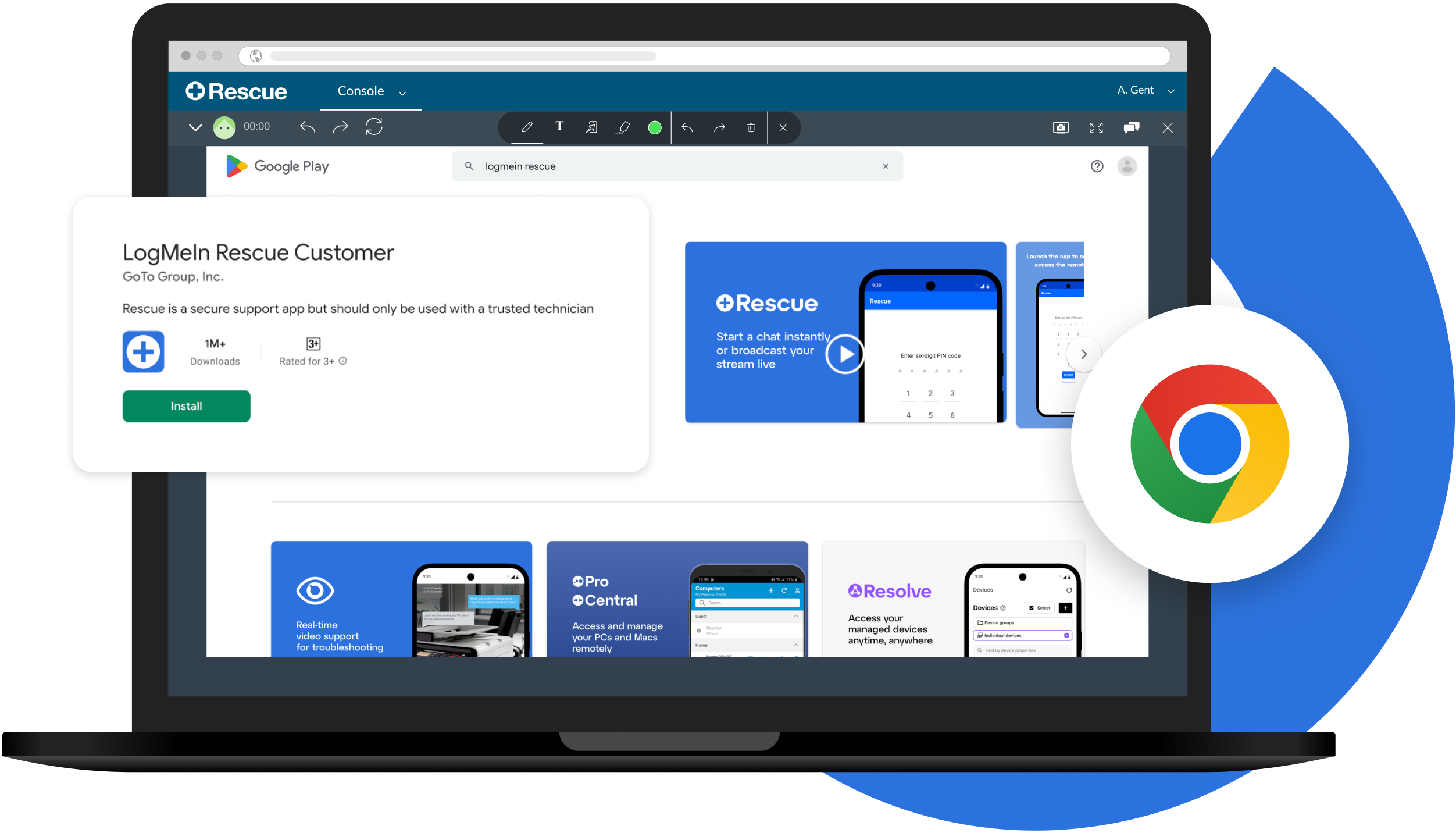
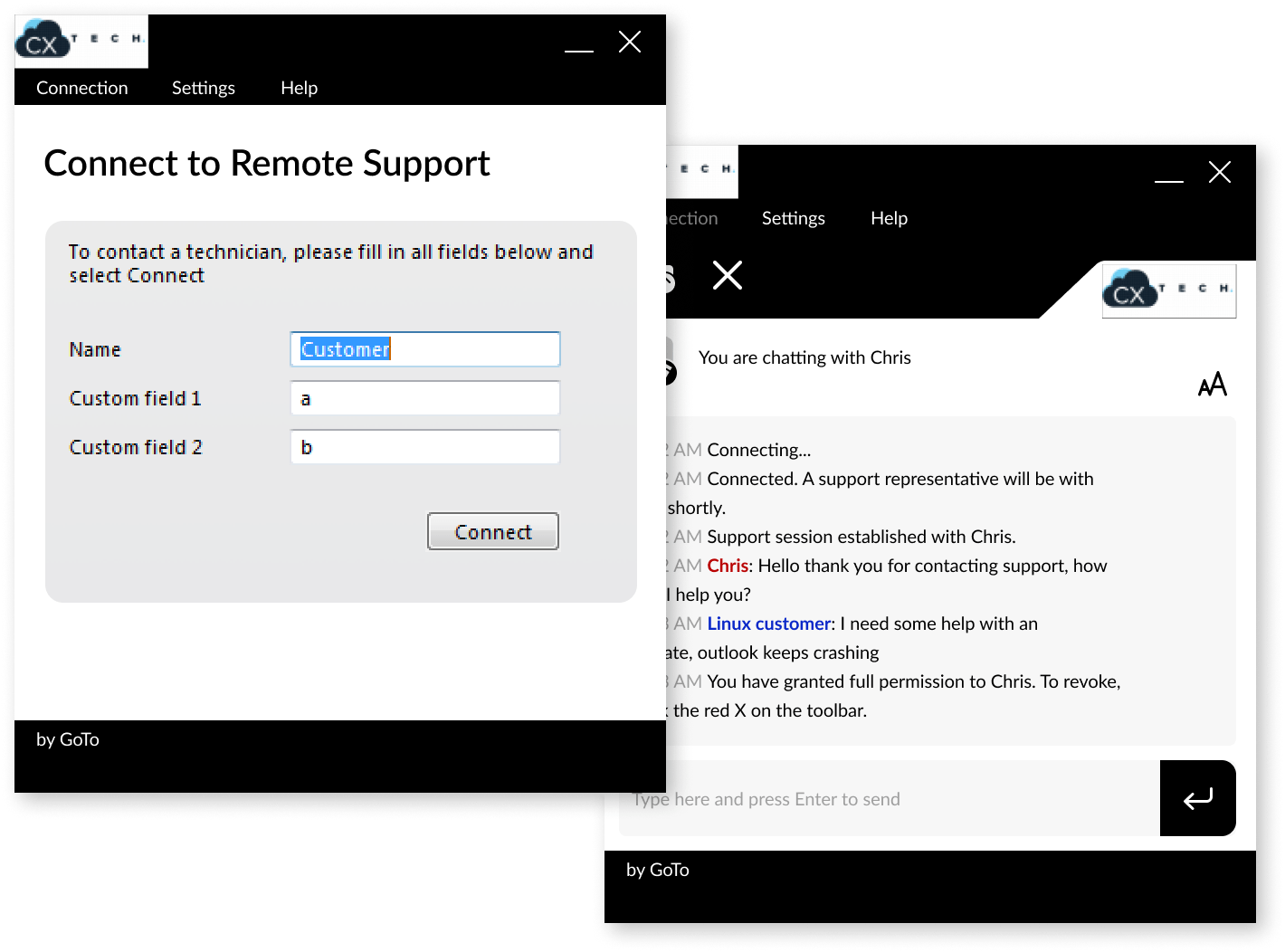
- Landing Page Interaction: The user opened a web browser, navigated to the designated support URL, and inputted the multi-digit PIN.
- Payload Delivery: The browser downloaded a temporary, single-use customer applet. This executable did not require administrative privileges for basic viewing, though system-level actions (such as installing drivers or modifying registry keys) prompted for UAC (User Account Control) elevations.
- Connection Handshake: Outbound HTTPS and secure WebSocket connections pierced through standard firewalls and Network Address Translation (NAT) gateways, establishing an encrypted bridge between the technician and the client.
- Session Termination: Once the support window closed and the customer applet was shut down, the software automatically purged its primary executable components from the local system, leaving no persistent background daemon behind.
Transition from Free Offerings to Enterprise Subscriptions
A common point of confusion among users searching for "123 LogMeIn free remote support tool" is the availability of a genuinely free tier. Historically, LogMeIn offered popular free remote desktop tiers for personal use, which allowed individuals to connect between their own personal computers. However, these free offerings faced significant policy shifts, most notably in 2014 when the company transitioned its core remote products exclusively to paid subscription models.
Professional remote support tools—including those descended from the LogMeIn rescue lineage—have never been sustainably free for commercial or heavy IT help desk usage. Enterprises pay for concurrency licenses, security compliance frameworks, session recording, multi-technician management consoles, and integration with ticketing systems like ServiceNow or Zendesk. Consequently, while end-users never paid a fee to join a support session from the 123 portal, the technicians initiating those sessions operated under corporate software licenses.
Feature Set of LogMeIn-Powered Support Solutions
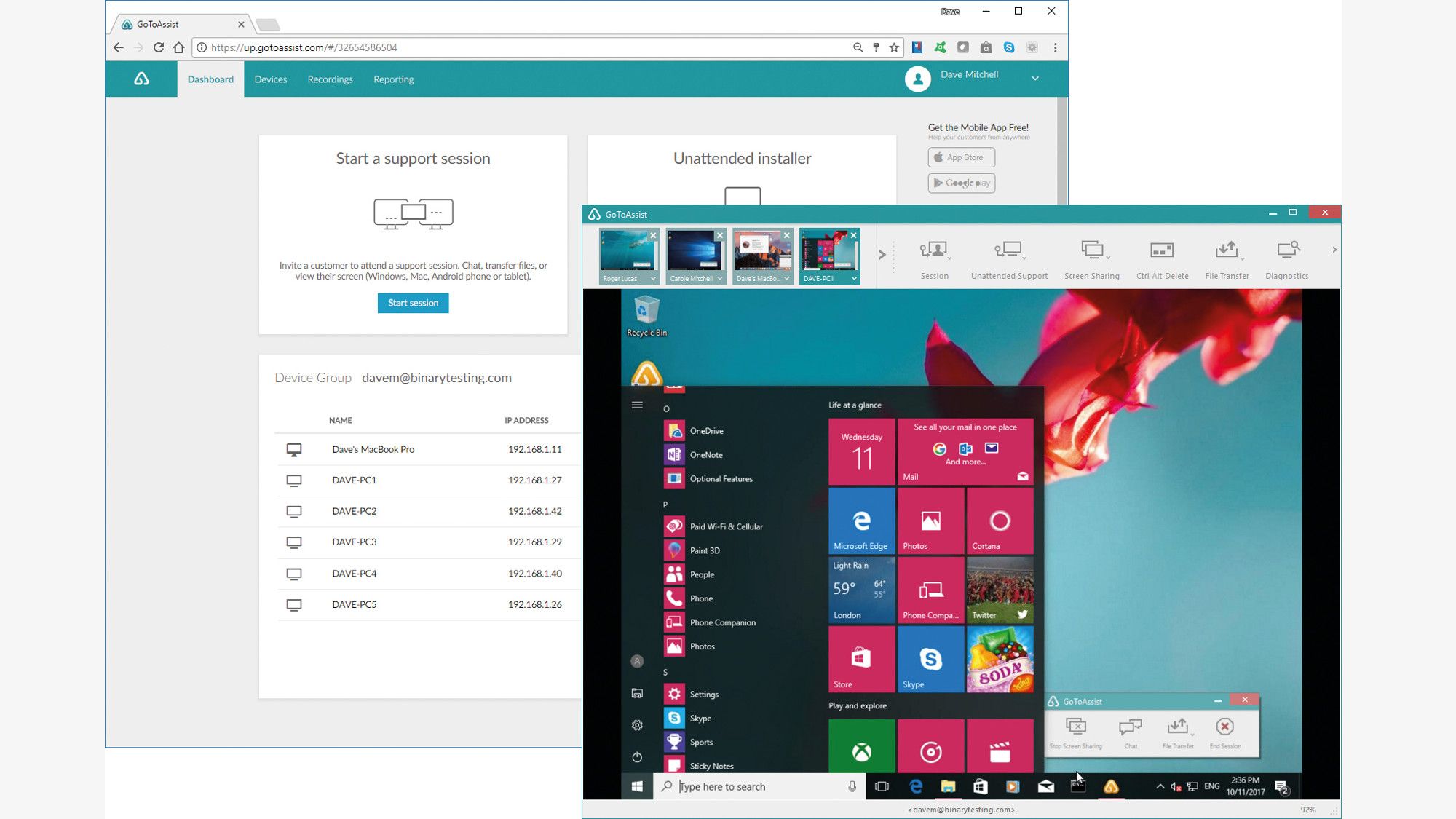
Traditional remote support platforms categorized under this technology stack offered a robust array of features designed for enterprise help desks. These capabilities enabled remote IT staff to troubleshoot effectively without physical proximity to the hardware.
| Feature Category | Description | Technical Function |
|---|---|---|
| Screen Sharing & Control | Real-time viewing and mouse/keyboard manipulation. | Low-latency screen rendering utilizing proprietary display hooks or mirror drivers. |
| Session Code Routing | Instant connection via short numeric PINs. | Eliminates static IP requirements and manual port forwarding. |
| Diagnostic Tools | Remote access to command line, task manager, and system info. | Pulls OS telemetry, running processes, and event logs into the technician console. |
| File Transfer | Secure bi-directional file movement. | Encrypted payload delivery for patches, logs, and diagnostic scripts. |
| Multi-Monitor Support | Navigation across multiple displays on the client machine. | Individual monitor toggling or unified multi-screen rendering for the technician. |
Security, Encryption, and Compliance Considerations
Allowing a remote technician to view and control a workstation introduces inherent security risks. Enterprise-grade support tools implement strict cryptographic standards to protect data in transit and at rest.
Connections established through LogMeIn infrastructure utilized standards such as Transport Layer Security (TLS) and Advanced Encryption Standard (AES) encryption. These protocols ensure that keystrokes, clipboard contents, and visual video streams cannot be intercepted via man-in-the-middle (MitM) attacks on public networks.
Furthermore, attended support inherently limits security exposure compared to unattended tools. Because the end-user must explicitly visit a URL, enter a code, and permit the download of the executable, unauthorized background spying is prevented. Modern administrative standards also require technicians to secure audit trails, ensuring that session logs record who connected, when the session occurred, and what actions were executed on the remote asset.
Modern Alternatives and Current Industry Landscape
As web technologies evolved, the reliance on downloadable desktop applets (such as .exe or .dmg files) began to shift. Modern remote support tools increasingly leverage HTML5 and WebRTC protocols, enabling direct browser-based screen sharing without requiring any executable download on the client side.
Organizations seeking alternatives to legacy LogMeIn support workflows now choose from a diverse market of remote desktop and help desk solutions:
- GoTo Resolve / GoToAssist: The direct evolutionary successors within the same corporate lineage, offering modern ticketing integrations and zero-download browser sessions.
- TeamViewer: A long-standing competitor offering both free personal use and tiered commercial licenses for ad-hoc support.
- AnyDesk: Known for its lightweight client and efficient DeskRT codec, favored for low-bandwidth environments.
- Microsoft Quick Assist: A built-in Windows utility that allows users to share screens natively without installing third-party software, ideal for basic Windows-to-Windows troubleshooting.
Frequently Asked Questions
Is the 123 LogMeIn support tool completely free to use?
No. While the end-user (the client receiving support) does not pay to join a session via the portal, the technician initiating the support session must utilize a paid enterprise license or active subscription associated with the platform's vendor ecosystem.
Do I need to install software permanently on my computer to use this tool?
No. Ad-hoc remote support tools are designed for attended sessions using temporary applets. Once the support session concludes and the application is closed, the core execution files are removed from the system, leaving no persistent background service behind.
How do remote support tools bypass firewalls and routers?
These tools utilize outbound HTTPS connections and intermediary cloud relay servers. Because the client initiates an outbound connection to the vendor's routing server, local firewalls and NAT routers permit the traffic without requiring manual port forwarding adjustments.
Can a technician access my computer without my permission?
With ad-hoc support tools, access cannot be gained without active user participation. The client must visit the designated support webpage, input the session PIN provided by the technician, and explicitly authorize the connection.
What should I do if someone I do not know asks me to go to a support portal?
Never enter a session code or download remote support software at the request of an unverified caller, unsolicited pop-up warning, or unconfirmed email. Fraudsters frequently impersonate technical support to gain unauthorized access to personal data and financial accounts.
Conclusion and Recommendations
The "123 LogMeIn" portal represents a foundational era of on-demand, web-routed remote IT support that prioritized speed and minimal user friction. While modern IT environments lean toward browser-native WebRTC solutions and integrated ticketing ecosystems, the underlying principles of secure handshakes, attended access authorization, and encrypted diagnostic pipelines remain standard practice. When engaging in remote support sessions, verify the identity of the technician, monitor the actions performed on your workstation, and close the support application immediately once your issue is resolved.