An "Apple cloud security breach phone call" is a deceptive voice phishing (vishing) scam where fraudsters impersonate Apple customer support or security personnel. They claim your iCloud account or Apple device has suffered a security breach, attempting to trick you into revealing login credentials, sharing two-factor authentication codes, granting remote desktop access, or paying money. Apple never makes unsolicited phone calls to inform customers about account security incidents. If you receive a call of this nature, hang up immediately without speaking or pressing any buttons, and verify your account status directly through official Apple settings or websites.
How the Apple Cloud Security Breach Call Scam Works
Voice phishing, commonly known as vishing, relies heavily on social engineering to manipulate victims through fear, urgency, and misplaced trust. In an Apple cloud security breach phone call scam, attackers leverage automated dialing systems (robocalls) and caller ID spoofing technology to create a convincing façade of official corporate intervention.
Understanding the mechanics of these fraud operations helps users neutralize the threat before any sensitive data is compromised.
- Caller ID Spoofing: Displays official-looking numbers ("Apple Support").
- Robocall Automated Prompt: Plays pre-recorded panic prompt ("Security Breach").
- Agent Transfer: Connects target to fraudulent operator.
- Social Engineering: Demands 2FA codes, passwords, or remote access.
- Account Takeover: Exfiltrates photos, backups, or alters recovery data.
1. Caller ID Spoofing and Automated Robocalls
Scammers use Voice over IP (VoIP) software to manipulate the outbound caller ID data transmitted to your carrier. This technique allows them to display names like "Apple Inc.," "Apple Support," or actual phone numbers associated with legit Apple Store locations or customer service lines.
When you answer, an automated, synthetic, or professional voice recording states that your iCloud account, Apple ID, or Apple device has been compromised. The recording typically warns of suspicious login attempts from unfamiliar locations, unauthorized app store purchases, or illicit activity originating from your IP address.
2. Social Engineering and Induced Panic
The primary goal of the initial automated message is to create immediate anxiety. The recording instructs you to press "1" or call a designated toll-free number to speak with an "Apple Security Representative."
Once connected to a live imposter, the operator uses high-pressure scripts. They may tell you that your personal photos, contact lists, financial details, and stored passwords are being actively downloaded by cybercriminals, or that law enforcement will hold you responsible for suspicious network activity unless you cooperate immediately to secure the account.
3. The Objective: Credential Harvesting and Remote Access
The imposter offers to assist you in securing your account, but their actual objectives fall into three main technical operational categories:
- Two-Factor Authentication (2FA) Interception: The fraudster triggers a legitimate password reset or login attempt on Apple's actual platform. Apple sends a six-digit verification code to your trusted iPhone or iPad. The scammer asks you to read this code aloud under the guise of "confirming your identity," allowing them to finalize an unauthorized account takeover.
- Remote Management Exploitation: The caller instructs you to download remote desktop utilities—such as AnyDesk, TeamViewer, or LogMeIn—claiming these are diagnostic tools required to clear malware from your device. Once installed, the scammer gains full remote control over your Mac or PC, allowing them to extract stored files, search saved browser credentials, or install malicious software.
- Direct Financial Extortion: If credential theft fails, scammers may claim that fixing the breach requires paying a technical service fee, purchasing software licenses, or liquidating compromised bank accounts into digital assets, gift cards, or wire transfers for "safe keeping."
Key Indicators of an Apple Impersonation Phone Scam
Identifying a spoofed call requires looking beyond the caller ID screen. Cybercriminals can replicate branding, but they cannot replicate Apple's operational models or technical security architecture.
Recognizing these red flags instantly exposes an impersonation attempt:
- Unsolicited Voice Contact: Apple does not initiate phone calls to notify users of security issues, account locks, or suspicious transactions unless you specifically requested a callback through Apple Support.
- Demands for Two-Factor Verification Codes: Apple employees will never ask you for your Apple ID password, full passcode, or six-digit two-factor authentication codes over the phone or via text message.
- Urgent Demands for Remote Access Software: Apple advisors do not ask users to download third-party remote screen-sharing tools from non-Apple domain sites to remediate account security alerts.
- Requests for Alternative Payment Methods: No legitimate Apple service representative will ask for payment via gift cards (including Apple Gift Cards), cryptocurrency, prepaid debit cards, or wire transfers to resolve security breaches.
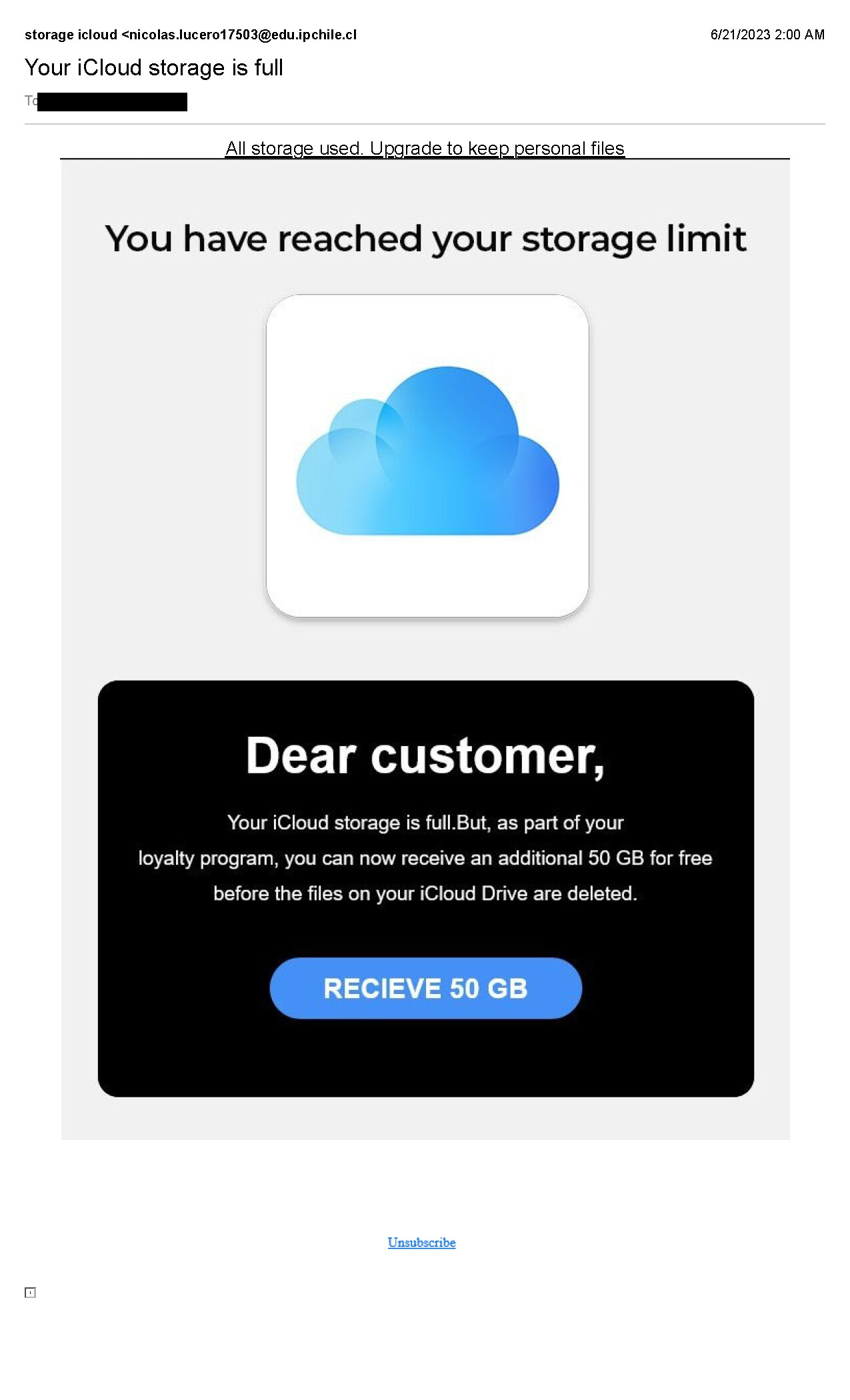
- Inconsistencies in Communication: Scammers often use generic greetings ("Dear Customer"), demonstrate technical vagueness regarding macOS or iOS system architecture, or display aggressive, threatening behavior when questioned about their identity.
Comparative Analysis: Official Apple Security vs. Scammer Tactics
The operational differences between authentic Apple security protocols and fraudulent impersonation schemes demonstrate why legitimate support calls are virtually non-existent without user initiation.
| Operational Vector | Official Apple Security Practices | Imposter / Vishing Scam Tactics |
|---|---|---|
| Initiation Method | On-device system alerts, push notifications, or user-initiated callbacks via official channels. | Unsolicited phone calls, robocalls, or deceptive pop-up windows directing you to call a number. |
| Caller ID Display | N/A (Apple does not place unsolicited outbound security alerts via telephone calls). | Spoofed caller ID showing "Apple," "Apple Support," or actual local Apple retail store numbers. |
| Handling 2FA Codes | Displayed only on trusted devices; intended solely for user entry into system prompts. Never shared. | Caller requests the 6-digit code verbally or via SMS to "verify customer identity." |
| Remote Access Tools | Screen sharing is handled exclusively via official macOS native tools during user-scheduled sessions. | Demands installation of third-party software (AnyDesk, TeamViewer, Quick Assist) to control the device. |
| Payment & Financials | Billed directly through verified payment methods linked in Apple ID / Apple Account settings. | Demands immediate payment via gift cards, wire transfer, Zelle, or cryptocurrency to prevent account loss. |
| Account Resolution | Resolved through password resets at standard official web portals or device settings. | Operates through verbal instructions designed to bypass built-in system security controls. |
Step-by-Step Action Plan: What to Do When You Get a Suspicious Call
If your phone rings and the caller ID claims to be Apple Support reporting a security breach on your cloud account, execute the following actions:
- HANG UP
- DO NOT ENGAGE
- VERIFY ACCOUNT ON DEVICE
- REPORT SCAM
Step 1: Disconnect Immediately
Do not speak, press buttons on the keypad, or attempt to engage the caller in conversation. Pressing numbers on an automated robocall signals to the caller system that your line is active, resulting in an influx of subsequent scam attempts.
Step 2: Do Not Share Any Information
If you answered the call, do not confirm your name, email address, serial numbers, passwords, or verification codes. Assume that any caller requesting this information on an inbound call is malicious.
Step 3: Check Account Status Directly On Your Device
Verify whether there is an actual issue with your account by accessing native system environments directly:
- Open Settings on your iPhone, iPad, or Mac.
- Tap or click your Name / Profile at the top of the menu.
- Check for any explicit warning banners or system flags regarding your account credentials.
- Alternatively, open a web browser, navigate manually to appleid.apple.com or icloud.com, and log in. If your account were locked or compromised, system notifications would appear on these official portals.
Step 4: Report the Scam Attempt
Documenting scam attempts helps regulatory bodies and telecommunication providers improve caller ID authentication standards:
- Report to Apple: Forward deceptive emails or details of spoofed communications to
reportphishing@apple.com. - Report to Consumer Protection Agencies: File a report with the Federal Trade Commission (FTC) or your national cyber reporting authority, such as the Federal Bureau of Investigation (FBI) Internet Crime Complaint Center (IC3).
- Report Carrier-Level Spam: Copy the caller's phone number and forward it to your mobile service provider via text message to 7726 (SPAM).
Remediation Protocol: What to Do If You Shared Information
If you engaged with a scammer, provided sensitive account details, or granted remote access to your hardware, execute these containment steps immediately to secure your environment.
- Change Apple Account Password
- Revoke Device & Session Trust
- Remove Remote Access Software
- Secure Financial / Identity
1. Change Your Apple ID / Apple Account Password
If your password was exposed, reset it immediately from a clean, trusted device:
- Navigate to Settings > [Your Name] > Sign-In & Security on iOS, or System Settings > [Your Name] > Sign-In & Security on macOS.
- Select Change Password.
- Enter your device passcode, then create a complex, unique password that is not used on any other online service.
2. Revoke Untrusted Devices and Active Sessions
Ensure the scammer has not added their own device to your trusted device list:
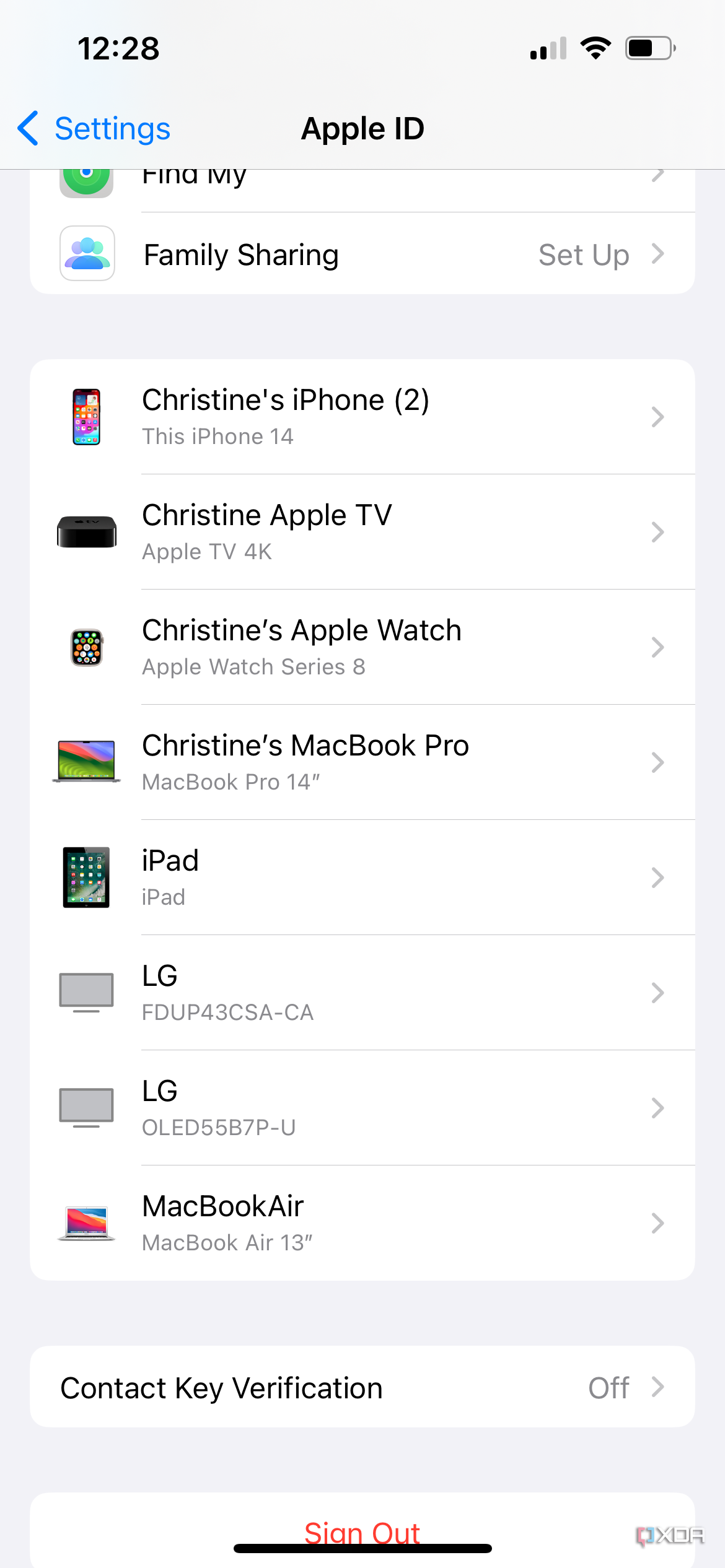
- Go to Settings > [Your Name].
- Scroll down to view the full list of devices signed into your account.
- Tap any device you do not recognize, select Remove from Account, and confirm the action. This revokes its access to your iCloud data and invalidates any active authentication tokens on that hardware.
3. Remove Unauthorized Remote Access Applications
If you downloaded software at the caller’s request:
- On macOS: Open Finder > Applications, drag the untrusted software (e.g., AnyDesk, TeamViewer) to the Trash, and empty the Trash. Check System Settings > Privacy & Security > Accessibility / Screen Recording to remove any permission profiles granted to those programs.
- On Windows: Navigate to Control Panel > Programs and Features, locate the software, and uninstall it.
- Run Malware Scans: Execute a complete system scan using reputable, updated antimalware tools to remove potential keyloggers, remote access Trojans (RATs), or backdoors left behind.
4. Protect Linked Financial Accounts
If you disclosed credit card details, debit card numbers, or banking credentials:
- Contact your financial institutions immediately to report fraudulent activity, cancel compromised cards, and request replacement cards.
- Review your Apple Wallet and App Store purchase history for unauthorized charges, and submit refund requests for fraudulent transactions via reportaproblem.apple.com.
Advanced Account Protection Strategies for Apple Devices
Securing your Apple account requires layered defenses that prevent fraudsters from accessing your personal data even if social engineering techniques bypass initial user defenses.
- Layer 1: Hardware Security Keys / 2FA (Blocks Unauthorized Logins)
- Layer 2: Stolen Device Protection (Enforces Biometrics & Delay Timers)
- Layer 3: Advanced Data Protection (End-to-End Encrypts Cloud Backups)
- Layer 4: Account Recovery & Contact Configuration (Prevents Lockouts)
1. Enforce Two-Factor Authentication and Hardware Keys
Two-factor authentication is mandatory for modern Apple accounts. To elevate your security posture further, implement hardware security keys:
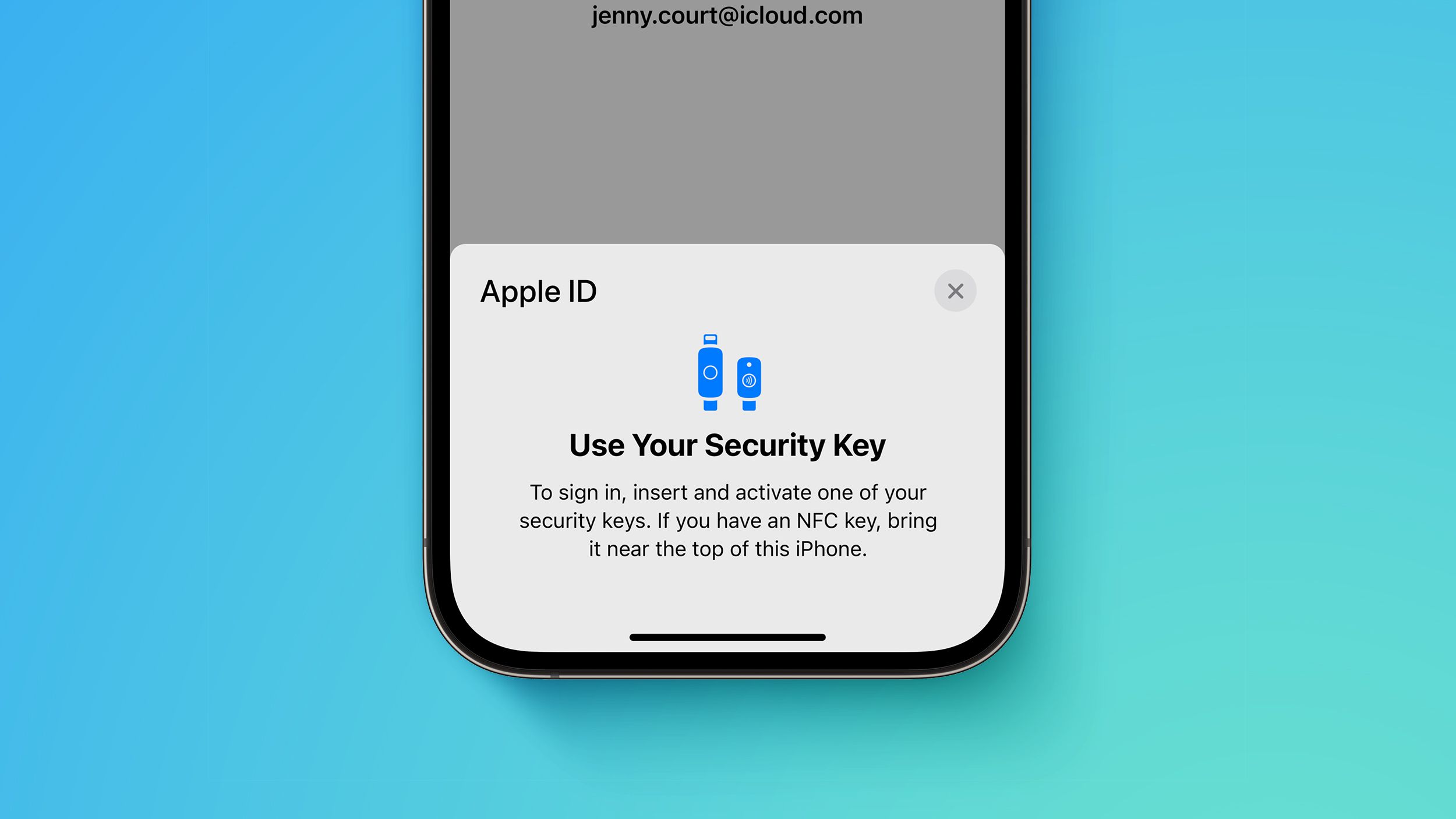
- FIDO2-Certified Security Keys: You can pair physical security keys (such as YubiKeys) with your Apple account. When enabled, signing into your account on a new device requires physically inserting or tapping your NFC security key, rendering phone-based verification code interception attacks useless.
2. Enable Stolen Device Protection
Designed for iOS devices, Stolen Device Protection adds critical security safeguards when your iPhone is away from familiar locations (such as your home or office):
- Mandatory Biometrics: Changing sensitive security settings—such as updating your password, viewing saved passwords, or modifying trusted phone numbers—requires mandatory Face ID or Touch ID authentication without passcode fallback.
- Security Delay Timer: If an attacker attempts to change key security configurations in an unfamiliar location, the system mandates a one-hour waiting period followed by a second biometric scan, giving you time to mark the device as lost and freeze access.
3. Implement Advanced Data Protection for iCloud
Standard iCloud security encrypts sensitive data in transit and on server storage, but Apple holds the encryption keys for certain data types (like Mail, Contacts, and Calendars) to assist with standard account recovery.
Enabling Advanced Data Protection transitions your cloud storage to pure end-to-end encryption:
- Under Advanced Data Protection, your iCloud backups, Photos, Notes, Reminders, Voice Memos, and Files can only be decrypted on your trusted devices.
- Even if a scammer manages to compromise an Apple infrastructure service or tricks an agent into reviewing cloud data, your end-to-end encryption keys remain local to your hardware, preventing unauthorized access.
4. Configure Account Recovery Contacts and Legacy Contacts
To ensure you never lose access to your account during an incident:
- Set up trusted Recovery Contacts (friends or family members) who can generate a secure recovery code on their Apple devices to help you regain access if your password or device passcode is lost.
- Configure Legacy Contacts so your assets can be securely managed by designated loved ones in the event of incapacitation, preventing account lockouts without resorting to unauthorized third-party intervention services.
Frequently Asked Questions (FAQ)
Does Apple ever call customers about iCloud account security breaches?
No. Apple does not make unsolicited outbound phone calls to customers regarding account security compromises, pending system locks, or suspicious transactions. Any inbound phone call claiming to be from Apple Security reporting a breach is an impersonation attempt. Official communication regarding your account status is delivered via direct system notifications within iOS, iPadOS, and macOS settings menus, or through securely authenticated dashboard messages on official Apple websites.
How do scammers make caller ID display "Apple Support" or a local number?
Scammers utilize Voice over IP (VoIP) telephony software capable of modifying the Transmission Control Protocol/User Datagram Protocol (TCP/UDP) header packets containing caller ID information. This process, known as caller ID spoofing, allows them to inject arbitrary text (such as "Apple Inc.") or legitimate corporate phone numbers into the display field presented by public switch telephone networks. While telecommunications enforcement standards like STIR/SHAKEN mitigate unverified caller IDs, spoofed calls still bypass filters via international gateways and legacy routing paths.
What can scammers do if I give them my Apple 2FA verification code?
If a scammer obtains your password and your six-digit two-factor authentication (2FA) code, they can complete a full account takeover. Once signed in, they can access your iCloud backups, private photos, messages, contacts, and emails. They can also remove your personal hardware from your trusted device list, erase your devices remotely using the Find My network, add their own phone number as a trusted contact, and lock you out of your account entirely.
What should I do if a scammer accessed my Mac or iPhone remotely?
Immediately sever all network connections by disconnecting from Wi-Fi or unplugging Ethernet cables. Uninstall the screen-sharing software (e.g., AnyDesk, TeamViewer) used during the session. Check your computer's startup items, active system background tasks, and user profiles to ensure no persistence mechanisms or backdoors were created. Run a complete antimalware scan using trusted security tools, change all passwords saved on that computer from an uncompromised secondary device, and monitor your bank statements for unauthorized activity.
How can I verify if my iCloud account has actually been breached?
To verify your account security safely, open Settings on your iOS device or System Settings on a Mac, tap your name at the top, and examine the active device list. If any unrecognized hardware appears, tap the device and remove it. Next, navigate to appleid.apple.com or icloud.com using a browser, log in directly, and verify that your personal contact information, notification email addresses, and trusted phone numbers have not been altered.
Strategic Recommendations for Ongoing Account Safety
Defending your personal data against voice phishing scams requires maintaining strict operational security habits. Treat every unsolicited phone call, text message, or high-pressure communication claiming to originate from Apple, financial institutions, or technology vendors as untrusted by default.
Establish a firm rule never to disclose security codes, account credentials, or personal identification over the phone. Rely on native software tools, direct account dashboards, hardware security keys, and biometrics to manage your system security. If you ever doubt the integrity of an Apple service or account, initiate contact yourself through the official application channels built directly into your Apple device operating systems.