Yes, there are several effective ways to block spam calls on an iPhone. You can use Apple's built-in Silence Unknown Callers feature, manually block specific numbers, configure carrier-level spam filters, or install third-party call-blocking applications. Combining native iOS security controls with network-level protections provides a robust defense against robocalls, fraudulent telemarketing, and phishing attempts.
Native iOS Features: Blocking Unwanted Calls Without Extra Apps
Apple provides built-in tools within iOS to filter out spam and control who can ring your phone. These native solutions do not require third-party downloads, extra fees, or external accounts.
1. Silence Unknown Callers
Introduced in iOS 13 and expanded in subsequent operating system releases, the Silence Unknown Callers setting automatically mutes calls from numbers that are not recognized by your device.
When this feature is active, iOS runs incoming phone numbers through a cross-checking algorithm against three local data sources:
- Your saved Contacts.
- Your recent outgoing calls list.
- Siri Suggestions found within your emails, text messages, and calendar entries.
If an incoming call does not match any of these sources, the call does not vibrate or ring your phone. Instead, it is routed directly to voicemail and logged silently in the Recents tab of your Phone app.
How to Enable Silence Unknown Callers: 1. Open the Settings app on your iPhone. 2. Scroll down and tap Phone. 3. Scroll down to Silence Unknown Callers. 4. Toggle the switch to ON.
Operational Trade-offs: While highly effective at stopping telemarketers and automated robocalls, this feature will also silence legitimate callers who are not in your contact list—such as delivery drivers, medical offices, auto repair shops, or emergency services. If you regularly expect calls from unfamiliar numbers, you may prefer alternative screening methods.
2. Manual Number Blocking
If you receive repeated unwanted calls from specific phone numbers, you can block them individually. Blocking a contact or phone number prevents them from ringing your device, sending SMS/MMS messages, or initiating FaceTime calls.
How to Block a Specific Number: 1. Open the Phone app and tap Recents. 2. Tap the Info icon (an "i" inside a circle) next to the number or contact you wish to block. 3. Scroll to the bottom of the screen and tap Block this Caller. 4. Confirm by selecting Block Contact.
When a blocked caller attempts to ring your iPhone, the call goes straight to voicemail without notifying you. On most major mobile networks, the caller hears a single ring or no ring at all before being transferred to voicemail. You can review and manage your master list of blocked numbers at any time by navigating to Settings > Phone > Blocked Contacts.
3. Live Voicemail Screening
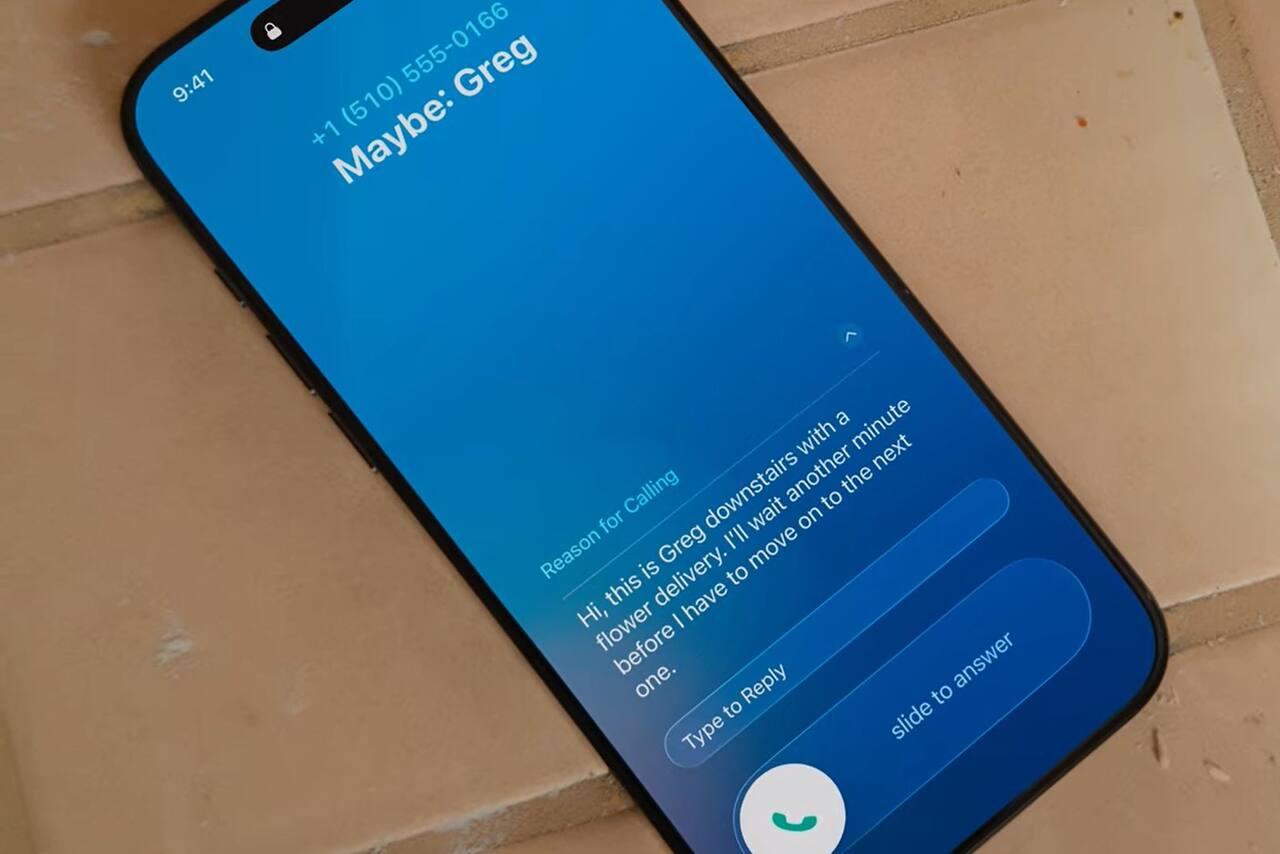
Available on devices running iOS 17 and later, Live Voicemail offers a real-time call screening mechanism similar to classic answering machines. When an unknown call comes in, you can tap the Voicemail button on the call screen to send the caller directly to live transcription.
As the caller leaves a message, a real-time text transcript appears directly on your lock screen or incoming call interface. Because processing occurs locally on the device using the Neural Engine, the caller's audio privacy is preserved while you read what they are saying. If the transcript reveals that the call is from a legitimate business or contact, you can pick up the call mid-voicemail. If it is a recorded robocall or scammer, you can let it finish or tap Block immediately.
How to Turn On Live Voicemail: 1. Open Settings on your iPhone. 2. Tap Phone. 3. Select Live Voicemail and toggle it to ON.
Carrier-Level Spam Blocking and Call Verification
While iOS controls handle calls once they hit your device, mobile network operators can stop spam calls before they reach your phone. Major wireless carriers utilize network-level filtering and cryptographic call verification standards.
Major Carrier Protection Programs
The three primary U.S. wireless service providers offer free baseline spam detection apps alongside paid premium tiers:
- AT&T ActiveArmor: Provides automatic fraud call blocking and spam risk warnings. The free version flags suspected spam calls on your screen or blocks high-risk fraud calls automatically. The advanced subscription tier adds public Wi-Fi protection, identity monitoring, and reverse number lookups.
- Verizon Call Filter: Offers automatic detection of spam calls based on real-time network intelligence. Free users receive spam risk labels (e.g., "Spam Risk" or "Potential Scam") and can block suspected fraud calls. The premium tier includes a caller ID database, personal block lists, and category-based blocking.
- T-Mobile Scam Shield: Includes built-in Scam Block, which halts calls identified as probable scams at the network level before your phone ever rings. It also provides free caller identification for unknown numbers and allows users to turn Scam Block on or off via short codes (dialing
#ON#or#662#) or through the dedicated app.
STIR/SHAKEN Framework and Call Authentication
Modern carrier spam defenses rely heavily on the STIR/SHAKEN protocol framework mandated by the Federal Communications Commission (FCC Call Authentication Standards).
- STIR (Secure Telephone Identity Revisited) defines protocols to create digital signatures for phone calls.
- SHAKEN (Signature-based Handling of Asserted information using toKENs) defines how telephone carriers implement STIR standards across IP networks.
Scammers often use "neighbor spoofing"—manipulating Caller ID data to display your local area code and prefix so you are more likely to answer. STIR/SHAKEN counters this by attaching a cryptographic certificate to each originating call. When the call reaches your carrier, the network verifies whether the originating caller actually owns that phone number.
If the certificate is verified, the call proceeds normally (and iOS may display a checkmark next to the contact name in Recents). If the authentication fails or is absent, the carrier flags or blocks the call as potential spam.
Third-Party Call Blocking Apps and Apple's CallKit API
When native iOS settings and carrier tools are not enough, third-party spam-blocking applications offer crowdsourced phone directories and algorithmic filtering.
How Third-Party Blockers Work: Apple's CallDirectory Framework
Unlike standard apps on Android, third-party call blockers on iOS cannot monitor your phone calls in real time, record conversations, or upload your live call logs to external servers. Apple enforces strict privacy limits through its CallDirectoryExtension framework.
Instead of analyzing incoming audio live, third-party apps download a database of known spam numbers directly onto your device. When a call arrives, iOS checks the incoming number against this local directory. If a match is found, iOS displays the app's custom label (such as "Robocall Warning" or "Telemarketer") or blocks the ring entirely based on your preferences.
How to Enable Third-Party Call Blocking Apps: 1. Download a call-blocking app from the Apple App Store. 2. Open Settings on your iPhone. 3. Tap Phone > Call Blocking & Identification. 4. Under "Allow These Apps To Block Calls And Provide Caller ID," toggle your installed app to ON.
Popular Third-Party Filtering Services
- RoboKiller: Uses predictive blocking algorithms and audio-fingerprinting technology to intercept unwanted calls. It includes features like "Answer Bots," which answer automatically and waste scammers' time with pre-recorded scripts.
- Truecaller: Maintains a massive, community-driven database of telephone numbers. It identifies spam numbers, businesses, and personal identities in real time based on user reports worldwide.
- Hiya: Powers caller ID and spam protection features for numerous carrier apps and enterprise platforms. It categorizes incoming calls into categories like Fraud, Spam, Nuisance, or Political.
- NomoRobo: Winner of the FTC Robocall Challenge, NomoRobo focuses on blocking robocalls, telemarketers, and phone scammers without interfering with legitimate automated notifications (such as school closings or medical reminders).
National Registries and Regulatory Protections
In addition to technological barriers, registering your phone number with official government regulatory bodies adds a layer of legal protection against legitimate telemarketers.
In the United States, you can register both landlines and mobile phone numbers with the Federal Trade Commission's National Do Not Call Registry by visiting donotcall.gov or calling 1-888-382-1222.
What the Do Not Call Registry Can and Cannot Do
- What it does: Legitimate commercial telemarketers operating legally within the U.S. are required by law to scrub their calling lists against the Do Not Call Registry every 31 days. Calling a registered number can subject non-compliant telemarketers to significant civil penalties per violation under federal law.
- What it cannot do: The registry does not block incoming calls technically; it relies on voluntary compliance enforced by legal penalties. Malicious scammers, international call centers, political campaigns, charitable organizations, and telephone survey outfits are either exempt from the registry or operate in direct violation of federal laws regardless of registration status.
Because cybercriminals ignore legal databases, the Do Not Call Registry should be viewed as a secondary defense to reduce legitimate marketing calls, rather than a total fix for illegal robocalls.
Comparison of iPhone Spam Prevention Methods
The following matrix compares the core features, trade-offs, and target applications of each main call-blocking approach on iOS:
| Prevention Method | Operating Level | Primary Advantage | Major Limitation | Best For |
|---|---|---|---|---|
| Silence Unknown Callers | Native iOS | Completely eliminates ringing from unrecognized numbers | May silence critical unexpected calls (e.g., medical, delivery) | Users who rarely receive essential calls from outside their contact list |
| Manual Blocking | Native iOS | Free, precise, and permanently stops specific repeat offenders | Reactive; does not prevent initial calls from new/spoofed numbers | Blocking persistent individual callers or specific harassment |
| Live Voicemail Screening | Native iOS (iOS 17+) | Allows real-time evaluation of callers without answering directly | Requires active monitoring of screen while caller leaves message | Users who want to screen unknown callers without silencing them outright |
| Carrier Spam Tools | Network Level | Intercepts spoofed numbers before they reach your iPhone | Advanced filtering features often require a monthly subscription | Stopping network-wide scam operations and spoofed area code calls |
| Third-Party Apps | iOS CallKit Framework | Rich crowdsourced data, caller ID tags, and category filters | Requires ongoing app subscription and background database updates | Users who need detailed Caller ID information for business or daily use |
| Do Not Call Registry | Regulatory / Legal | Reduces legitimate, legal telemarketing and sales solicitations | Totally ignored by illegal callers, scammers, and offshore entities | Establishing baseline legal privacy protections for personal numbers |
Best Practices to Prevent Missing Important Calls
When implementing aggressive call-filtering measures like Silence Unknown Callers, you risk missing time-sensitive phone calls. You can use several iOS features to ensure essential contacts get through your defenses.
1. Enable Emergency Bypass for Critical Contacts
If you use Do Not Disturb, Focus Modes, or call-silencing features, you can set specific individuals—such as elderly family members, doctors, or children's schools—to bypass all filters.
How to Set Emergency Bypass: 1. Open the Contacts app and select a contact. 2. Tap Edit in the top-right corner. 3. Tap Ringtone. 4. Toggle Emergency Bypass to ON at the top of the menu. 5. Tap Done.
When Emergency Bypass is turned on, calls and text messages from this specific contact will ring and vibrate your iPhone even if the phone is set to Silent mode, Do Not Disturb, or a Focus filter.
2. Leverage Siri Suggestions and Mail Syncing
Ensure Siri is enabled to read contact info from your incoming emails and calendar invites. If a medical specialist or contractor emails you a confirmation containing their office phone number, Siri detects the number in Mail and recognizes it when that number rings your phone. This prevents Silence Unknown Callers from suppressing the call.
To verify Siri features are enabled:
- Go to Settings > Siri & Search (or Settings > Apple Intelligence & Siri on supported versions).
- Ensure Show Siri Suggestions in Apps and related search parameters are turned on.
Troubleshooting Spam Call Filtering Issues
Why Am I Still Getting Spam Calls After Blocking Numbers?
If you manually block a spam number but receive another call minutes later from a nearly identical number, scammers are utilizing VOIP software and dynamic number spoofing. Scammers generate thousands of temporary, virtual phone numbers that change with every outgoing dial. Manual blocking works well against specific people, but it cannot stop automated systems that cycle through randomly generated caller IDs.
Why Are Known Contacts Being Silenced?
If calls from saved contacts are being sent straight to voicemail without ringing:
- Check if the contact has multiple numbers (e.g., mobile vs. office landline) and make sure the specific number calling you is listed under their contact card.
- Verify that your phone is not in an active Focus Mode or Do Not Disturb state (Settings > Focus).
- Check whether Silence Unknown Callers is active while your contact list fails to sync properly across iCloud (Settings > [Your Name] > iCloud > Contacts).
Frequently Asked Questions
Will turning on Silence Unknown Callers block emergency services?
No. If you place an emergency call using your iPhone (such as dialing 911 in the U.S.), iOS temporarily suspends Silence Unknown Callers for 24 hours. This safety mechanism ensures that emergency responders, police dispatchers, or hospital staff can call your device back without being silenced.
What is the difference between blocking a caller and silencing unknown callers?
Blocking a caller is targeted: it permanently stops a specific phone number from calling, texting, or FaceTime-ing you. Silencing unknown callers is broad: it mutes any phone number that is not explicitly saved in your Contacts, recent outgoing calls, or Siri Suggestions, sending all unknown numbers directly to voicemail regardless of who they are.
Do third-party call-blocking apps see my contacts or call history?
When implemented correctly using Apple's standard CallDirectoryExtension framework, third-party apps do not have access to your live incoming calls, phone history, or personal contact database. They only supply a static list of known spam numbers to iOS. However, you should review each third-party app's privacy policy to verify they do not require you to upload your address book to their servers for secondary services.
Why do spoofed calls display my local area code?
Scammers use "neighbor spoofing" software to generate caller IDs matching your specific area code and local three-digit prefix. People are statistically more likely to answer phone calls that appear to originate from their own town or immediate community. Implementation of the STIR/SHAKEN framework by wireless carriers continues to reduce the success of local spoofing techniques.
Does Live Voicemail use cellular data or internet connection?
No. Live Voicemail transcribes speech-to-text locally on your iPhone using built-in on-device machine learning models. It does not require cellular data, Wi-Fi, or cloud processing to transcribe the incoming caller's message on your screen.
Practical Recommendation
To build the most effective defense against unwanted calls on your iPhone, take a tiered approach based on your routine:
- For maximum peace of mind: Enable Silence Unknown Callers (Settings > Phone > Silence Unknown Callers) if you rarely deal with unexpected business contacts, delivery drivers, or unknown numbers.
- For flexible screening: If you frequently receive calls from unknown clients or providers, leave Silence Unknown Callers off and turn on Live Voicemail (Settings > Phone > Live Voicemail). This lets you screen unknown calls visually as the caller leaves a message.
- For maximum protection: Activate your carrier's native spam blocking feature (such as AT&T ActiveArmor, Verizon Call Filter, or T-Mobile Scam Shield) and register your main mobile number at donotcall.gov. If spam calls persist, install a third-party CallKit extension like RoboKiller or Hiya to filter caller IDs automatically.
EDITORIAL CATEGORY METADATA: