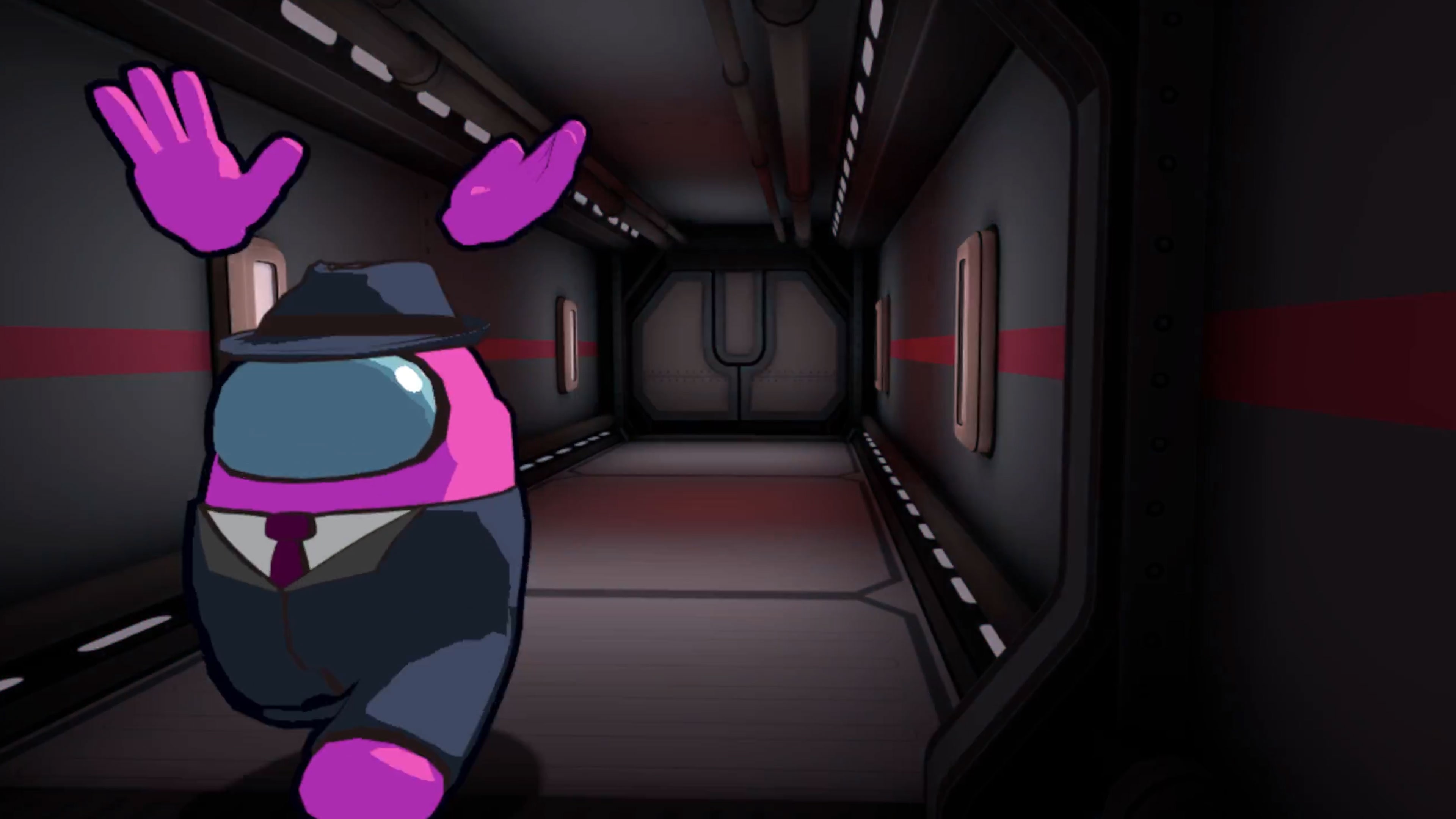
Among Us kill backgrounds represent the iconic, dramatic visual sequences triggered during Impostor eliminations in Innersloth’s popular multiplayer game. Content creators, video editors, and streamers utilize these high-contrast backgrounds—available as PNG images, green screen MP4 overlays, and 4K wallpapers—to craft custom thumbnails, stream alerts, and social media videos across modern editing platforms.
Visual Breakdown of Among Us Kill Screen Backgrounds
The elimination screen in Among Us is one of the most recognizable graphic sequences in modern gaming. When an Impostor eliminates a Crewmate, the game temporarily interrupts standard gameplay with a full-screen, highly stylized animation. Understanding the visual components of this screen is essential for editors looking to isolate, reproduce, or modify these assets for video production.
Core Visual Elements
The standard kill screen relies on high visual contrast and bold colors to accentuate the sudden shock of an elimination:
- Split Background Palette: The primary background features a sharp diagonal split or a radial dark backdrop. Traditionally, the dynamic side features a vivid red tint (
#C51111or similar saturated red hues) contrasting against deep charcoal grey or black, drawing immediate attention to the central action. - Action Flash: A brief high-brightness flash occurs at the start of the animation, serving as a frame-transition marker that editors often use to hide visual cuts or keyframe adjustments.
- Character Framing: Characters are centered horizontally and vertically, rendered in vector graphics with heavy black outlines (typically 4px to 8px weight depending on resolution) to preserve clarity against bright background gradients.
- Text and FX Overlay: Dynamic speed lines and directional flash overlays radiate outward from the center point, creating dramatic visual emphasis.
Map and Role Variations
As Among Us expanded across maps like The Skeld, MIRA HQ, Polus, The Airship, and The Fungle, along with the introduction of specialized roles (such as the Shapeshifter, Phantom, and Tracker), the aesthetic rules for kill sequences diversified.
While the classic stab, gun, neck-snap, and tongue-pierce animations utilize the traditional red-and-black diagonal void, specific updates introduced unique background lighting and situational overlays. For instance, map-specific hazards or custom kill animations created for promotional events incorporate unique background environments rather than the standard abstract void. Content creators frequently isolate the original abstract background precisely because its simplicity allows seamless blending with custom video layers.
Types of Among Us Kill Background Assets
When searching for or preparing Among Us kill backgrounds, content creators generally work with four distinct file formats. Choosing the correct format depends on whether the end product is a static graphic (like a YouTube thumbnail) or a dynamic motion video (like a TikTok reel or Twitch notification).
- Among Us Kill Background Assets
- Transparent PNGs (Static Layouts)
- Chroma Key MP4s (Green Screen)
- High-Res Vector Graphics (Scalable Custom Design)
- Animated GIF/WEBP (Lightweight)
1. Transparent PNG Backgrounds
Static PNG files featuring isolated backgrounds with cutout central areas allow creators to insert custom images, avatar graphics, or headshots into the kill sequence.
- Best Used For: YouTube thumbnails, meme graphics, channel banners, and promotional social media posts.
- Key Advantage: Preserves high color fidelity and crisp edges without requiring video processing tools.
2. Chroma Key MP4 / WebM Overlays
Chroma key video overlays feature the complete kill animation set against a solid bright green (#00FF00) or bright blue (#0000FF) background. Editors use color keying tools to strip out the colored background, layering the animated foreground directly over gameplay footage or custom reaction shots.
- Best Used For: YouTube Shorts, TikTok videos, Twitch stream alerts, and video intros/outros.
- Key Advantage: Full motion animation retention, including particle effects and speed lines.
3. High-Resolution Vector Assets (SVG / EPS / AI)
Vector-based kill backgrounds consist of editable geometry paths. Designers can adjust background radial angles, alter color palettes (e.g., changing the classic red gradient to blue or purple to match channel branding), and scale the output infinitely without pixelation.
- Best Used For: Graphic design projects, large-format printing, merchandise design, and 4K/8K video composition.
- Key Advantage: Total customizable flexibility without raster distortion.
4. Animated GIFs and WebP Files
Lightweight animated image formats provide a quick way to embed looping or single-play kill sequences directly into website widgets, Discord messages, or chat overlays without heavy video rendering overhead.
- Best Used For: Web interfaces, Discord emotes, and Twitch chat bots.
- Key Advantage: Native browser support and low storage footprint.
Technical Specifications for Editing and Stream Alerts
To ensure that custom Among Us kill backgrounds look crisp and operate smoothly across media platforms, creators should align their asset specs with industry rendering standards.
Optimal Rendering Standards
- Standard Resolution: 1920×1080 (Full HD, 16:9) for standard videos; 1080×1920 (9:16) for vertical video platforms like TikTok, YouTube Shorts, and Instagram Reels.
- Ultra High Definition: 3840×2160 (4K UHD) is recommended for static thumbnails to retain sharpness on high-DPI retina displays.
- Frame Rate: 30 FPS or 60 FPS. Matching the original game asset frame rate (30 FPS) maintains animation authentic, while 60 FPS provides smoother video editing integration.
- Color Space: sRGB for digital displays; Rec. 709 for standard video production export.
- Chroma Key Color Values: Pure Green (
HEX #00FF00,RGB 0, 255, 0) or Pure Blue (HEX #0000FF,RGB 0, 0, 255). Avoid keying colors that overlap with character skin tones or primary Crewmate visor colors (such as cyan#40E0D0or light blue).
How to Edit and Key Among Us Kill Overlays
Integrating an Among Us green screen kill background into video editing software requires simple chroma keying steps. Below are guides for keying these assets across leading editing applications.
Chroma Keying Workflow Overview:
- Import Footage: Insert main background video on Lower Track
- Apply Overlay: Place Green Screen Kill Asset on Upper Track
- Add Effect: Apply Ultra Key / Chroma Key / Delta Keyer
- Sample Color: Use Eyedropper tool on Green #00FF00 area
- Refine Edges: Tweak Spill Suppression and Matte Clean-up
Adobe Premiere Pro
- Drag your primary gameplay footage onto Video Track 1 (
V1). - Import the Among Us green screen kill video overlay onto Video Track 2 (
V2). - Open the Effects panel and search for Ultra Key.
- Apply the Ultra Key effect to the clip on
V2. - Under Effect Controls, select the Key Color eyedropper tool and click the green background area in the Program Monitor.
- Adjust Matte Generation settings (Pedestal and Tolerance) if faint green halos remain around character outlines.
- Use Spill Suppression to neutralize any residual green light reflection on character edges.
DaVinci Resolve
- Drag the gameplay clip to Video Track 1 and the kill overlay to Video Track 2 on the Edit page.
- Select the green screen overlay clip and navigate to the Color page.
- Open the Nodes panel, right-click in the grid workspace, and select Add Alpha Output.
- Select the 3D Keyer or Qualifier tool from the toolbar.
- Click and drag across the green area in the viewer window to select the keyed color range.
- Connect the cyan output dot of the node to the blue Alpha Output dot on the right side of the node tree.
- Invert the selection mask if the foreground character disappears instead of the background.
CapCut (Desktop & Mobile)
- Add your base background video or image to the main track.
- Click Overlay (or Add Track on desktop) and select your green screen kill background video.
- Highlight the overlay clip and navigate to the Cutout tab on the right editing panel.
- Check the Chroma Key box.
- Use the Color Picker eyedropper to select the green color field in the video preview window.
- Increase the Strength slider (typically between 15% and 35%) until the green completely disappears, then subtly increase Shadow to eliminate rough edge contrast.
OBS Studio (Live Streaming & Alerts)
- Open OBS Studio and select your target Scene.
- In the Sources box, click
+and select Media Source. Browse to select your MP4/WebM kill overlay file. - Right-click the newly added Media Source and select Filters.
- Under Effect Filters, click
+and choose Chroma Key. - Select Green from the Key Color Type dropdown menu.
- Fine-tune Similarity (recommended setting:
400to450) and Smoothness (recommended setting:50to80) so the animation edge transitions cleanly without cutting into black character line-art.
Designing Custom Among Us Style Kill Backgrounds
For creators seeking a unique branding style, building a custom kill background from scratch allows tailored color themes, custom map assets, and channel logos while preserving the aesthetic of Among Us.
Step-by-Step Creation Guide in Photoshop or GIMP
- Canvas Setup: Create a canvas sized
1920×1080pixels at72 DPIin sRGB color mode. - Base Gradient Layer: Fill the background layer with dark grey (
#121212). Create a new layer above it and select the Poly Polygonal Lasso Tool. - Diagonal Split Creation: Draw a diagonal jagged cut line from the top right quadrant down to the bottom left corner. Fill this selection with a vivid red (
#D61C1C) or your brand's primary color. - Radial Speed Lines:
- Create a new blank layer.
- Apply a series of alternating black-and-transparent vertical stripes.
- Go to Filter > Distort > Polar Coordinates and select Rectangular to Polar. This creates radiating speed lines focused on the canvas center point.
- Drop the opacity of this layer to between
15%and30%and set the blending mode to Overlay or Soft Light.
- Central Action Flash: Add a soft white radial gradient circle in the exact center of the screen, set to Screen blending mode at
40%opacity, to simulate the burst energy of the elimination strike. - Character Layering: Insert vector character cutouts onto the top layer. Apply a subtle Drop Shadow filter (
Distance: 0,Spread: 15%,Size: 20px,Opacity: 80%) to lift characters off the bright background layer.
Asset Format & Compatibility Reference Table
Choosing the right format saves processing time and rendering bandwidth. The table below outlines asset formats, target platforms, key benefits, and recommended software.
| Asset Type | Primary File Extension | Alpha Channel Support | Ideal Use Case | Best Editing Software | Key Rendering Consideration |
|---|---|---|---|---|---|
| Chroma Key Video | .MP4 |
No (Requires Keying) | Stream Overlays, YouTube Shorts, Edits | Premiere Pro, CapCut, OBS Studio | Requires exact green #00FF00 keying |
| Transparent Video | .WebM / .MOV (ProRes 4444) |
Yes (Native Transparency) | Twitch Alerts, Video Graphic Transitions | DaVinci Resolve, After Effects, OBS | File size is significantly larger than MP4 |
| Static Cutout Image | .PNG |
Yes | YouTube Thumbnails, Memes, Banners | Photoshop, GIMP, Canva | Ensure 8-bit or 16-bit RGBA color mode |
| Vector Layout | .SVG / .AI |
Yes | Graphic Design, Merchandise, Large Prints | Illustrator, Inkscape, Figma | Convert fonts to outlines before export |
| Animated Graphics | .GIF / .WebP |
Yes | Web Pages, Discord Emotes, Chat Icons | Browser Widgets, Chat Bots | Limited to 256 colors (GIF standard) |
Copyright, Monetization, and Fair Use Guidelines
When using official game artwork, fan-made backgrounds, or custom kill overlays, creators must follow intellectual property and copyright rules—especially when monetizing content.
Innersloth Fan Creation Policy
Innersloth maintains an official Fan Creation Policy regarding fan art, video production, and commercial use:
- Non-Commercial Video Content: Content creators are generally permitted to use Among Us gameplay, visual themes, and kill background aesthetics in monetized YouTube videos, Twitch streams, and social media clips, provided the content complies with standard gameplay broadcasting rules.
- Merchandise & Physical Goods: Selling physical merchandise (such as t-shirts, posters, or physical stickers) featuring direct rips of official Among Us kill backgrounds without a commercial license is strictly restricted under Innersloth terms. Small-scale handmade fan art has specific sales caps outlined in their policy guidelines.
- Asset Ripping vs. Original Artwork: Directly extracting original raw asset files from game directories and redistributing them as standalone downloadable packs violates terms of service. It is safer to use independently rendered green screen recreated animations or community-created vector templates attributed to their original animators.
- Fair Use in Commentary & Parody: Transforming the kill background into commentary, educational tutorials, satire, or parodies (e.g., placing historical figures or original characters into the kill screen) generally falls under Fair Use provisions in video broadcasting.
Frequently Asked Questions
Where can I find high-quality green screen Among Us kill backgrounds?
High-quality green screen overlays can be found on royalty-free asset community channels on YouTube, video stock platforms, and open-source asset repositories like Wikimedia Commons or GitHub design communities. Always verify that the creator permits free commercial use before including overlays in monetized projects.
How do I fix green outline glare around characters after keying?
Green outlines (spill) occur when light reflects off the green background onto the foreground artwork. To remove this, increase the Spill Suppression or Chroma Matte Cleanup setting in your video editing software, or apply a slight Matte Choke/Edge Thin adjustment (typically -1 to -2 pixels) to trim the outermost edge of the layer mask.
What is the exact hex color code for the Among Us green screen background?
The standard chroma key green color used for keying video assets is pure green, represented by the hex code #00FF00 (RGB: 0, 255, 0). Some alternative key assets use pure chroma blue #0000FF (RGB: 0, 0, 255) to prevent accidental keying of green Crewmate colors.
Can I change the red background color in an Among Us kill sequence?
Yes. If using a static PNG image or vector file in graphic software like Photoshop, you can adjust the background color using a Hue/Saturation Adjustment Layer targeted specifically at red channels. In video editors, applying a Color Correction/Hue Secondary Filter allows you to shift the background red to cyan, purple, blue, or yellow without altering character colors.
Why does my exported transparent MOV video show a black background in my player?
Standard desktop media players (such as Windows Media Player or default QuickTime player) often do not render alpha channel transparency, displaying missing background areas as solid black instead. Importing the file directly into a multi-track editor (like Premiere Pro, DaVinci Resolve, or OBS Studio) will reveal the transparent background layer underneath.
Summary & Recommended Next Actions
Mastering Among Us kill screen assets enables content creators to produce engaging, highly recognized visual content for gaming channels and social feeds. To achieve optimal results in your next video project:
- Select the Correct File Type: Use Chroma Key MP4s for fast video edits, ProRes/WebM files for native transparent streaming overlays, and PNG/Vector files for high-resolution graphics.
- Apply Precise Keying Settings: Use exact
#00FF00color sampling and apply edge choking (-1px) to prevent unnatural green halos along line art. - Maintain Compliance: Ensure your usage adheres to Innersloth's Fan Creation Policy, keeping monetized usage restricted to transformed video content and original artwork compositions rather than raw asset reselling.