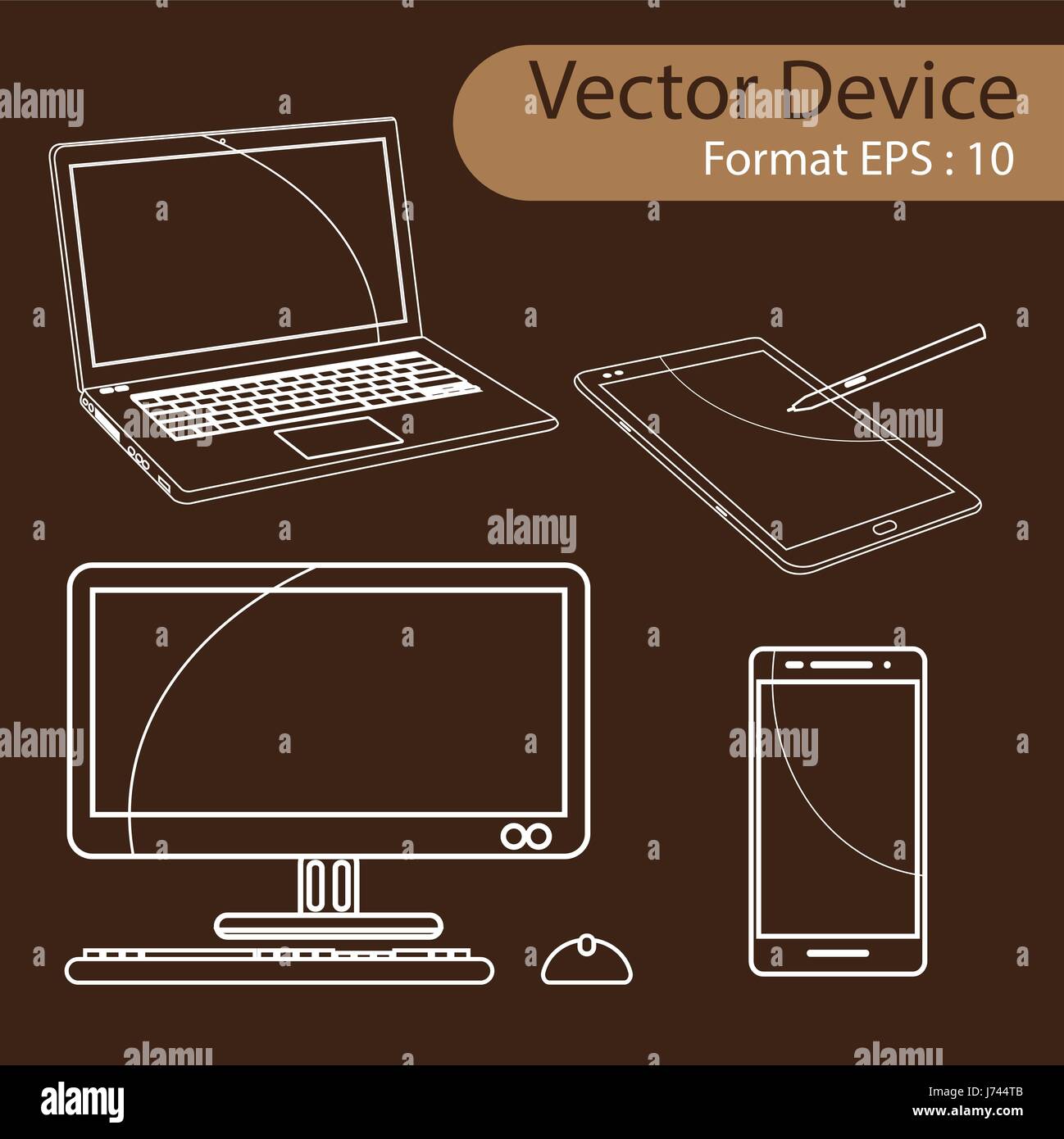
An art tablet for a computer, often referred to as a graphics tablet or digitizer, is a hardware peripheral that allows users to draw, sketch, and manipulate digital media directly on a computer screen. By utilizing a pressure-sensitive stylus instead of a traditional mouse, the device bridges the gap between traditional manual artistry and digital design workflows, enabling precise control over line weight, opacity, and brush dynamics.
Defining the Art Tablet Ecosystem
At its core, an art tablet is a pressure-sensitive input device that maps the surface of a physical pad (or the surface of an integrated screen) to the coordinates of a computer monitor. Unlike a mouse, which provides relative input—meaning the cursor moves relative to its current position—a graphics tablet typically employs absolute positioning. This means that if you touch the top-right corner of the tablet, the cursor instantly jumps to the top-right corner of your screen. This spatial correspondence is critical for the muscle memory required for digital illustration and photo retouching.
The hardware ecosystem is broadly divided into two distinct categories: screenless graphics tablets (also known as pen tablets) and pen displays (also known as interactive displays).
Screenless Graphics Tablets
These devices consist of a flat, touch-sensitive surface that connects to a computer. The user draws on the tablet surface while looking at the primary computer monitor. This requires a specific period of adaptation to develop hand-eye coordination, but they are often prized for their ergonomic benefits, as they allow the user to maintain an upright posture while working.
Pen Displays
A pen display is essentially a secondary monitor that you can draw on directly. By integrating the digitizer technology behind a liquid crystal or OLED display, these devices allow for a more intuitive, paper-like experience. Because the pen tip and the cursor are physically aligned, the learning curve is significantly reduced, making them a preferred tool for professional illustrators and digital painters who prioritize a direct connection between their hand and their artwork.
The Role of the Stylus and Pressure Sensitivity
The defining feature of any competent art tablet is the stylus. Unlike a capacitive stylus used for generic touchscreens, the stylus included with professional art tablets utilizes electromagnetic resonance (EMR) or active battery-powered sensors.
Pressure Sensitivity Levels
Pressure sensitivity determines how a software application interprets the force applied to the stylus. Modern tablets often feature 8,192 levels of pressure sensitivity. This capability allows software like Adobe Photoshop, Clip Studio Paint, or Corel Painter to translate a light touch into a thin, translucent stroke and a heavier press into a thick, opaque line. This mimics the behavior of traditional graphite pencils, charcoal, or brushes, providing a dynamic range of expression that a standard mouse simply cannot replicate.
Tilt and Rotation Recognition
High-end tablets also include tilt detection. This recognizes the angle at which the pen is held, which is essential for digital airbrushing or calligraphy where the width of the stroke changes based on the orientation of the tool. Rotation sensing, found in a select few professional-grade styli, tracks the physical rotation of the pen barrel, allowing for precise control over flat-tip brushes or nibs.
Essential Prerequisites for Integration
Before acquiring an art tablet, it is necessary to evaluate the technical requirements of your existing computing environment. The compatibility between your computer’s hardware, operating system, and the tablet’s driver software is the primary determinant of success.
- Operating System Compatibility: Ensure the tablet manufacturer provides current driver support for your version of Windows or macOS. In 2026, most major manufacturers maintain robust support for Windows 11 and recent macOS versions, but legacy support for older operating systems can be limited.
- Display Output: If you are opting for a pen display, your computer must have an available video output port (HDMI, DisplayPort, or USB-C with Thunderbolt/DisplayPort Alt Mode). You must verify that your computer’s graphics card can support an additional display without compromising performance.
- Connection Standards: Most modern tablets connect via USB-C. Ensure your computer has adequate USB bandwidth. If you are using a USB hub or docking station, confirm that it supports the data transfer rates required for high-resolution tablet input, as signal latency can cause a "laggy" cursor feel that ruins the drawing experience.
- Software Ecosystem: The tablet is only as effective as the software driving it. Professional-grade creative applications—such as Adobe Creative Cloud, Affinity Suite, or Blender—are optimized for tablet input. Ensure your workflow involves software that recognizes pen pressure and tilt data, as general-purpose apps may treat the tablet simply as a mouse emulator.
Comparing Art Tablet Form Factors
| Feature | Screenless Tablet | Pen Display |
|---|---|---|
| Learning Curve | High (Hand-eye coordination needed) | Low (Direct interaction) |
| Ergonomics | High (Maintains neck alignment) | Moderate (Requires looking down) |
| Portability | Excellent | Limited (Requires power/cables) |
| Average Cost | Affordable ($50–$300) | Premium ($400–$2,500+) |
| Space Required | Minimal | Significant (Desk footprint) |
The Role of Driver Software and Calibration
The tablet driver is the invisible engine that makes the device function. Upon installation, the driver creates a mapping between the tablet surface and the screen area. This is where users perform calibration.
Calibration ensures that the cursor remains perfectly underneath the stylus tip. This is particularly important for pen displays, where the thickness of the glass can create a slight visual gap—known as parallax—between the pen tip and the rendered pixels. Calibration tools allow you to tap specific points on the screen so the software can adjust for the viewing angle and parallax, ensuring a 1:1 tactile relationship.
Furthermore, driver software allows for the customization of "Express Keys" or shortcut buttons. Most art tablets feature physical or touch-sensitive buttons on the device frame. These can be mapped to keyboard shortcuts (e.g., Ctrl+Z for Undo, Spacebar for Pan, or B for Brush tool), which drastically improves the speed of an artist's workflow by reducing the need to constantly switch back and forth to a keyboard.
Common Challenges and Troubleshooting
Despite the sophistication of modern art tablets, users occasionally encounter technical hurdles.
Latency and Cursor Lag
If the cursor trails behind your pen, the issue is typically rooted in one of three areas:
- Driver Conflicts: Multiple driver versions or conflicting software can cause input delays. Always uninstall older drivers before installing new ones.
- Wireless Interference: If using a wireless tablet, local radio interference or a weak connection can lead to stuttering. Moving the tablet closer to the receiver often resolves this.
- Resource Intensive Processes: If your CPU or GPU is at maximum capacity, the computer may struggle to process the tablet's high-frequency coordinate data. Closing background processes often fixes this.
Jitter and Line Wobble
When drawing slow, diagonal lines, some users observe a slight "wobble" in the output. This is often a result of software-based stabilization or hardware interference. Many drawing applications offer "Smoothing" or "Stabilization" settings that help iron out erratic lines. If the jitter occurs even with stabilization off, verify that the tablet is not placed near electronic devices that may cause electromagnetic interference.
Pen Responsiveness
If the pen works as a mouse pointer but fails to register pressure, it is almost always a software-level configuration issue. Verify that you are using a brush tool in your creative software that supports pressure dynamics (often signified by a small icon of a pen with a gradient). If the setting is correct but pressure is still missing, reinstalling the tablet driver is the standard remediation step.
Integration into the Professional Workflow
For professional digital artists, the art tablet is the primary bridge to productivity. It is not merely a tool for painting; it is used for precise photo masking, industrial design sketching, and 3D sculpting.
In 3D sculpting software, the pressure sensitivity of the pen allows artists to control the intensity of their "brush" when pulling or pushing geometry. A light stroke may subtly nudge a vertex, while a firm stroke creates deep depressions or sharp ridges. This ability to modulate input force is what allows for the organic, non-linear progression of creative work.
Furthermore, many professionals use tablets in tandem with other peripherals. It is common to see a setup involving a keyboard for hotkeys, a secondary monitor for reference images, and a pen display for the canvas. The tablet effectively becomes a multi-functional controller, as the stylus can be used to navigate entire operating systems, often proving faster and more precise than a trackpad for high-resolution menu interaction.
Frequently Asked Questions
Do I need to be an artist to benefit from an art tablet?
Not necessarily. While they are designed for creative work, many power users prefer tablets for standard navigation, photo editing, and signing documents. The ergonomic benefits of using a pen rather than a mouse can also help mitigate symptoms of carpal tunnel syndrome, as the natural grip of a stylus is often less straining on the wrist.
Can an art tablet replace my computer mouse?
It can, but most professionals use them in combination. A mouse remains the superior tool for general desktop navigation and clicking, while the pen is far superior for tasks requiring spatial precision. Using both allows for a more efficient workflow where the right hand uses the pen for creation and the left hand manages shortcuts.
Are there significant differences between brands?
Yes. Major brands such as Wacom, Huion, and XP-Pen offer distinct approaches to surface texture, pen technology, and driver stability. Professional environments have historically favored Wacom for their historical reliability and driver maturity, while other brands have gained significant market share by offering high-end specifications at more accessible price points.
What is parallax, and does it matter?
Parallax is the visual offset between the pen tip and the cursor on a pen display, caused by the thickness of the glass covering the screen. Modern, fully laminated displays have virtually eliminated this issue. If you are a professional, choosing a model with a laminated screen is highly recommended for the most direct, accurate drawing experience.
Does the tablet require its own power source?
Most graphics tablets receive power via the USB connection to your computer. However, some larger pen displays require an external AC power adapter to ensure the display reaches adequate brightness and to support the connectivity of built-in USB hubs. Always check the power requirements of your specific model.
Final Recommendations for Selection
When selecting an art tablet, focus on the nature of your output. If your work is primarily professional-grade illustration, a pen display with a high color gamut (e.g., 99% Adobe RGB) and a laminated, etched-glass surface is the optimal choice. If you are a student or a hobbyist on a budget, a high-quality screenless tablet provides the same pressure-sensitive functionality as the most expensive models at a fraction of the cost, allowing you to invest your remaining budget into superior software.
Before finalizing your purchase, confirm that your desk space can accommodate the active area of the tablet you intend to buy. A common mistake is purchasing a device that is too large, forcing the user to reach across an uncomfortable distance. Start by considering the size of your current workspace and the resolution of your monitors; the tablet's active area should feel natural to your physical reach.