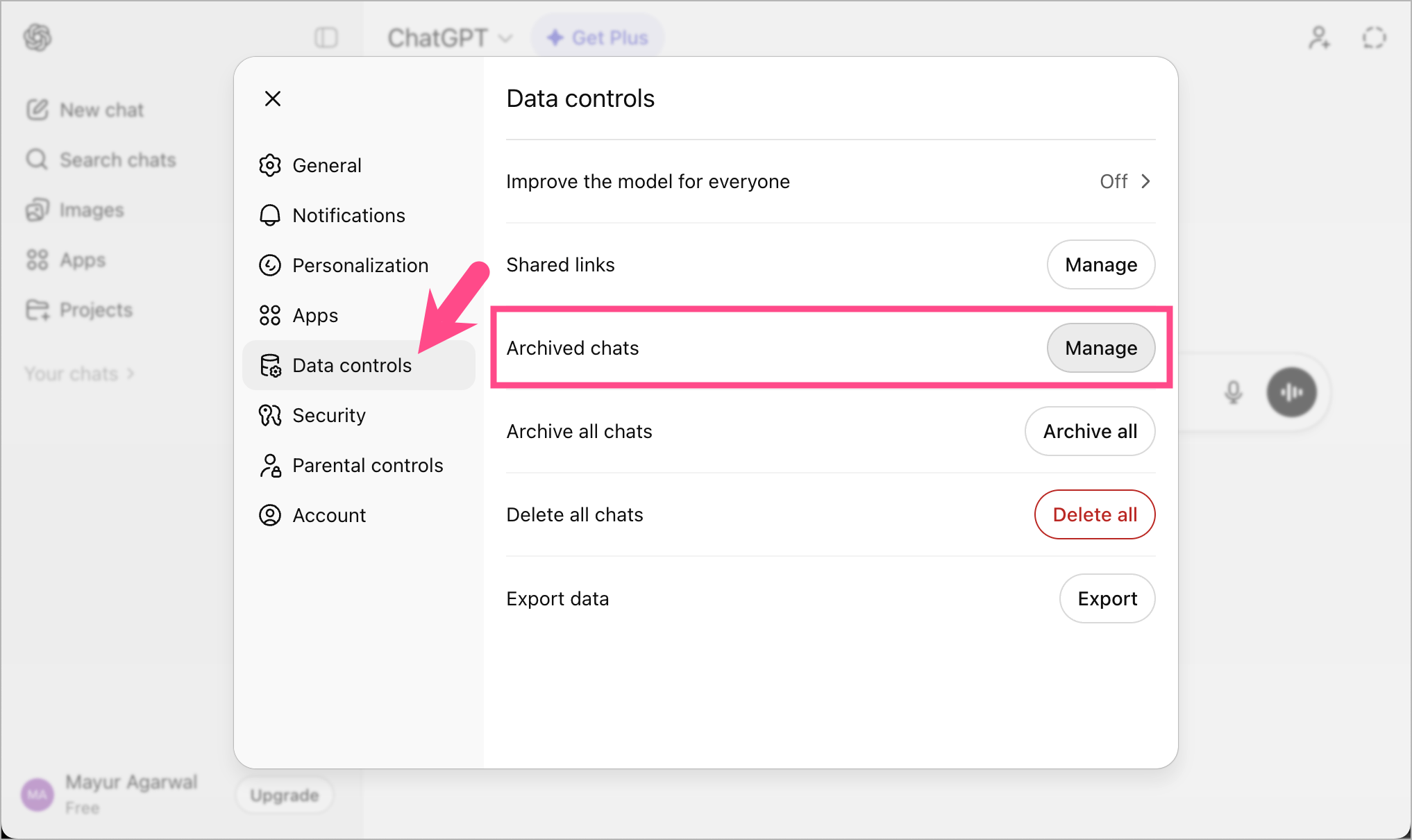
An archived chat is a conversation that has been moved from your primary inbox or chat list into a separate, secondary storage folder without being permanently deleted. This feature allows users to declutter their interface, organize ongoing communications, and hide specific threads from immediate view while preserving the entire message history and media for future reference.
In the fast-paced digital landscape of 2026, the volume of information we process daily is staggering. Whether you are using personal messaging apps like WhatsApp and Telegram or professional tools like Slack and Gmail, the "Archive" function serves as a critical middle ground between keeping a message front-and-center and removing it from your life entirely. Understanding the technical nuances of how different platforms handle these chats is essential for maintaining both digital privacy and an organized workflow.
The Technical Mechanism of Archiving
When you archive a chat, the underlying database entry for that conversation is usually tagged with a status flag—such as is_archived: true. From a technical standpoint, the data remains on your device or the service provider's server (depending on the app's architecture). The primary difference is the filter applied to your main view. Most messaging applications use a default view that only queries for conversations where the archive flag is false.
Unlike "Muting," which simply silences notifications, archiving changes the visual architecture of your app. In 2026, most sophisticated algorithms also take archiving into account when suggesting "frequent contacts" or prioritizing search results, often deprioritizing archived content unless specifically searched for.
Storage vs. Visibility
It is a common misconception that archiving saves space. In reality, archiving a chat does not reduce the storage footprint on your smartphone or cloud account. The images, videos, and text logs remain exactly where they were. If you are looking to free up gigabytes of storage, archiving is the wrong tool; you would need to "Clear Chat" or "Delete" to remove the actual media files from your local or cloud storage.
Platform-Specific Behaviors in 2026
While the general "archived chat meaning" remains consistent, the behavior of these chats when a new message arrives varies significantly across the major ecosystems.
WhatsApp: The Persistent Archive
WhatsApp has refined its "New Archive" behavior significantly over the last few years. By default, archived chats remain in the Archived folder even when a new message is received. This prevents "chat hopping," where a muted or hidden conversation suddenly jumps back to the top of your main screen because someone sent a "Hello."
To manage this, users must go to the "Archived" section at the top of their chat list. Within the settings, you can toggle "Keep Chats Archived," which dictates whether new notifications will pull the chat back into the main inbox. This is particularly useful for large groups that are informative but distracting.
Facebook Messenger: The Hidden Inbox
Messenger treats archiving as a way to "hide" conversations. Unlike WhatsApp, if you archive a chat on Messenger and that person sends you a new message, the conversation typically returns to your main inbox immediately. In 2026, Messenger continues to use archiving as a temporary decluttering tool rather than a permanent storage solution. If you want a conversation to stay away, "Restricting" or "Ignoring" are the more effective technical choices.
Telegram: The Swipable Sidebar
Telegram utilizes a dedicated "Archived Chats" folder that can be hidden or pinned to the top of the chat list. Telegram’s implementation is highly customizable; you can archive a chat by swiping left, and if the chat is not muted, a new message will bring it back to the main list. However, if the chat is muted, it stays in the archive indefinitely regardless of new activity. This logic allows for a very granular level of control over what interrupts your daily flow.
Gmail and Professional Email
In the context of email, "Archive" is the cornerstone of the "Inbox Zero" philosophy. When you archive an email in Gmail, the "Inbox" label is removed, but the "All Mail" label remains. The message is not deleted; it simply waits in the background until it is searched for or until a reply arrives, which triggers the message to reappear in the primary inbox.
Why Use the Archive Feature?
The decision to archive rather than delete is often driven by three primary factors: organization, privacy, and psychological focus.
1. Digital Minimalism and Organization
Maintaining a primary inbox with only "active" tasks or conversations reduces cognitive load. If a project is finished, or a social plan has concluded, archiving the thread keeps the interface clean while ensuring that if you ever need to verify a detail from that project, the data is still accessible.
2. Privacy and Discretion
Archiving provides a basic layer of privacy. If you are sharing your screen or someone glances at your phone, archived chats are not visible on the home screen. While it is not a replacement for "Locked Chats" (which require biometric authentication), it serves as an effective way to keep sensitive or personal threads out of the immediate line of sight.
3. Record Keeping (The "Just in Case" Factor)
In 2026, data is often viewed as a legal or personal record. Deleting a chat is permanent and often irreversible once the cloud backup cycles. Archiving allows you to keep a paper trail of agreements, sentimental messages, or transactional receipts without them cluttering your daily interactions.
Archiving vs. Deleting: A Critical Comparison
Understanding the distinction between these two actions is vital to avoid the accidental loss of important information.
| Feature | Archived Chat | Deleted Chat |
|---|---|---|
| Visibility | Hidden from the main list; moved to a folder. | Permanently removed from all lists. |
| Data Recovery | Easily restored at any time. | Usually impossible without a prior backup. |
| Storage Space | No change; files remain on the device. | Frees up storage space on the device/cloud. |
| New Messages | May stay archived or return to the inbox. | Creates a brand new, empty chat thread. |
| Searchability | Can be found via the app's search bar. | Cannot be found via search. |
How to Access and Manage Archived Chats
Regardless of the platform, the steps to retrieve these conversations follow a similar logic.
Finding the "Hidden" Folder
On mobile devices, the archive folder is usually found by:
- Scrolling to the top: On WhatsApp and Telegram, pulling down on the chat list often reveals the "Archived Chats" header.
- Menu Navigation: In Messenger or Gmail, clicking the "Hamburger" menu (three lines) or your profile icon usually reveals an "Archive" or "Archived" category.
- Search: Simply typing the name of the contact or a keyword from the conversation into the main search bar will almost always surface an archived chat, even if you can't find the folder.
Reversing the Process (Unarchiving)
To bring a chat back to your main view, you generally long-press the conversation within the Archive folder and select "Unarchive" or "Move to Inbox." This restores the thread to its chronological position in your main list based on the date of the last message sent or received.
Common Troubleshooting and Misconceptions
"I archived a chat and now I can't find it."
This is the most common user complaint. If the "Archived" folder isn't visible at the top of your list, try pulling down on the screen or checking the settings menu. In some versions of WhatsApp, the "Archived" header only appears if there are actually chats inside it; if it's empty, the header disappears.
"Does archiving a chat notify the other person?"
No. Archiving is a local, client-side organizational action. The other party has no way of knowing if you have archived the chat, muted it, or pinned it to the top. It does not trigger a notification, nor does it change your "Last Seen" or "Online" status differently than a regular chat would.
"Will I still get notifications for archived chats?"
This depends entirely on your settings. In 2026, most apps allow you to choose. If a chat is archived AND muted, you will generally see no notifications. If it is archived but NOT muted, you might see a small badge count on the Archive folder itself, or the chat might jump back to your main screen, depending on the platform's specific logic.
Best Practices for Digital Hygiene
To make the most of the archive feature, consider implementing these habits:
- The Weekly Sweep: Once a week, go through your main chat list and archive everything that doesn't require an immediate reply or ongoing attention.
- Mute Before You Archive: If you are archiving a busy group chat to get it out of your sight, always "Mute" it first. This ensures it stays in the archive and doesn't constantly demand your attention with new message pings.
- Use for Receipts: In apps like WhatsApp, where businesses send boarding passes or order confirmations, archive these immediately after use. They remain searchable for your records but don't clutter your personal conversations.
FAQs
What happens to the media in an archived chat?
The media (photos, videos, voice notes, and documents) remains on your device and within the chat thread. Archiving does not delete these files or move them to a different location in your phone’s gallery. If you have "Save to Camera Roll" enabled, the photos will stay in your gallery regardless of whether the chat is archived.
Is an archived chat the same as a blocked contact?
Absolutely not. Blocking a contact prevents them from calling you, seeing your status, or sending you messages. Archiving is purely for your own visual organization. You can still receive messages from someone you have archived, and they can still see your profile updates (unless you have changed your privacy settings).
Can I password-protect my archived chats?
Most apps do not offer a separate password for the archive folder itself. However, platforms like WhatsApp now offer "Chat Lock," which allows you to put specific conversations behind a biometric (FaceID/Fingerprint) or passcode wall. If privacy is your main goal, Chat Lock is a superior feature to simple archiving.
Does archiving a chat save battery life?
Technically, no. Archiving doesn't stop the app from syncing data in the background. However, by reducing the number of times you open the app to check irrelevant notifications (if you've muted the archived chats), you may indirectly save a small amount of battery by reducing screen-on time.
If I backup my phone, are archived chats included?
Yes. Standard cloud backups (like iCloud, Google Drive, or local app backups) include all messages, regardless of whether they are in the main inbox or the archive. As long as you don't delete the chat, it will be restored when you move to a new device.
Summary Recommendation
The "archived chat meaning" boils down to intentional visibility. If you find your messaging apps overwhelming or cluttered, the archive function is your best tool for restoration. Use it for conversations that are "done for now" but might be needed later. For maximum efficiency, combine archiving with muting for group chats, and reserve the "Delete" function only for content that is truly disposable or takes up too much storage space. By mastering the archive, you transition from being reactive to your notifications to being the active curator of your digital space.