Adding a Bluetooth device to a Windows 10 computer involves navigating the system's "Devices" settings menu to initiate a pairing sequence between your hardware and the operating system. By ensuring your PC’s Bluetooth radio is enabled and your peripheral is set to discovery mode, you can establish a wireless connection for mice, keyboards, audio devices, or file transfers with minimal configuration.
Prerequisites for Bluetooth Connectivity
Before attempting to connect any peripheral to your Windows 10 machine, you must verify that your hardware supports Bluetooth technology. While most modern laptops manufactured within the last decade come with built-in Bluetooth radios, desktop PCs often lack this functionality unless a dedicated Bluetooth adapter or a Wi-Fi card with integrated Bluetooth is installed.
Checking Your Hardware Status
To determine if your Windows 10 PC has Bluetooth capabilities, you can consult the Device Manager. Right-click the Start button and select "Device Manager." Look for a heading labeled "Bluetooth." If this section exists and contains items such as "Intel Wireless Bluetooth," "Realtek Bluetooth Adapter," or similar, your hardware is present. If you do not see this category, you may need to install an external Bluetooth USB dongle.
Ensuring Drivers Are Updated
Even if the hardware is present, a missing or corrupted driver can prevent the device from functioning. Within the Device Manager, ensure there are no yellow exclamation marks next to the Bluetooth entries. If you find errors, right-click the adapter, select "Update driver," and choose to search automatically. In some instances, visiting the manufacturer's website—such as Dell, HP, or ASUS—to download the specific driver package for your model remains the most reliable method for restoring functionality.
Activating Bluetooth on Windows 10
Once you have confirmed that your hardware is capable, you must ensure the Bluetooth radio is powered on within the Windows environment.
Using the Action Center
The fastest way to toggle Bluetooth is through the Action Center. Look for the message bubble icon in the bottom-right corner of your taskbar, next to the system clock. Click it to open the panel, then locate the "Bluetooth" button. If it is grayed out, click it to activate it. If the button is missing, you may need to click "Expand" at the bottom of the panel to reveal hidden shortcuts.
Configuring Settings via the Control Panel
For a more granular approach, navigate to the main Settings menu:
- Click the Start button and select the gear icon to open Settings.
- Select Devices.
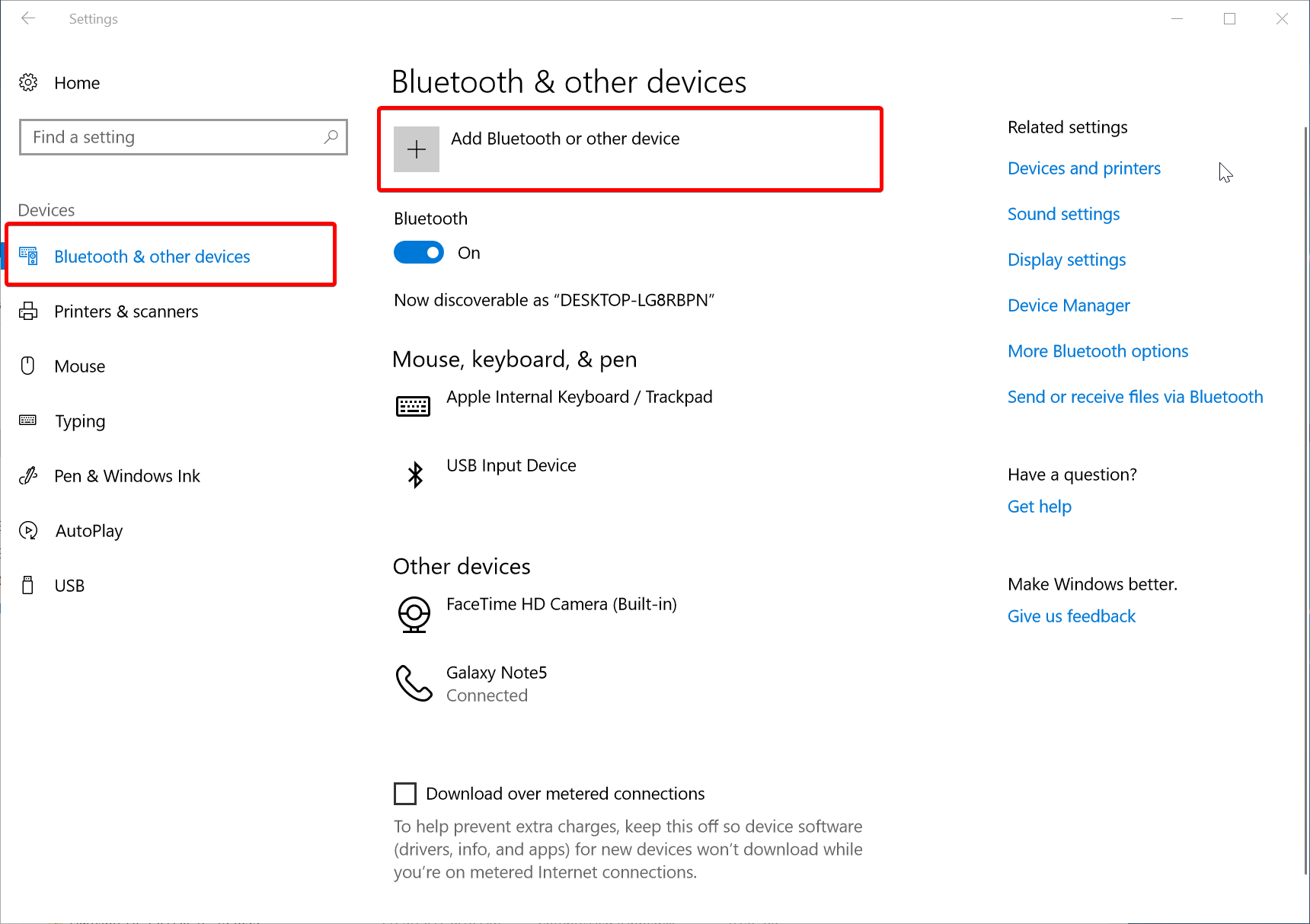
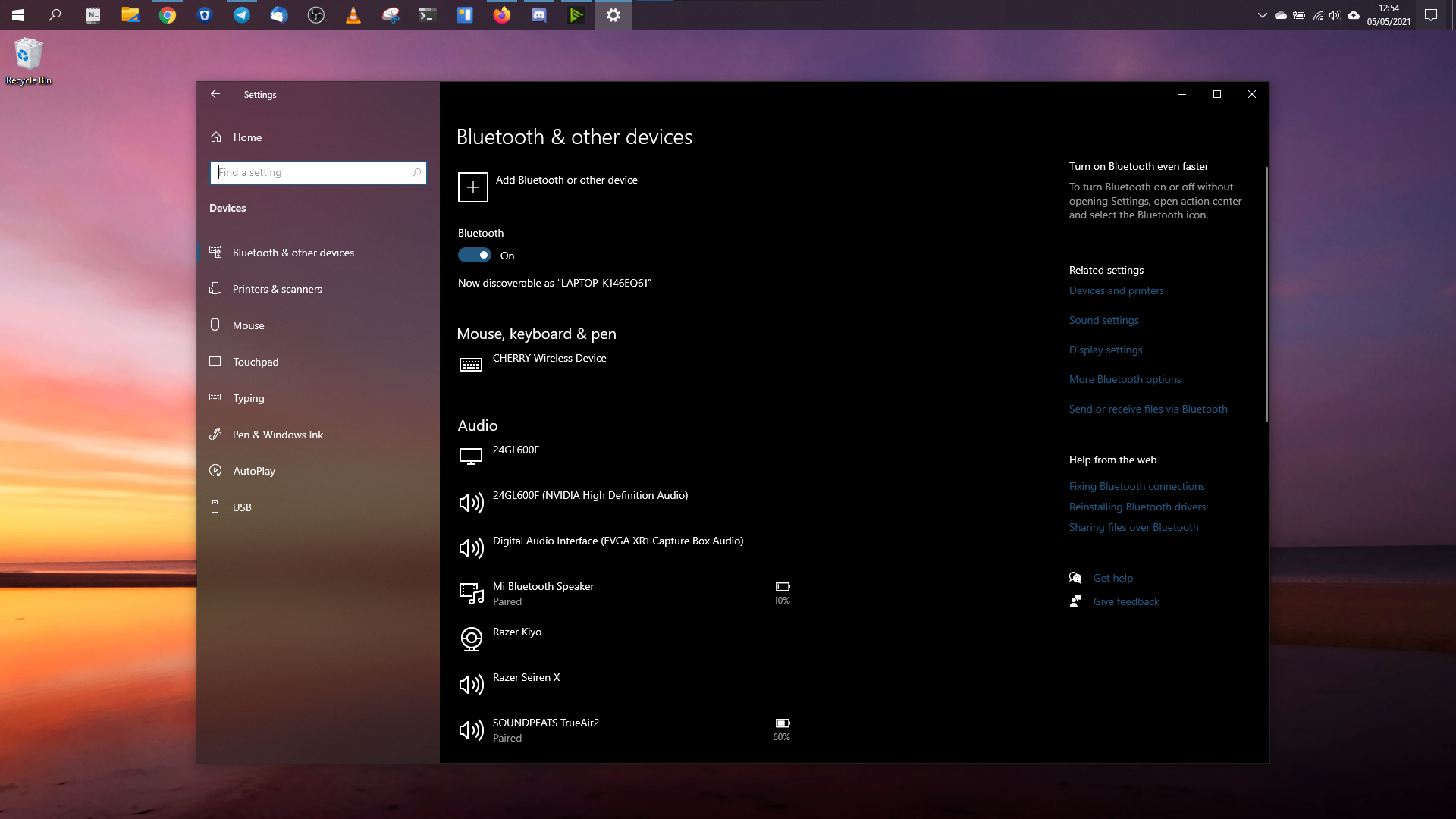
- Ensure the tab for Bluetooth & other devices is selected.
- Toggle the switch labeled "Bluetooth" to the On position.
If this toggle is missing entirely, it serves as a primary indicator that your PC either lacks a Bluetooth adapter or the driver is entirely absent from the system.
The Pairing Process: Connecting Your Device
Pairing is the handshake process that allows your PC and the peripheral to communicate securely. Every device—whether a headset, speaker, or input device—requires a specific "discovery mode."
Initiating Discovery Mode
Every Bluetooth device has a unique method for entering discovery mode. For many wireless mice and keyboards, this involves holding down a physical "Pair" or "Connect" button for three to five seconds until an LED begins to blink. For audio devices like earbuds, this often requires placing them in their charging case with the lid open or holding the power button until a pairing light flashes. Consult the manual for your specific peripheral if you are unsure of the button combination.
Executing the Connection in Windows 10
Once your device is broadcasting, return to your PC:
- In the Bluetooth & other devices settings window, click the plus icon labeled Add Bluetooth or other device.
- Select the first option: Bluetooth (mice, keyboards, pens, or audio and other kinds of devices).
- Windows will begin scanning for nearby signals. Your device should appear in the list with its brand name or model number.
- Click on the device name. Windows will automatically attempt to establish a connection.
- If the device requires a PIN (common for certain legacy audio equipment or specialized input devices), a window will appear on your screen. Enter the PIN provided by your device manual or simply confirm the match on your screen.
- Once the message "Your device is ready to go" appears, click Done.
Troubleshooting Common Connection Failures
Even when following the correct steps, you may encounter issues where the device is not detected or the connection drops repeatedly.
Proximity and Interference
Bluetooth operates on the 2.4 GHz frequency, which is shared by many Wi-Fi routers, microwaves, and other wireless electronics. If your device is not being discovered, move it closer to your PC—ideally within three feet during the initial pairing process. Furthermore, ensure that no other devices are currently connected to the peripheral, as many Bluetooth accessories can only pair with one source at a time.
Removing and Re-pairing
If a device appears in your list but fails to function, a "soft reset" of the connection is often effective.
- Navigate to Bluetooth & other devices in Settings.
- Click on the device that is malfunctioning.
- Select Remove device and confirm.
- Turn off the Bluetooth toggle on your PC, wait ten seconds, and turn it back on.
- Perform the pairing process again from scratch.
Comparison of Bluetooth Device Types
Different categories of Bluetooth devices interact with Windows 10 in distinct ways. Understanding these differences can help you manage expectations regarding performance and latency.
| Device Type | Primary Use | Connectivity Complexity | Typical Range |
|---|---|---|---|
| Input (Mouse/Keyboard) | Data Entry | Low | 10 meters |
| Audio (Headsets/Speakers) | Media Output | Moderate | 5–10 meters |
| Data (Phones/Tablets) | File Transfer | High | 5 meters |
| Game Controllers | Input/Feedback | Moderate | 5–8 meters |
Advanced Considerations and Limitations
While Bluetooth is convenient, it is not a high-bandwidth protocol. If you are attempting to stream high-fidelity audio or transfer large files, you may notice limitations compared to wired connections.
Audio Latency
Bluetooth audio, particularly on older versions, can suffer from "latency," which is a slight delay between the visual action on your screen and the sound heard through your headphones. While Windows 10 manages most standard audio profiles (A2DP) effectively, professional video editing or competitive gaming may still require a wired connection or a specialized 2.4 GHz dongle to eliminate lag entirely.
Bandwidth Bottlenecks
Connecting multiple Bluetooth devices simultaneously can sometimes cause bandwidth congestion. If you are using a Bluetooth mouse, a Bluetooth keyboard, and a Bluetooth headset at the same time, you might experience stuttering or dropped inputs. If this occurs, prioritize the most important devices for Bluetooth and consider using a wired connection or a dedicated USB-receiver mouse for the others.
Legacy Support
Windows 10 provides excellent support for legacy Bluetooth standards, but very old peripherals (e.g., those from the Bluetooth 2.0 or 3.0 era) may struggle to maintain a stable connection with modern Windows 10 updates. If you are using aging hardware, ensure you are not running other interfering wireless technologies in the immediate vicinity.
Frequently Asked Questions
Why doesn't my Bluetooth device appear in the list during the scan?
The most common reason is that the device is not in "discovery mode." Ensure the device is powered on, fully charged, and the pairing light is flashing. Also, verify that the device is not already connected to your smartphone or another computer, as this will prevent it from being "seen" by your PC.
Can I connect multiple Bluetooth audio devices at once?
Windows 10 typically supports only one active Bluetooth audio output at a time. While you can pair several devices, the operating system generally requires you to select one as the default output in the Sound settings, meaning you cannot natively stream audio to two different Bluetooth speakers simultaneously without third-party software.
Does turning off Bluetooth save battery life on a laptop?
Yes. Bluetooth is a radio technology that consumes power constantly while active, even when no devices are connected. If you are working on a laptop and do not plan to use wireless peripherals for an extended period, turning off Bluetooth via the Action Center can provide a marginal increase in battery longevity.
Why is my Bluetooth device connected but not playing sound?
Navigate to the "Sound" settings in Windows 10. Click on the Sound Control Panel or the volume icon in the taskbar and check the "Output" device dropdown. Ensure your Bluetooth headset is selected as the primary output device. Sometimes, Windows 10 defaults back to built-in speakers or a monitor's audio output even when a headset is paired.
How do I update my Bluetooth drivers?
Use the Device Manager to check for driver updates, but for the most stable results, visit the support page for your PC or motherboard manufacturer. Download the latest Bluetooth driver package specifically designed for your system model and install it manually to ensure you have the latest compatibility patches provided by your hardware vendor.
Final Recommendation
To successfully add a Bluetooth device to a Windows 10 PC, prioritize the preparation of your peripheral by placing it in discovery mode before opening the Windows Settings menu. Most connectivity issues are resolved by toggling the Bluetooth radio, ensuring the device is not paired with a nearby phone, or reinstalling the latest drivers from your PC manufacturer’s official support portal. For the best experience, keep your firmware updated and ensure your device is within a reasonable distance of the internal antenna.