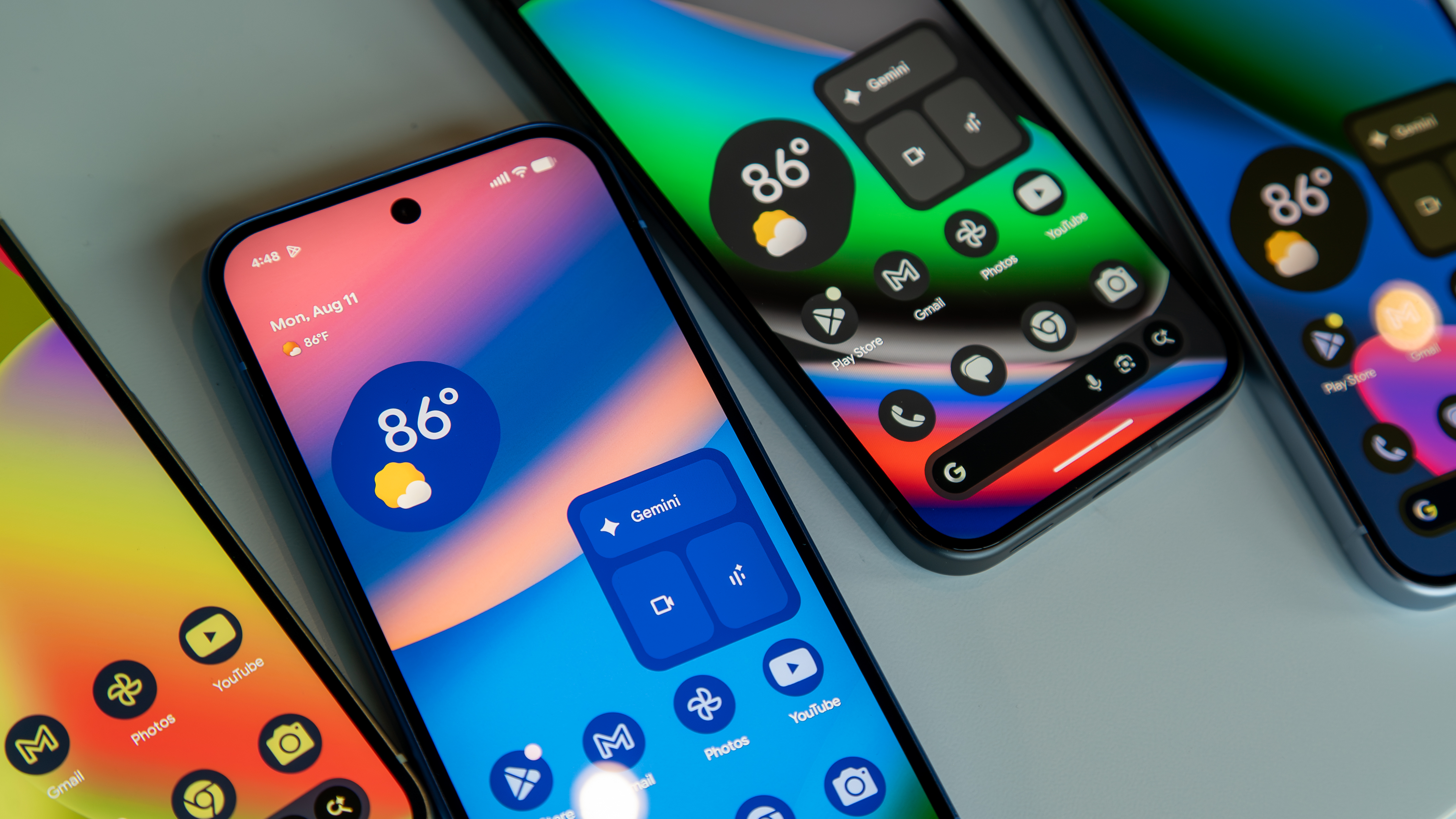
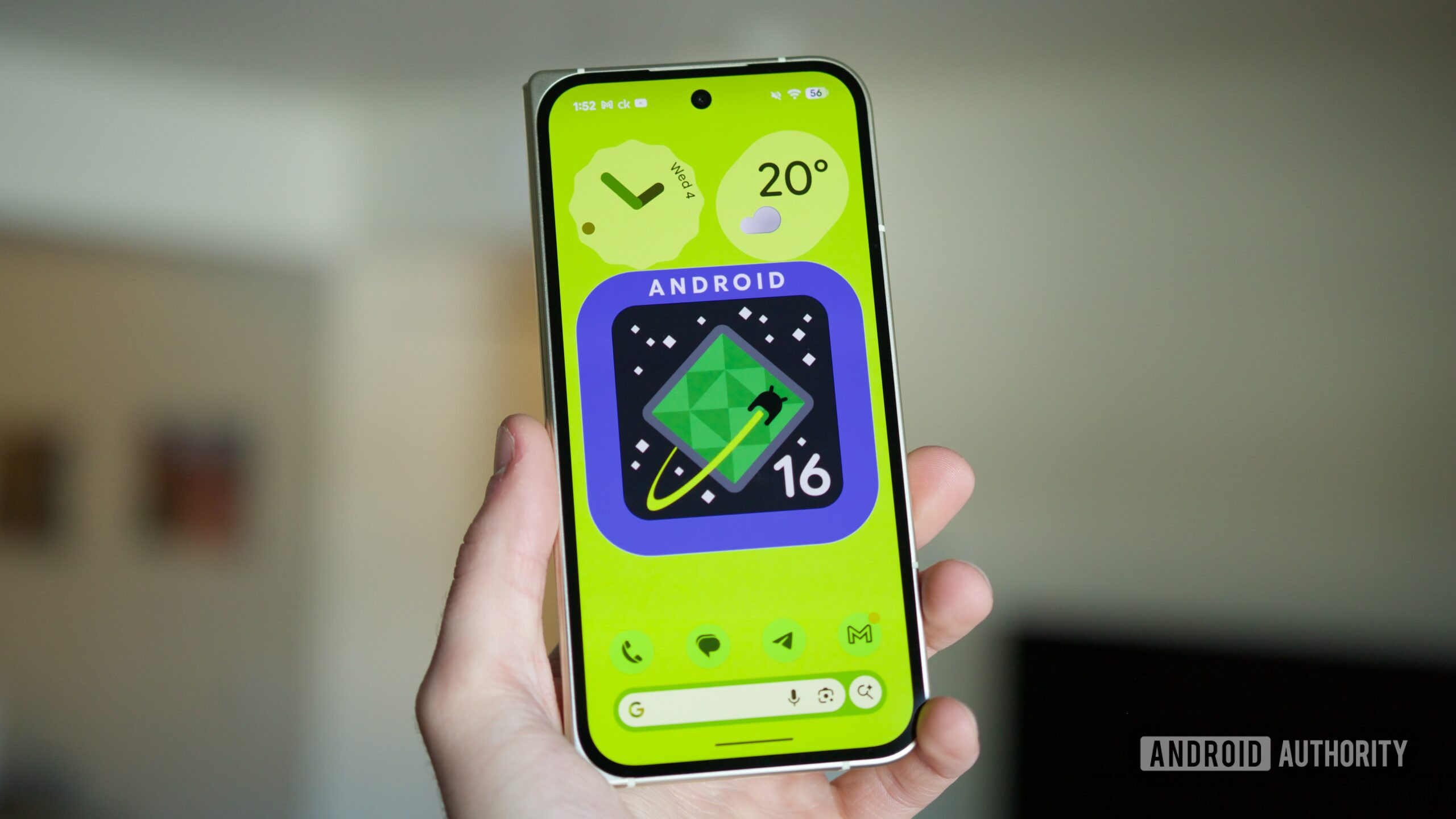
Android 16 represents the final major operating system milestone for the Google Pixel 7, bringing the "Baklava" update to the 2022 flagship hardware. While the device transitioned to security-update-only status in late 2025, Android 16 remains the definitive software experience for the Pixel 7, offering refined multitasking and enhanced privacy controls.
The Google Pixel 7, powered by the Tensor G2 chip, occupied a pivotal place in the smartphone market when it launched in October 2022. As we move through 2026, many users continue to rely on this hardware. Navigating the transition to Android 16 is critical for these users, as it marks the end of the guaranteed platform update cycle while simultaneously providing the most modern tools available for the device's remaining years of service. This guide explores the technical requirements, the performance impact of the new OS on older silicon, and the steps necessary to ensure a smooth update.
The Lifecycle of the Pixel 7: Why Android 16 is the Final Frontier
When Google released the Pixel 7 and Pixel 7 Pro, the company committed to a specific support lifecycle: three years of major Android OS updates and five years of monthly security patches. Because the Pixel 7 launched with Android 13, its three-year window concluded with the release of Android 16 in 2025.
In a significant shift for the ecosystem, Google accelerated the Android release cycle in 2025, moving the primary platform launch from the traditional third or fourth quarter to the second quarter. This adjustment ensured that the Pixel 7 received Android 16 (internally codenamed Baklava) just before the "guaranteed" OS update period expired in October 2025. As of 2026, the Pixel 7 is in its "Security Update Only" phase. This means that while users will no longer receive Android 17 or subsequent version jumps, the device remains protected against emerging vulnerabilities through 2027.
Understanding this lifecycle is vital for long-term planning. Android 16 is the "peak" software version for the Tensor G2. It introduces architectural changes designed to make the OS more modular, allowing Google to update individual system components via the Play Store even after the core OS version is frozen.
Key Features of Android 16 for Pixel 7 Users
Android 16 focuses heavily on "intelligence and integration," building upon the foundational AI work started in previous versions. For Pixel 7 users, the update brings several noticeable improvements that breathe new life into the aging hardware.
Enhanced Multitasking and "Bubble" Windows
One of the most significant UI changes in Android 16 is the expansion of the "Bubbles" API. While previously limited to messaging apps, Android 16 allows almost any app to be launched into a floating, movable bubble. On the Pixel 7's 6.3-inch display, this facilitates much better multitasking, allowing users to keep a calculator or a browser window open while navigating other apps without the clunkiness of traditional split-screen modes.
The New Privacy Dashboard and Photo Picker
Privacy remains a cornerstone of the Android 16 experience. The update introduces an overhauled Photo Picker that is now mandatory for all apps seeking access to local media. Instead of granting an app permission to see your entire gallery, the OS mediates the selection, ensuring the app only sees the specific files you choose. On the Pixel 7, this is integrated with the "Private Space" feature introduced in Android 15, providing a hardware-isolated environment for sensitive data.
Advanced Notification Cooling
To combat "notification fatigue," Android 16 introduces a feature called Notification Cooling. If a specific app sends a rapid succession of alerts, the system gradually lowers the volume of those alerts and simplifies the visual notification. This is particularly useful for group chats or news apps that may become intrusive during the workday.
Predictive Back Gestures
While predictive back gestures were a developer option in previous versions, Android 16 makes them the standard. As you swipe back, the system provides a visual preview of where you are going (e.g., the home screen or a previous activity), preventing accidental app closures.
Technical Requirements and Performance on Tensor G2
The Tensor G2 was a powerhouse in 2022, but by 2026 standards, its efficiency and AI processing capabilities are modest compared to the Tensor G5 or G6. However, Android 16 is surprisingly well-optimized for this chipset.
Memory Management
Android 16 introduces a revised version of the "MGLRU" (Multi-Gen Least Recently Used) memory management system. This is crucial for the Pixel 7, which features 8GB of LPDDR5 RAM. The new system is more aggressive at identifying which apps in the background are likely to be reused, reducing "app kills" and making the device feel faster when switching between heavy applications.
Battery Optimization
The 4355 mAh battery in the Pixel 7 has likely seen some degradation by 2026. Android 16 addresses this through "Energy Aware Scheduling," which more effectively offloads background tasks to the Tensor G2’s high-efficiency cores. While it cannot fix physical battery wear, the software helps squeeze more screen-on time out of the remaining capacity.
| Feature Category | Android 15 Status | Android 16 Status (Pixel 7) |
|---|---|---|
| OS Version | 15 (Vanilla Ice Cream) | 16 (Baklava) |
| Multitasking | Split-screen only | Floating Bubble Windows |
| Media Privacy | Partial Photo Picker | Mandatory System-wide Picker |
| Kernel Version | 5.10 / 5.15 | 5.15 (with backported features) |
| AI Integration | Gemini Nano (Limited) | Gemini Nano with Expanded API |
| Support Status | Active OS Support | Final OS Support / Security Only |
Step-by-Step Installation Guide for Android 16
If you are currently on Android 15 and haven't yet moved to the final platform version, there are three primary ways to install Android 16 on your Pixel 7.
Method 1: Over-the-Air (OTA) Update
This is the safest and most common method. It preserves all user data and settings.
- Connect to a stable Wi-Fi network and ensure your battery is at least 50% charged.
- Navigate to Settings > System > Software update.
- Tap Check for update.
- If Android 16 is available, tap Download and Install.
- Once the download completes, the device will prompt you to restart. The "Optimizing apps" phase may take 30–60 minutes on the Pixel 7's hardware.
Method 2: Manual Sideloading (Via ADB)
If the OTA is not appearing or you want a fresh system image without wiping data, you can use the Android Debug Bridge (ADB).
- Download the official OTA image for the Pixel 7 (codenamed "panther") from the Google Developers site.
- Enable Developer Options on your phone (Tap 'Build Number' 7 times in About Phone).
- Enable USB Debugging.
- Connect the phone to a PC with ADB installed.
- Reboot into Recovery Mode (
adb reboot recovery). - Select "Apply update from ADB."
- Run the command:
adb sideload [filename].zip.
Method 3: The Android Flash Tool
For those who want a completely clean start (which can help resolve performance "jank" on older phones), the browser-based Android Flash Tool is recommended.
- Backup all data, as this will wipe your device.
- Go to the Android Flash Tool website in a Chrome-based browser.
- Connect your Pixel 7 and follow the on-screen prompts to unlock the bootloader and flash the Android 16 factory image.
Troubleshooting Common Issues on Older Hardware
As hardware ages, software updates can occasionally trigger issues that weren't present on newer devices. Pixel 7 users should be aware of these potential hurdles with Android 16.
1. Excessive Heat During Update: The Tensor G2 is known for running warm. During the installation of Android 16, the intensive background processing can cause the device to throttle. It is best to remove any protective cases and place the phone on a cool, flat surface during the update process.
2. Stuttering Animations: If the new Bubble multitasking or predictive back gestures feel sluggish, try clearing the system cache or reducing animation scales. Go to Developer Options and set "Window animation scale," "Transition animation scale," and "Animator duration scale" to 0.5x.
3. Battery Drain Post-Update: It is normal to experience increased battery drain for the first 48–72 hours after installing Android 16. The system needs time to re-index files and re-learn your usage patterns via the "Adaptive Battery" algorithm. If the drain persists, check for rogue apps that may not be optimized for the Android 16 API.
4. Storage Constraints: Android 16 requires approximately 10GB of free space for a smooth installation. Since the Pixel 7 starts at 128GB of storage, users with many 4K videos or large games may need to offload files to Google Photos or an external drive before attempting the update.
The Future: Security and Custom ROMs After 2026
Once Android 16 is installed, the Pixel 7 enters its twilight years. While Google will provide security patches until October 2027, you will not see Android 17.
For tech-savvy users, this is where the "Custom ROM" community becomes valuable. Because the Pixel 7 has an unlockable bootloader, developers on platforms like XDA will likely port Android 17 and 18 to the device. Projects like LineageOS or GrapheneOS often extend the functional life of Pixel devices by several years. However, be aware that unlocking the bootloader can break certain security features like Google Wallet (NFC payments) and high-definition Netflix playback unless specific workarounds are applied.
For the average user, the best strategy is to remain on the official Android 16 build with the latest security patches. This ensures the highest level of stability and security without the complexities of custom software.
FAQ
Does Android 16 make the Pixel 7 slower? Generally, no. While the Tensor G2 is older, Android 16 includes background optimizations (like the improved MGLRU) that focus on efficiency. Users might notice slight stutters in extremely heavy AI tasks, but the general UI remains fluid.
Is this the last update for the Pixel 7? Android 16 is the last major version update. However, the Pixel 7 will continue to receive monthly security patches and "Google Play System Updates" through late 2027. These updates fix bugs and security vulnerabilities without changing the underlying Android version.
Can I use Android 16 features like 'Bubbles' on all apps? In Android 16, most apps are compatible with the bubble multitasking system, but developers can still opt-out if their app’s layout doesn't support small-window formats. Most mainstream social media and productivity apps support it natively.
What should I do if my Pixel 7 doesn't show the Android 16 update? Ensure you are not on a "Beta" track from a previous version. If you were enrolled in the Android 15 Beta, you might need to opt-out at the Android Beta Program website to receive the stable Android 16 public release.
Will my battery life improve with Android 16? You may see a slight improvement in standby time due to the new Energy Aware Scheduling. However, because the Pixel 7 hardware is several years old by 2026, the physical health of your battery is a much larger factor than software optimization.
Recommendation
If you own a Pixel 7 in 2026, installing Android 16 is highly recommended. It provides the most polished and secure version of the Android platform available for your hardware. Before updating, perform a full backup of your photos and messages to Google One or a PC. Given the age of the Tensor G2, a "Factory Reset" after the update is often the best way to ensure the phone remains snappy and responsive. Once you have reached the end of the security patch cycle in 2027, you should consider upgrading to a newer device to ensure your data remains protected against modern threats.