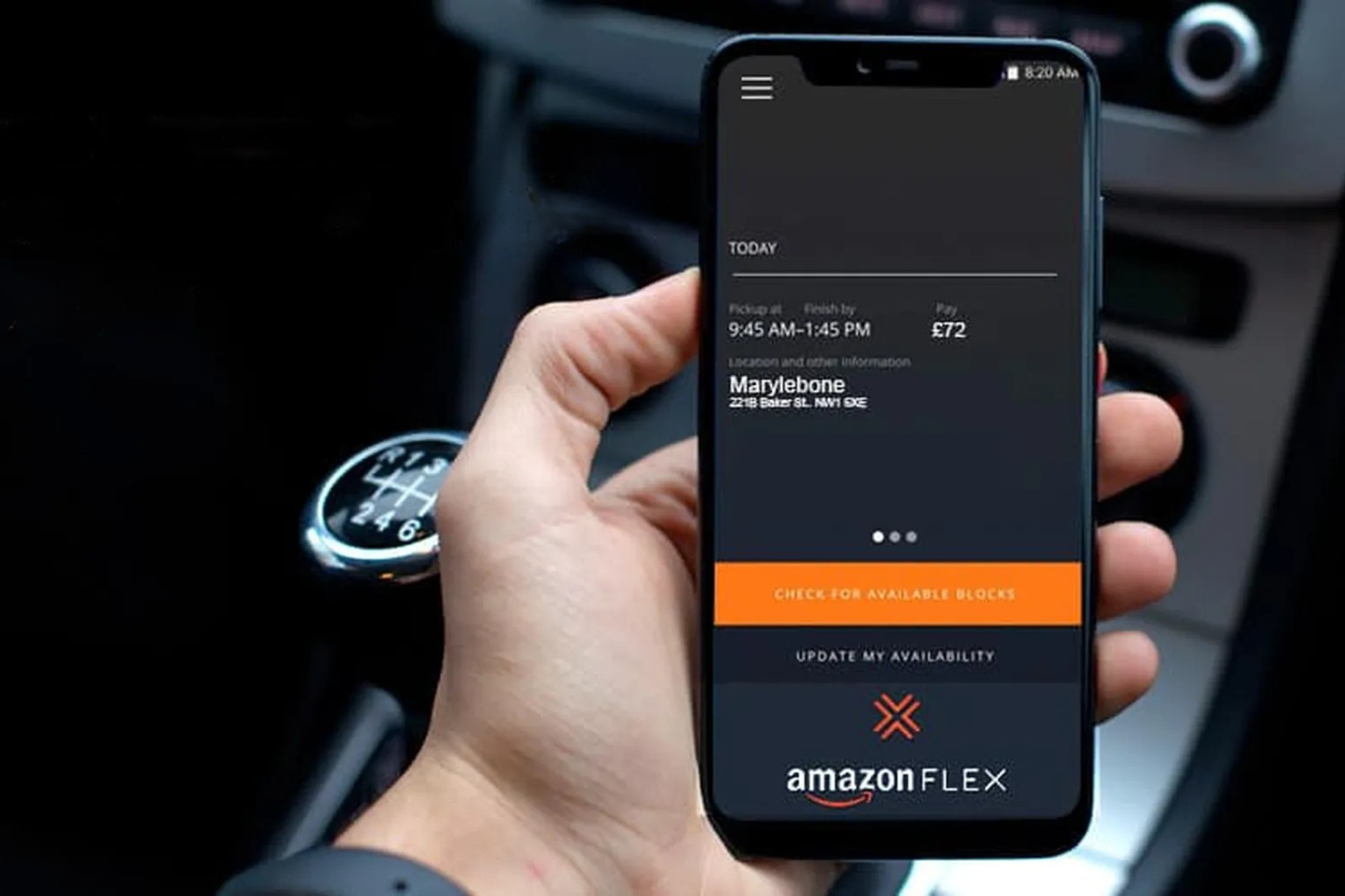
Amazon Flex uses an automated in-app identification system combining government-issued photo ID verification with periodic real-time selfie checks. Before starting a delivery block or logging into the app, drivers must capture a live photo. Biometric software compares this image against the verified driver photo on file to prevent unauthorized account sharing and maintain security.
Overview of Amazon Flex Identity Verification Architecture
The Amazon Flex platform relies on strict identity verification mechanisms to protect package integrity, maintain delivery station security, and ensure that only vetted independent contractors access delivery blocks. Because Amazon Flex delivery partners operate as independent contractors using personal vehicles, the identity system must function seamlessly across millions of iOS and Android mobile devices without physical supervision.
Identity verification within the Amazon Flex ecosystem operates across two distinct phases: initial onboarding background verification and routine operational identity checks. During initial onboarding, applicants submit an official driver’s license, social security number (in the United States), and personal background details. Once approved, the driver’s profile photograph establishes a primary reference baseline.
Amazon Flex Identity Pipeline:
- Baseline Creation
- License Upload
- Profile Photo
- Operational Prompt
- Random/Pre-Block
- Real-Time Selfie
- Verification Check
- Biometric Match
- License Scan at Hub
Operationally, the in-app identification system acts as a digital gatekeeper. It deters illegal account rental, bot usage, and proxy driving—practices where an unauthorized person completes deliveries on behalf of an approved account holder. By combining software-based facial analysis with physical document checks at Amazon fulfillment centers and delivery stations, the system forms a multi-layered security model.
The Three Core Components of the Verification System
The Amazon Flex identity ecosystem relies on three complementary technologies to confirm driver identity throughout their time on the platform.
Digital Identity Pipeline:
- Onboarding (Govt ID)
- In-App Selfie (Biometrics)
- Station Scan (PDF417 Barcode)
1. Government-Issued Document Scan
During initial signup or routine license updates, drivers must scan the front and back of a valid, unexpired driver’s license. The app uses optical character recognition (OCR) and barcode reading software to extract legal name, date of birth, license expiration date, and driving permissions. This data must match the personal details supplied during the criminal background check process administered by third-party verification partners like Checkr.
2. In-App Biometric Selfie Check
The primary daily identification mechanism is the dynamic photo prompt inside the Amazon Flex application. Drivers are periodically prompted to take a real-time photograph of their face before scheduled delivery blocks, during account sign-ins, or when accepting specific shift offers. The system performs biometric mapping on the freshly captured image and compares it to the driver’s established profile image stored on secure Amazon servers.
3. Physical Driver’s License Scanning at Stations
Upon arriving at an Amazon Logistics facility, Same-Day fulfillment site, or Amazon Fresh station, drivers must complete an in-person check-in. This step requires scanning the physical PDF417 2D barcode located on the back of their physical driver's license using either an Amazon-issued kiosk or a station employee's handheld device. This step verifies physical presence and ensures the individual at the facility possesses the actual physical driving credential associated with the digital account.
Step-by-Step: How the In-App Selfie Check Operates
The in-app selfie check requires drivers to complete a precise sequence of actions within the mobile app interface.
In-App Selfie Check Process:
- Trigger Event
- Prompt appears
- Environment Prep
- Adequate lighting
- Camera Alignment
- Center face in oval frame
- Liveness Check
- Blink/movement
- Biometric Comparison
- Facial feature matching
- Clearance Pass/Fail
- Block access granted
Step 1: Trigger Event
The identification screen activates automatically. Common triggers include:
- Tapping I've Arrived upon reaching a delivery station.
- Logging into the Amazon Flex app on a new device or after logging out.
- Accepting certain reserved delivery blocks.
- Random spot checks initiated during active scheduling sessions.
Step 2: Environmental Preparation
Before activating the camera shutter, the application prompts the driver to clear their physical environment. Drivers must remove heavy hats, sunglasses, facemasks, or any non-prescriptive accessories that obstruct facial geometry. Adequate interior vehicle lighting or exterior daylight is required to prevent extreme shadows.
Step 3: Frame Alignment and Guidance
The camera interface presents an oval framing guide overlaid on the screen. The driver must position their face entirely within the oval boundaries. The screen outline changes color—typically shifting from white or orange to green—when the camera detects proper alignment, correct focal distance, and adequate lighting levels.
Step 4: Liveness Detection Protocol
To prevent fraud tactics such as holding up a static photograph, video recording, or high-resolution mask to the camera lens, the system executes real-time liveness checks. The app may instruct the driver to perform micro-movements, such as blinking naturally, turning their head slightly to the left or right, or holding the camera steady while the screen flashes variable light intensities. These dynamic checks confirm that a physical, living person is currently behind the lens.
Step 5: Biometric Feature Extraction and Comparison
Once captured, the image is compressed, encrypted, and evaluated using cloud-based computer vision analysis. Facial recognition algorithms evaluate geometric feature points, including:
- Distance between the eyes (interpupillary distance).
- Width of the nose bridge.
- Depth of eye sockets.
- Shape of the jawline and cheekbones.
- Distance from the nose base to the chin.
If the biometric signature matches the established driver profile within an authorized statistical confidence threshold, the app approves the driver, enabling the check-in or delivery navigation workflow.
At the Delivery Station: Driver's License Scanning Protocols
While the in-app selfie validates digital identity, station check-in protocols enforce physical credentials. Understanding how station check-in devices process driver data helps avoid delays or missed blocks.
Delivery Station Check-In Workflow:
- App Check-In
- Tap "Arrived" in station zone
- Physical Scan
- PDF417 Barcode scanned at kiosk
- System Cross-Check
- Match App Profile with License Data
- Block Start
- App assigns cart/route
When arriving at an Amazon facility, drivers complete two mandatory actions:
- Geofenced App Check-In: The smartphone's GPS confirms physical presence within the delivery station's geofenced boundary, unlocking the station arrival interface.
- Physical License Barcode Scanning: Drivers walk to a check-in kiosk or present their physical driver's license to an Amazon Associate equipped with a handheld scanner. The scanner reads the PDF417 2D barcode on the back of the license.
The kiosk cross-checks the name and driver's license number encoded in the barcode against the active block reservation in the Amazon Flex dispatch software. If the license data matches the scheduled driver profile, the station system registers the driver as physically present and assigns a delivery route cart.
Drivers cannot use photos of their license, digital driver’s licenses stored in smartphone wallets (unless explicitly supported by local station guidelines and local state laws), or temporary paper licenses lacking standard scannable 2D barcodes.
Comparison of Amazon Flex ID Checks
| Feature / Dimension | Onboarding Identity Upload | In-App Real-Time Selfie Check | Station Barcode Scan |
|---|---|---|---|
| Primary Purpose | Background clearance & profile baseline creation | Prevent account sharing & proxy delivery | Confirm physical presence & legal driving license |
| Timing / Frequency | Once during initial registration; refreshed upon license renewal | Daily or randomly prior to starting delivery blocks | Every delivery block upon arrival at facility |
| Hardware Used | Driver's mobile phone camera | Driver's mobile phone camera & front sensor | Facility kiosk scanner or Amazon handheld device |
| Data Analyzed | Document OCR, legal name, expiration date, photo extraction | Biometric facial markers, liveness movement | PDF417 2D barcode payload data |
| Failure Consequence | Rejection of onboarding application | Block forfeit, instant lock-out, potential account termination | Inability to check in, missed block flag, loss of block pay |
| Human Intervention | Manual verification review by compliance team if OCR fails | Automated biometric service evaluation | Station associate intervention if barcode fails to scan |
Common In-App Verification Errors and Troubleshooting
Identity verification errors can prevent drivers from checking in on time, risking block cancellation and negative performance ratings. Below are common causes of verification failures and step-by-step remedies.
Common Identification Troubleshooting:
- Lighting Issues: Clean lens & move to bright, even natural light
- Match Failure: Remove hats, glasses, masks; adjust facial hair
- System Glitch: Clear app cache, verify camera permissions, restart app
- Station Failure: Inspect physical license barcode for smudges or damage
1. Poor Lighting and Shadow Interference
- Symptom: The app continuously displays "Insufficient Lighting" or loops on the photo capture screen without submitting.
- Solution: Turn on interior vehicle lights, roll down tinted windows, or step out of the vehicle into balanced ambient daylight. Avoid harsh backlighting, such as direct sunlight behind your head, which creates strong facial silhouettes.
2. Physical Appearance Discrepancies
- Symptom: The app takes the photograph but returns a generic match error, prompting repeated retries.
- Solution: Ensure your face matches your baseline profile photo as closely as possible. Remove glasses (including prescription glasses if your profile photo was taken without them), hats, hoods, or masks. If you have significantly altered your appearance—such as growing or shaving a full beard, changing hairstyles drastically, or undergoing facial surgery—you may need to contact Amazon Flex Support to update your baseline profile photo.
3. Camera Lens and Hardware Glitches
- Symptom: The camera screen appears completely black, blurry, or freezes during the liveness capture process.
- Solution:
- Force-close the Amazon Flex application.
- Wipe the front-facing camera lens to remove fingerprints, grease, or dirt.
- Ensure your phone's operating system (iOS or Android) has granted full Camera permissions to the Amazon Flex app under system settings.
- Toggle Airplane Mode on and off to reset the cellular data connection, ensuring smooth transmission of the biometric payload to Amazon's servers.
4. Station Barcode Read Errors
- Symptom: The station kiosk scanner beeps red or fails to read the barcode on the back of your driver's license.
- Solution: Clean the plastic surface of your driver's license to remove dirt or smudges covering the 2D barcode. If your physical license is cracked, heavily worn, or peeling, request an associate to manually input your driver details into the station management system. If manual verification succeeds, order a replacement license from your state department of motor vehicles immediately to prevent future issues.
Account Security, Anti-Fraud Policies, and Deactivation Risks
Amazon Flex enforces strict account ownership rules under its Independent Contractor Agreement. Understanding these security boundaries helps prevent unexpected account flags or deactivations.
- Unauthorised Account Sharing
- Biometric Mismatch Detected
- Block Forfeiture & Account Deactivation
Account Sharing and Bots
Sharing account credentials, letting another person take a selfie on your behalf, or allowing an unauthorized passenger to complete deliveries while signed into your account constitutes a direct breach of contract. Amazon uses automated biometric routines specifically to catch account-sharing rings, where an approved driver rents out their active account to unvetted individuals.
Automated Flagging Systems
If the facial recognition system detects a mismatch between the submitted selfie and the profile baseline:
- The driver receives an immediate notification stating that identity could not be verified.
- The current block is forfeited, and the driver is instructed to leave the facility area.
- The account undergoes an automated security hold, triggering a compliance review by the Amazon Flex Trust & Safety team.
How to Handle False Verification Flags
If your account is deactivated due to a biometric matching failure—such as a system glitch during an in-app check—follow this appeal workflow:
- Gather evidence supporting your scheduled presence, such as GPS location history, station arrival timestamps, or cell phone logs.
- Submit a detailed appeal through the Amazon Flex application or by emailing official driver support at
amazonflex-support@amazon.com. - Provide a clear explanation of technical issues encountered during capture, such as low network bandwidth or severe camera flash glare.
- Request a manual identity review, offering to provide additional state-issued identification to confirm account ownership.
Data Privacy, Biometric Storage, and Security Standards
Because identity verification relies on personal data and biometric image capture, drivers often raise valid privacy concerns regarding how Amazon handles facial scans and driver's license records.
Biometric Data Encryption and Transmission
When a driver takes an identity selfie, the Amazon Flex app encrypts the photographic data locally on the mobile device using secure transport layer security (TLS) protocols before transmitting it to Amazon's cloud backend infrastructure. The image data is not saved directly to the device's public photo gallery.
Image Retention Guidelines
Amazon processes biometric information in accordance with regional data privacy laws, such as the Illinois Biometric Information Privacy Act (BIPA), California Consumer Privacy Act (CCPA), and General Data Protection Regulation (GDPR) in Europe. Facial templates—the numerical representations of facial points extracted during analysis—are used solely for account authentication, security enforcement, and fraud prevention.
Images are retained on secure servers for as long as the account remains active, plus a legally required archive period following account termination to support audit, regulatory compliance, and anti-fraud investigations. Drivers can review Amazon's global Privacy Notice within the app settings under Legal & Privacy to read localized disclosures regarding data retention schedules and deletion rights.
Frequently Asked Questions
Why does the Amazon Flex app ask for a selfie before starting a block?
The selfie prompt confirms that the authorized, background-checked account owner is the person actually performing the delivery block. This step prevents unauthorized account sharing, deters account theft, and stops proxy drivers from accessing secure delivery facilities.
Can I have someone else take the in-app selfie if I am driving?
No. Allowing another individual to capture the selfie on your device is a severe violation of the Amazon Flex Independent Contractor Agreement. Attempting to bypass the selfie check with another person's face will trigger a biometric mismatch, leading to block forfeiture and permanent account deactivation.
What should I do if my physical driver's license barcode will not scan at the station kiosk?
First, ensure the back of your license is clean and clear of debris. If it still will not scan due to wear or scratch marks, ask an Amazon station associate for assistance. Associates can perform a manual check-in using their handheld device by verifying your physical license details against the station manifest.
Will changing my hairstyle or wearing glasses cause the selfie check to fail?
Standard variations like wearing prescription glasses, styling your hair differently, or having light stubble rarely cause matching failures. However, radical changes—such as wearing heavy sunglasses, hats, face masks, or dramatic face paint—will cause errors. Always expose your full face clearly during the selfie verification prompt.
How long does Amazon Flex store my biometric selfie data?
Amazon stores facial verification data and image logs securely for as long as your driver account remains active, and for a limited period after account closure as dictated by applicable data protection laws and anti-fraud requirements. You can review detailed data policies inside the app under Settings > Legal > Privacy Notice.
Can I use a digital driver’s license on my phone to check in at an Amazon station?
In most delivery stations, drivers must present their physical government-issued driver's license to scan the PDF417 barcode. Screenshots, photo copies, and mobile phone digital IDs are generally not accepted at station check-in kiosks unless specifically authorized by local station management policies.
Practical Checklist for Drivers
To ensure friction-free verification every time you work, follow this routine:
- Keep Your Physical License Accessible: Store your unexpired physical driver's license in an easily accessible location before pulling into the delivery station driveway.
- Maintain Clear Camera Optics: Periodically wipe down your phone's front-facing camera lens to prevent smudge-induced visual noise.
- Prepare Vehicle Lighting: If checking in before dawn or after sunset, turn on your vehicle’s dome light before opening the selfie camera interface.
- Avoid Non-Essential Accessories: Remove sunglasses, wide-brim hats, and thick facial coverings before tapping the verification prompt in the app.
- Update Your Baseline Image if Necessary: If you undergo major physical changes, contact Amazon Flex Support proactively to re-verify your identity baseline photo and avoid automated account holds.