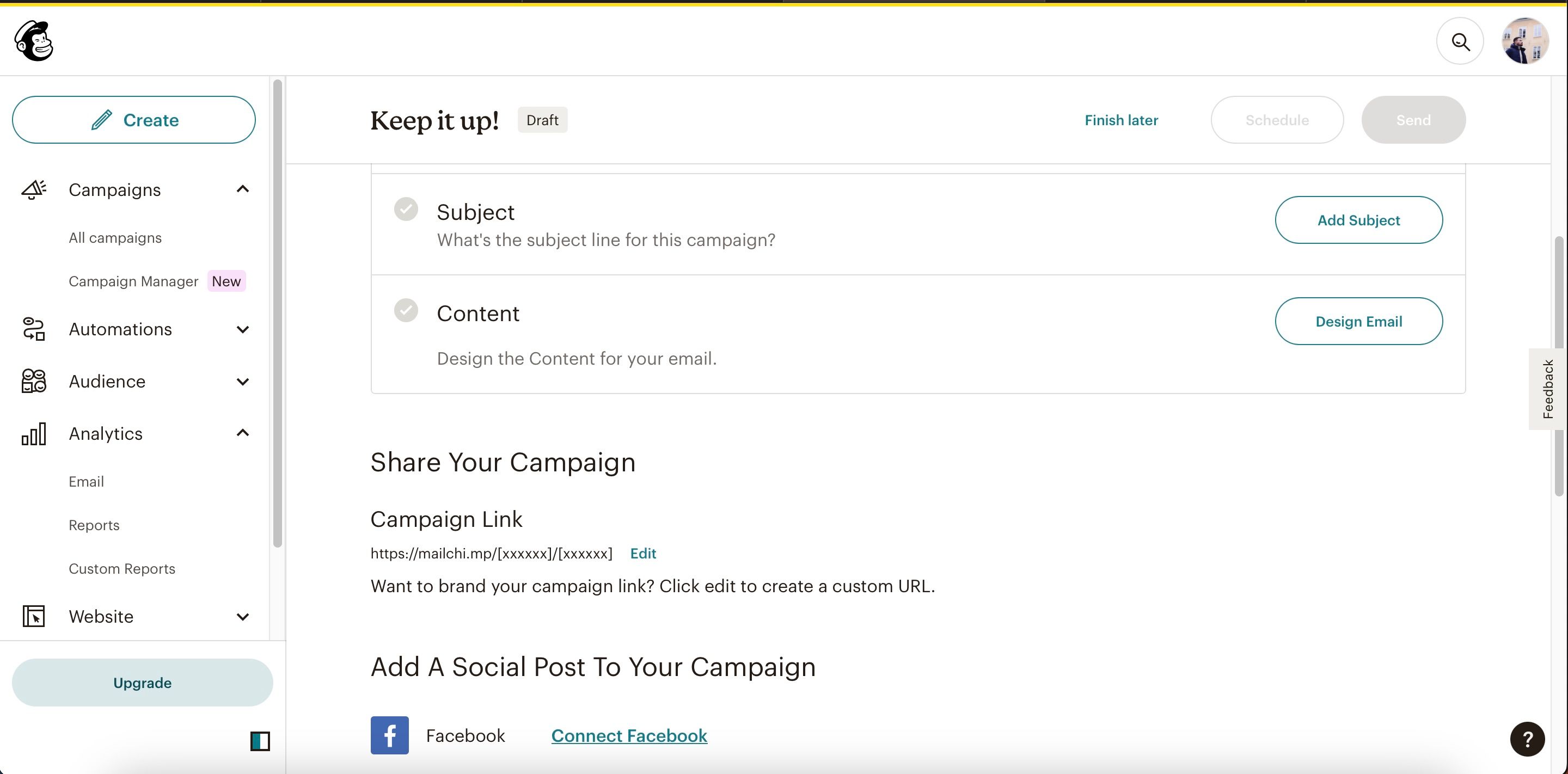
To create an anchor link in Mailchimp, place an anchor target at your desired destination and link to its ID using a hash symbol (#anchor-name) from your source text or button. To seamlessly connect two separate Mailchimp campaigns, append the target anchor ID to the web version URL of the destination campaign.
Understanding Anchor Links in Email Marketing: Single Campaign vs. Cross-Campaign
Anchor links—frequently referred to as jump links, bookmark links, or internal page links—allow readers to jump instantly to a specific section within a document or web page without scrolling manually. In email marketing, anchor links serve as the functional foundation for Table of Contents (TOC) blocks, long-form newsletter navigation, and quick-jump product indexes.
When creators ask how to build anchor links in Mailchimp and connect campaigns seamlessly, the query usually spans two distinct technical goals:
- Intra-Campaign Navigation: Allowing a recipient reading an email to click a link near the top (such as a summary index) and scroll down automatically to a specific section within that exact same email draft.
- Inter-Campaign Cross-Linking: Allowing a recipient reading Campaign A to click a link that opens a specific section inside Campaign B (such as a previous newsletter edition or a published campaign archive).
Achieving these setups requires an understanding of how email rendering engines process standard HTML hyperlinking tag attributes (id and href). While standard web browsers handle anchor fragments effortlessly, email software like Microsoft Outlook, Apple Mail, and the Gmail mobile app apply stringent security and layout restrictions. Understanding these mechanics ensures your navigation layout functions smoothly across desktop and mobile devices.
Step-by-Step: Adding Anchor Links in Mailchimp’s Classic Builder
Mailchimp offers two primary email editors: the Classic Builder and the New Builder. The Classic Builder includes a built-in UI tool specifically designed to insert anchor tags without manual HTML coding.
- Table of Contents / Header Link
- Links to #section-1
- Anchor Tag Target: section-1
- Links to #section-1
Step 1: Insert the Anchor Target
- Open your draft email within the Classic Builder.
- Locate the text box or layout section where you want the reader to arrive after clicking the link.
- Click inside the text block to open the WYSIWYG editing toolbar.
- Place your cursor directly to the left of the heading or text line where the anchor should reside.
- In the toolbar, click the Anchor icon (which resembles a small flag or ship anchor).
- In the pop-up window, enter a simple name for your anchor in the Anchor Name field (for example,
sales-recaporchapter-2). - Click Save. A small anchor symbol will appear in your editing canvas next to the text. This icon is visible only during editing and will not appear to your email recipients.
Step 2: Create the Source Link
- Scroll to the top of your email or to the Table of Contents block where the user starts.
- Highlight the text or word you want to convert into a clickable jump link.
- Click the Link icon in the rich text editing toolbar.
- In the Link to dropdown menu, select Anchor Link.
- Select the anchor name you created in Step 1 from the Select an anchor to link to field.
- Click Insert or Save.
Rules for Naming Anchors in Classic Builder
- Use lowercase letters: Keep anchor names entirely lowercase to avoid case-sensitivity bugs across different browser engines.
- Avoid spaces: Use hyphens (
-) or underscores (_) instead of spaces (e.g., usemonthly-report, notmonthly report). - Avoid special characters: Do not include symbols such as
#,?,&, or punctuation marks in the anchor target field. Mailchimp automatically formats the hash tag syntax behind the scenes.
Step-by-Step: Adding Anchor Links in Mailchimp’s New Builder
Mailchimp’s New Builder features a modernized interface optimized for modular responsive design. However, it handles internal inline anchors differently than the Classic Builder. Because the New Builder does not feature a dedicated anchor flag button in its default text toolbar, manual HTML snippets or custom block structures are required.
Method 1: Using Custom HTML Code Blocks (Recommended)
To establish an anchor destination in the New Builder, you can insert an explicit HTML container using a Code block:
Drag a Code block from the left panel into the email design canvas, placing it directly above the target section heading.
Inside the editor for that Code block, enter a clean HTML anchor tag or span tag:
Alternatively, you can wrap your actual heading directly inside the Code block:
Section 1: Project Updates
Save and close the Code block.
Highlight the source text or button at the top of your email.
Click the Link icon in the floating text menu.
Set the link type to Web Address (URL).
In the URL destination field, enter the anchor name prefixed with a hash symbol:
#topic-one
Save the link settings.
Method 2: Adding ID Attributes within Text Block Source Code
If you prefer not to add a separate Code block, you can edit the HTML view of an existing Text block:
Click on the Text block where your target heading lives.
In the formatting toolbar, click the Code Source icon (
< >).Locate your section heading tag (such as
or
id attribute:
Q3 Performance Analysis
Switch back to the standard visual preview and save your block.
Create your button or text link pointing to #q3-analysis.
How to Connect Two Separate Mailchimp Campaigns (Cross-Campaign Linking)
Linking from one email campaign directly to a specific anchor section inside another, unread email sitting in an inbox is technically impossible. Mail applications do not permit external web protocols to open another unread email and automatically scroll to an internal coordinate.
However, you can seamlessly connect two separate Mailchimp campaigns by linking to the Web Version (Campaign Archive URL) of the target email and appending an anchor fragment.
The Cross-Campaign Linking Workflow
When you publish or send Campaign B, Mailchimp automatically generates a public, web-accessible version of that email. By combining that web URL with a target anchor tag, readers clicking a link in Campaign A will open Campaign B in their web browser, automatically scrolled to the exact section referenced.
- Campaign A Email
- Clicks Cross-Campaign Link
- Browser Opens Campaign B Web Archive
- Auto-scrolls to anchor
- Target Anchor: #special-offer
Step 1: Set Up the Target Anchor in Campaign B
Before finalizing Campaign B, add an anchor target tag (e.g., id="special-offer") using either the Classic or New Builder instructions detailed above.
Step 2: Retrieve the Archive URL of Campaign B
If Campaign B has already been sent:
- Go to Campaigns in your Mailchimp dashboard.
- Locate Campaign B, click the dropdown menu next to the campaign name, and select View email.
- Copy the clean URL from your web browser address bar (e.g.,
https://mailchi.mp/example/spring-newsletter).
If Campaign B is scheduled or part of an automated series, you can use Mailchimp's archive merge tag inside your template link structure:
*|ARCHIVE|*#special-offer
Step 3: Construct the Cross-Campaign Link in Campaign A
Open Campaign A in your editor.
Highlight your call-to-action text or select a button element.
Insert a Web Address (URL) link that combines the archive URL with the hash fragment:
https://mailchi.mp/example/spring-newsletter#special-offerSave and test the link. When clicked from Campaign A, the subscriber's browser opens Campaign B's web archive and jumps directly down to the
#special-offersection.
Email Client Compatibility and Mobile Rendering Challenges
While anchor links are standard across web development, email client support varies based on software architectures, rendering engines, and security policies.
Desktop vs. Mobile Behavior
| Client / Platform | Anchor Link Jumping Support |
|---|---|
| Apple Mail (macOS & iOS) | Full Native Support |
| Outlook (Desktop App for Windows) | Full Native Support |
| Outlook (Web & Mac) | Full Native Support |
| Gmail (Desktop Web Browser) | Full Native Support |
| Gmail Mobile App (Android & iOS) | Partial / Unreliable (Strips ID) |
| Outlook Mobile App (Android/iOS) | Limited / Strips Hash Fragment |
| Yahoo Mail (Web & Mobile) | Good Support |
Why Anchor Links Fail on Mobile Gmail
The Gmail mobile application for iOS and Android processes incoming HTML emails through a stripping and sanitization engine. In many instances, the Gmail app strips the id or name attributes from HTML tags, or rewrites internal relative relative links (#anchor) so they point to a blank non-existent web path.
When a subscriber clicks an anchor link inside the Gmail mobile app, one of three things typically occurs:
- Nothing happens when tapped.
- The email instantly jumps to the absolute top of the message rather than scrolling down.
- The app attempts to launch an external browser window that fails to load.
Designing Around Compatibility Limitations
To deliver a reliable user experience across all devices, follow these structural rules when designing long-form emails:
- Do Not Hide Essential Content: Never use anchor links as the only way for users to access critical information, discount codes, or primary registration links. Assume mobile readers will scroll manually.
- Keep Newsletters Modular: If an email is so long that an anchor menu is mandatory, consider splitting the campaign into shorter, bite-sized automated emails.
- Add "Back to Top" Links Wisely: If you include "Back to Top" links throughout a long newsletter, point them to
#topor an empty anchor targetplaced in the uppermost text block. Test these links on mobile before sending.
Mailchimp Campaign Navigation Methods Compared
Choosing the right navigation method depends on whether you are linking within a single email or across distinct campaigns, as well as your technical preference for the Classic or New Builder.
| Navigation Method | Setup Difficulty | Mobile Gmail Compatibility | Primary Use Case | Key Technical Requirement |
|---|---|---|---|---|
| Classic Builder Anchor Tool | Very Low | Partial (Fails on some mobile apps) | Table of Contents inside a single long newsletter. | Uses built-in WYSIWYG flag icon. |
| New Builder HTML Code Block | Low–Medium | Partial (Fails on some mobile apps) | Section jumps within the updated editor. | Requires |
| Cross-Campaign Archive Link | Medium | High (Opens web browser reliably) | Linking past newsletter editions or reference guides. | Requires Full URL + #anchor-name fragment. |
| Standard Web Button Link | Very Low | Universal (100% compatible) | Directing traffic to landing pages, products, or blogs. | Uses standard external web URLs. |
Common Mistakes and Troubleshooting Anchor Links in Mailchimp
If your internal jump links or cross-campaign anchors are not working as expected, check for these common technical setup errors.
1. Tracking Parameters (UTM Tags) Breaking the Anchor Hash
One of the most frequent reasons cross-campaign anchor links fail is the improper placement of Google Analytics tracking parameters (UTM tags).
In web standards, query parameters (?utm_source=...) must always precede the URL hash fragment (#anchor). If a tracking code is placed after the hash tag, the browser interprets the entire tracking string as part of the anchor ID, causing the target lookup to fail.
- Incorrect Syntax:
https://mailchi.mp/example/newsletter#section-1?utm_source=email&utm_medium=campaign - Correct Syntax:
https://mailchi.mp/example/newsletter?utm_source=email&utm_medium=campaign#section-1
If you enable Mailchimp’s automatic Google Analytics tracking setting inside your campaign builder, Mailchimp automatically appends tracking codes to external links. Check your test emails to verify that the generated hash fragment remains at the very end of the final destination link.
2. Using Duplicate Anchor IDs
HTML standards dictate that every id attribute on a single web page or email message must be entirely unique. If you accidentally reuse the same anchor name multiple times (such as naming two targets id="heading"), the email reader will get confused and jump to the first matching ID tag it encounters in the source code.
3. Inserting the Hash Symbol into the Target Name
When configuring an anchor target in the Classic Builder or inside an HTML tag attribute, do not include the hash (#) symbol in the target definition itself.
- Incorrect Target Code:
- Correct Target Code:
The hash symbol (#) is used exclusively when creating the source link that points to the target: Jump to Section.
4. Overlapping Fixed Headers or Padding Issues
In certain desktop web browsers or webmail interfaces that employ fixed positioning headers (like the Yahoo or Gmail web interfaces), an anchor link may jump to the correct target heading, but the heading ends up hidden behind the email client’s sticky top toolbar.
To fix this, add extra top padding or an empty spacing line directly above your target anchor tag so the content aligns cleanly below any top web toolbars.
Frequently Asked Questions
Can I create an anchor link to jump directly to a Mailchimp survey or sign-up form?
Yes. If your sign-up form or survey is embedded within the email layout using custom HTML code, you can place an anchor ID tag (
) directly above the form container and link to
#survey-blockfrom any call-to-action button in the email.
Why do my anchor links open a blank web page instead of scrolling?
This usually occurs when the link format is invalid, or when an email client strips relative link rules. Ensure that intra-campaign links use only the hash symbol followed by the target name (e.g., #sales-section). If a full domain path is accidentally attached without a trailing anchor, the email application attempts to load a non-existent web document.
Does Mailchimp offer automatic Table of Contents creation?
In the Classic Builder, Mailchimp offers a Table of Contents merge tag *|MC:TOC|*. When inserted into a text block, Mailchimp automatically Scans your template for headings formatted with the "Heading 1" or "Heading 2" styles and generates an anchor-linked Table of Contents list. However, this feature is restricted to specific template structures and is not supported in the New Builder interface.
Will click tracking in Mailchimp break my internal anchor links?
Standard internal anchor links (#section-1) do not register as trackable external web clicks in standard Mailchimp performance reports because they do not ping an external tracking server. If you require click tracking on internal jump links, consider sending readers to the web archive version of your campaign using the cross-campaign URL method (URL#section-1), which records standard link clicks.
Do anchor links work inside Mailchimp push notifications or SMS campaigns?
No. Anchor link hash fragments require an HTML layout container to navigate. SMS messages and push notifications consist purely of plain text string data. Any anchor fragment appended to an SMS link will simply be sent as a standard web address URL to your target landing page.
Practical Recommendations for Your Next Mailchimp Campaign
Before sending your next newsletter or automated email sequence, follow this operational checklist to ensure your anchor links and cross-campaign connections deliver an effortless reader experience:
- Audit Editor Requirements: Decide whether you are using the Classic Builder (utilize the visual Flag Anchor icon) or the New Builder (insert manual
tags inside Code blocks). - Standardize Target Naming Conventions: Keep all anchor names lowercase, alphanumeric, and separated by hyphens (e.g.,
#product-updates). - Format Cross-Campaign URLs Correctly: When linking from Campaign A to Campaign B, ensure query parameters like UTM tags appear before the
#anchor-namehash fragment. - Send Test Emails Across Devices: Always send preview test emails to both an Apple Mail desktop client and a Gmail mobile app. Verify how gracefully the email behaves when anchor jumping is supported versus when it falls back to standard scrolling.
- Provide Manual Fallback Formatting: Ensure your email layout remains clear, logical, and visually scannable even if a mobile email client strips anchor tags entirely.