To set up Active Directory capabilities on Windows 10, you must install the Remote Server Administration Tools (RSAT). While Windows 10 cannot function as a Domain Controller, installing RSAT allows you to manage users, groups, and Group Policy from your workstation. You must use Windows 10 Pro, Enterprise, or Education editions.
Understanding Windows 10 in an Active Directory Ecosystem
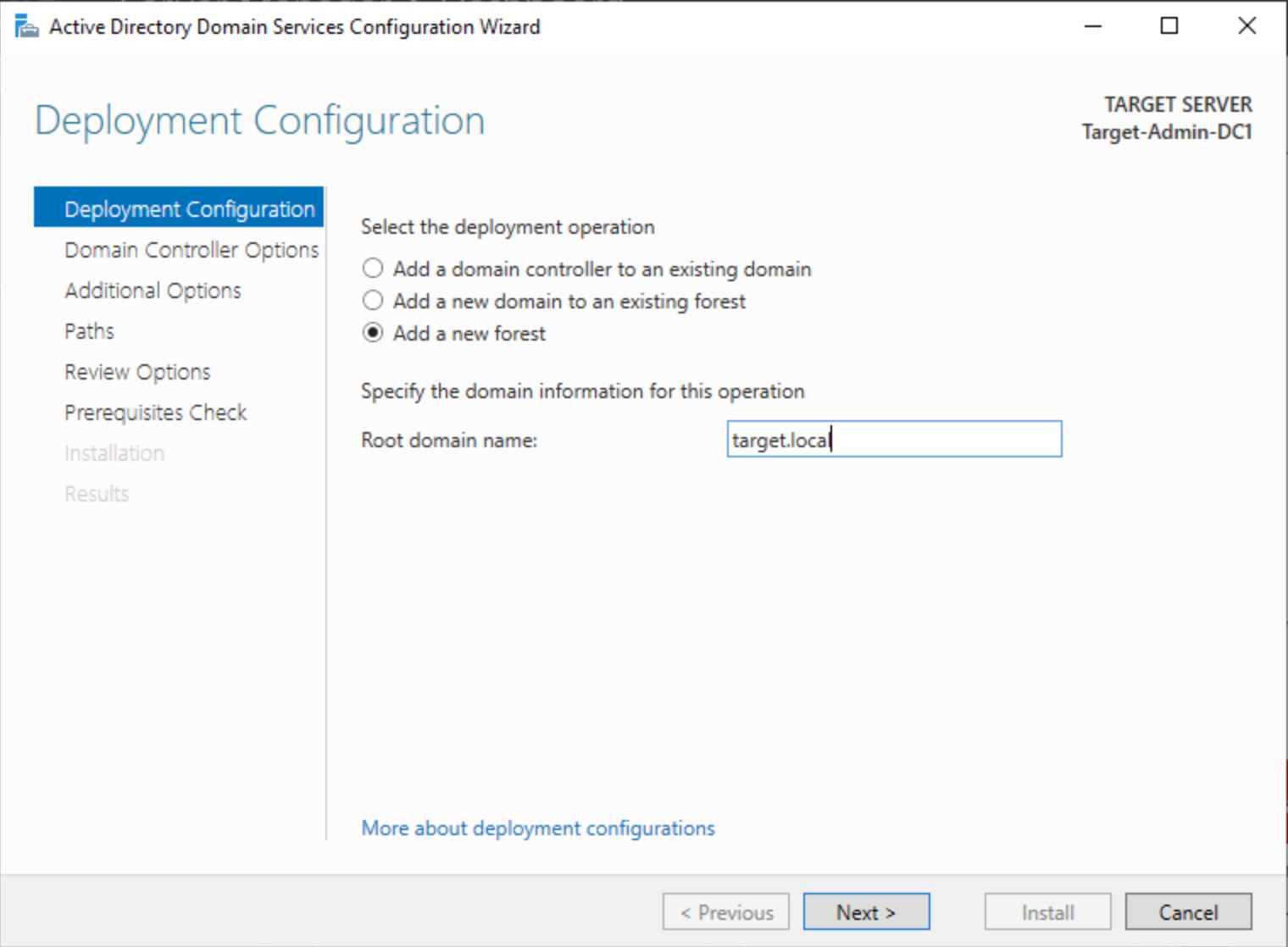
Before beginning the setup, it is crucial to clarify the architectural role of Windows 10 within a network. In a Microsoft ecosystem, Active Directory Domain Services (AD DS) is a server role. This means only a machine running Windows Server (such as 2019, 2022, or 2025) can host the Active Directory database and act as a Domain Controller (DC).
Windows 10 acts as a "client." To "set up" Active Directory on Windows 10, users generally mean one of two things: joining the computer to an existing domain or installing the administrative tools required to manage that domain from a desktop. In a professional IT environment in 2026, managing servers directly via Remote Desktop (RDP) is considered a security risk; instead, administrators use RSAT on their local Windows 10 or 11 machines to perform daily tasks.
Why You Cannot Use Windows 10 Home
Microsoft restricts network domain features to its professional-grade operating systems. Windows 10 Home does not include the necessary networking stack to join a local Active Directory domain, nor does it support the installation of management tools. If you are running the Home edition, you must upgrade to Pro or Enterprise before proceeding with these steps.
Prerequisites for Active Directory Setup
Success in setting up Active Directory management depends on several environmental factors. If these prerequisites are not met, the installation of tools will fail, or the machine will be unable to communicate with the Domain Controller.
- Administrative Privileges: You must be logged into a local account with administrative rights to install features or change domain membership.
- Network Connectivity: The Windows 10 machine must have a stable connection to the network where the Domain Controller resides.
- DNS Configuration: Active Directory relies heavily on the Domain Name System (DNS). The Windows 10 machine’s DNS settings must point to the IP address of the Domain Controller (or the internal DNS server handling the AD zone), not a public DNS like Google (8.8.8.8).
- License Verification: Ensure your Windows 10 version is 1809 or later. In 2026, most legacy systems have been updated, but older versions require a manual download of the RSAT installer, whereas modern versions use "Features on Demand."
Step 1: Installing Remote Server Administration Tools (RSAT)
The primary way to "get" Active Directory on Windows 10 is by enabling RSAT. These tools include Active Directory Users and Computers (ADUC), Group Policy Management Console (GPMC), and Active Directory Administrative Center.
Method A: Using Windows Settings (Recommended)
This is the standard approach for modern Windows 10 builds.
- Click the Start menu and select Settings (the gear icon).
- Navigate to Apps > Optional features.
- Click the plus sign (+) next to Add a feature.
- In the search bar, type "RSAT."
- Select RSAT: Active Directory Domain Services and Lightweight Directory Services Tools.
- Click Install.
- (Optional but Recommended) Locate and install RSAT: Group Policy Management Tools to manage GPOs from your desktop.
Wait for the progress bar to complete. Once finished, the tools will appear under the "Windows Administrative Tools" folder in your Start menu.
Method B: Using PowerShell (For Automation)
System administrators often prefer PowerShell for speed and consistency. To install the Active Directory management module, open PowerShell as an Administrator and execute the following command:
Add-WindowsCapability -Online -Name Rsat.ActiveDirectory.DS.Tools~~~~0.0.1.0
To verify the installation, you can run:
Get-WindowsCapability -Online | Where-Object {$_.Name -like "RSAT.AD*"}
If the "State" is listed as "Installed," the setup was successful.
Step 2: Joining the Windows 10 Machine to the Domain
Once the tools are installed, the machine itself needs to be part of the Active Directory environment to interact with domain resources and allow domain users to log in.
- Press Windows Key + Pause/Break or go to Settings > System > About.
- Click Rename this PC (advanced) on the right side of the window (or "System Info" in older builds).
- In the System Properties window, click the Change button.
- Under the "Member of" section, select the Domain radio button.
- Enter the fully qualified domain name (e.g.,
corp.contoso.com). - A prompt will appear asking for domain credentials. You must enter the username and password of an account that has permission to join computers to the domain (typically a Domain Admin or a delegated user).
- If successful, a "Welcome to the [Domain] domain" message will appear.
- Restart the computer to apply the changes.
Troubleshooting Domain Join Failures
If you receive an error stating that the "Domain could not be contacted," the issue is almost always DNS.
- Open the Command Prompt and type
ping yourdomain.com. If it returns a public IP or fails, your DNS is incorrect. - Ensure the "Client for Microsoft Networks" and "File and Printer Sharing" are enabled in your Network Adapter settings.
Step 3: Managing Active Directory from Windows 10
After installing RSAT and joining the domain, you can now perform administrative tasks without logging into the server.
Using Active Directory Users and Computers (ADUC)
This is the "classic" tool used for most tasks. To launch it, type dsa.msc in the Run dialog (Windows Key + R). From here, you can:
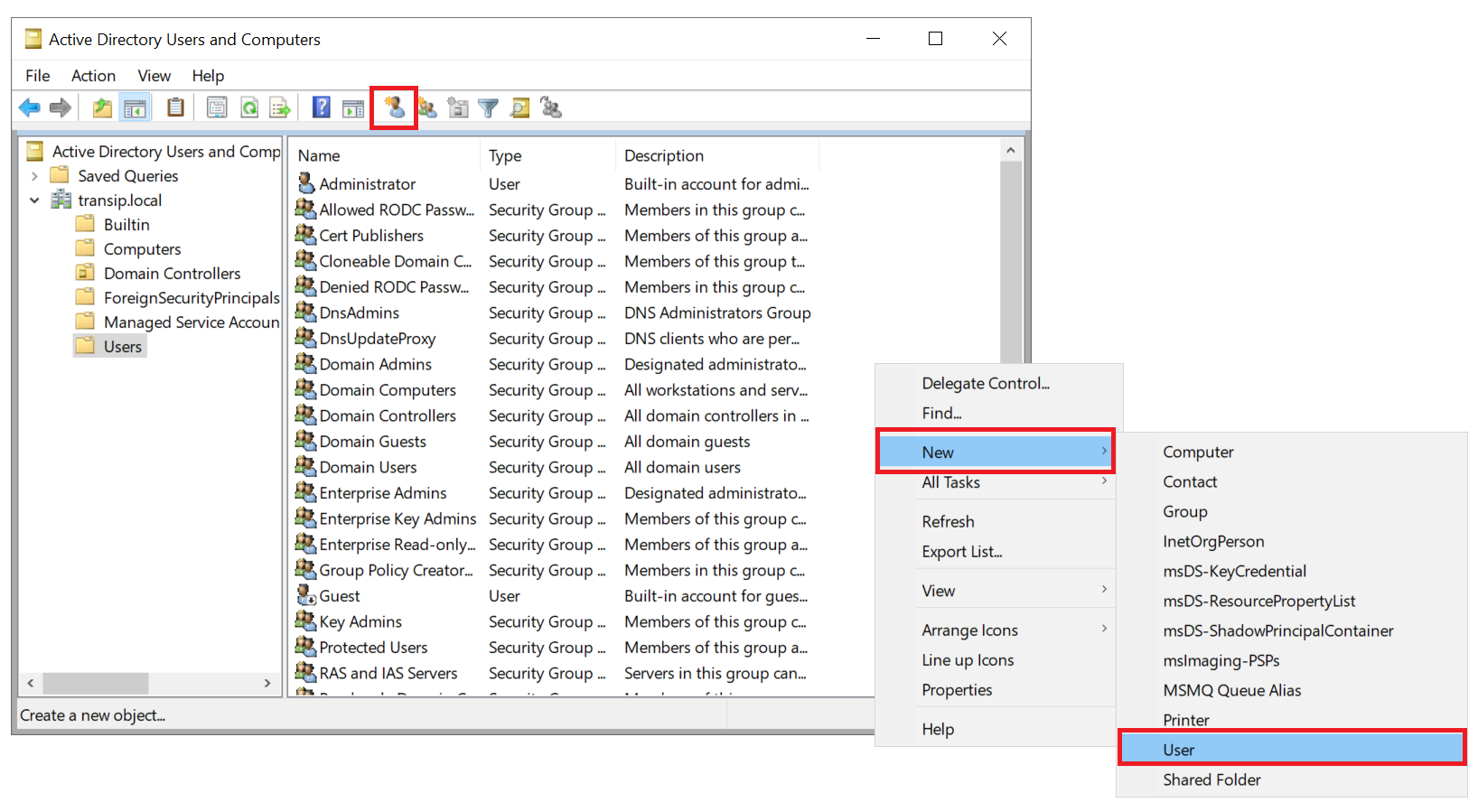
- Create User Accounts: Right-click an Organizational Unit (OU) and select New > User.
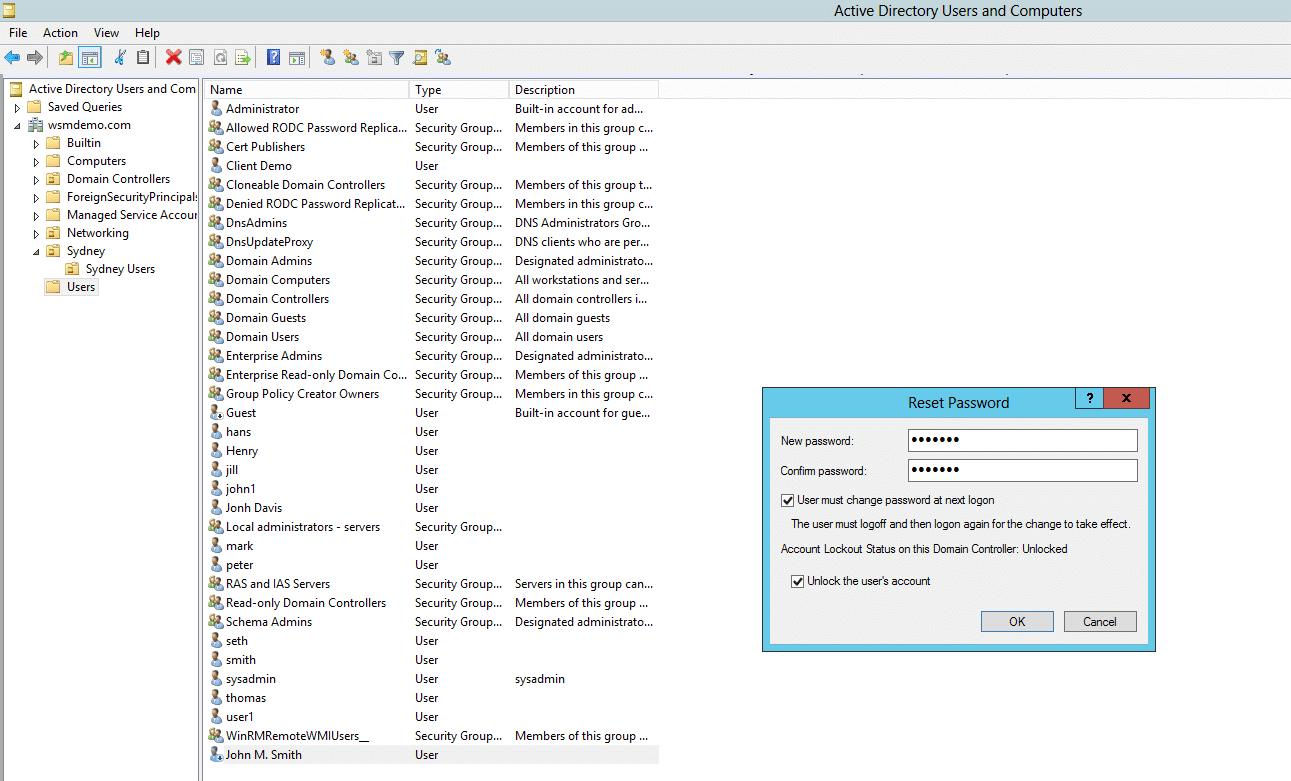
- Reset Passwords: Right-click a user and select Reset Password.
- Manage Groups: Add users to security groups to control access to shared folders or printers.
Using the Active Directory Administrative Center (ADAC)
Launched via dsac.exe, this is a more modern interface. Its primary advantage is the Active Directory Recycle Bin, which allows you to restore deleted objects without performing a full authoritative restore from a backup. It also provides a "PowerShell History" pane, showing you the exact commands it runs behind the scenes—a great way to learn AD automation.
Comparison of Management Methods
| Tool Name | Primary Use Case | Interface Type | Best For |
|---|---|---|---|
| ADUC (dsa.msc) | Basic User/Group management | Legacy MMC Snap-in | Speed and familiarity |
| ADAC (dsac.exe) | Advanced tasks, Recycle Bin | Modern GUI | PowerShell learners |
| PowerShell (AD Module) | Automation and Bulk edits | Command Line | Advanced Admins/Scripts |
| Windows Admin Center | Hybrid Cloud/Server management | Web-based | Remote server health |
Advanced Setup: Enabling Offline Domain Join (Djoin)
In some scenarios in 2026, a Windows 10 machine may need to be joined to a domain without having a direct connection to the Domain Controller at that moment (e.g., shipping a laptop to a remote worker). This is known as an Offline Domain Join.
- On the Domain Controller: Run
djoin /provision /domain /machine /savefile blob.txt. - Transfer the File: Move
blob.txtto the Windows 10 machine. - On the Windows 10 Machine: Run
djoin /requestodj /loadfile blob.txt /windowspath %SystemRoot% /localos. - Reboot: The machine will be part of the domain upon the next restart, though the user must connect via VPN to log in with domain credentials for the first time.
Frequently Asked Questions
Can I install Active Directory on Windows 10 Home?
No. Windows 10 Home lacks the "Optional Features" for RSAT and the ability to join a domain. To manage or join an Active Directory environment, you must use Windows 10 Pro, Enterprise, or Education editions. You can check your version by typing winver in the search bar.
Does Windows 10 support Azure Active Directory (Entra ID)?
Yes. While this article focuses on local (on-premises) Active Directory, Windows 10 can also be "Azure AD Joined." This is done through Settings > Accounts > Access work or school. In 2026, many organizations use a hybrid approach where the machine is joined to local AD and registered with Azure AD simultaneously.
Why is RSAT missing after a Windows 10 update?
Historically, major feature updates to Windows 10 would occasionally uninstall RSAT. However, in the 2026 landscape, because RSAT is now a "Feature on Demand," it generally persists through updates. If it does disappear, you can simply re-add it through the "Optional Features" menu.
Is Windows Admin Center better than RSAT?
Windows Admin Center is a modern, browser-based management platform. While it is excellent for managing server hardware, certificates, and updates, many administrators still prefer RSAT for granular "Users and Computers" management because the legacy MMC snap-ins (like dsa.msc) are often faster for simple tasks.
Do I need to be a Domain Admin to install RSAT?
No, you only need local administrative rights on the Windows 10 machine to install the RSAT tools. However, you will need domain-level permissions (such as Account Operator or Domain Admin) to actually use those tools to make changes to the Active Directory database.
Practical Recommendations
For users setting up Active Directory on Windows 10 in 2026, the most efficient path is to utilize PowerShell for tool installation. This ensures that all dependencies, including the necessary .NET frameworks, are correctly enabled.
If you are setting this up for a lab environment, ensure your Windows 10 VM is on the same virtual switch as your Domain Controller. For production environments, always follow the principle of Least Privilege: do not use your Domain Admin account for daily tasks on your Windows 10 machine. Instead, use a standard user account for web browsing and emails, and only provide domain admin credentials when prompted by the RSAT tools via User Account Control (UAC).
Finally, regularly update your RSAT tools to ensure compatibility with newer Windows Server versions. Even if your workstation is Windows 10, the tools can manage newer server environments as long as the functional level of the domain is supported.