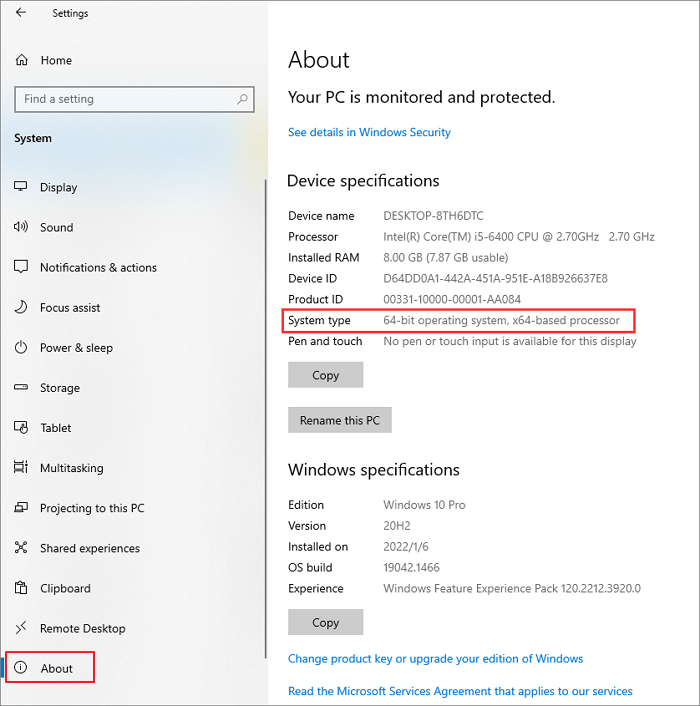
To determine if your Windows operating system is 32-bit or 64-bit, the quickest method in 2026 is to navigate to Settings > System > About. Under the Device specifications section, look for System type, which explicitly states whether you are running a 64-bit or 32-bit operating system on an x64 or x86-based processor.
Understanding the architecture of your operating system is fundamental to maintaining system health, ensuring software compatibility, and optimizing hardware performance. Whether you are installing specialized drivers, high-end creative suites, or modern gaming titles, knowing your "bit-count" prevents installation errors and system instability. While 64-bit architecture has become the universal standard for modern computing, legacy systems and specific industrial applications may still utilize 32-bit environments.
The Core Difference: 32-Bit (x86) vs. 64-Bit (x64)
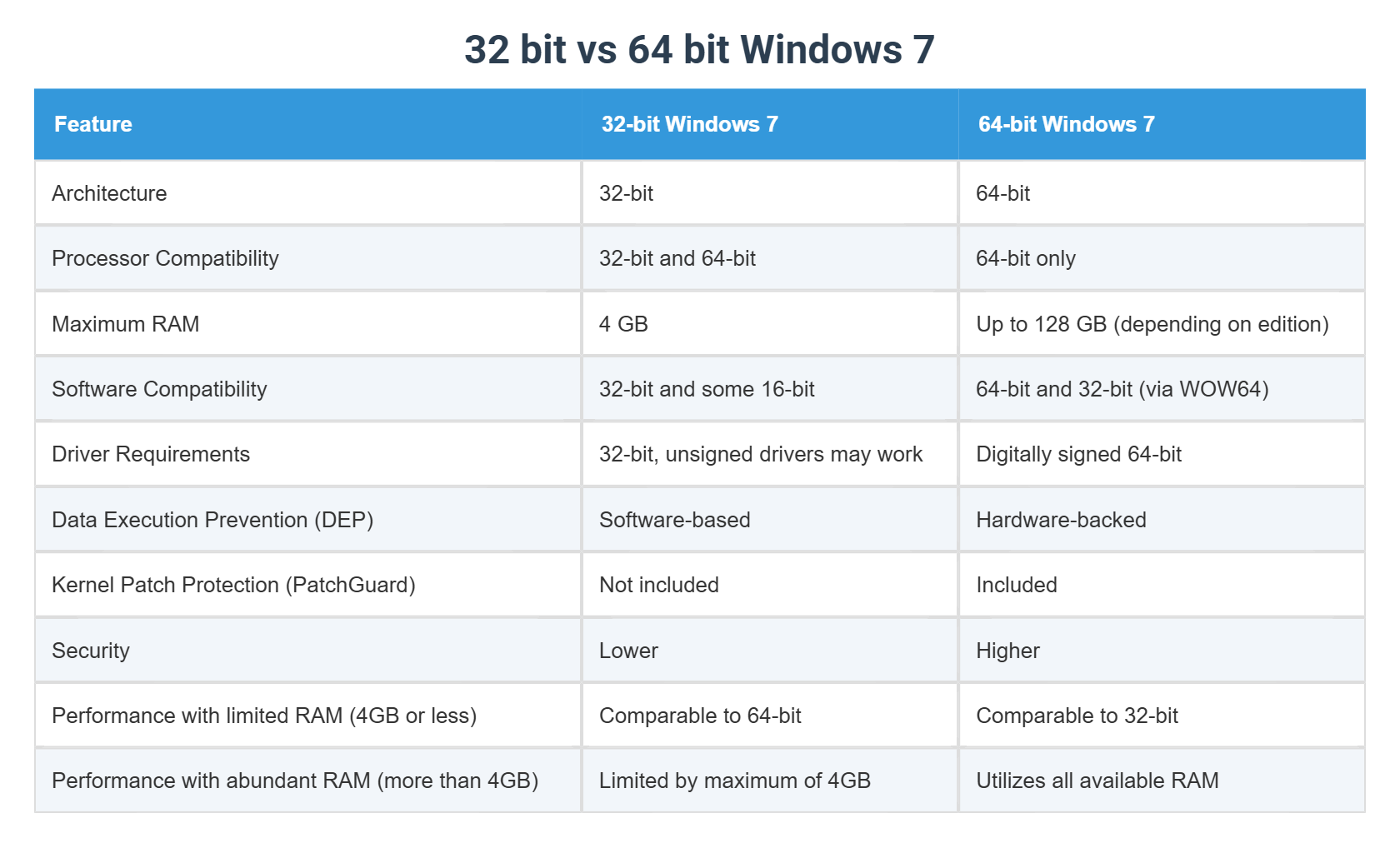
Before diving into the specific steps to identify your version, it is essential to understand what these numbers actually signify. The terms 32-bit and 64-bit refer to the way a computer's processor (CPU) handles information. The 64-bit version of Windows handles large amounts of random access memory (RAM) more effectively than a 32-bit system.
Historically, 32-bit systems (often labeled as x86) were limited to addressing a maximum of 4GB of RAM. In the computing landscape of 2026, where even entry-level smartphones often exceed this capacity, a 32-bit limitation can severely throttle performance. A 64-bit system (x64), by contrast, can theoretically address up to 18.4 million terabytes of RAM, though physical hardware and Windows editions impose much lower (but still massive) practical limits, such as 2TB or 6TB.
Beyond memory, 64-bit architectures offer enhanced security features, such as hardware-backed Data Execution Prevention (DEP) and mandatory driver signing, which makes it significantly harder for malware to infiltrate the kernel.
Step 1: Using the Modern Settings Menu (Windows 10 and 11)
The most direct way for users on contemporary versions of Windows to verify their architecture is through the Settings app. This interface has been streamlined in recent years to provide all essential hardware and software data in one location.
- Open Settings: Click the Start button and select the gear icon, or press the keyboard shortcut Windows Key + I.
- Navigate to System: From the main settings categories, select System.
- Find the About Page: Scroll down the left-hand sidebar (or the main list in Windows 11/12 styles) and click on About.
- Identify System Type: Look for the header labeled Device specifications. Beside the entry for System type, you will see a description such as "64-bit operating system, x64-based processor."
If it says x86-based processor, your hardware is limited to 32-bit software. If it says x64-based processor but shows a 32-bit operating system, it means your hardware is capable of running a more powerful version of Windows, but a 32-bit version was installed instead.
Step 2: Utilizing the System Information Tool (msinfo32)
For a more technical and detailed overview, the System Information tool is the preferred choice for IT professionals. This tool provides a deep dive into the hardware resources, components, and software environment.
- Open Run Command: Press Windows Key + R to open the Run dialog box.
- Enter the Command: Type
msinfo32and press Enter. - Locate System Summary: The window defaults to the System Summary. Look in the right-hand pane for the item labeled System Type.
- Interpret the Value:
- An x64-based PC indicates a 64-bit version of Windows.
- An x86-based PC indicates a 32-bit version of Windows.
This tool is particularly useful if you need to check other related data simultaneously, such as your BIOS mode (UEFI or Legacy) or your Secure Boot status, both of which are often relevant when discussing 64-bit requirements.
Step 3: Checking via the Command Prompt (CMD)
If your graphical user interface is lagging or if you prefer working within a command-line environment, the Command Prompt offers a quick text-based way to extract system architecture data.
- Open Command Prompt: Type
cmdin the Start menu search bar and press Enter. - Run the System Info Filter: While you could type
systeminfo, it generates a massive amount of data. To see only what you need, type the following and press Enter:systeminfo | findstr /B /C:"System Type" - View Results: The output will return a single line: System Type: x64-based PC or x86-based PC.
This method is highly efficient for remote troubleshooting or when managing multiple systems across a network, as it can be easily scripted into a batch file.
Step 4: The DirectX Diagnostic Tool (dxdiag)
Commonly used by gamers and video editors to troubleshoot graphics issues, the DirectX Diagnostic Tool also provides a clear readout of the operating system's bit architecture.
- Launch the Tool: Press Windows Key + R, type
dxdiag, and hit Enter. - System Tab: Stay on the first tab labeled System.
- Check Operating System: Look for the line labeled Operating System. It will list the version of Windows followed by the architecture, for example: "Windows 11 Pro 64-bit (10.0, Build 22621)."
This method is excellent because it also confirms whether your DirectX version is up to date, which is a prerequisite for running modern 64-bit graphical applications.
Step 5: Investigating via PowerShell
As the more powerful successor to the Command Prompt, PowerShell provides access to the Windows Management Instrumentation (WMI), which can query the system architecture directly.
- Open PowerShell: Right-click the Start button and select Windows PowerShell or Terminal.
- Execute the Query: Copy and paste the following command:
Get-WmiObject Win32_OperatingSystem | Select-Object OSArchitecture - Read the Output: PowerShell will return a simple result, such as 64-bit.
Using PowerShell is often the most reliable method for 2026 system administrators who need to verify architecture across cloud-integrated Windows environments.
Step 6: The "Program Files" Directory Check
A "low-tech" but highly effective visual check involves looking at the structure of your C: drive. Windows organizes applications differently based on their architecture to ensure compatibility.
- Open File Explorer: Press Windows Key + E.
- Navigate to This PC: Open your primary drive, usually Local Disk (C:).
- Look for Folders:
- If you see both a Program Files folder and a Program Files (x86) folder, you are running a 64-bit version of Windows.
- If you only see a Program Files folder (and no x86 version), you are likely running a 32-bit version of Windows.
In a 64-bit environment, the Program Files (x86) folder acts as a legacy container for older 32-bit applications, while the standard Program Files folder holds native 64-bit software.
Step 7: Identifying Architecture via Task Manager
If you are already running applications and want to see how Windows is treating them, the Task Manager can reveal the architecture of the operating system by showing how it handles active processes.
- Open Task Manager: Press Ctrl + Shift + Esc.
- Go to Details: Click the Details tab at the top.
- Enable Platform Column: Right-click any column header (like Name or PID) and click Select columns. Scroll down, check the box for Platform, and click OK.
- Observe the List: You will now see "64-bit" or "32-bit" next to every running application. If you see "64-bit" entries, your operating system is definitively 64-bit.
Comparison Table: 32-Bit vs. 64-Bit Windows
The following table highlights the critical differences that may influence why you need to check your system type in 2026.
| Feature | 32-Bit (x86) | 64-Bit (x64) |
|---|---|---|
| Max RAM Support | 4 GB | Up to 6 TB (Edition dependent) |
| CPU Compatibility | Can run on x86 or x64 CPUs | Requires an x64-capable CPU |
| Software Support | Only 32-bit software | Both 32-bit and 64-bit software |
| Modern Drivers | Rare/Becoming obsolete in 2026 | Industry standard |
| Security Features | Standard | Advanced (DEP, Kernel Protection) |
| Performance | Limited for multitasking | Optimized for high-load tasks |
Frequently Asked Questions
Can I upgrade from 32-bit to 64-bit Windows?
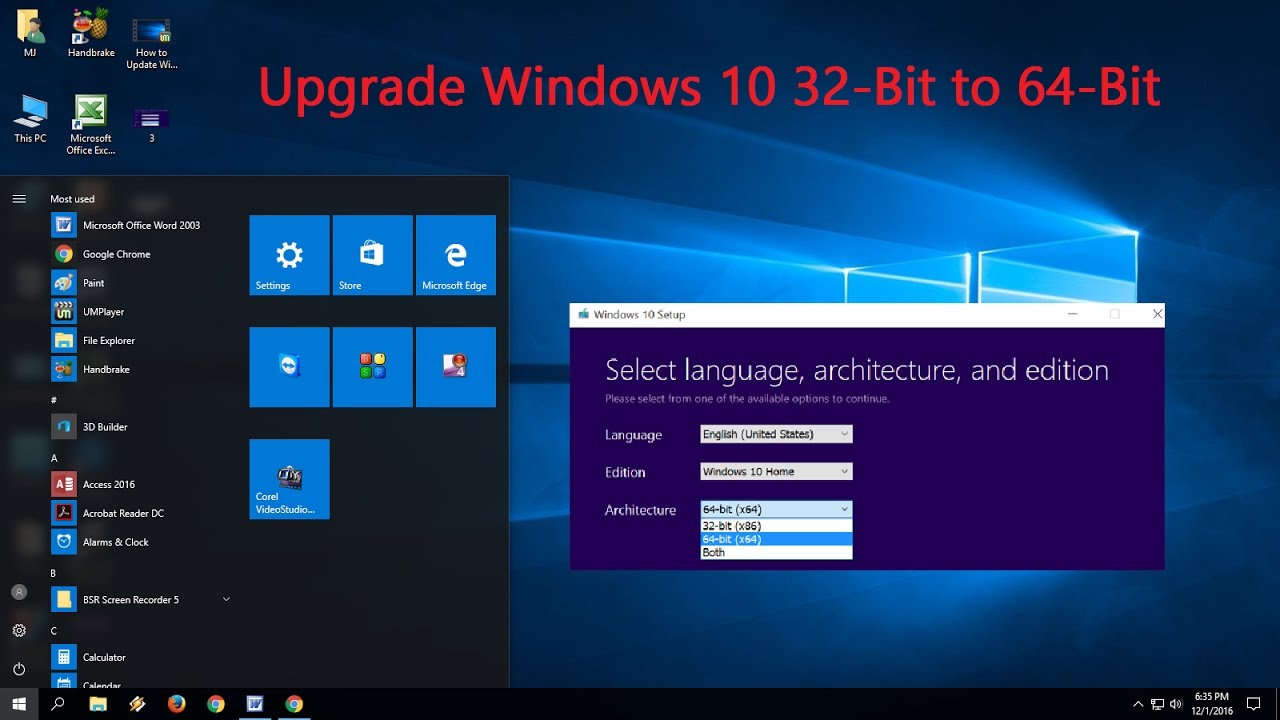
Yes, provided your hardware (CPU) is 64-bit capable. Most processors made after 2010 support 64-bit architecture. However, you cannot simply "switch" via a setting. An upgrade requires a clean installation of Windows. This involves backing up all your data, formatting the drive, and installing the 64-bit version of the OS from a bootable USB drive.
Why does my 64-bit PC have a Program Files (x86) folder?
This folder exists for backward compatibility. 64-bit Windows uses an emulation layer called WoW64 (Windows 32-bit on Windows 64-bit) to run older 32-bit applications. These applications are stored in the (x86) folder to keep them separate from native 64-bit code, preventing file conflicts.
Is a 64-bit OS faster than a 32-bit OS?
Generally, yes. While the "bits" themselves don't necessarily increase clock speed, a 64-bit OS allows the computer to process more data at once and use significantly more RAM. This results in a much faster experience during multitasking, video rendering, and using modern web browsers which are notorious for high memory consumption.
How do I know if my processor is 64-bit capable even if I'm running 32-bit Windows?
Follow Step 1 (Settings > System > About). Look at the System type. If it says "32-bit operating system, x64-based processor," your CPU is capable of 64-bit performance, and you should consider performing a clean install of 64-bit Windows to unlock your hardware's full potential.
Will 32-bit applications work on 64-bit Windows?
In almost all cases, yes. Windows is designed with robust backward compatibility. However, the reverse is not true: 64-bit applications cannot run on a 32-bit operating system because they require memory addressing and CPU instructions that the 32-bit OS cannot provide.
Does 64-bit Windows require more RAM?
Yes, the 64-bit version of Windows has slightly higher base memory requirements because 64-bit pointers (addresses in memory) are twice as large as 32-bit pointers. However, because it can utilize all available RAM above 4GB, the trade-off is overwhelmingly in favor of the 64-bit version for any system with at least 8GB of RAM.
Summary and Next Actions
Identifying your Windows architecture is a straightforward process that can be accomplished through various system tools, from the user-friendly Settings menu to the technical Command Prompt. In 2026, the vast majority of users should be operating on a 64-bit system to ensure they receive the latest security updates and software features.
If you discover you are running a 32-bit version on a 64-bit capable processor, your next step should be to plan a migration. Check your RAM capacity—if you have more than 4GB installed, a move to 64-bit Windows is essential to actually use that extra memory. Before any architecture change, ensure you have a complete external backup of your personal files, as moving from 32-bit to 64-bit requires a full disk wipe and OS reinstallation.