Choosing between 1080p and 1440p depends on your primary use case, hardware budget, and performance goals. While 1080p offers higher frame rates and lower hardware requirements for competitive gaming and productivity, 1440p delivers significantly sharper text, more workspace, and higher visual fidelity for modern applications and media consumption.
Understanding Display Resolutions: The Core Differences
When evaluating computer monitors, TVs, and mobile displays, resolution refers to the total number of distinct pixels displayed on screen, measured in columns and rows. The terms 1080p and 1440p represent vertical pixel counts within standard widescreen (16:9) aspect ratios. Understanding these technical foundations helps clarify why the visual and performance gap between them matters.
What is 1080p?
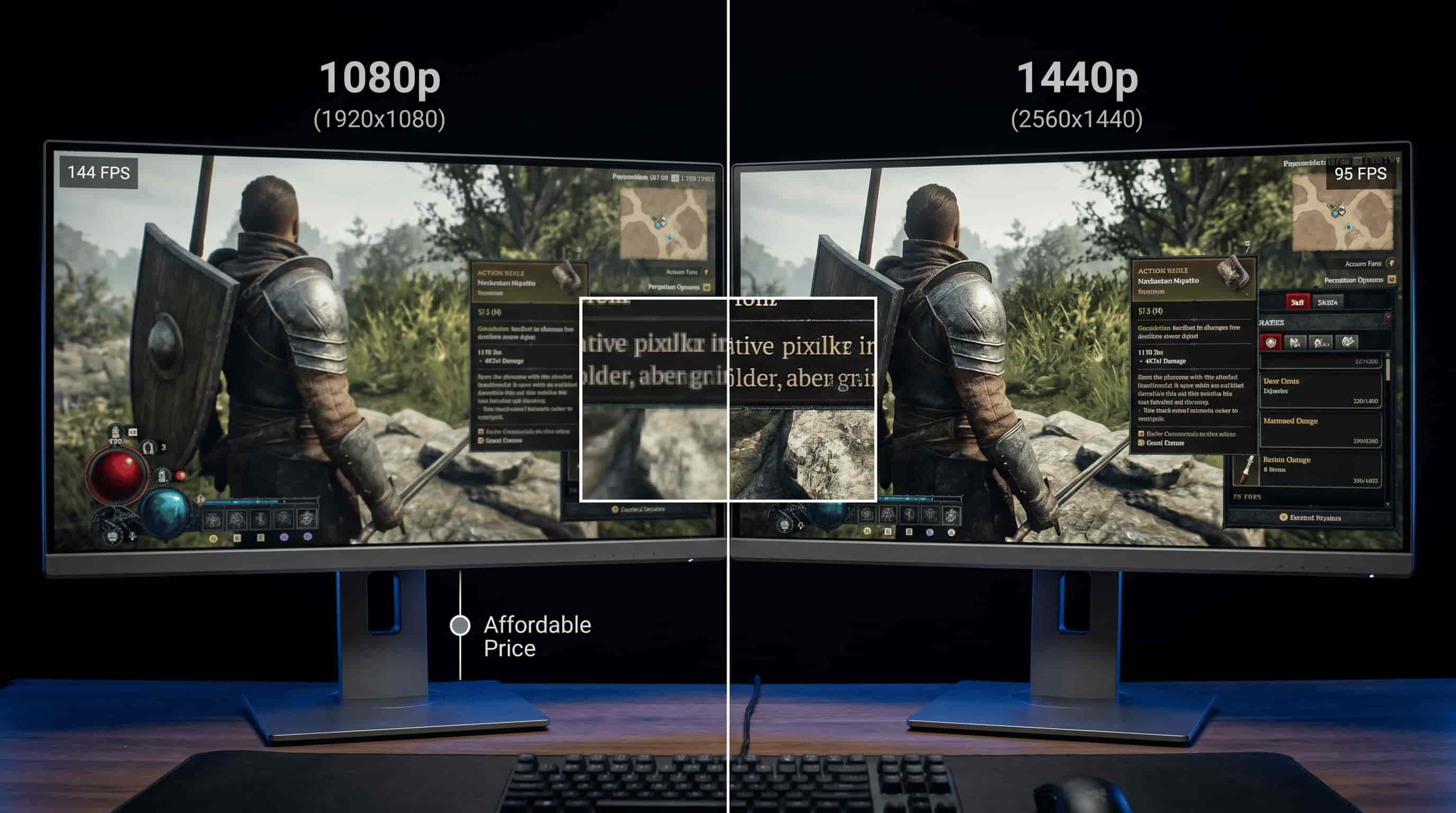
Commonly known as Full HD (FHD), 1080p displays a resolution of 1920 pixels horizontally by 1080 pixels vertically, totaling approximately 2.07 million pixels. For over a decade, 1080p has served as the baseline standard for desktop computing, console gaming, and online streaming. Because it requires relatively little graphics processing power to render images at high refresh rates, it remains exceptionally popular among budget-conscious consumers and competitive esports players who prioritize maximum frame rates over hyper-realistic textures.
What is 1440p?
Referred to as Quad HD (QHD) or 2K, 1440p features a resolution of 2560 pixels horizontally by 1440 pixels vertically, yielding approximately 3.68 million pixels. This represents roughly a 77% increase in total pixel count compared to 1080p. The extra density translates into noticeably crisper text, smoother curves, and more detailed graphical assets. In professional workflows, the added screen real estate allows users to comfortably snap multiple application windows side by side without feeling cramped.
Performance and Hardware Requirements
The physical jump from 1080p to 1440p places a heavier workload on your computer's hardware, particularly the graphics processing unit (GPU). Before making a purchase decision, it is essential to evaluate whether your current system components can handle the increased demands of the higher resolution.
GPU Impact and Frame Rates
Rendering images at 1440p demands significantly more VRAM and computational throughput than 1080p. While an entry-level or mid-range graphics card can easily push high frame rates (exceeding 144 frames per second) in modern games at 1080p, that same card may struggle to maintain a stable 60 frames per second at 1440p without lowering graphical settings or utilizing upscaling technologies like DLSS or FSR.
Gamers focused on competitive titles where every millisecond counts often prefer 1080p paired with a high-refresh-rate monitor (240Hz or higher). Conversely, single-player enthusiasts and content creators generally favor the visual immersion of 1440p, provided their GPU can sustain acceptable frame rates.
CPU and RAM Considerations
While the GPU shoulders the heaviest burden when increasing resolution, the central processing unit (CPU) and system memory (RAM) also play crucial roles. Higher frame rates at 1080p heavily tax the CPU, as it must process physics, AI, and game logic faster to keep up with the GPU. At 1440p, the bottleneck shifts heavily toward the GPU for most games and graphical applications, meaning a slightly older CPU may still perform adequately at 1440p, whereas it might bottleneck a high-refresh 1080p setup.
Productivity and Screen Real Estate
Resolution is not only about gaming; it directly dictates your daily desktop workspace efficiency. Screen real estate determines how many windows, documents, and toolbars you can view simultaneously without excessive scrolling or overlapping tabs.
Working in 1080p
At 1080p, screen space is limited. Writing a document while viewing a reference PDF side-by-side often requires constant window management or alt-tabbing. Text can appear slightly softer, which may lead to quicker eye fatigue during long reading or coding sessions. However, 1080p excels on smaller physical screen sizes (such as 24-inch monitors) where the pixel density (PPI) remains high enough to keep text sharp without requiring operating system scaling.
Working in 1440p
Stepping up to 1440p transforms the desktop experience. On a standard 27-inch monitor, the higher pixel density provides crisp, clear text that closely mimics physical print quality. More importantly, the expanded canvas allows you to comfortably run two full-sized browser windows or document pages side-by-side. Video editors, software developers, and financial analysts benefit immensely from this extra workspace, as editing timelines and complex spreadsheets fit comfortably on a single screen without clutter.
1080p vs. 1440p Comparison Matrix
| Feature | 1080p (Full HD) | 1440p (Quad HD / QHD) |
|---|---|---|
| Pixel Count | 1,920 × 1,080 (2.07 million pixels) | 2,560 × 1,440 (3.68 million pixels) |
| Ideal Screen Size | 21 to 24 inches | 27 to 32 inches |
| Hardware Demand | Low to Moderate | Moderate to High |
| Gaming Performance | High frame rates, accessible to budget GPUs | Better visual fidelity, requires mid-to-high-end GPU |
| Productivity Workspace | Adequate for single tasks | Excellent for multi-window workflows |
| Average Price Range | Budget-friendly ($100 – $200) | Mid-range ($200 – $400+) |
Physical Monitor Size and Pixel Density
When comparing resolutions, physical screen dimensions dictate how sharp the image actually looks to the human eye. This concept is known as Pixel Per Inch (PPI).
- The 24-Inch Sweet Spot for 1080p: At 24 inches, a 1080p display achieves a pixel density of roughly 92 PPI. This provides a clean, sharp image where individual pixels are difficult to discern from a normal viewing distance. However, stretching 1080p across a larger 27-inch or 32-inch panel drops the PPI significantly, resulting in a noticeably pixelated image and blocky text.
- The 27-Inch Sweet Spot for 1440p: At 27 inches, 1440p delivers approximately 108 PPI, offering an ideal balance between sharpness and workspace size. Text is smooth, images are detailed, and operating system scaling is rarely required to make UI elements readable. For this reason, 27-inch 1440p monitors have become the gold standard for general desktop use and gaming.
Cost, Value, and Long-Term Investment
Budget is often the deciding factor when upgrading displays. The total cost of ownership extends beyond the monitor itself to include the supporting hardware required to drive it.
The True Cost of 1080p
Monitors featuring 1080p resolution are exceptionally affordable, with high refresh rates (144Hz to 240Hz) widely available at low price points. Furthermore, because 1080p requires modest graphics hardware, you can build or maintain a capable gaming and working PC using budget-friendly GPUs. This makes 1080p the most cost-effective entry point for casual users and gamers on strict budgets.
The Long-Term Value of 1440p
While 1440p monitors carry a higher upfront cost and demand a more powerful GPU, they offer superior longevity. As software, web design, and digital media continue to prioritize higher-fidelity assets, 1440p provides a future-proof middle ground. It avoids the extreme hardware costs associated with 4K gaming and professional displays while delivering a substantial upgrade in clarity and workspace over aging 1080p standards.
Frequently Asked Questions
Is 1440p a massive upgrade from 1080p?
Yes, the difference is immediately noticeable. The 77% increase in pixel count makes text significantly sharper, reduces jagged edges in games, and provides drastically more screen real estate for multitasking. Most users who switch to 1440p find it difficult to return to 1080p for daily productivity.
Can my current graphics card run 1440p?
It depends on your GPU model and your intended use. For casual web browsing, office work, and media streaming, almost any modern integrated or discrete graphics card can output 1440p. For modern PC gaming, you generally want at least a mid-range dedicated graphics card to maintain smooth frame rates at native 1440p settings.
Is 1440p better for your eyes than 1080p?
Higher pixel density leads to crisper text rendering, which reduces eye strain during extended reading, writing, and coding sessions. While resolution alone does not prevent eye fatigue—factors like screen brightness, blue light emission, and ergonomics also matter—1440p provides a cleaner visual experience.
Should I buy a 1080p or 1440p monitor for competitive gaming?
If your primary focus is competitive esports titles where maintaining ultra-high frame rates (240Hz+) is vital for reaction times, a high-refresh-rate 1080p monitor paired with a powerful CPU is often the preferred choice. For a balanced experience that handles both fast-paced games and visually rich single-player adventures, a high-refresh 1440p monitor is generally recommended.
Final Recommendation
Select 1080p if you are operating on a strict budget, playing competitive esports where maximum frame rates are paramount, or using a screen size of 24 inches or smaller.
Choose 1440p if you use a 27-inch (or larger) monitor, require ample workspace for productivity and multitasking, and own a graphics card capable of handling modern visual workloads. For most general users, professionals, and immersive gamers, 1440p represents the optimal balance of performance, visual clarity, and long-term value.