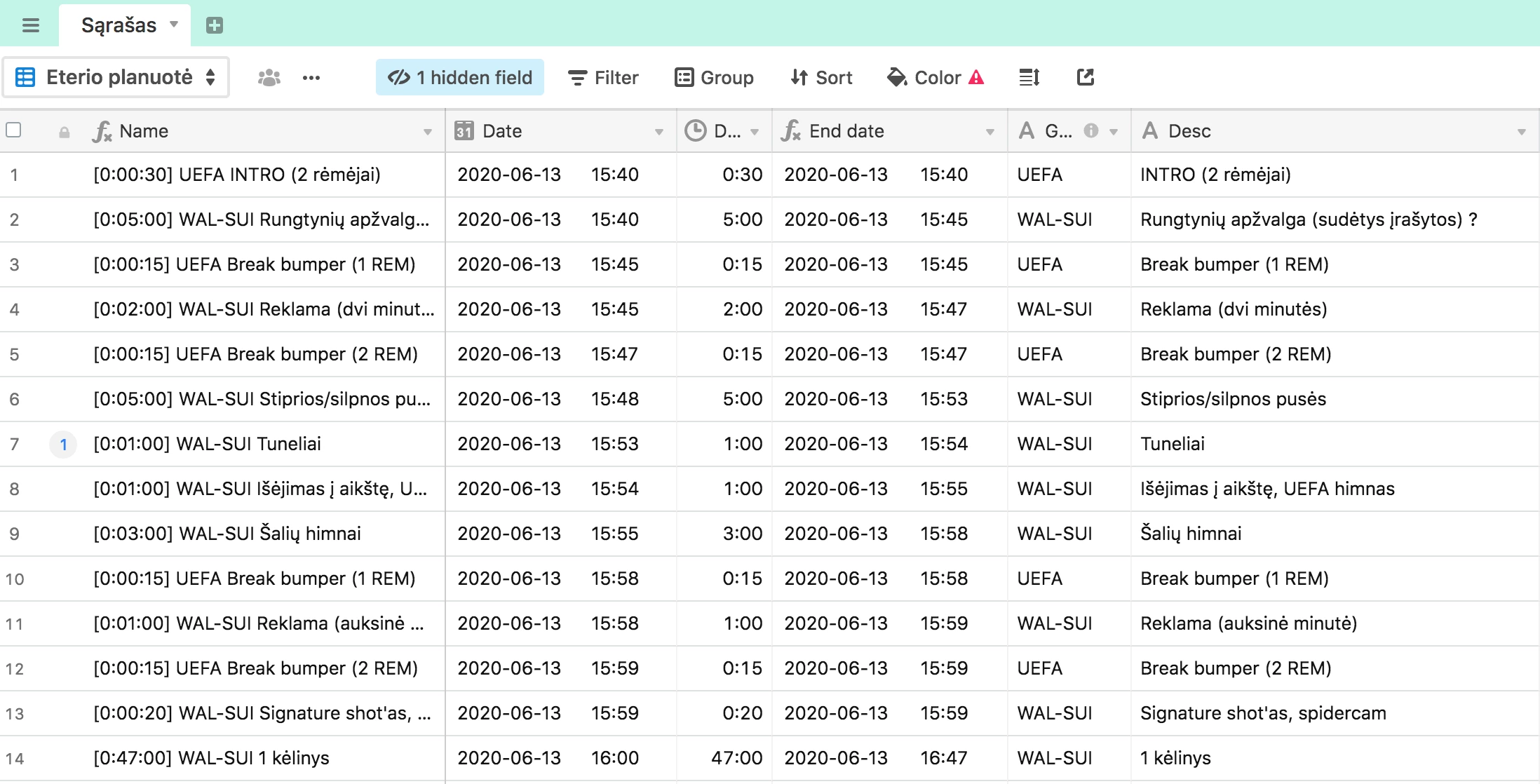
Airtable handles dates and times by storing them as precise timestamps, but the way you display this data depends entirely on your specific workflow requirements. To control the visual output of a date in a formula field, you must use the DATETIME_FORMAT() function, which allows you to convert a raw date into a custom text string using specific format tokens like YYYY-MM-DD or MMMM Do, YYYY.
Effective date management is the backbone of any robust Airtable base, whether you are tracking project milestones, managing content calendars, or generating automated invoices. In 2026, as Airtable continues to evolve its interface, the underlying logic of date-time formatting remains grounded in a standardized set of tokens that provide granular control over every aspect of a timestamp. This guide provides a comprehensive breakdown of how to master these formats to ensure your data is accurate, readable, and professional.
Understanding the Airtable Date and Time Ecosystem
Before diving into specific formatting strings, it is essential to distinguish between a Date field and a Formula field. A standard Date field provides a user interface for selecting dates and offers a few built-in formatting toggles, such as "Local" or "Friendly" formats. However, these UI options are limited.
When you need to combine a date with text (e.g., "Deadline: 2026-10-15") or when you need a specific format not offered in the standard menu (e.g., "Week 42 of 2026"), you must turn to Formula fields. Within a formula, Airtable treats a date as a complex object. If you simply reference a date field in a formula without any formatting, Airtable will often output a raw ISO string or an unformatted timestamp that includes the date and the time in Coordinated Universal Time (UTC).
The DATETIME_FORMAT Syntax
The primary tool for date customization is the DATETIME_FORMAT() function. Its syntax is straightforward:
DATETIME_FORMAT(datetime, 'format string')
- datetime: This is the source data, usually a reference to a Date field, a
CREATED_TIME()field, or functions likeNOW()orTODAY(). - 'format string': This is a sequence of tokens enclosed in single or double quotes that tells Airtable exactly how to arrange the components of the date and time.
For example, DATETIME_FORMAT(NOW(), 'DD/MM/YYYY') would result in the current day, month, and year separated by forward slashes.
Comprehensive Table of Datetime Format Tokens
The following table serves as a definitive reference for the tokens used within the DATETIME_FORMAT() function. These tokens are case-sensitive; for instance, MM represents the month, while mm represents minutes.
| Category | Token | Description | Example Output (for Oct 5, 2026) |
|---|---|---|---|
| Year | YYYY |
4-digit year | 2026 |
| Year | YY |
2-digit year | 26 |
| Month | MMMM |
Full month name | October |
| Month | MMM |
Abbreviated month name | Oct |
| Month | MM |
Month with leading zero | 10 |
| Month | M |
Month without leading zero | 10 |
| Day | DD |
Day of month with leading zero | 05 |
| Day | D |
Day of month without leading zero | 5 |
| Day | Do |
Day of month with ordinal suffix | 5th |
| Weekday | dddd |
Full name of the day | Monday |
| Weekday | ddd |
Abbreviated name of the day | Mon |
| Weekday | e |
Day of week (0-6, Sunday is 0) | 1 |
| Week | ww |
Week of year with leading zero | 41 |
| Quarter | Q |
Quarter of the year | 4 |
| Hour | HH |
24-hour clock with leading zero | 14 (for 2 PM) |
| Hour | hh |
12-hour clock with leading zero | 02 (for 2 PM) |
| Hour | h |
12-hour clock without leading zero | 2 |
| Minute | mm |
Minutes with leading zero | 09 |
| Second | ss |
Seconds with leading zero | 01 |
| AM/PM | A |
Uppercase AM or PM | PM |
| AM/PM | a |
Lowercase am or pm | pm |
| Timezone | ZZ |
Offset from UTC | -0500 |
Managing Timezones and Localized Displays
One of the most frequent points of confusion in Airtable is the "shifting date" phenomenon. This occurs because Airtable stores all dates and times in UTC by default. When you use a formula to format a date, the formula engine calculates based on that UTC timestamp unless you explicitly tell it otherwise.
The Problem with UTC Defaults
If a user in New York (UTC-5) enters a date of October 5th at 10:00 PM, Airtable stores this as October 6th at 03:00 AM UTC. If a formula field then uses DATETIME_FORMAT() without a timezone adjustment, it will display "October 6th," causing significant confusion for the local user.
In 2026, the best practice for solving this remains the use of the SET_TIMEZONE() function nested inside your formatting function.
Implementing SET_TIMEZONE
To display a date according to a specific local time, use the following structure:
DATETIME_FORMAT(SET_TIMEZONE({Date Field}, 'America/New_York'), 'MM/DD/YYYY h:mm A')
By wrapping the date field in SET_TIMEZONE(), you shift the underlying timestamp to the correct local offset before the DATETIME_FORMAT() function converts it into a text string. Common timezone identifiers include:
America/Los_AngelesAmerica/ChicagoEurope/LondonAsia/TokyoAustralia/Sydney
Always verify the exact IANA timezone string for your region to ensure daylight saving time adjustments are handled automatically by the Airtable engine.
Advanced Date Logic and Calculations
Formatting is often the final step in a chain of date calculations. Mastering how to manipulate dates before formatting them allows for powerful automated reporting.
Calculating Differences with DATETIME_DIFF
If you need to display how many days remain until a deadline, you use DATETIME_DIFF(). This function returns a number, which can then be formatted or combined with strings.
DATETIME_DIFF({Deadline}, TODAY(), 'days')
You can use 'years', 'months', 'weeks', 'days', 'hours', 'minutes', or 'seconds' as the unit of measurement. A common use case in 2026 is creating a "Status" field that combines formatting and logic:
IF(DATETIME_DIFF({Deadline}, TODAY(), 'days') < 0, "❌ Overdue", "✅ Due in " & DATETIME_DIFF({Deadline}, TODAY(), 'days') & " days")
Parsing Strings into Dates
Occasionally, you may import data where dates are stored as plain text (e.g., "05-Oct-2026"). Airtable cannot perform calculations on text strings. To fix this, use DATETIME_PARSE().
DATETIME_PARSE({Text Date}, 'DD-MMM-YYYY')
This function tells Airtable how to read the text string so it can convert it back into a true datetime object, which you can then re-format or use in calendar views.
Working with Workdays and Holidays
For project management, the WORKDAY() and WORKDAY_DIFF() functions are indispensable. They allow you to calculate dates while excluding weekends and a custom list of holidays.
WORKDAY({Start Date}, 10, '2026-12-25, 2026-01-01')
This formula would find the date 10 workdays after the start date, skipping Christmas and New Year's Day. Once the calculation is performed, you would wrap the entire expression in DATETIME_FORMAT() to display it in your preferred style.
Standardizing Formats for Business Operations
Consistency is critical when multiple team members interact with the same base. Without a standardized formatting guide, one user might enter dates as MM/DD/YY while another uses DD/MM/YYYY, leading to catastrophic errors in global operations.
Recommended Formats by Use Case
- Internal Database Keys: Use
YYYY-MM-DD. This is the ISO 8601 standard. It is unambiguous and sorts alphabetically in the same order as it sorts chronologically. - Executive Reporting: Use
MMMM Do, YYYY(e.g., October 5th, 2026). This is highly readable and professional for summaries and dashboards. - Invoicing and Legal: Use
DD MMMM YYYY(e.g., 05 October 2026). This format is widely accepted in international business to avoid the US/UK date swap confusion. - Content Calendars: Use
ddd, MMM D(e.g., Mon, Oct 5). This provides enough context for a weekly schedule without cluttering the interface.
Handling "Empty" Date Fields
When applying a DATETIME_FORMAT() to a date field that might be empty, Airtable will return an #ERROR!. To prevent this, always wrap your formatting formula in an IF() statement to check for the existence of data.
IF({Date Field}, DATETIME_FORMAT({Date Field}, 'LL'), "No Date Set")
This ensures that your base remains clean and user-friendly, providing a fallback message instead of a technical error.
Troubleshooting Common Formatting Issues
Even with a guide, date formatting in Airtable can be finicky. Here are the most common issues and how to resolve them as of 2026.
The "Off-by-One" Day Error
If your dates are consistently showing as the day before or the day after what you intended, the culprit is almost always the "Use the same time zone (GMT) for all collaborators" toggle in the Date field settings.
- The Fix: If you are using
SET_TIMEZONE()in a formula, ensure that the source Date field has the "Use the same time zone (GMT)" toggle ON. This provides a consistent "Zero" point for your formula to adjust from.
Case Sensitivity in Tokens
A frequent mistake is using MM for minutes or mm for months.
- The Fix: Remember that "Big" units (Months) use "Big" letters (
MM), and "small" units (minutes) use "small" letters (mm). Similarly,HHis for 24-hour time, whilehhis for 12-hour time.
Invalid Date Errors
If DATETIME_FORMAT() returns an error even when a date is present, the source field might not be a true date type. This often happens with data synced from external APIs or CSV imports where the column was mapped as "Single line text."
- The Fix: Change the field type to "Date" or use
DATETIME_PARSE()to convert the text into a date object before formatting.
Frequently Asked Questions
How do I display only the time in an Airtable formula?
To display only the time, use tokens like h:mm A for a 12-hour clock (e.g., 2:30 PM) or HH:mm for a 24-hour clock (e.g., 14:30). The formula would look like: DATETIME_FORMAT({Date Field}, 'h:mm A'). This is particularly useful for scheduling applications where the specific calendar date is already known from the context of the table.
Can I include custom text inside the DATETIME_FORMAT string?
Yes, but you must be careful not to use characters that Airtable interprets as format tokens. For example, if you want to write "Year: 2026", the 'Y' in "Year" is a token. The safest way to combine text and dates is through concatenation: "Year: " & DATETIME_FORMAT({Date Field}, 'YYYY').
Why does NOW() show a different time than my computer clock?
The NOW() function in Airtable calculates time based on the server's time (UTC), not your local device's clock. Additionally, NOW() does not update every second; it typically refreshes when the base is loaded or every few minutes during active use. To see your local time, you must wrap NOW() in SET_TIMEZONE().
How do I format a date to show the fiscal quarter?
Airtable provides the Q token for quarters. To format a date as "Q4 2026", use the formula: DATETIME_FORMAT({Date Field}, '[Q]Q YYYY'). Note that many users prefer to manually calculate fiscal quarters if their fiscal year does not begin in January, using an IF() or SWITCH() statement based on the month number.
What is the 'LL' format string?
LL is part of a set of localized format shorthand tokens. LL displays a "Long" format (e.g., October 5, 2026). Other shorthands include L (MM/DD/YYYY), LLL (October 5, 2026 2:30 PM), and LLLL (Monday, October 5, 2026 2:30 PM). These are useful for quickly applying standard formats without memorizing individual tokens.
Can I format dates differently based on the user's location?
Airtable formulas are calculated on the server, meaning the output is the same for every user viewing the base. You cannot dynamically change a formula's output based on a specific visitor's local browser settings. The standard practice is to pick a "Company Standard" timezone or include the timezone abbreviation (using the z or zz tokens) so users know which offset they are viewing.
Practical Recommendation for 2026
For optimal data integrity and user experience in 2026, always adopt a two-field approach for complex date requirements. Keep one "Source" Date field where users enter data using the Airtable calendar picker, and one "Display" Formula field for your formatted output.
In the Source Date field, enable the "Include a time field" and "Use the same time zone (GMT) for all collaborators" options. This ensures that the underlying data is stored as a clean, universal timestamp. Then, use the DATETIME_FORMAT(SET_TIMEZONE(...)) pattern in your Formula field to present that data to your team. This methodology prevents timezone shifting errors and provides the most flexibility for international teams.