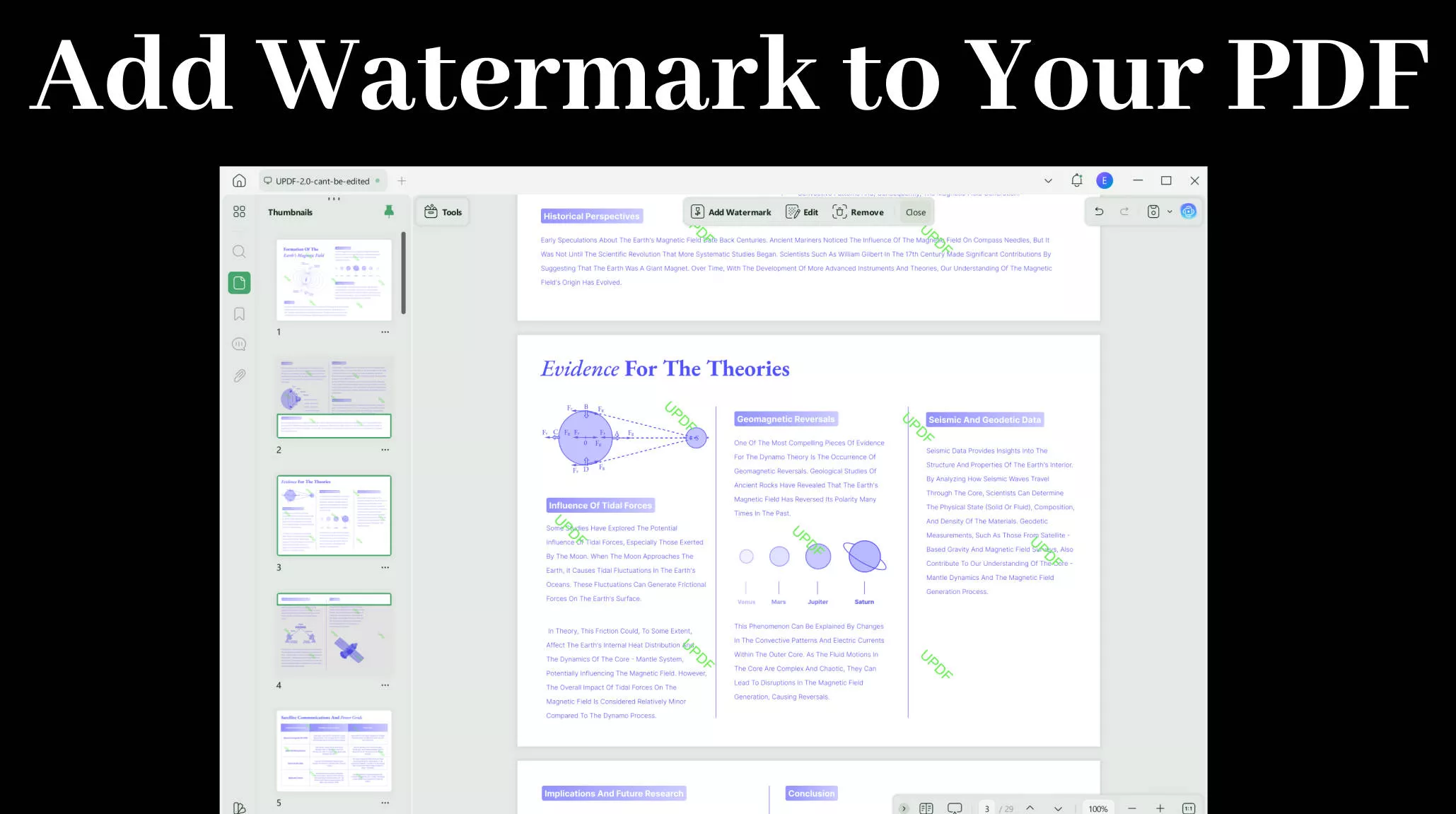
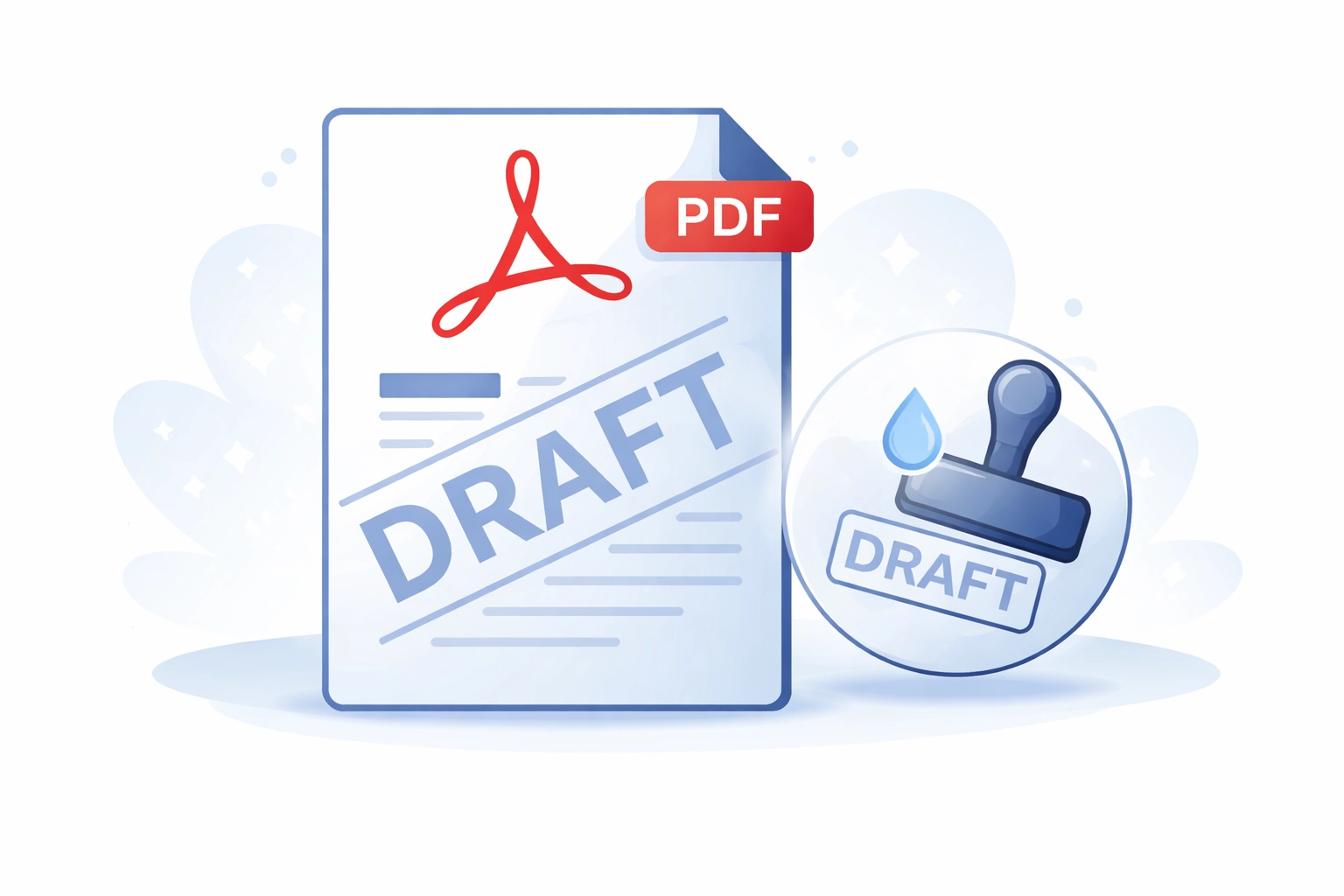
Adding a "Draft" watermark to a PDF document is a standard administrative procedure used to signify that a file is a work-in-progress, not for final distribution, or subject to further review. Whether you are collaborating on a legal brief, a technical design specification, or a business proposal, applying a clear, non-intrusive watermark ensures that recipients distinguish between preliminary versions and authorized, final documents. This guide explains the technical methods for inserting watermarks using professional software, open-source alternatives, and browser-based tools, while addressing the considerations required for document integrity and security.
Understanding Watermark Objectives and Standards
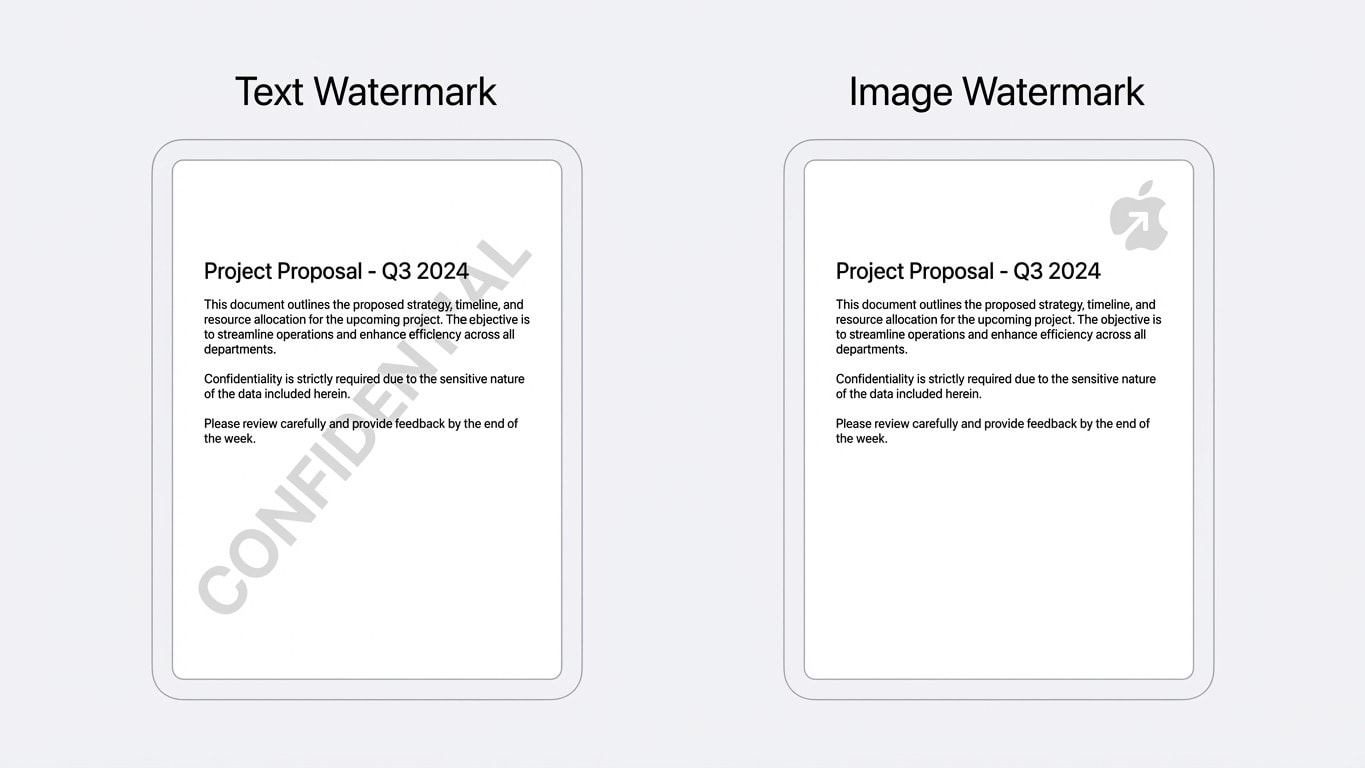
A watermark is a recognizable image or text layered behind or over the content of a document. In the context of a PDF, the primary objective of a "Draft" label is to provide immediate visual context. When selecting how to apply this mark, you must consider visibility, opacity, and positioning. If the watermark is too opaque, it may obscure critical text or data; if it is too transparent, it may be overlooked.
Professional documentation standards often dictate that a draft watermark should be placed diagonally across the page or centered in the background. It is also common practice to include the date or version number alongside the "Draft" text to provide further traceability. By utilizing standardized tools to insert these marks, you ensure that the metadata of the PDF remains intact, preventing formatting errors that can occur when manually converting files between word processors and PDF formats.
Method 1: Using Adobe Acrobat Pro
Adobe Acrobat remains the industry standard for PDF manipulation. If your organization maintains a subscription to Adobe Document Cloud, utilizing the built-in watermarking tool is the most reliable method, as it preserves document layers and font embedding.
- Open the PDF: Launch Adobe Acrobat Pro and open the document you intend to mark.
- Access the Edit Tool: Navigate to the "Tools" tab and select "Edit PDF."
- Insert Watermark: Within the secondary toolbar, select "Watermark" and click "Add."
- Configure Text: In the dialog box, select "Text" and type "DRAFT." You can customize the font, size, and color.
- Set Appearance: Use the "Appearance" and "Position" options to adjust the rotation (usually 45 degrees), opacity (typically between 20% and 50%), and layering (choose "Behind page content" to ensure legibility of the underlying text).
- Apply to Pages: You can select a specific page range or apply the mark to the entire document. Click "OK" to finalize.
This method allows for precision, such as setting specific margins and adjusting the scale relative to the target page size, which is essential for professional prints.
Method 2: Open-Source and Free Desktop Solutions
If you do not have access to Adobe Acrobat, several robust desktop applications allow for watermark insertion without compromising document security by uploading files to a cloud server. LibreOffice Draw is a common tool for this task.
- Import the PDF: Open LibreOffice and select the PDF file. It will open in the Draw module.
- Add Text: Use the text box tool to type "DRAFT."
- Format the Object: Increase the font size to something significant, such as 100pt, and change the color to a light grey.
- Rotate and Transparency: Right-click the text object to adjust the rotation and use the "Transparency" settings in the properties sidebar to ensure the mark does not hide document content.
- Export as PDF: Go to "File," then "Export as," and choose "Export as PDF." Ensure you check the settings to maintain high-quality resolution.
While effective, be aware that opening complex PDFs in non-native editors can occasionally result in shifting fonts or layout artifacts. Always verify the output before distribution.
Method 3: Browser-Based Online Tools
For quick tasks where the document does not contain sensitive or proprietary information, online PDF editors provide a convenient alternative. Services like iLovePDF or SmallPDF allow for rapid watermarking.
Caution: When using online tools, your document is processed on a third-party server. Do not use these platforms for documents containing confidential legal, financial, or personal identifiable information (PII).
- Upload: Navigate to the service provider’s website and upload your PDF.
- Configure: Use the provided interface to type "DRAFT," choose a position (center or corner), and adjust the opacity slider.
- Process: Click the "Add Watermark" button. The server will apply the layer to your file.
- Download: Save the file to your local device. Always delete the file from the provider’s server if they offer a manual delete option.
Comparison of Watermarking Solutions
| Feature | Adobe Acrobat Pro | LibreOffice Draw | Online PDF Editors |
|---|---|---|---|
| Data Privacy | High (Local processing) | High (Local processing) | Low (Server processing) |
| Ease of Use | Moderate | Moderate | High |
| Precision | Excellent | Good | Limited |
| Cost | Subscription Required | Free | Often Freemium |
Best Practices for Professional Documentation
Regardless of the tool chosen, consistency is vital. When adding a "Draft" watermark, maintain the same settings for every document within a project to avoid confusion among stakeholders. If you are working in a team environment, define a standard "Draft" appearance—such as Light Grey, 45-degree rotation, 30% opacity—that all team members will use.
Furthermore, always perform a "Verify" step after applying the watermark. Open the document in a standard viewer, such as a web browser or a basic PDF reader, to ensure the text is legible, the rotation is correct, and no essential information has been rendered unreadable by the watermark's placement.
Troubleshooting Common Issues
- Watermark Covers Text: If the watermark is obscuring content, check your settings to ensure you have selected "Behind page content" rather than "In front of page content." Alternatively, increase the transparency/opacity value.
- Font Issues: When using free tools, certain system fonts may not be embedded correctly. Use standard, universal fonts like Arial or Helvetica to ensure the watermark appears correctly on any device.
- Layering Conflicts: If you are dealing with a scanned PDF (an image-based PDF), the watermark will be applied as a new layer. Ensure your software supports layering; otherwise, you may need to use a tool that allows for "flattening" the document, which merges the layers into a single image-based PDF.
Frequently Asked Questions
Can I remove a draft watermark once it is added? If you have the original file without the watermark, it is always easier to revert to that. If you only have the watermarked version, you can sometimes remove it using "Edit PDF" tools in Adobe Acrobat, but if the watermark was flattened or applied as an image to a scanned document, it may be impossible to remove without specialized redaction software.
Should I add a date to the watermark? Yes, adding a date (e.g., "DRAFT - 2026-05-20") is highly recommended. It prevents version control issues, as stakeholders will immediately know if they are looking at an obsolete draft or a more recent iteration.
Does watermarking change the file size significantly? Adding a simple text watermark adds negligible data to the PDF. However, if you add a large, high-resolution image-based watermark, it may increase the file size. If size becomes an issue, use "Save as Optimized PDF" in your software to compress the document.
Is there a way to password-protect the PDF after watermarking? Yes. In most professional PDF suites, you can set "Permissions" or "Security" settings. You can restrict the ability to edit or print the document, which adds a layer of security to your draft.
What is the legal implication of a "Draft" watermark? While the watermark itself does not constitute a legal disclaimer, it serves as evidence that the document was not intended for execution or formal reliance. Always pair your watermark with a formal "Draft" disclaimer in the document footer or email body for maximum clarity.
Next Steps and Recommendations
If your workflow involves frequent document revisions, invest in a reliable, locally-installed PDF editor. This ensures you are not relying on third-party security, and it provides the granular control needed for professional document management. Before distributing your PDF, take a moment to review the final file on both a desktop and a mobile device to confirm that the "Draft" watermark does not interfere with the document's legibility. By following these structured steps, you protect the integrity of your final deliverables while keeping your internal processes organized and clear.