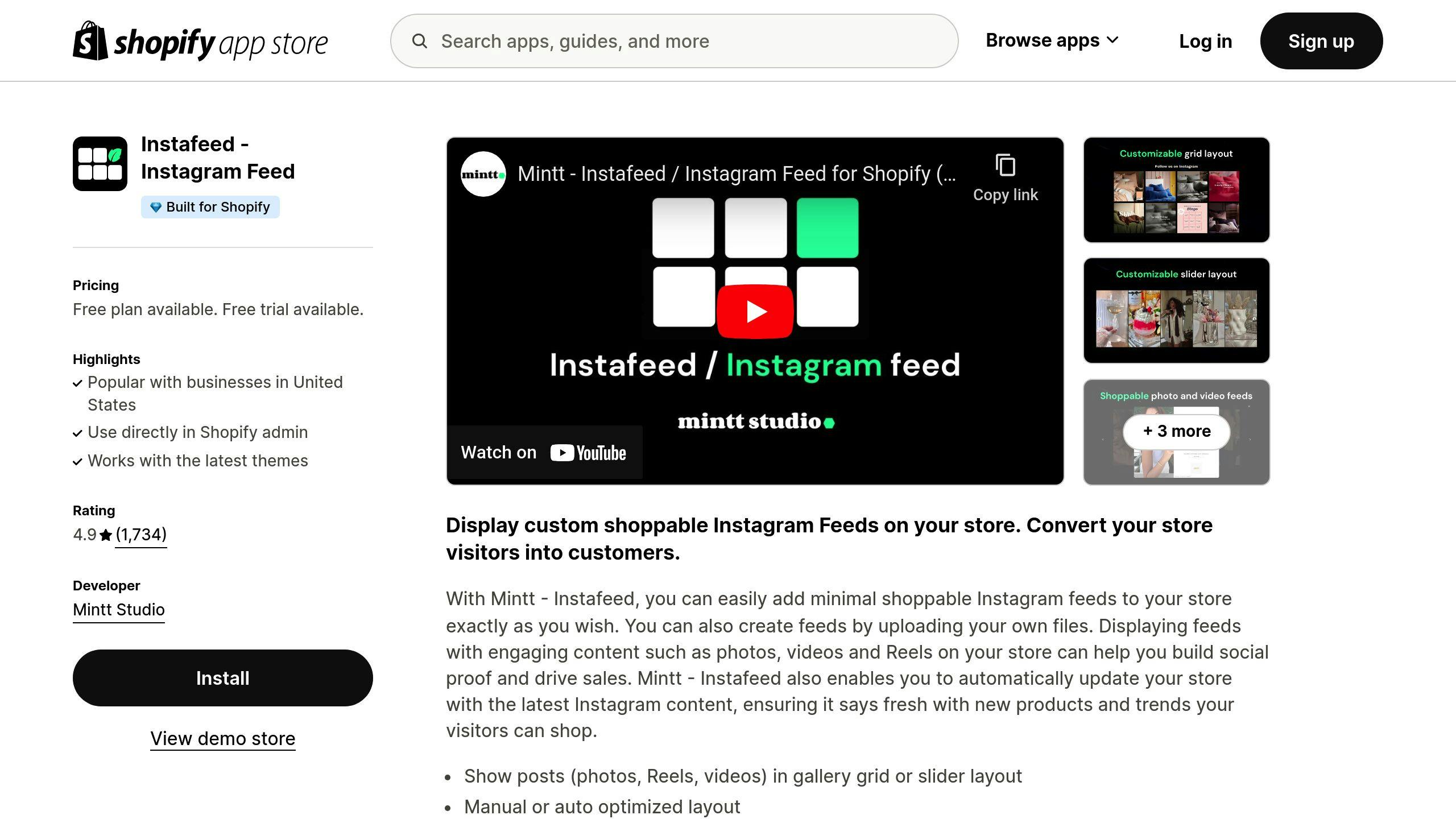
Adding an Instagram feed to your Shopify store is a strategic method to leverage social proof, enhance visual storytelling, and drive conversion rates by showcasing user-generated content directly on your storefront. By integrating your social media presence with your e-commerce architecture, you create a dynamic bridge between community engagement and purchasing behavior, keeping your site content fresh without requiring constant manual updates to your product pages.
Understanding the Role of Instagram Integration in E-commerce
Integrating an Instagram feed is more than an aesthetic choice; it serves as a functional tool for social commerce. In 2026, the primary search intent for Shopify merchants seeking this integration is to automate the display of lifestyle imagery, influencer partnerships, or product usage photos. When a customer lands on your store, seeing real-world applications of your products—often curated by peers—fosters trust and reduces the psychological distance between discovery and checkout.
Technically, this integration involves connecting your store to the Instagram Basic Display API or the Instagram Graph API. This connection allows your Shopify theme to fetch media objects (images, videos, or reels) from your business account and render them as a collection of thumbnails or a masonry grid. Understanding this distinction is vital, as the API method determines the stability and longevity of your feed.
Prerequisites and Preparation
Before beginning the integration, ensure you have the necessary administrative access and account configurations. Relying on improper credentials or disconnected accounts is the most common cause of feed failure.
- Professional or Business Account: You must have an Instagram Business or Creator account. Personal accounts lack the API permissions required for automated public displays.
- Facebook/Meta Business Suite Access: Your Instagram account must be linked to a Meta Business Suite page. Shopify uses this underlying connection to verify authorization through the Meta OAuth protocol.
- Theme Compatibility: Verify that your current Shopify theme supports custom liquid sections or app blocks. Most modern 2.0 themes in 2026 support "App Blocks," which allow you to place your Instagram feed anywhere on a page without editing theme code.
- Admin Privileges: You must hold owner or administrator permissions on the Shopify store to install applications or inject code snippets.
Methods for Integration
There are two primary ways to approach this integration: using a purpose-built Shopify App or implementing a custom manual integration.
Method 1: Utilizing Shopify Apps (Recommended)
The most robust approach for the majority of merchants is using an application from the Shopify App Store. These apps act as middleware, handling token renewals and API rate limits automatically.
- Step 1: Selection: Browse the Shopify App Store. Look for apps with high ratings and specific mentions of "API 2026 compliance." Avoid apps that suggest scraping methods, as these frequently break when Instagram updates its interface.
- Step 2: Authorization: Once installed, the app will request permission to access your Meta business account. Follow the OAuth prompts to link the specific Instagram handle you wish to display.
- Step 3: Configuration: Use the app’s dashboard to select the layout (e.g., carousel, grid, or collage), the number of images to display, and the refresh interval.
- Step 4: Positioning: If you are using a Shopify 2.0 theme, navigate to Online Store > Themes > Customize. Add a new "Section" or "Block" and select the Instagram app you just configured. Drag it to your desired location on your homepage or product pages.
Method 2: Manual Integration (Advanced)
Manual integration involves using a third-party widget service that provides a JavaScript snippet. This bypasses the need for a dedicated Shopify app but requires more maintenance.
- Step 1: Widget Configuration: Use a service like Elfsight or LightWidget to generate an embed code.
- Step 2: Liquid Implementation: In your Shopify admin, go to Online Store > Themes > Edit Code.
- Step 3: Asset Placement: Create a new snippet or section file. Paste the JavaScript and HTML provided by the widget service into this file.
- Step 4: Rendering: Include the snippet in your
index.jsonortheme.liquidfile where you want the feed to appear.
Comparative Overview of Integration Approaches
| Feature | Shopify App Integration | Manual Widget Integration |
|---|---|---|
| Ease of Use | High (Drag-and-drop) | Moderate (Requires code editing) |
| Maintenance | Automated updates | Manual intervention if API changes |
| Performance | Optimized via App Caching | Variable (Depends on script load) |
| Flexibility | High (Theme section blocks) | Moderate (Standard HTML/JS) |
| Cost | Usually monthly subscription | Often freemium or one-time fee |
Troubleshooting Common Integration Issues
Even with a stable setup, merchants may occasionally encounter display errors. Most issues stem from token expiration or connectivity interruptions between the Meta ecosystem and your store.
Feed Not Updating: If your feed has stopped refreshing, the most likely cause is an expired Access Token. Because Meta requires periodic re-authentication for security, you may need to log into your Shopify app dashboard and click "Reconnect Account." This re-authorizes the connection without losing your display settings.
Page Load Speed Concerns: Instagram feeds are image-heavy, which can negatively impact Core Web Vitals if not handled correctly. Ensure the application you choose utilizes "Lazy Loading." This technique prevents the Instagram images from loading until the user scrolls down to the section, preserving your page speed for initial discovery.
Broken Layouts: If your grid looks misaligned, check for CSS conflicts between your theme and the app’s styles. Use the Shopify "Customize" editor to ensure the app block is contained within an appropriate layout container. If you are using custom CSS, ensure you are not accidentally applying global overrides to the app’s specific class names.
Strategic Optimization of Social Content
Simply displaying your feed is the baseline. To maximize the value of this integration, treat your Instagram section as a conversion point.
- Shoppable Feeds: Many premium apps allow you to "tag" products within your Instagram posts. When a visitor clicks an image of a model wearing your product, a popup displays the product details and an "Add to Cart" button. This reduces friction by shortening the path to purchase.
- Curated Hashtags: If your brand relies on user-generated content (UGC), configure your feed to display posts that mention a specific brand hashtag. This serves as social proof, showing potential customers that real people are enjoying your products.
- A/B Testing Placement: Do not assume the bottom of the homepage is the best spot. Test placing your Instagram feed immediately following your "Hero" section or above the footer. Monitor your analytics to see how this placement correlates with session duration and click-through rates.
Maintaining Security and Compliance
When linking social media accounts to your e-commerce store, prioritize data security. Only grant permissions to applications that follow official Meta API guidelines. Avoid any service that asks for your Instagram password directly; legitimate apps will always route authentication through an official Facebook/Meta login popup. Furthermore, ensure that your Privacy Policy is updated to reflect that you are utilizing third-party tools to display social media content, as this involves the processing of public profile data.
Frequently Asked Questions
Does the Instagram feed affect my Shopify store speed? Yes, if not optimized. To mitigate this, select an integration method that uses lazy loading, which delays image downloading until the visitor scrolls to the feed, preventing a heavy initial load time.
Can I display Instagram Stories in my Shopify feed? While many apps focus on standard feed posts, some premium tools offer support for Stories. However, Stories are ephemeral and typically expire after 24 hours, making them less reliable for permanent storefront displays compared to standard grid posts.
Why does my feed show "Error: Token Expired"? This is a standard security protocol from Meta. Access tokens expire to prevent unauthorized long-term access. Simply re-authenticate your account within your Shopify app’s settings panel to resolve the issue.
Is it possible to filter specific posts from appearing? Yes, most quality Shopify apps offer filtering capabilities. You can choose to display only posts that contain specific hashtags or exclude posts that do not meet your visual branding standards.
Does this violate Instagram’s Terms of Service? Not as long as you use official tools or apps that utilize the Instagram Basic Display or Graph APIs. Never use "scraping" services that attempt to pull images without official authorization, as these can lead to your social accounts being flagged or suspended.
Final Recommendation
For most store owners in 2026, the most effective path forward is to install a well-reviewed Shopify App that offers "Shoppable Instagram" features. The time saved by automated token management and the conversion gains from tagging products directly in your photos outweigh the minor monthly cost of the application. Prioritize apps that emphasize "lazy loading" to keep your store performance optimized. Once installed, treat the feed as a dynamic marketing asset, updating your hashtag filters or curation strategy seasonally to keep your storefront content fresh and engaging for returning visitors.