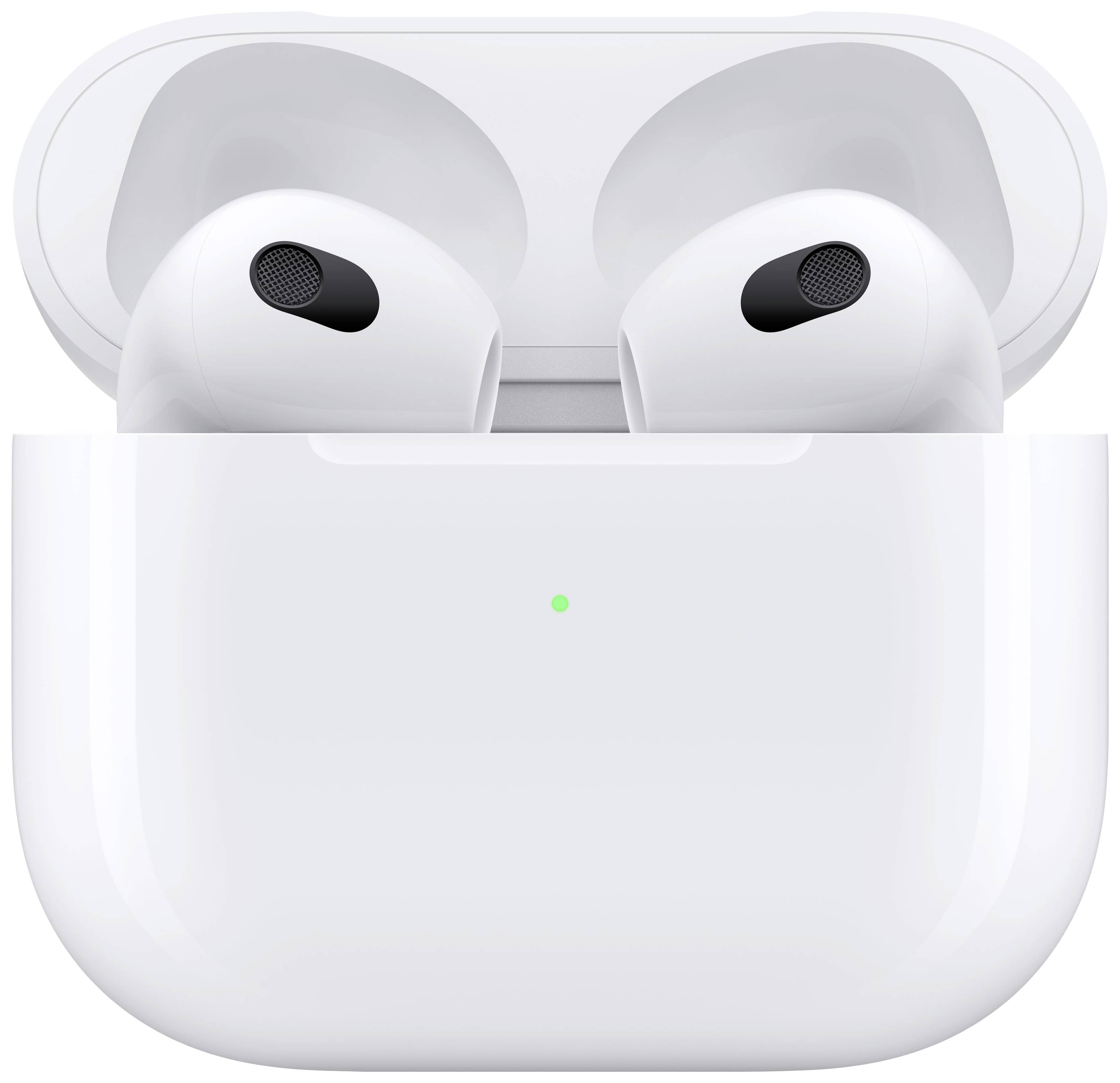
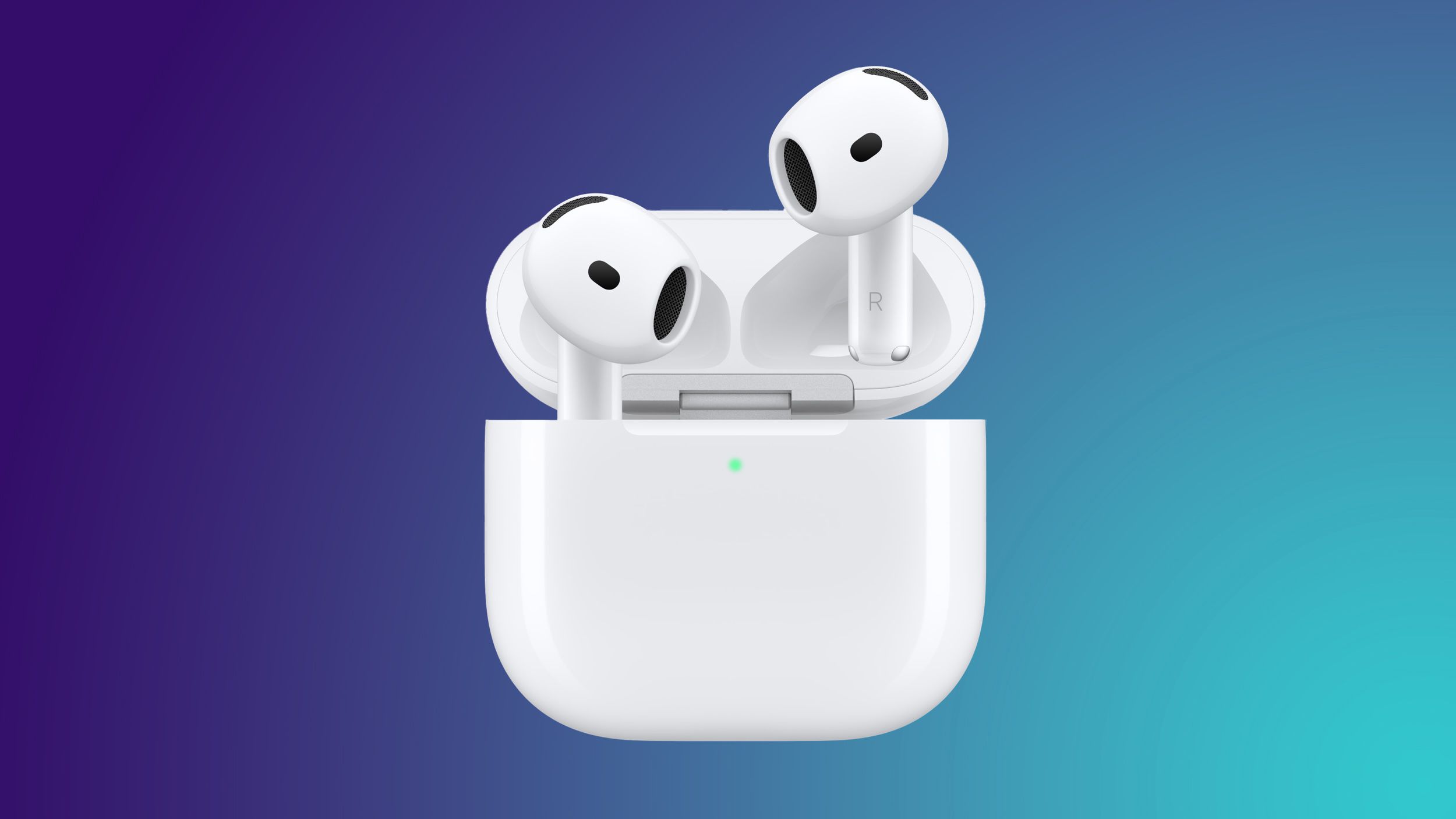
Apple AirPods do not feature a traditional manual "Update Now" button. Instead, firmware updates install automatically when your AirPods are inside their charging case, connected to power, and placed within Bluetooth range of an iPhone, iPad, or Mac that is connected to Wi-Fi. The process occurs in the background without user intervention.
How Apple AirPods Firmware Updates Work
Unlike an iPhone or Apple Watch, which alerts you when a new software build is available and prompts you to tap an install button, Apple manages AirPods software through silent over-the-air (OTA) updates. Firmware updates deliver critical patches, performance optimizations, active noise cancellation (ANC) adjustments, and occasionally brand-new software features like Adaptive Audio, Personalized Volume, or clinical-grade Hearing Health tools.
Apple releases firmware updates periodically for all active wireless headphone models, including standard AirPods (1st through 4th generations), AirPods Pro (1st and 2nd generations), and AirPods Max (Lightning and USB-C variants). These releases are identified by alphanumeric build numbers—such as 6F8 or 7A294—rather than full version numbers like iOS 18 or macOS Sequoia.
Because the earbuds themselves lack direct Wi-Fi radios to minimize power consumption and component footprint, they rely on a paired host device to download update packages. The host Apple device fetches the firmware binary from Apple servers and transfers it to the AirPods via Bluetooth Low Energy (BLE) or high-speed peer-to-peer wireless links while the earbuds reside inside their charging case.
Understanding this mechanism helps explain why updates cannot be triggered instantly on demand. Apple designed the background installation pipeline to prioritize battery safety and prevent bricking during active audio playback. Consequently, installation only commences when specific hardware, power, and connectivity thresholds are met simultaneously.
Prerequisites for Updating AirPods Firmware
Before attempting to trigger a firmware update, ensure your hardware setup meets all essential operational requirements. Attempting to update without satisfying these prerequisites is the primary reason AirPods remain stuck on outdated software versions.
- A Compatible Apple Device: You must have an iPhone, iPad, or Mac paired with your AirPods. Android devices, Windows PCs, and smart TVs cannot fetch or push Apple firmware updates to AirPods.
- Updated Operating System: Your host iPhone, iPad, or Mac should be running the latest available software version. Apple often ties new AirPods firmware features or deployment channels to recent updates in iOS, iPadOS, or macOS.
- Active Wi-Fi Connection: The host Apple device must be connected to a stable Wi-Fi network. Firmware binaries will rarely download over cellular data unless explicit high-data cellular settings are enabled on the host.
- Charging Equipment: You need the appropriate charging cable (Lightning or USB-C) or a certified Qi/MagSafe wireless charger. Both the AirPods and their case must have sufficient charge—ideally connected to active wall power throughout the process.
- Proximity: The charging case containing the AirPods must remain physically close (within 1 to 3 feet) to the connected host device during the entire transmission window.
If you exclusively use your AirPods with non-Apple hardware, such as an Android phone or a Windows laptop, your earbuds will remain on whichever firmware version was installed when they left the factory or were last paired with an Apple device. To update them, you must temporarily pair your AirPods with a friend's or family member's iPhone, iPad, or Mac, or visit an authorized Apple service location.
How to Check Your AirPods Firmware Version
Determining whether your AirPods are running the latest software requires checking the version number directly through your host device's settings menu.
Checking Firmware on iPhone or iPad
- Ensure your AirPods are connected to your iPhone or iPad by removing them from the case or opening the case lid near your device.
- Open the Settings app on your iOS or iPadOS device.
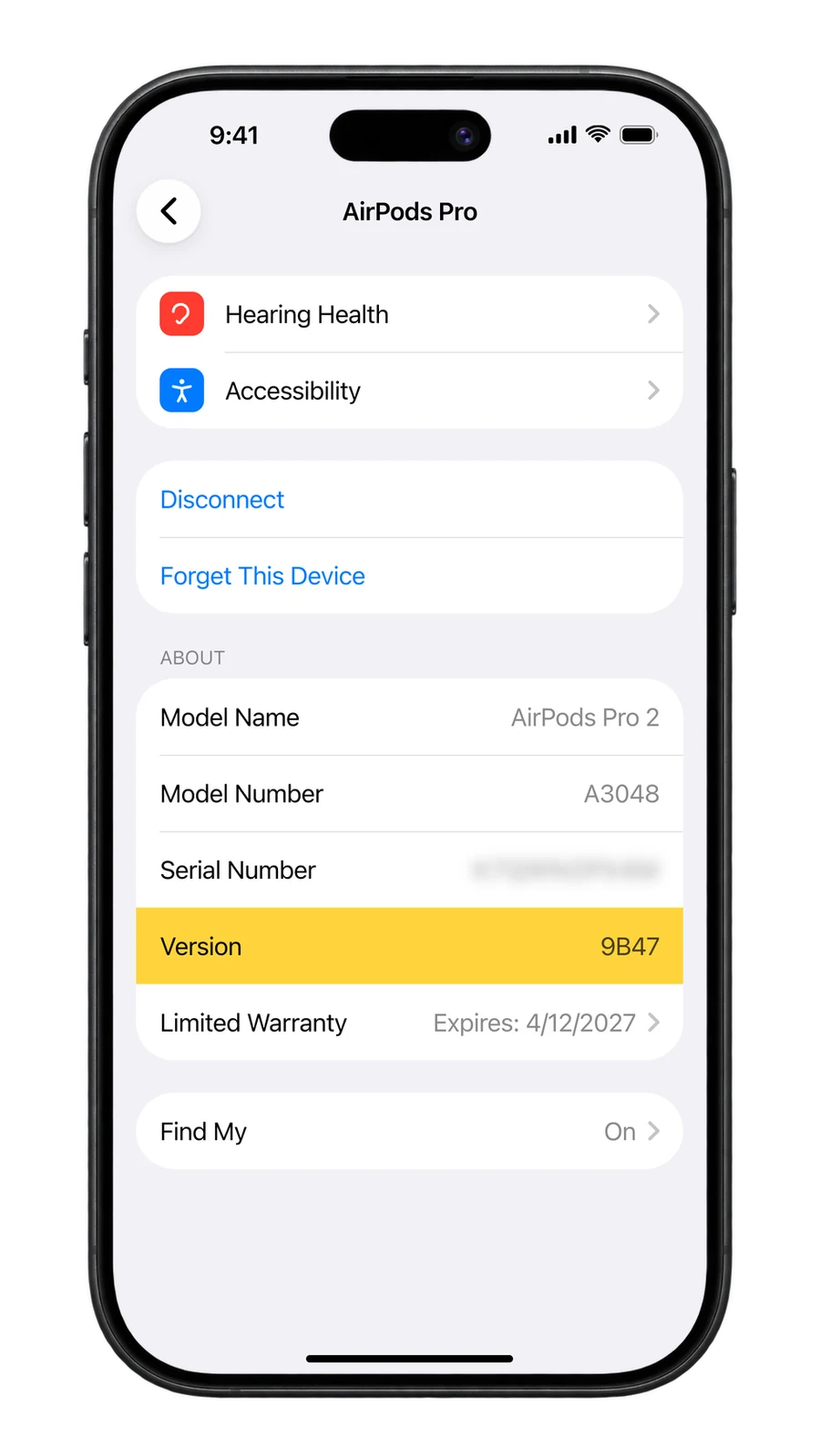
- Tap your AirPods name, which appears directly below your Apple ID banner near the top of the main Settings menu. Alternatively, navigate to Settings > Bluetooth, and tap the Info icon (i) next to your AirPods' name.
- Scroll down to the About section.
- Locate the entry labeled Version. The sequence of numbers and letters displayed here represents your current firmware build.
Settings ➔ [Your Name's] AirPods ➔ About ➔ Version
Checking Firmware on a Mac
- Connect your AirPods to your Mac.
- Click the Apple menu () in the upper-left corner of your screen and select System Settings.
- Click Bluetooth in the left sidebar.
- Locate your AirPods under My Devices and click the Info icon (i) next to them.
- Look for the Firmware Version listed in the device details window.
Alternatively, Mac users can hold the Option key, click the Apple menu (), and select System Information. Under the Hardware heading on the left, select Bluetooth, locate your paired AirPods in the device list, and view the firmware revision listed in the properties pane.
Step-by-Step Guide: How to Trigger an AirPods Update
While Apple does not supply a manual "Update" button within settings, you can reliably trigger the background installation pipeline by creating the exact physical and network environment the automated installer looks for.
Follow these steps to encourage your AirPods to update as quickly as possible:
- Insert Both Earbuds into the Case: Place both the left and right AirPods into their dedicated slots inside the charging case. For AirPods Max, place the headphones inside their Smart Case or protective sleeve.
- Connect the Charging Case to Power: Plug the charging case into a power adapter using a Lightning or USB-C cable, or place the case on a functioning MagSafe or Qi wireless charging pad. Verify that the status LED illuminates, confirming power delivery.
- Establish Power and Wi-Fi on Host Device: Plug your host iPhone, iPad, or Mac into a power outlet and verify that it is actively connected to a stable Wi-Fi network.
- Keep Devices in Close Proximity: Place the charging case containing the AirPods immediately adjacent to your iPhone, iPad, or Mac. Keep the lid of the charging case closed during the actual download process.
- Leave Undisturbed for 15 to 30 Minutes: Do not stream audio, open the case lid, or use the host device for heavy tasks during this window. Allow the host device to push the downloaded payload over Bluetooth while both devices are idle.
- Verify the Update: After 30 minutes, open the charging case lid near your iOS device or connect the AirPods to your Mac, navigate back to the About section in settings, and check if the version code has changed to the newest build.
AirPods Models and Firmware Capability Reference
Different AirPods generations feature distinct internal chipsets (such as the Apple H1, H2, or W1 processors) that govern their maximum feature set and firmware build paths. The table below outlines key hardware specifications, connections, and notable features enabled by software updates across the product line.
| AirPods Model | Chipset | Connection Type | Key Firmware Features Supported | Primary Update Transport |
|---|---|---|---|---|
| AirPods Pro (2nd Gen) (Lightning & USB-C) | Apple H2 | Lightning / USB-C / MagSafe | Adaptive Audio, Conversation Awareness, Personalized Volume, Clinical Hearing Test & Hearing Aid | iPhone, iPad, Mac (BLE / Direct Sync) |
| AirPods Pro (1st Gen) | Apple H1 | Lightning / MagSafe | Active Noise Cancellation Tuning, Spatial Audio, Head Tracking | iPhone, iPad, Mac (BLE) |
| AirPods (4th Gen) (Standard & ANC) | Apple H2 | USB-C / Wireless Case | Adaptive Audio (ANC model), Voice Isolation, Hands-Free Siri Gestures | iPhone, iPad, Mac (BLE) |
| AirPods (3rd Gen) | Apple H1 | Lightning / MagSafe | Personalized Spatial Audio, Adaptive EQ, Sweat & Water Resistance Tuning | iPhone, iPad, Mac (BLE) |
| AirPods (2nd Gen) | Apple H1 | Lightning / Qi Wireless | Automatic Device Switching, "Hey Siri" Voice Activation | iPhone, iPad, Mac (BLE) |
| AirPods Max (USB-C) | Apple H2 / H1 | USB-C | Lossless Audio over USB-C (select modes), Personalized Spatial Audio | iPhone, iPad, Mac (BLE) |
| AirPods Max (Lightning) | Apple H1 | Lightning | Active Noise Cancellation, Transparency Mode, Spatial Audio | iPhone, iPad, Mac (BLE) |
What Apple AirPods Updates Actually Do
Firmware updates serve several distinct functions in maintaining the health and expansion of Apple's wireless audio ecosystem. Because audio hardware relies heavily on real-time Digital Signal Processing (DSP), software patches directly impact acoustic output and physical device behavior.
1. Acoustic Tuning and Active Noise Cancellation (ANC)
Active Noise Cancellation relies on real-time algorithms processing signals captured by external and internal microphones. Software updates frequently refine these algorithms to suppress specific frequency bands more effectively, reduce wind noise turbulence, and eliminate acoustic feedback loops. Updates also adjust Transparency Mode output to sound more natural and less artificially amplified.
2. Feature Introductions
Major operating system updates often unlock capabilities on existing hardware via firmware patches. For example, firmware updates have introduced:
- Adaptive Audio: Dynamically blends Transparency Mode and Active Noise Cancellation based on changes in your ambient environmental noise.
- Conversation Awareness: Automatically lowers media volume and enhances voices in front of you when you begin speaking.
- Personalized Volume: Uses machine learning to understand environmental preferences over time and automatically fine-tune media loudness.
- Hearing Health Suite: Provides scientifically validated Hearing Tests and clinical-grade Hearing Aid functionality for compatible AirPods Pro models.
- Head Gestures: Allows users to answer or decline calls by nodding or shaking their head.
3. Security Patches and Bluetooth Protections
Wireless audio devices run firmware vulnerable to transport-layer attacks. Security researchers occasionally discover exploits where a bad actor in physical Bluetooth range could forge a connection request, spoof a paired device, or access the audio stream. Apple issues critical firmware patches—such as the fixes addressing Bluetooth spoofing vulnerabilities detailed in official security advisories—to ensure that spoofed connection handshakes are rejected at the hardware controller level. Official details on documented patches can be reviewed via Apple Security Releases.
4. Connection Stability and Battery Management
Updates routinely address core connectivity glitches, such as one earbud dropping audio mid-call, failure of the automatic switching mechanism between an iPad and a Mac, or excessive battery drain in the charging case when left idle. Firmware updates also optimize charging algorithms to mitigate battery degradation over prolonged battery life cycles.
Troubleshooting Stalled or Failed AirPods Updates
If your AirPods remain stuck on an outdated build despite leaving them connected to power near your iPhone, several software conflicts or hardware mismatches may be preventing the installation payload from executing.
[Outdated Firmware] ➔ Connection Glitch ➔ Reset AirPods ➔ Re-pair to iOS ➔ Retry Charging Cycle ➔ Updated
Issue 1: Host Device Operating System is Outdated
Apple frequently ties new firmware distribution channels to recent iOS or macOS releases. If your iPhone is running an older iOS release, your phone will not download the newest AirPods firmware binary from Apple servers.
- Solution: Go to Settings > General > Software Update on your iPhone or iPad and install the latest available version of iOS/iPadOS before attempting the AirPods update process again.
Issue 2: Desynchronized Earbud Firmware
Occasionally, one AirPod receives an update package while the other fails to finalize installation—often occurring if one earbud was removed early or had a poor charging contact pin. This creates an asynchronous state where the left and right earbuds report different internal build numbers, causing audio dropouts or pairing errors.
- Solution: Place both AirPods back into the charging case. Connect the case to external wall power via cable. Leave the lid closed for a minimum of 45 minutes uninterrupted to force the internal controller to sync both earbuds to the matching build version.
Issue 3: AirPods Are Paired Exclusively to Non-Apple Devices
As noted, Android phones, Windows PCs, and Linux workstations cannot communicate with Apple's firmware distribution infrastructure.
- Solution: Borrow an iPhone, iPad, or Mac. Pair your AirPods to that device via the standard Bluetooth menu. Leave the AirPods charging near the borrowed Apple device for 30 minutes. Once updated, unpair them and reconnect to your Android or Windows device. The updated firmware remains permanently stored inside the AirPods' onboard memory.
Issue 4: Persistent Update Failure (Factory Reset Required)
If your AirPods refuse to update after trying all standard steps, corrupted cached files on the AirPods' memory controller may be blocking the update payload. Performing a complete factory reset clears out corrupt state files.
Step-by-Step Factory Reset Procedure:
- Place your AirPods into their charging case and close the lid. Wait 30 seconds.
- Open the lid of your charging case.
- On your iPhone or iPad, go to Settings > Bluetooth, tap the Info icon (i) next to your AirPods, tap Forget This Device, and confirm.
- With the charging case lid open, press and hold the Setup button on the back of the case (or the force sensor/control button on select models) for about 15 seconds.
- Hold the button until the status light on the front (or inside) of the case flashes amber, then flashes white.
- Bring the AirPods close to your iPhone or iPad with the lid open, and follow the on-screen setup animation to re-pair the headphones.
- Once re-paired, plug the case into power and leave it next to your connected iPhone for 20 minutes to permit a clean firmware installation.
How to Verify Counterfeit AirPods via Firmware Behavior
The inability to process firmware updates is one of the most reliable indicators of counterfeit or knockoff AirPods. Fake AirPods often copy external aesthetic details, serial numbers, and even trigger the native pairing pop-up animation on iOS devices using reverse-engineered Bluetooth handshake chips.
However, counterfeit manufacturers almost never maintain remote firmware infrastructure capable of spoofing Apple's cryptographically signed OTA updates.
If your AirPods display any of the following characteristics, they may be counterfeit:
- The firmware version listed in Settings never changes, even after months of use and explicit attempts to update.
- The Version field under Settings > Bluetooth > [Your AirPods] is completely missing or displays non-standard text.
- The serial number shown in your iOS settings menu does not match the physical serial number printed beneath the charging case lid or on the earbud stems.
- Features like Spatial Audio toggles, ANC adjustments, or Adaptive Audio settings appear in the interface but produce zero physical change in sound processing.
If you suspect your hardware may not be genuine, you can verify physical serial credentials directly through the Apple Check Coverage page or bring the hardware to an Apple Store for direct diagnostic evaluation.
Frequently Asked Questions
Can I manually force my AirPods to update immediately?
No, Apple does not offer a manual "Update Now" button for AirPods. Updates are pushed automatically in the background when the AirPods are inside their charging case, connected to power, and placed near a Wi-Fi-connected iPhone, iPad, or Mac. Following the step-by-step trigger protocol is the fastest way to prompt an update.
How long does an AirPods firmware update take?
Once the host device downloads the update package from Apple servers and transfers it to the earbuds via Bluetooth, the background installation procedure typically takes between 15 and 30 minutes. Ensure the devices remain undisturbed and connected to power throughout this period.
Can I update AirPods using an Android phone or Windows PC?
No. Non-Apple operating systems lack the framework required to download and verify Apple's cryptographically signed AirPods firmware packages. To update your AirPods, you must pair them temporarily with an iPhone, iPad, or Mac connected to Wi-Fi.
How do I know if my AirPods case has updated?
AirPods charging cases also carry internal microcontroller firmware that updates silently alongside the earbuds. When you check your AirPods version in Settings > Bluetooth > [Your AirPods] > Version, tapping the entry will expand to show both the individual earbud firmware build and the charging case firmware build on supported models.
Why did Active Noise Cancellation sound different after an update?
Apple periodically alters acoustic signal processing profiles in new firmware releases to refine frequency response, adjust ambient noise isolation, or enhance microphone clarity. If ANC performance feels altered after an update, clean your AirPods microphone grilles carefully with a dry lint-free swab, as debris blocking external feedback microphones can degrade noise-cancelling performance.
Recommended Next Actions
To ensure your AirPods remain updated and operating at peak acoustic performance:
- Check Your Current Build: Navigate to Settings > Bluetooth > [Your AirPods] on your iPhone or iPad to document your current version string.
- Update Your Host Device: Ensure your iPhone, iPad, or Mac is updated to the latest OS release so it can download the newest software packages.
- Run a Weekly Idle Charge: Establish a routine of placing your AirPods inside their case, plugging the case into wall power, and placing it next to your charging iPhone overnight while connected to home Wi-Fi. This natural routine guarantees that all over-the-air firmware maintenance tasks complete without manual intervention.
EDITORIAL CATEGORY METADATA: