Adding an admin to a Facebook page requires granting specific access levels through Meta Business Suite or the page's direct settings, typically demanding that both users are Facebook friends or connected professionally, and ensuring the person granting access holds full control permissions.
Managing a Facebook page often requires a team effort, whether you are running a small local business, a growing brand, or a large media organization. Delegating responsibilities such as publishing content, responding to customer messages, running advertisements, or analyzing performance metrics is essential for efficient digital marketing. However, granting the wrong level of access or navigating the shifting interface of Meta's administrative tools can create security vulnerabilities or operational bottlenecks. Understanding the precise mechanisms required to add an admin to a Facebook page ensures your digital assets remain secure while empowering your team members to execute their duties effectively.
Understanding Facebook Page Access and Roles
Before assigning administrative privileges, it is critical to understand how Meta structures page permissions. Facebook utilizes a system that distinguishes between people with Facebook access and people with task access. This distinction protects page owners from inadvertently giving strangers full control over their core brand assets.
In the modern Meta ecosystem, page management is primarily handled through Meta Business Suite or the classic page settings interface, depending on whether the page is linked to a business portfolio. Roles are no longer limited to the old-school titles like "Editor" or "Moderator" in the exact way they were structured years ago, though the functional permissions remain granular.
Full Control vs. Partial Access
When you add someone to your Facebook page, you can choose between two primary categories of access:
- People with Facebook access: These individuals can switch into the page and manage it directly on Facebook. You can grant them Full Control (everything) or partial control (specific tasks like ads, insights, content, or messages).
- People with task access: These individuals cannot manage the page directly from their personal profile view in all instances, but they can work on specific tasks using tools like Meta Business Suite or Meta Ads Manager. This is ideal for external advertising agencies or freelance community managers who do not need ownership rights.
Granting Full Control is the equivalent of making someone a co-owner of the page. A full control admin can edit settings, delete the page, remove other admins (including you, if they choose), and manage all asset permissions. Therefore, this level of access should be reserved strictly for trusted business partners, senior marketing directors, or business owners.
Prerequisites for Adding an Admin
To successfully add an admin to a Facebook page, certain conditions must be met prior to initiating the process. Attempting to add someone without meeting these requirements often results in error messages or failed invitations.
- Existing Admin Status: You must already possess Full Control of the Facebook page to invite or assign new administrators. If you only have partial task access, the platform will restrict your ability to add new admins.
- Facebook Friendship or Professional Connection: While not always strictly mandatory depending on whether you are using Meta Business Suite or direct profile settings, being Facebook friends with the person or having a prior interaction on the platform frequently simplifies the search process when looking up their name or email address.
- Active Personal Profile: The person you wish to add must have an active, legitimate personal Facebook profile. Facebook pages cannot be added as admins of other pages directly without an underlying personal account managing them.
- Meta Business Portfolio Integration: If your page is managed within Meta Business Suite, the user may need to be added to your Business Portfolio first, depending on the organizational structure of your digital assets.
Step-by-Step Guide: How to Add an Admin via Facebook Settings
If your page is managed through the standard consumer-facing Facebook interface rather than a complex business portfolio, the process involves navigating your page settings directly. Follow these steps to grant administrative privileges:
- Switch to Your Page Profile: Log into Facebook with your personal account, click your profile picture in the top right corner, and select Switch profile. Choose the Facebook page you want to manage.
- Access Page Settings: Once you are operating as the page, click your page profile icon in the top right corner and select Settings & privacy, then click Settings.
- Navigate to New Page Experience / Page Access: Depending on whether your page has transitioned to the New Pages Experience, look for the option labeled New Page Experience or simply Page Access in the left-hand sidebar.
- Invite a New User: Locate the section titled People with Facebook access and click the Add New button next to it.
- Review Permissions and Confirm: A prompt will appear explaining what happens when you add someone. Click Next, then type the name or email address of the person you want to add into the search bar. Select their correct profile from the search results.
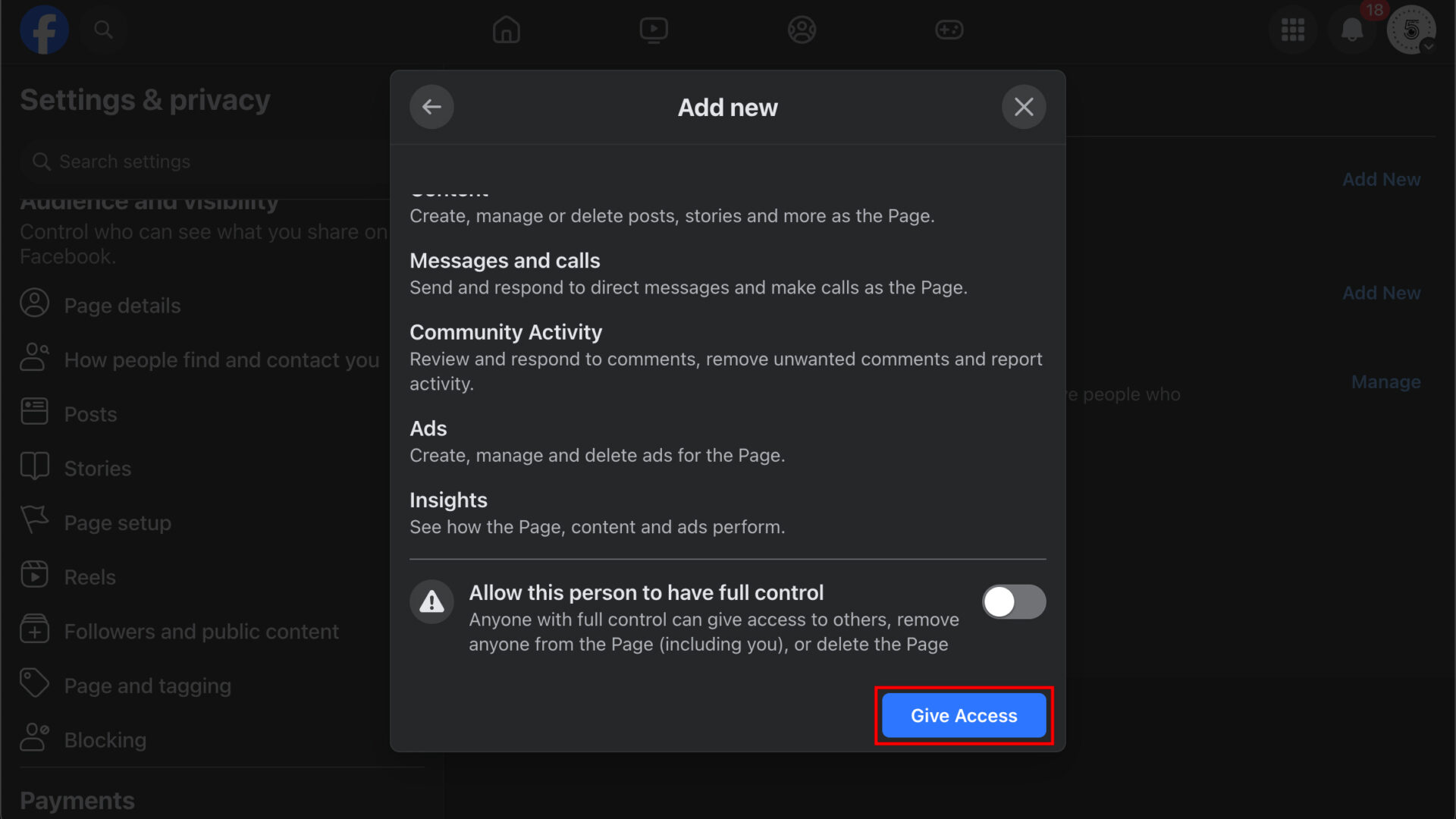
- Toggle Full Control: Review the permission toggles. If you want them to be a full admin, switch the toggle for Allow this person to have full control to the "On" position.
- Authorize the Request: Click Give Access. For security purposes, Facebook will prompt you to enter your personal Facebook account password to confirm the action. Once entered, confirm the invitation.
Step-by-Step Guide: How to Add an Admin via Meta Business Suite
For businesses utilizing Meta Business Suite to manage multiple assets, Instagram accounts, and ad accounts, adding an admin is handled through the business settings dashboard.
| Step | Action Required | Details |
|---|---|---|
| 1 | Open Meta Business Suite | Navigate to business.facebook.com and log in with your credentials. |
| 2 | Access Business Settings | Click on Settings (often represented by a gear icon) in the lower-left corner, then select Business settings. |
| 3 | Select People | Under the "Users" tab in the left-hand menu, click on People. |
| 4 | Add New User | Click the blue Add button. Enter the work email address of the person you want to invite. |
| 5 | Assign Access Level | Choose between Employee access (task-based) or Admin access (full control). Advanced options let you assign finance or developer roles if needed. |
| 6 | Assign Assets | Select the specific Facebook page, ad accounts, or catalogs you want this person to manage, and fine-tune their permissions. |
| 7 | Send Invitation | Review the summary and click Send Invitation. The recipient will receive an email prompting them to accept. |
Accepting and Claiming Administrative Access
Once you have sent the invitation—whether through standard Facebook settings or Meta Business Suite—the process is not complete until the recipient accepts the invitation.
If you sent a direct Facebook profile invitation, the recipient will receive a notification on their personal Facebook account and via email. They must click the notification, review the invitation terms, and click Accept. They will then be able to switch into the page and begin managing it.
If you sent the invitation via Meta Business Suite using an email address, the recipient will receive an email invitation. They must click the link in the email, log into their personal Facebook account, enter their name, and accept the invitation to join the business portfolio and gain access to the page. Invitations typically expire after 30 days if left unaccepted, requiring the admin to resend the invite.
Common Mistakes and Troubleshooting
Managing administrative access on social media platforms frequently presents technical hurdles. Being aware of common pitfalls can save significant time and frustration.
Invitation Not Received
If your invitee claims they did not receive the notification or email, check the following:
- Check Spam and Promotions Folders: Business Suite email invitations frequently land in automated filtering folders.
- Verify Email Accuracy: Ensure you typed the exact email address associated with their personal Facebook account, not a secondary work email they do not use for social media login.
- Resend the Invitation: Navigate back to Page Access or Business Settings, locate the pending invitation, and click Resend.
Unable to Toggle Full Control
If the option to grant full control is grayed out or restricted:
- Check Your Own Permissions: Verify that you actually possess Full Control yourself. Partial admins cannot elevate other users to full admin status.
- Business Portfolio Restrictions: If the page is locked inside a verified Business Manager portfolio, ownership rules set by the primary business owner may restrict who can invite external users.
Security and Two-Factor Authentication
Facebook prioritizes account security, particularly for pages with large followings or active ad accounts. Anyone you add as an admin should ideally have Two-Factor Authentication (2FA) enabled on their personal Facebook account. If they attempt to manage the page without proper security protocols, Meta's automated security systems may flag the account activity, temporarily restricting the page or blocking the new admin from performing sensitive actions like boosting posts or accessing payment methods.
Frequently Asked Questions
Can I add someone as an admin if we are not Facebook friends?
Yes. While being Facebook friends can make finding the correct person easier in the search bar, you can add anyone as a page admin by typing their exact name or the email address associated with their personal Facebook profile into the invite field.
What is the difference between an admin and a moderator?
An admin (Full Control) has ultimate authority over the page, including settings, permissions, and the ability to delete the page or remove other admins. A moderator or person with partial task access can manage comments, send messages, create posts, or view insights, but cannot alter page settings or manage team roles.
How many admins can a Facebook page have?
Facebook does not enforce a strict numerical limit on the number of people who can have access to a page. However, security best practices dictate keeping the number of Full Control admins to an absolute minimum—typically two to three trusted individuals—to reduce the risk of unauthorized access or security breaches.
Can a page have multiple owners with equal power?
Yes. Multiple users can be granted Full Control of a single Facebook page. All users with full control possess identical administrative capabilities, meaning any full admin can remove other admins or modify page settings.
What should I do if an admin leaves my organization?
You should immediately remove their access through your page settings or Meta Business Suite. Navigate to Page Access or Business Settings, locate their name, click the options menu (three dots), and select Remove from Page or Remove. This prevents former employees or contractors from retaining control over your brand assets.
Next Actions and Best Practices
Maintaining the security and operational integrity of your Facebook page requires proactive management long after initial setup. Always audit your page roles and business portfolio permissions at least once every six months to ensure that former employees, agencies you no longer partner with, or inactive accounts do not retain access to your brand assets. Enforce strict personal account security practices, including mandatory two-factor authentication, for every individual granted administrative privileges on your page.