Selecting the optimal Android remote desktop client requires matching your primary use case—such as remote IT support, mobile workstation productivity, or resource-intensive graphics tasks—with the right underlying streaming protocol, security model, and touch-input capabilities. Top choices range from native protocol tools like Microsoft Remote Desktop to low-latency proprietary solutions like AnyDesk, TeamViewer, Splashtop, and Parsec.
Core Criteria for Evaluating Android Remote Desktop Apps
Mobile remote desktop tools bridge the physical gap between an Android smartphone or tablet and a desktop operating system (Windows, macOS, or Linux). However, translating a desktop designed for precise mouse clicks and physical keyboards onto a mobile screen introduces operational hurdles. Evaluating clients against specific technical criteria ensures seamless performance.
Streaming Protocol and Engine Efficiency
The efficiency of a remote desktop client depends largely on its streaming protocol:
- Microsoft RDP (Remote Desktop Protocol): Sends UI elements, vector shapes, and font commands rather than raw video frames when possible. This makes RDP extremely efficient for standard office applications over bandwidth-constrained networks.
- VNC (Virtual Network Computing): Operates on the RFB (Remote Frame Buffer) protocol, transmitting pixel grids. VNC is cross-platform but can consume higher bandwidth and suffer from screen tearing unless paired with modern compression.
- Proprietary Low-Latency Video Codecs: Modern clients like AnyDesk (DeskRT), Parsec (BUD protocol using H.264/H.265 hardware encoding), and Splashtop stream compressed video directly from host GPU framebuffers. These achieve 60 frames per second (fps) performance with sub-30ms latency, making them ideal for video editing, 3D modeling, and gaming.
Mobile Ergonomics and Input Control Schemes
Interacting with a desktop interface on a small touchscreen requires robust control options:
- Touch-to-Mouse Mapping: Direct touch acts as a tap, while drag gestures emulate left-click dragging.
- Virtual Trackpad Mode: Converts the mobile display into a trackpad where moving a finger moves an onscreen cursor, offering fine precision for small buttons and drop-down menus.
- Peripheral Support: Native Android support for physical Bluetooth or USB OTG keyboards and mice, including right-click pass-through, scroll wheel navigation, and system shortcut overrides (e.g., stopping Android from hijacking
Alt+TaborCtrl+C). - Desktop Mode Integration: Software compatibility with desktop interfaces like Samsung DeX, Motorola Smart Connect, or standard Android external display modes allows mobile devices to function like hardware thin clients when connected to external monitors.
Network Traversal and Remote Connectivity
Connecting across different networks involves distinct technical approaches:
- Direct IP / Local Area Network (LAN): Requires static IP routing, local host discovery, or custom port forwarding (such as TCP port 3389 for RDP). Direct connections minimize latency by eliminating third-party relay servers, though exposure to the open internet requires a Virtual Private Network (VPN).
- Cloud-Brokered Relay Services: Services like TeamViewer, Chrome Remote Desktop, and AnyDesk use external signaling servers to facilitate NAT (Network Address Translation) traversal and firewall punching via WebRTC or custom UDP/TCP tunnels. This allows instant setup without opening router ports.
Detailed Analysis of Top Android Remote Desktop Clients
| Client App | Primary Protocol | Target Use Case | Peripheral / DeX Support | Licensing / Cost Model |
|---|---|---|---|---|
| Microsoft Remote Desktop | RDP | Windows Workstations | Excellent (Full DeX & Mouse Pass) | Free (Host requires Pro/Ent) |
| AnyDesk | DeskRT | IT Support & Remote | Good (Custom Touch Controls) | Free Personal / Tiered Paid |
| TeamViewer | Proprietary TCP/UDP | Enterprise IT Support | Fair (Optimized for Support) | Free Personal / High-Tier Business |
| Chrome Remote Desktop | WebRTC / VP8 / VP9 | Simple Casual Access | Basic (Standard Touch Emulation) | Free (Google Account Required) |
| Splashtop | Enterprise Video Engine | Media Production / Edu | Excellent (Stylus & Multi-Mon) | Subscription Only (Tiered) |
| Parsec | BUD / H.264 / H.265 | High-FPS / Graphics | Good (Gamepad & Mouse Focus) | Free Core / Paid Professional |
1. Microsoft Remote Desktop (Windows App)
Microsoft Remote Desktop remains the industry standard for direct connections to Windows Pro, Enterprise, and Education editions.
- Technical Strengths: Operates natively over RDP, integrating with Windows authentication, Remote Desktop Gateways, and Azure Virtual Desktop. It offers superior rendering for text-heavy applications, remote audio redirection, and shared clipboard support.
- Mobile Experience: Offers excellent integration with Samsung DeX. When deployed on a tablet or DeX-enabled smartphone, it preserves true desktop resolution matching, full right-click functionality, and hardware keyboard shortcut pass-through.
- Limitations: Windows Home editions cannot act as RDP host servers without third-party workarounds. Connecting over the internet requires setting up a VPN or configuring an RDP Gateway to prevent exposing TCP port 3389 to public traffic.
2. AnyDesk
AnyDesk is known for lightweight performance and efficient resource usage, powered by its proprietary DeskRT codec.
- Technical Strengths: DeskRT compresses and transmits desktop frames with minimal latency, operating reliably on connections as slow as 100 kbps. It provides session recording, remote file transfer, custom client builds for enterprises, and unattended access configuration.
- Mobile Experience: The Android client includes configurable on-screen hotkeys, touch-pad gestures, and unattended access capabilities using host password authorization.
- Limitations: The user interface can feel dense on smaller smartphone displays. Commercial detection algorithms may temporarily block users on free tiers if heavy usage pattern thresholds are triggered.
3. TeamViewer
TeamViewer is a comprehensive enterprise platform designed for remote support, helpdesk operations, and centralized endpoint management.
- Technical Strengths: Features automated NAT traversal, cross-platform remote administration, mass deployment scripts, hardware diagnostic reporting, and Wake-on-LAN (WoL) support.
- Mobile Experience: Offers bidirectional file transfer, active process management on the remote machine, and chat functionalities. It allows IT administrators to provide mobile support and manage unattended servers directly from Android devices.
- Limitations: Commercial licensing subscription tiers can be expensive for sole proprietors or small businesses. The free tier strictly enforces personal-use guidelines using automated connection monitoring.
4. Chrome Remote Desktop
Chrome Remote Desktop provides straightforward, cross-platform remote access through Google's infrastructure.
- Technical Strengths: Operates as a extension or native service built on WebRTC and Google account authorization. It bypasses complex network configurations and provides stable connections behind restrictive corporate firewalls.
- Mobile Experience: The Android application is lightweight and simple. It offers basic touch controls, virtual trackpad modes, and instant host connection lists linked to your Google identity.
- Limitations: Lacks advanced administrative functionality, such as remote printing, multi-monitor display switching, custom resolution fitting, audio channel controls, and high-framerate video optimizations.
5. Splashtop
Splashtop focuses on high-definition video streaming, audio delivery, and creative application performance.
- Technical Strengths: Delivers up to 4K resolution at 60 fps with low latency. It supports pressure-sensitive stylus pass-through (such as Samsung S-Pen), making it suitable for digital artists using remote Windows or Mac software like Photoshop or ZBrush.
- Mobile Experience: Includes custom shortcuts, full multi-monitor switching controls, screen blanking for host privacy, and session lock configuration.
- Limitations: Requires separate pricing tiers for personal use, business access, and IT support. Free local network access is limited, with remote internet access requiring a paid subscription.
6. Parsec
Parsec is built specifically for ultra-low latency interactive streaming, catering to gamers, video editors, and 3D animators.
- Technical Strengths: Utilizes low-level hardware H.264/H.265 decoding on Android devices to stream at 60 fps or higher with minimal input lag. It handles color accuracy formats (such as 4:4:4 chroma subsampling on higher tiers) and full USB controller/gamepad passthrough.
- Mobile Experience: Provides high responsiveness when paired with an Android tablet, physical mouse, or gamepad.
- Limitations: Focused primarily on real-time interactive performance. It lacks traditional IT administration tools like remote printing, background service scripts, and advanced unattended deployment systems.
Technical Security Architecture for Mobile Access
Mobile devices frequently connect over unsecured public Wi-Fi networks and cellular connections, making transport security and authentication critical when accessing desktop environments.
- Android Client
- TLS 1.3 / WireGuard Tunnel
- Network Perimeter / Gateway
- Multi-Factor Auth Check
- Host Machine
- Network Perimeter / Gateway
- TLS 1.3 / WireGuard Tunnel
Transport Encryption Standard
All modern mobile remote sessions should use high-grade transport encryption:
- TLS 1.2 / TLS 1.3: Protects control channels, authentication packets, and WebRTC handshakes against eavesdropping.
- AES-256 Bit Encryption: Secures media streams and frame buffers end-to-end between the Android client and the host endpoint.
Network Isolation: VPN vs. Cloud Relay
- Direct Connection via VPN: Connecting via native RDP or VNC over the internet should always require an encrypted network tunnel (such as WireGuard, OpenVPN, or IPsec). Avoid opening raw inbound ports (like TCP 3389) on edge routers to protect against automated brute-force attacks and protocol-level exploits.
- Cloud-Relayed Tunneling: Platforms using cloud brokers (TeamViewer, AnyDesk, Chrome Remote Desktop) establish outbound connections over standard HTTPS (TCP port 443) to proprietary servers. Authentication occurs via challenge-response mechanisms, preventing host IP exposure to the public web.
Identity Security and Unattended Access
To protect unattended host workstations:
- Enforce Multi-Factor Authentication (MFA) on all broker cloud accounts.
- Configure individual access passwords on the host endpoint rather than relying on session-based random pin codes.
- Enable Screen Blanking on the host workstation to hide remote session activity from physically nearby observers.
- Set up automatic Session Timeout limits and auto-lock screen features on both host and mobile endpoints.
Step-by-Step Configuration Guide: Microsoft RDP with Secure VPN
This setup provides high-performance, secure mobile access to a Windows workstation without exposing open ports to the internet.
Step 1: Prepare the Host Windows Environment
- Ensure the host machine runs Windows Pro, Enterprise, or Education.
- Open Settings > System > Remote Desktop.
- Toggle Enable Remote Desktop to On.
- Click Advanced settings and confirm Require devices to use Network Level Authentication (NLA) is checked.
- Record the host machine's local IP address (e.g.,
192.168.1.50) viacmdusingipconfig.
- Settings
- System
- Remote Desktop
- Enable Remote Desktop [ON]
- Select Users / Confirm NLA [ENABLED]
- Remote Desktop
- System
Step 2: Establish Secure Network Access (WireGuard VPN)
- Install a WireGuard or OpenVPN server on your local network (e.g., hosted on a router, NAS, or dedicated home server like Pi-hole/Raspberry Pi).
- Export the client configuration file (
.conf) or QR code. - Install the official WireGuard app from the Google Play Store on your Android device.
- Import the configuration by scanning the QR code or importing the file, then connect to the VPN tunnel.
Step 3: Configure the Android Microsoft Remote Desktop Client
- Download Microsoft Remote Desktop (or Windows App) from the Google Play Store.
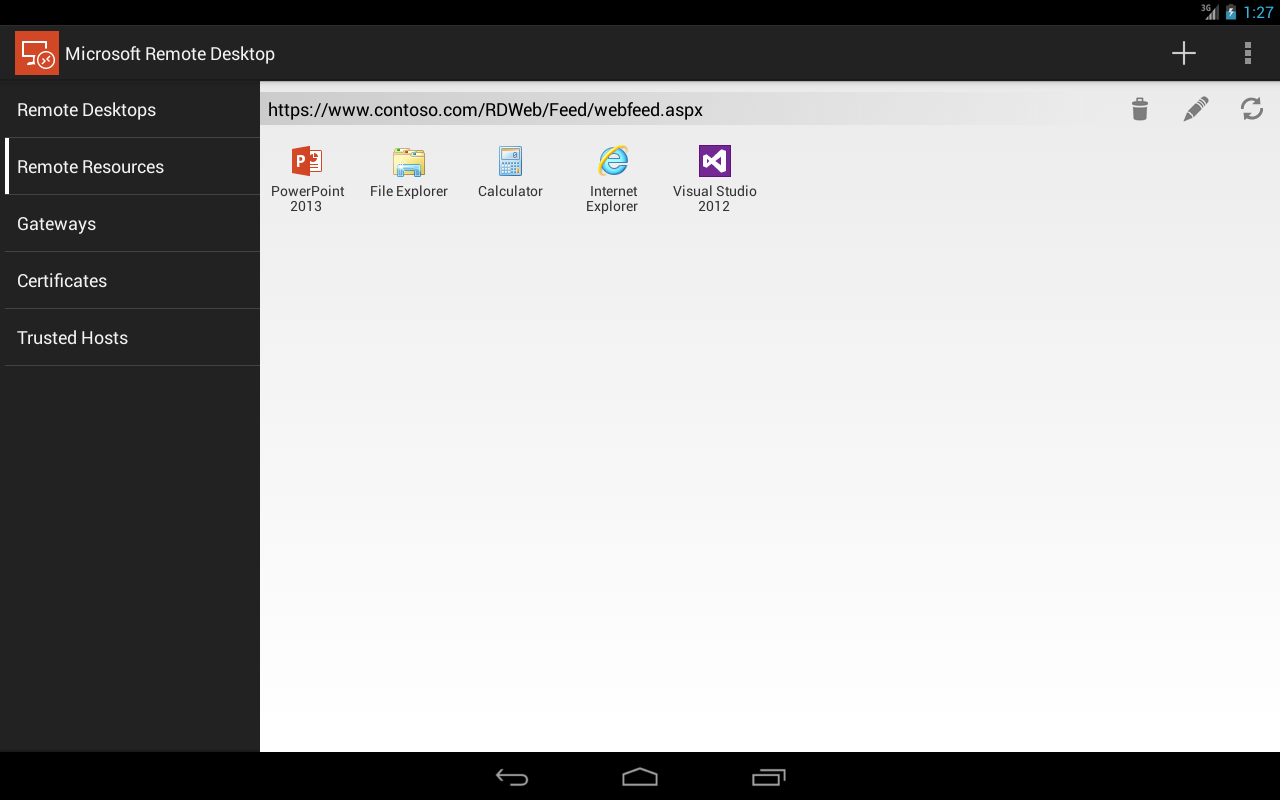
- Open the app and tap the + icon, then select Add PC.
- Enter the target local IP address (
192.168.1.50) in the PC Name field. - Tap User Account > Add User Account. Enter your Windows username and account password.
- Under Display Customization, adjust settings:
- Match resolution to the mobile display or set a custom fixed desktop resolution.
- Enable Optimize for touch or select Mouse pointer based on personal input preference.
- Under Audio, set sound playback to Play on this device.
- Save the configuration and tap the connection tile while connected to the VPN.
Optimizing Ergonomics, Touch Controls, and Peripheral Support
Using desktop applications on mobile screens can present usability challenges. Configuring your input settings properly improves efficiency.
| Mobile Input Method | Recommended Configuration | Ideal Use Case |
|---|---|---|
| Touch Screen (Direct Mode) | Scale DPI up to 125-150% in Host OS | Tapping large icons, media controls, simple web browsing |
| Touch Screen (Trackpad Mode) | Enable Virtual On-Screen Mouse & Scroll Bar | Detailed spreadsheets, CAD, legacy administrative apps |
| Samsung DeX / Desktop Mode | Pass-through native mouse pointer & disable OS hotkeys | Full desktop replacement setup with external monitor |
| Bluetooth Keyboard & Mouse | Map host modifier keys (Ctrl/Alt/Win) correctly | Long-form writing, software development, terminal work |
Master Touch Gestures
Most top-tier clients use unified touch interactions:
- Single Tap: Left click.
- Two-Finger Tap: Right click.
- Two-Finger Drag / Scroll: Vertical or horizontal scroll wheel movement.
- Pinch-to-Zoom: Scales the mobile view area locally without altering host desktop display resolution.
- Tap-and-Hold Drag: Emulates clicking and dragging to select text or move windows.
Enhancing Samsung DeX and External Display Setup
Connecting your Android device to a monitor using USB-C or Samsung DeX creates a functional thin-client workspace:
- Resolution Matching: Disable fixed mobile scaling in client settings to allow the app to request native 1080p or 4K resolutions from the host desktop.
- Mouse Capture: Enable host pointer capture within client settings to prevent the Android cursor from getting stuck at the monitor edges during fast movements.
- Keyboard Shortcuts: Enable system key pass-through to ensure key combinations like
Alt+Tab,Win+D, andCtrl+Alt+Deltrigger actions on the remote host rather than your Android phone.
Troubleshooting Common Mobile Remote Access Issues
Issue 1: High Latency, Screen Stutter, and Input Lag
- Root Cause: Suboptimal video encoding acceleration or poor network routing across cellular data.
- Resolution:
- Switch client protocol to H.264/H.265 hardware decoding inside settings (available in Parsec, Splashtop, and AnyDesk).
- Lower host color depth (e.g., reduce from 32-bit true color to 16-bit) or drop remote resolution to 1080p.
- Switch from 2.4 GHz Wi-Fi to a 5 GHz/6 GHz Wi-Fi band, or use a low-latency WireGuard UDP tunnel over cellular data.
Issue 2: Tiny Text and Off-Center Scaling
- Root Cause: The high pixel density (DPI) of modern mobile screens can cause desktop environments to render at illegible scales.
- Resolution:
- Avoid setting the desktop OS resolution directly to your phone's native panel resolution (e.g., 3080x1440). Set the remote session to a standard 1920x1080 resolution.
- Adjust scaling in Windows host settings (Settings > System > Display > Scale) to 125% or 150%.
- Use the client app’s local "Fit to Screen" or "Virtual Trackpad Zoom" features rather than altering system resolution dynamically.
Issue 3: Black Screen on Connection
- Root Cause: Host machine has display sleep active, headless dummy monitor issues, or GPU driver conflicts.
- Resolution:
- On the host PC, disable system display sleep under power management settings (keep CPU active, turn screen off).
- For headless servers without an attached monitor, install an inexpensive HDMI EDID dummy plug on the GPU to force the system to initialize video rendering channels.
- Disable hardware acceleration inside the client app if the Android hardware decoder fails to initialize incoming video frames.
Frequently Asked Questions
Can I remotely control a Mac or Linux computer using an Android device?
Yes. Clients like AnyDesk, TeamViewer, Splashtop, and Chrome Remote Desktop offer full, cross-platform support for host machines running macOS or Linux distributions. For native protocols, you can connect to macOS using a VNC client app (such as RealVNC) over built-in Screen Sharing, or to Linux using VNC/XRDP servers.
Is Microsoft Remote Desktop completely free to use on Android?
The Microsoft Remote Desktop Android application is free to download and use. However, the host Windows machine must be running a Pro, Enterprise, or Education edition of Windows. Windows Home editions do not natively support incoming RDP host connections without unsupported system modifications.
What is the minimum network speed required for smooth mobile remote access?
Basic productivity tasks (text editing, administrative work, system maintenance) require a stable download speed of 1.5 to 3 Mbps on the mobile client. High-framerate operations like HD video streaming, gaming, or graphic design require speeds of 15 to 25 Mbps with low latency (under 50 ms ping).
How do I trigger Ctrl+Alt+Del from an Android device?
Most remote desktop applications feature an on-screen extended menu or floating action toolbar with a dedicated Send Ctrl+Alt+Del button. Direct hardware keyboard input from mobile OS devices often captures Ctrl+Alt+Del at the Android system level instead of passing it to the remote desktop.
Can I use my Android phone's stylus (like the Samsung S-Pen) for precision remote work?
Yes. Applications like Splashtop and Microsoft Remote Desktop offer native digitizer stylus passthrough. When using a stylus on an Android tablet or phone, inputs translate to absolute cursor positioning on the host desktop, including hover detection and pressure sensitivity in supported software like Adobe Creative Cloud.
Final Recommendation and Next Actions
To select the right Android remote desktop client:
- For Office Work and Windows Workstations: Deploy Microsoft Remote Desktop alongside a secure WireGuard VPN. This setup offers great text clarity, full Samsung DeX compatibility, and zero software licensing costs.
- For Ad-Hoc Helpdesk Support and Cross-Platform Maintenance: Choose AnyDesk or TeamViewer. Both provide simple NAT traversal, require no manual port forwarding, and support multi-platform operating systems out of the box.
- For Graphics, Video Editing, or Gaming: Install Parsec or Splashtop. These clients leverage hardware H.264/H.265 video decoding to deliver 60 fps streaming with minimal input lag.
Begin by testing your chosen client on your local Wi-Fi network. Once you confirm stability and input preferences, set up authentication controls and encrypted VPN tunnels before accessing hosts across external cellular data connections.