An Android trojan virus is a malicious program disguised as legitimate software that deceives users into installing it on their Android devices. Once installed, these trojans can steal banking credentials, spy on private conversations, track location data, display intrusive advertisements, or grant remote attackers full administrative control over the compromised device.
What Is an Android Trojan?
In cybersecurity, the term "trojan virus" is technically a misnomer, though it is widely used by consumers. A computer virus is defined by its ability to self-replicate and infect other files or systems without user intervention. Trojans, by contrast, do not self-replicate. Instead, an Android trojan relies on social engineering and deceptive packaging to trick users into downloading and executing the malicious payload themselves.
When a user downloads what appears to be a helpful utility—such as a PDF scanner, a device cleaner, a flash lamp app, or a modded mobile game—the application delivers a hidden payload. On the surface, the app may perform its stated function to avoid triggering immediate suspicion. Beneath the surface, however, it executes unauthorized background processes designed to breach the operating system's security boundaries.
Android trojans are particularly dangerous because they target the open nature of the Android operating system. Unlike iOS, which strictly enforces a single, closed app ecosystem, Android allows users to enable sideloading—installing Android Package (APK) files from unverified third-party sources. Even within official repositories like the Google Play Store, sophisticated trojan developers frequently bypass automated security filters using hidden code execution, delayed payloads, and dynamic code loading.
How Android Trojans Infect Mobile Devices
Understanding how Android trojans breach device defenses is essential for both prevention and remediation. Attackers employ various delivery vectors depending on the technical sophistication of the malware and the targeted Android version.
1. Third-Party App Stores and Sideloading
The most common infection vector for Android trojans is sideloading executable APK files from unauthorized third-party websites, forums, or alternative app stores. These platforms often lack rigorous code-review protocols. Attackers frequently host cracked versions of paid applications or popular games bundled with trojanized code. Once installed, the modified APK requests broad permissions that grant the malware immediate control over essential system functions.
2. Dropper Apps on Official App Stores
Even official app marketplaces like the Google Play Store face persistent threats from "dropper" or "loader" apps. A dropper is a benign-looking app submitted to the marketplace containing clean, non-malicious code during initial review. Once published and installed on a user's device, the app fetches an encrypted secondary payload from a remote Command and Control (C2) server. This payload is decrypted and executed locally, transforming a seemingly safe utility into an active Android trojan.
3. Phishing and Smishing Attacks
Mobile phishing (phishing via email) and smishing (phishing via SMS) remain effective delivery methods. Attackers send urgent or enticing text messages containing links to malicious web pages. Examples include fake package delivery tracking alerts, urgent security notifications from financial institutions, or system update warnings. Clicking these links prompts the user to download a file or install a fake system update that delivers the trojan payload.
4. Malvertising and Fake Update Prompts
Malvertising involves injecting malicious scripts into online advertising networks. While browsing regular websites, users may encounter deceptive pop-up advertisements claiming their device is infected with a virus, running low on storage, or requires an immediate browser update. Clicking the prompt triggers the download of an APK file containing trojan malware.
Common Types of Android Trojans
Android trojans are categorized based on their primary operational objective. As mobile banking, digital wallets, and personal data storage have migrated almost entirely to smartphones, trojan capabilities have become increasingly specialized and destructive.
- Android Trojan Malware
- Banking Trojans (Anatsa)
- Remote Access (RATs)
- SMS & Billing (Joker)
- Spyware & Info Stealers
Banking Trojans
Banking trojans are designed to steal financial credentials, credit card details, and account access information. Modern banking trojans, such as Anatsa, Xenomorph, and Godfather, utilize targeted overlay attacks. When the trojan detects that the user has opened a legitimate banking app or cryptocurrency wallet, it generates an identical fake login screen directly over the real application. When the user enters their credentials, the data is instantly captured and exfiltrated to the attacker's server.
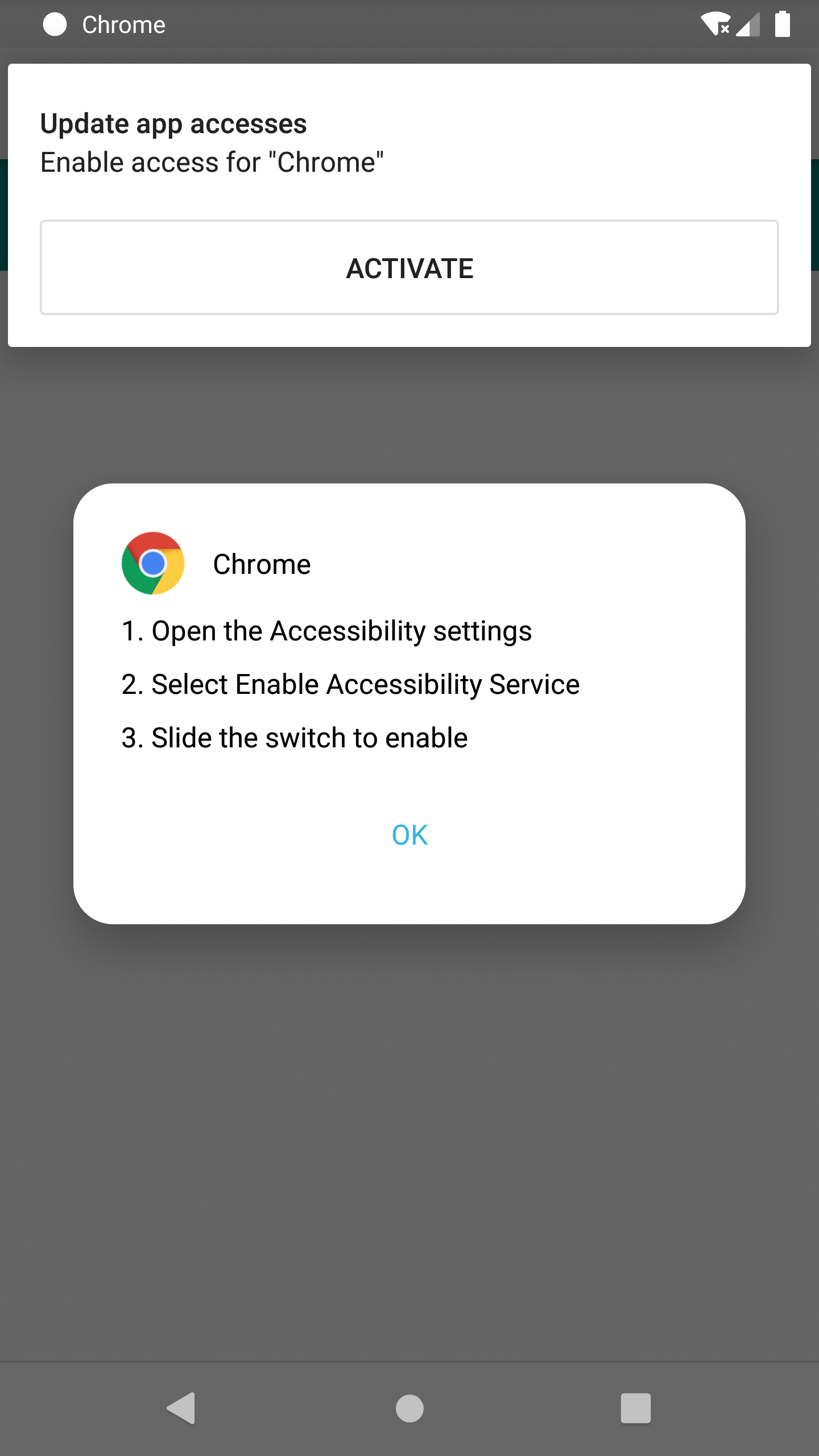
Furthermore, advanced banking trojans exploit Android's Accessibility Services—a set of features intended to assist users with disabilities. By tricking the user into granting accessibility permissions, the trojan can read screen content, auto-fill forms, capture multi-factor authentication (MFA) tokens, and even execute automated wire transfers without manual intervention.
Remote Access Trojans (RATs)
Remote Access Trojans, or RATs (such as Cerberus and CraxsRAT), grant cybercriminals comprehensive remote control over an infected device. A RAT allows attackers to manipulate the user interface, record microphone audio, activate cameras, take screenshots, inspect local file storage, and extract contact lists. RATs are often used for targeted espionage, blackmail, and corporate intelligence gathering.
SMS and Billing Trojans
SMS trojans, exemplified by long-running malware families like Joker, focus on monetary theft through telecommunications services. These trojans silently send premium-rate SMS messages or subscribe the user to costly monthly WAP (Wireless Application Protocol) billing services without consent. To hide their activity, SMS trojans request permission to intercept, read, and delete incoming messages, suppressing confirmation alerts from mobile carriers.
Spyware and Information Stealers
Spyware trojans operate quietly in the device background to gather personal intelligence. They monitor keyboard inputs (keylogging), intercept chat logs from messaging platforms, track real-time GPS locations, and upload browser histories to remote servers. This stolen information is frequently sold on dark web marketplaces or used to orchestrate secondary identity theft attacks.
Key Indicators Your Android Device Is Infected
Android trojans often operate covertly, but their hidden processes generate distinct technical signatures. Recognizing these symptoms early minimizes potential financial and privacy damage.
- Unusual Battery Drain: Malicious background tasks, persistent network connections to C2 servers, and continuous crypto-mining or data transmission significantly accelerate battery depletion.
- Spikes in Cellular Data Usage: If your mobile data usage spikes suddenly without changes in browsing habits, background trojans may be exfiltrating local files, media, or contact logs.
- Unwanted Pop-Ups and Overlay Windows: Persistent advertisements outside of web browsers, or sudden login screens appearing over legitimate apps, indicate active ad-injection or overlay trojans.
- Unrecognized Installed Apps: The appearance of new application icons on your home screen or within system settings that you did not download is a key sign of a dropper infection.
- Unauthorized Charges or SMS Activity: Outgoing SMS messages to unknown premium numbers or unexpected charges on your mobile service bill indicate a active billing trojan.
- Overheating and Reduced Performance: Constant processor utilization by malware background threads causes hardware throttling, severe UI lag, and unexpected thermal heating during idle periods.
- Disabled System Security Settings: High-tier trojans often attempt to disable Google Play Protect or revoke system permissions for installed security software to prevent detection.
Technical Comparison of Trojan Categories and Threat Profiles
To assist in identifying and assessing mobile threats, the table below outlines the core characteristics, infection capabilities, and threat levels associated with major Android trojan classifications.
| Trojan Classification | Primary Objective | Key Infection Vector | Exploited System Permissions | Relative Removal Difficulty | Threat Level |
|---|---|---|---|---|---|
| Banking Trojan | Financial credential theft & unauthorized transactions | Dropper apps, phishing links | Accessibility Services, Display Overlays, SMS | High | Critical |
| Remote Access Trojan (RAT) | Total device control & real-time monitoring | Sideloaded APKs, cracked software | Device Administrator, Accessibility, Camera/Mic | Very High | Critical |
| SMS / Premium Billing | Subscription fraud & premium SMS charges | Compromised Play Store utilities | SMS Read/Send, Notification Listener | Moderate | High |
| Adware Trojan | Ad-fraud & revenue generation | Malvertising, fake flash players | System Alerts, Draw Over Apps | Low to Moderate | Medium |
| Spyware / InfoStealer | Personal data exfiltration & location tracking | Phishing, bundled software | Location, Contacts, Call Logs, Storage | High | High |
Step-by-Step Guide: How to Remove an Android Trojan
If you suspect or confirm that an Android trojan has infected your device, follow this sequence to isolate, neutralize, and remove the threat cleanly.
- Step 1: Disconnect Network & Boot into Safe Mode
- Step 2: Revoke Device Administrator & Accessibility
- Step 3: Uninstall Malicious & Unrecognized Applications
- Step 4: Clear Storage Caches & Browser Storage
- Step 5: Execute Full System Scan with Antivirus Software
Step 1: Disconnect Network Access and Boot into Safe Mode
Immediately sever active communication between the trojan and its C2 server by enabling Airplane Mode and turning off Wi-Fi.
Next, boot the Android device into Safe Mode. Safe Mode disables all third-party applications, preventing the trojan's code from executing during startup.
- Press and hold the physical Power Button until the power options menu appears on screen.
- Tap and hold the Power Off or Restart icon until the prompt for Reboot to Safe Mode displays.
- Tap OK or confirm to reboot. Upon restarting, a "Safe Mode" watermark will appear in the lower corner of the screen.
Step 2: Revoke Device Administrator and Accessibility Permissions
Many trojans use elevated system privileges to prevent users from uninstalling them normally. You must revoke these permissions before attempting removal.
- Open the device Settings app.
- Navigate to Security & Privacy > More Security Settings > Device Admin Apps (menu names may vary slightly by manufacturer, such as Samsung One UI vs. Stock Android).
- Review the list of apps with administrative rights. If an unfamiliar app or suspicious utility is listed, tap it and select Deactivate.
- Return to main settings and select Accessibility. Check for any installed services granted accessibility control. Toggle off access for any unrecognized applications.
Step 3: Uninstall the Malicious Application
With administrative rights revoked and third-party code paused by Safe Mode, uninstall the malicious app.
- Open Settings > Apps (or Apps & Notifications).
- Select See all apps.
- Scroll through the application list. Look for recently installed applications, apps lacking recognizable icons, or apps with generic names like "System Update," "Flash Player," or "Device Cleaner."
- Tap the suspicious app, select Force Stop, and then tap Uninstall.
If the Uninstall button is grayed out, return to Step 2 to ensure all administrative and accessibility privileges have been successfully revoked.
Step 4: Clear Storage Caches and Browser Data
Trojans frequently leave cached configuration files or malicious scripts inside browser storage that can trigger re-infections or unwanted redirects.
- In Settings > Apps, locate your primary web browsers (e.g., Google Chrome, Firefox, Edge).
- Tap Storage & Cache.
- Tap Clear Storage (or Clear Data) and Clear Cache.
- Open your browser settings directly and clear browsing history, cookies, and cached web content.
Step 5: Execute a Full Security Scan
Restart your device normally to exit Safe Mode, re-enable your internet connection, and install a dedicated mobile security application from the Google Play Store (e.g., Bitdefender Mobile Security, Malwarebytes, or Sophos Intercept X).
Run a complete deep-system scan to ensure no dormant secondary payloads or persistence mechanisms remain on the file system. Ensure Google Play Protect is active by opening the Google Play Store, tapping your profile icon, selecting Play Protect, and clicking Scan.
Step 6: Factory Reset (When Removal Fails)
If persistent malware survives manual removal attempts, continues re-installing itself via system-level partitions, or if a critical banking trojan was present, perform a complete Factory Data Reset.
Caution: A factory reset permanently erases all internal data, including photographs, messages, local documents, and application configurations.
- Back up vital personal media (photos, documents) to a secure cloud service or external hardware. Do not back up application APK files or full device images, as this may preserve the trojan.
- Open Settings > System > Reset Options.
- Select Erase All Data (Factory Reset).
- Enter your PIN or passcode and confirm the operation.
- Set up the device as a new hardware installation rather than restoring from a pre-infection system image.
Essential Best Practices for Android Trojan Prevention
Preventing malware infections requires combining system settings controls with proactive security habits.
- Proactive Android Hardening Framework
- System Settings
- App Vetting
- OS & Patching
- Identity Protect
Disable Sideloading from Unknown Sources
Keep Android's security boundaries enforced by restricting APK installations outside official markets.
- Navigate to Settings > Apps > Special App Access > Install Unknown Apps.
- Ensure that browser applications, file managers, and messaging tools are explicitly set to Not Allowed.
Review Application Permissions
Regularly review the permission requests of installed software. Be extremely skeptical of any basic utility—such as a calculator, torch app, or solitaire game—that requests:
- Accessibility Services access
- Display over other apps (Draw Over Apps) privileges
- SMS read/write/send capabilities
- Notification listener privileges
- Device Administrator access
Install Security Updates Promptly
Cybercriminals exploit known software vulnerabilities in the Android operating system to bypass application sandboxing. Ensure your device receives monthly security patches. Devices running legacy, unsupported Android versions should avoid sensitive operations like mobile banking or be upgraded to supported hardware. Review official guidance on mobile device platform security from national cybersecurity authorities such as the Cybersecurity and Infrastructure Security Agency (CISA).
Verify Developer Identity and Reviews
Before installing new software from the Google Play Store, audit the application's credentials:
- Check the developer's verified publisher badge and contact information.
- Read three-star and two-star user reviews to identify reports of suspicious behavior or sudden policy changes.
- Examine the total download count relative to the release date; millions of downloads accumulated in a few days often indicate artificial inflation by bot networks.
Frequently Asked Questions
Can an Android device get infected with a trojan simply by visiting a website?
A web page alone rarely infects a modern, patched Android device without user interaction. However, visiting a compromised or malicious site can trigger automatic file downloads (drive-by downloads) or display deceptive pop-ups that trick you into opening a malicious file. Infection typically requires downloading and opening the malicious payload, or exploiting an unpatched vulnerability within your web browser software.
What is the difference between a trojan and a traditional computer virus?
A virus self-replicates by inserting its code into existing, legitimate files and spreading autonomously across network endpoints. A trojan does not self-replicate; it relies on deception, disguising itself as legitimate software (such as an update, utility, or game) to convince the user to install it manually. Most mobile threats categorized as "viruses" are technically trojans.
Does performing a Factory Reset guarantee the removal of an Android trojan?
Yes, in the vast majority of consumer cases, a factory reset wipes the primary data partition, removing all third-party applications, settings, and hidden malware payloads. The only exceptions are rare, nation-state level exploits or rooted environments where malware has successfully flashed itself directly to the hardware's system partition or bootloader recovery ROM.
Can an Android trojan steal data from encrypted apps like WhatsApp or Signal?
While end-to-end encryption protects your data in transit across network infrastructure, an Android trojan with Accessibility Services or Remote Access privileges can capture data at the endpoint. By taking screen captures, recording key presses (keylogging), or reading on-screen notification text directly from the device interface, the trojan bypasses network-level encryption entirely.
How do trojan developers bypass Google Play Store security checks?
Malware developers use techniques like dynamic code loading and staged dropper architectures. They submit an app with clean, fully compliant code to pass the initial Google Play Protect review. Once approved and installed on target devices, the application downloads the malicious trojan module dynamically from an external C2 server, bypassing static app analysis.
Final Recommendation: Securing Your Mobile Device
If you suspect your Android device has been compromised by a trojan, immediate action is essential to prevent financial fraud and identity theft. Start by severing network connectivity, revoking suspicious device admin privileges, and uninstalling unverified applications from Safe Mode.
Once your device is clean, protect your accounts by changing sensitive passwords—especially for banking, email, and password managers—from a separate, uncompromised device. Enable hardware-based or app-based two-factor authentication (2FA) across all key services, and maintain strict sideloading controls to prevent future malware infections.