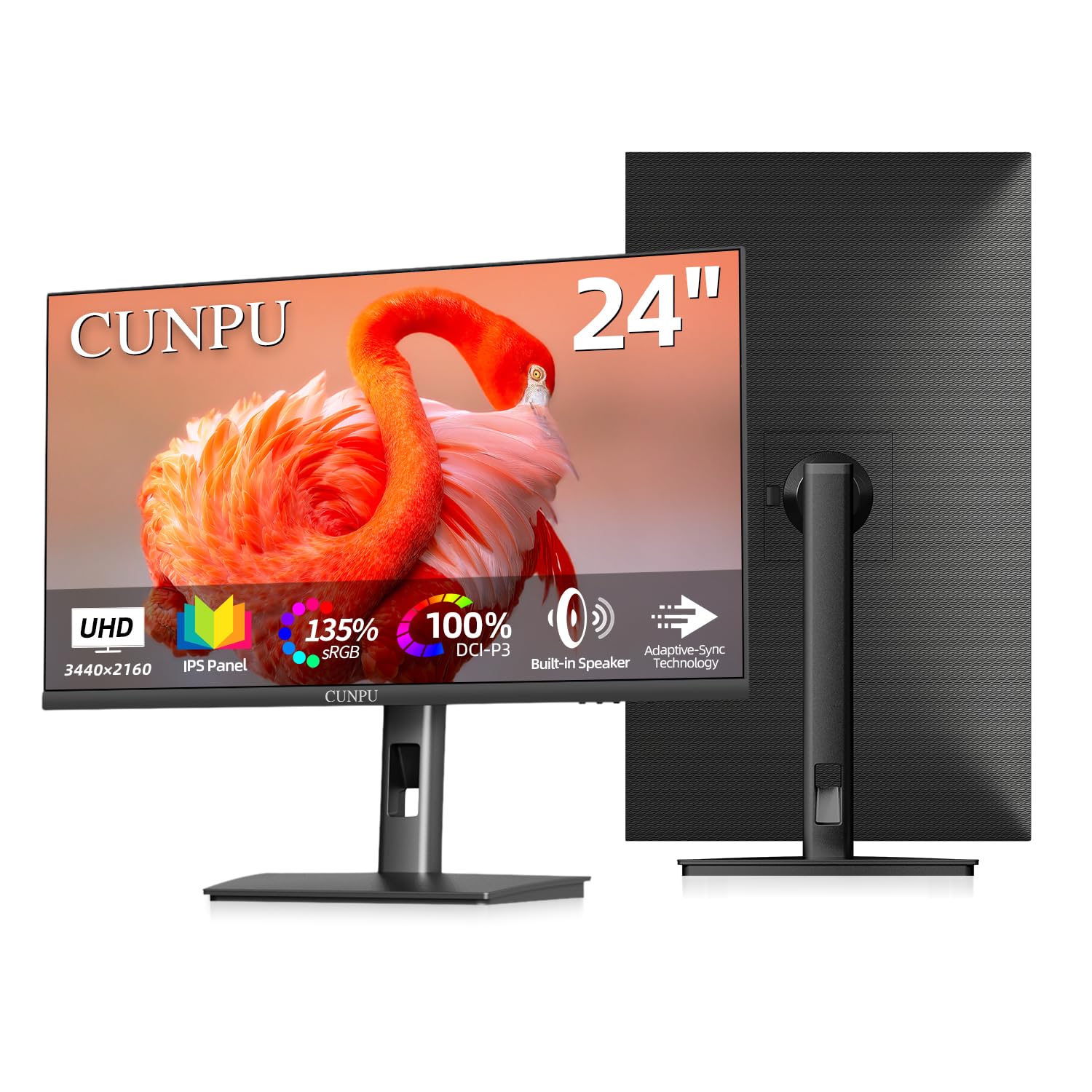
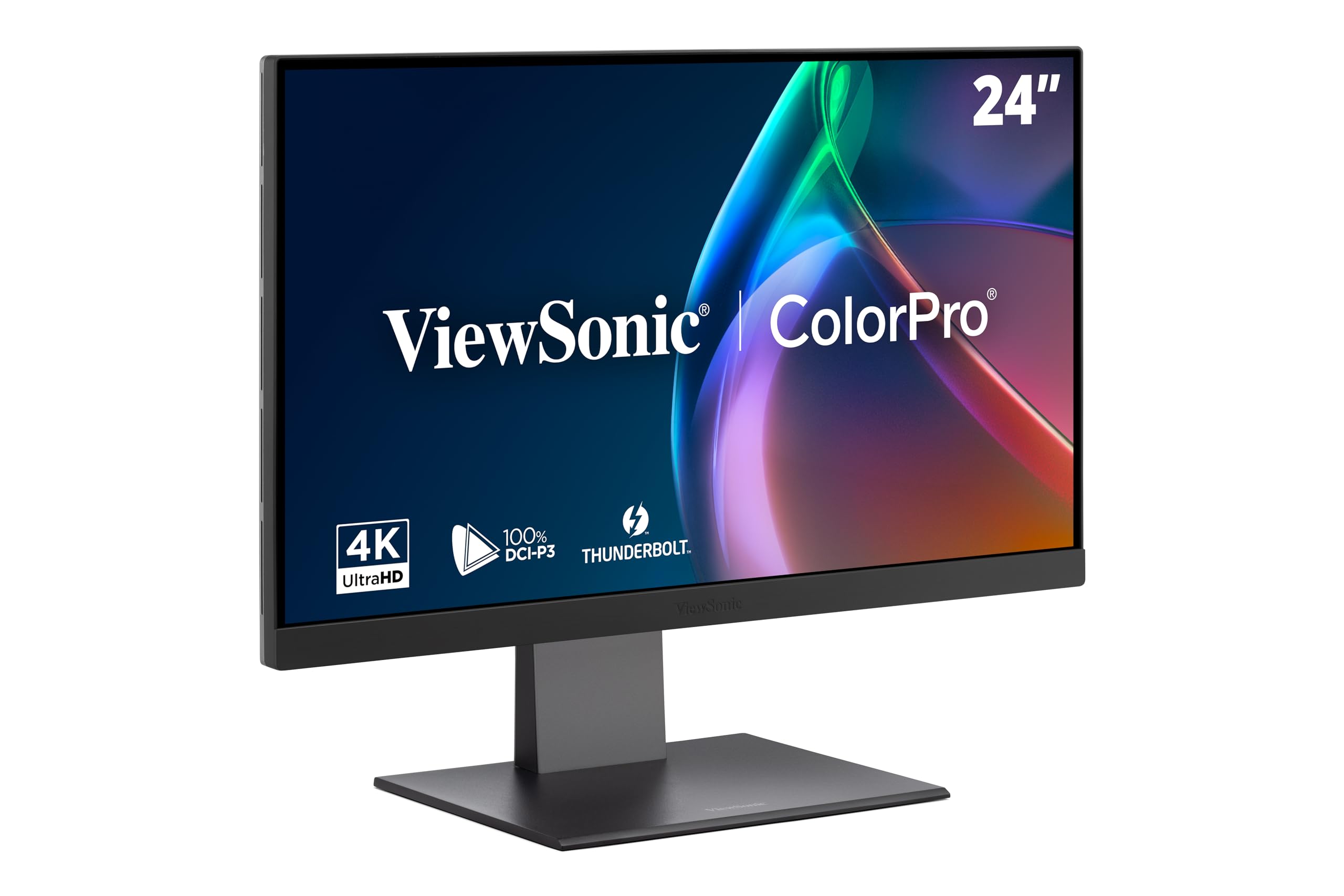
A 24-inch monitor with a 1080p resolution features a pixel density of approximately 92 pixels per inch (PPI). This measurement reflects the ratio between the physical screen size and the number of pixels packed into that space, providing a standard balance of sharpness and legibility for desktop computing tasks, gaming, and general multimedia consumption in 2026.
Defining PPI and Its Importance in Display Technology
Pixels Per Inch (PPI) is a critical metric that defines the sharpness of a digital display. It represents the number of individual pixels—the tiny squares of color that compose the image—contained within one linear inch of the screen. When evaluating monitors, PPI serves as the objective bridge between raw resolution and physical size. A screen with a high PPI looks crisp because individual pixels are small and tightly packed, making it difficult for the human eye to distinguish them from a typical viewing distance. Conversely, a low PPI can lead to a "pixelated" or "blocky" appearance, where the gaps between pixels become noticeable, particularly with text and high-contrast lines.
For the vast majority of users, 24 inches at 1080p (1920x1080) represents the "goldilocks zone" for the desktop PC experience. While higher resolutions like 1440p (QHD) or 4K (UHD) are increasingly popular, 1080p remains the standard for the 24-inch form factor because it aligns perfectly with the standard Windows and macOS scaling factor of 100%. This ensures that text, UI elements, and icons appear at their intended size without requiring the operating system to perform "fractional scaling," which can sometimes cause blurriness or performance overhead in certain legacy applications.
Calculating the Density of a 24-Inch 1080p Monitor
To understand why 92 PPI is the standard for this configuration, it is helpful to look at the mathematical foundation. The calculation requires the Pythagorean theorem to determine the total number of pixels across the diagonal of the display.
- Resolution Dimensions: A 1080p monitor has 1920 pixels horizontally and 1080 pixels vertically.
- Diagonal Pixel Count: Using the theorem (√[1920² + 1080²]), we find there are approximately 2202.9 pixels along the diagonal.
- PPI Calculation: We divide the diagonal pixel count by the screen size (24 inches).
- Result: 2202.9 / 24 = 91.79 PPI.
Rounding this figure to 92 PPI is the industry standard for this specific monitor size. When you move to a larger screen while keeping the same 1080p resolution, the PPI drops, and the display begins to look less sharp. For example, a 27-inch 1080p monitor results in roughly 81 PPI. At that density, the pixels become significantly larger, which often makes text look "fuzzy" or jagged, particularly on thin fonts. This is why many enthusiasts argue that 24 inches is the absolute limit for a comfortable 1080p experience.
Comparing Display Densities: 1080p vs. Higher Resolutions
As of 2026, monitor technology has shifted significantly toward higher pixel densities. To determine whether a 24-inch 1080p display remains the right choice for your needs, it is necessary to compare its performance metrics against common alternatives.
Comparative Display Density Table
| Monitor Size | Resolution | Total Pixels | Approximate PPI | Visual Clarity |
|---|---|---|---|---|
| 24 inch | 1920 x 1080 | 2,073,600 | 92 | Good |
| 24 inch | 2560 x 1440 | 3,686,400 | 122 | Excellent |
| 27 inch | 1920 x 1080 | 2,073,600 | 81 | Average |
| 27 inch | 2560 x 1440 | 3,686,400 | 108 | Very Good |
| 32 inch | 3840 x 2160 | 8,294,400 | 137 | Ultra Sharp |
The table illustrates that while 24-inch 1080p provides a respectable 92 PPI, shifting to a 1440p resolution on a 24-inch panel drastically increases the density to 122 PPI. This jump is visually perceptible to most users. Higher PPI displays benefit those who engage in high-resolution photo editing, CAD work, or those who simply prefer a "Retina-like" experience where individual pixels are nearly impossible to discern from a standard arm's-length distance.
Practical Considerations for 24-Inch 1080p Usage
The Impact on Gaming Performance
For gamers, the 24-inch 1080p combination remains highly attractive due to the lower pixel count compared to 1440p or 4K. Because there are fewer pixels to render, graphics cards (GPUs) do not need to work as hard, which translates into higher frame rates. In 2026, competitive gamers still frequently choose 24-inch 1080p panels with high refresh rates (such as 240Hz or 360Hz) because these screens provide the speed needed for fast-paced titles without the massive hardware overhead required by higher resolutions.
Ergonomics and Viewing Distance
The effective sharpness of a monitor is not just about the PPI; it is about the relationship between that PPI and how far you sit from the screen. A 92 PPI display is perfectly adequate for standard office work if you sit roughly 24 to 30 inches away. If you find yourself sitting closer, perhaps because you prefer a smaller desk or a deeper focus, the pixel grid may become visible. If you are sensitive to the "stair-stepping" effect on diagonal lines or small text, you might find that 92 PPI is insufficient for long-term document editing or high-detail creative work.
Scaling and Software Compatibility
One of the most underrated advantages of the 24-inch 1080p setup is software compatibility. Operating systems have been optimized for this resolution for over a decade. When you move to higher PPI displays (like 1440p or 4K at smaller sizes), you often have to rely on the OS's display scaling settings to make text readable. While Windows and macOS have improved significantly in this area, some older professional software or legacy internal tools can still display UI elements that are improperly sized or blurred due to aggressive scaling. 1080p at 24 inches is effectively "native" and requires no scaling, ensuring 100% compatibility across all software.
Common Mistakes When Choosing Monitor Density
A frequent error made by buyers is ignoring the relationship between physical size and resolution. Many users purchase 27-inch 1080p monitors because they assume "bigger is better." However, due to the math explained previously, a 27-inch 1080p monitor actually results in lower image quality than a 24-inch 1080p monitor. You are simply stretching the same number of pixels over a larger area, which decreases the density and makes the image appear less sharp.
Another mistake is neglecting the refresh rate when evaluating a screen. High PPI is often prioritized in marketing, but for a 24-inch 1080p panel, the "sharpness" is already capped by the physical pixel count. Therefore, the value of the monitor is often found in its color accuracy (sRGB or DCI-P3 coverage) and refresh rate rather than density upgrades. If you are choosing between two 24-inch 1080p monitors, one with 92 PPI and a standard panel, and another with 92 PPI and a superior IPS panel with high color depth, the latter is objectively the better purchase.
Troubleshooting Visual Clarity Issues
If you feel your 24-inch 1080p monitor looks blurry or text is difficult to read, check the following before assuming the monitor's PPI is the issue:
- Native Resolution Settings: Ensure that your display adapter is set to the monitor's native resolution (1920x1080). If it is set to a lower resolution, the image will appear inherently blurry due to interpolation.
- ClearType Calibration: On Windows systems, run the "ClearType Text Tuner." This tool allows you to calibrate the sub-pixel rendering of fonts to suit your specific panel, which can drastically improve the readability of text at 92 PPI.
- Cable Quality: Use a high-quality DisplayPort or HDMI cable. In rare cases, poor shielding or signal degradation can cause "ghosting" or interference that makes the display appear less sharp than it truly is.
- Input Mode: Ensure the monitor is set to "PC" mode in the OSD (On-Screen Display) menu, rather than "AV" or "Movie" mode, which may apply excessive overscan or sharpness filters that distort the native pixel grid.
Frequently Asked Questions
Is 1080p at 24 inches considered "Retina" or high resolution?
No. While 24-inch 1080p is a sharp and standard configuration, it does not meet the "Retina" criteria, which generally refers to a display density so high that the human eye cannot distinguish individual pixels at a typical viewing distance. That typically requires significantly higher PPI, usually exceeding 150-200 depending on the distance.
Will a 24-inch 1080p monitor be obsolete in 2026?
It is not obsolete. While 4K is becoming the standard for television and high-end creative work, 24-inch 1080p remains the workhorse of the professional office environment, student setups, and competitive esports gaming due to its balance of cost, performance, and native UI scaling.
Can I run a 24-inch 1080p monitor alongside a 4K monitor?
Yes, but you will experience a visual discrepancy. Moving your mouse from a 4K screen to a 1080p screen will result in a jump in icon size because the Windows/macOS scaling settings will differ. It is recommended to use the same scaling percentage if possible, but keep in mind that the 1080p monitor will look significantly less sharp compared to the 4K display.
Should I choose a 24-inch 1080p monitor or a 27-inch 1440p monitor?
This depends on your budget and primary use case. If you prioritize high-speed gaming and cost-efficiency, the 24-inch 1080p is excellent. If you prioritize screen real estate for multitasking, creative workflows, or general document density, the 27-inch 1440p is a substantial upgrade that justifies the higher cost.
Final Recommendation
When shopping for a monitor, view the 24-inch 1080p configuration as a specialized choice for performance-oriented users or those with limited desk space. It is a mature, stable, and highly compatible format. If your work involves extreme detail—such as professional-grade photo retouching or small-font typography—you should look toward 27-inch 1440p alternatives. However, for general productivity, web browsing, and competitive gaming, the 92 PPI provided by a 24-inch 1080p display remains a reliable and cost-effective choice for the 2026 hardware landscape.