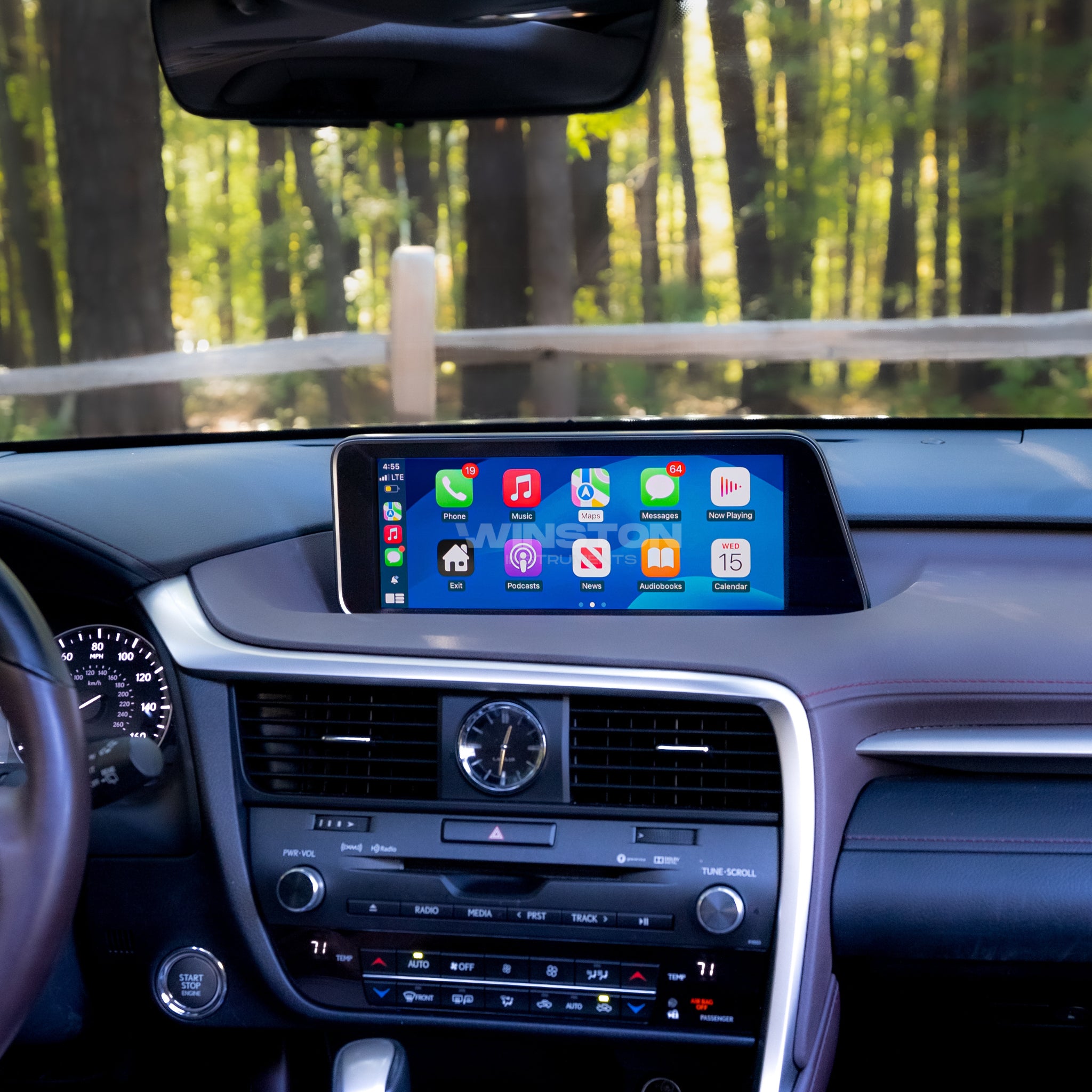
The 2017 Lexus RX 350 does not feature factory Apple CarPlay, and Lexus offers no official software update to enable it. Adding CarPlay requires aftermarket solutions: either an internal interface module that retrofits wireless CarPlay onto your factory screen, an upgraded touchscreen display assembly, or a portable dashboard display unit.
Does the 2017 Lexus RX 350 Support Native Apple CarPlay?
The fourth-generation Lexus RX (AL20 chassis), produced for the 2016 through 2022 model years, underwent a major mid-cycle refresh for the 2020 model year. It was only during this 2020 update that Lexus introduced factory touchscreen hardware and native Apple CarPlay and Android Auto compatibility across the RX trim lineup.
For the 2017 Lexus RX 350, the factory infotainment architecture relies on Lexus Enform 2.0. This system was designed with proprietary software and lacks the underlying operating system hooks, hardware processing power, and digital license structure required for Apple CarPlay.
- 2017 Lexus RX 350 Display (Standard: 8-inch Display | Optional: 12.3-inch Split Screen)
- No Native Apple CarPlay Support
- Aftermarket Interface Module: Retains OEM screen & controller (e.g., Beat-Sonic, GROM VLine)
- Android Screen Upgrade: Replaces OEM screen with touch (10.25" / 12.3" display)
- No Native Apple CarPlay Support
The OEM Software Update Misconception
Many Lexus owners ask whether a dealership software patch can unlock CarPlay on a 2017 RX 350. In 2019, Lexus launched a retrofitting program for select 2018 and 2019 vehicle models (such as the 2018 LC 500, 2018 LS 500, and 2019 NX). However, 2017 model year vehicles were excluded entirely due to hardware incompatibilities in the Pioneer and Denso main head units.
As a result, no official Lexus dealer update exists for the 2017 RX 350. Upgrading your vehicle’s technology requires installing aftermarket hardware integration components.
Core Methods to Add Apple CarPlay to a 2017 Lexus RX 350
Owners of the 2017 Lexus RX 350 generally choose between three primary integration paths. Each option varies in installation difficulty, visual appearance, control interface, and cost.
- CarPlay Integration Methods
- Interface Module
- Uses factory screen
- Retains Lexus joystick
- Hidden behind dash
- Display Replacement
- Adds direct touchscreen
- Modern 12.3" wide panel
- Switches to OEM mode
- Standalone Display
- Suction/dash mount
- Budget option
- Auxiliary cable audio
1. OEM Screen Interface Modules (Hidden Add-On Controllers)
Interface modules are small hardware control boxes installed behind the factory dashboard and connected directly to the back of the Lexus head unit and display screen using plug-and-play wiring harnesses.
- Popular Brands: Beat-Sonic (LGX-01 / NVIS series), GROM Audio (VLine VL2 / VLite VT2), Road Top, Carlinkit, and Joyeauto.
- How It Works: The module intercepts the video signal (GVIF) going to your factory screen. Holding down a specific console button (such as MAP, NAV, or MODE) switches the video feed from the stock Lexus Enform menu to the module's Apple CarPlay interface.
- Best For: Owners who want to keep the original factory dashboard appearance, retain full functionality of the original 8-inch or 12.3-inch screen, and avoid mounting aftermarket displays.
2. Standalone Android Head Unit / Screen Replacements
This method involves removing the original factory 8-inch or 12.3-inch display housing completely and replacing it with an upgraded, high-definition (typically 1920x720 resolution) Android-based widescreen display.
- How It Works: The replacement assembly includes a bright capacitive touchscreen with an integrated computer board running custom Android software. It incorporates wireless Apple CarPlay and Android Auto while retaining pass-through wiring for the native Lexus head unit. Switching between the Lexus Enform menu and the new Android interface is achieved with a touch gesture or button press.
- Best For: Owners who want modern touchscreen interaction rather than relying on the Lexus Remote Touch joystick or trackpad, as well as those upgrading from an 8-inch non-touch display to a modern 12.3-inch look.
3. Portable Plug-and-Play CarPlay Dashboard Displays
Portable units are self-contained screens that mount to your windshield or dashboard using suction mounts or adhesive brackets.
- How It Works: These devices connect to power via the 12V cigarette lighter plug and output audio to the Lexus sound system via an AUX cable, FM transmitter, or Bluetooth audio passthrough.
- Best For: Budget-conscious owners who prefer a non-invasive installation that requires zero dashboard teardown.
Comparing CarPlay Integration Options for the 2017 RX 350
| Feature / Requirement | OEM Interface Module (Beat-Sonic / GROM) | Android Display Replacement | Portable Dash Unit |
|---|---|---|---|
| Retains Original Screen | Yes (100% OEM appearance) | No (Replaces upper display assembly) | Yes (External screen added) |
| Primary Control Method | Lexus Remote Touch (Joystick/Touchpad) & Steering Wheel | Capacitive Touchscreen, Joystick, & Steering Wheel | Direct Touchscreen |
| Wireless CarPlay Support | Yes (Bluetooth + 5GHz Wi-Fi) | Yes (Bluetooth + 5GHz Wi-Fi) | Yes (Varies by brand) |
| Retains Lexus OEM Menu | Yes (Toggles instantly via shortcut key) | Yes (Displayed in video window) | Yes (Unmodified native system) |
| Touchscreen Functionality | No (Factory screens are non-touch) | Yes (Adds modern touch response) | Yes |
| Audio Quality | High (Direct AUX / OEM Bluetooth input) | High (Direct AUX input to factory amp) | Fair to Moderate (AUX/FM transmission) |
| Backup Camera Integration | Automatic override on Reverse shift | Automatic override on Reverse shift | Manual or Independent switch |
| Estimated Hardware Cost | $450 – $750 | $550 – $800 | $70 – $200 |
| Installation Time | 1.5 – 3 Hours (Moderate DIY) | 2 – 3.5 Hours (Moderate DIY) | 15 Minutes (Easy DIY) |
Deep Dive: Factory Screen Interface Modules
For most 2017 Lexus RX 350 owners, interface modules represent the preferred balance of OEM aesthetic retention and high-end feature integration. Understanding how these systems interact with existing vehicle hardware helps clarify what to expect during daily use.
- Interface Module Architecture
- Lexus Radio Head Unit connected via Harness to Interface Box
- Interface Box connected to:
- Factory Screen
- Lexus Joystick
Controller Navigation & Input
Because the 2017 Lexus RX 350 screen is positioned deep in the dashboard housing and lacks touch capabilities, interface modules translate input from the Lexus Remote Touch Interface (RTI)—either the mouse-like joystick found on Navigation-equipped models or the touchpad controller found on base models.
- Moving the joystick shifts the highlighted icon across the Apple CarPlay grid.
- Pressing down on the joystick (or pressing the "ENTER" side buttons) selects apps, plays songs, or opens messages.
- Steering wheel controls allow volume adjustment, song track skipping, and long-press Siri activation using the voice button.
Sound Routing and Audio Fidelity
Interface modules pass audio signals to the vehicle’s factory sound system—whether standard Lexus Premium Audio or the upgraded 15-speaker Mark Levinson Surround Sound System.
Audio is transmitted from the module to the head unit via the Lexus vehicle’s factory AUX input. The user sets the audio source on the Lexus Enform screen to "AUX." Newer generation modules (such as the Beat-Sonic LGX series or GROM VLine VL2) feature direct digital audio synthesis to ensure that high-fidelity streams from Apple Music, Spotify, or Podcasts retain punchy bass and clean treble without line noise or alternator whine.
Reverse Camera and Safety Systems
Safety retention is a crucial feature of dedicated interface modules. When you shift the transmission gear selector into Reverse (R), the module detects the vehicle CAN-bus signal and immediately bypasses CarPlay to display the original Lexus backup camera or the 360-degree Panoramic View Monitor (PVM). Once shifted back into Drive or Park, the screen instantly returns to your active Apple CarPlay session.
Deep Dive: Android Display Replacements
If you find the mouse-like Lexus Remote Touch controller clunky for modern smartphones, an Android Display Replacement offers a touchscreen experience while maintaining the overall design of the RX 350 interior.
- Android Display Replacement
- Original 8" / 12.3" Screen Removed
- 12.3" HD Touchscreen Installed
- Mode 1: CarPlay UI (Touch-enabled)
- Mode 2: Factory Lexus Enform Menu (Controlled via OEM Joystick)
Screen Specs and Aesthetics
These systems swap out the factory dash trim cowl and screen for a modern 10.25-inch or 12.3-inch ultra-widescreen glass display. Featuring resolution targets of 1920x720 pixels, these screens deliver high pixel density, vibrant colors, and anti-glare coatings that look sharp even in direct sunlight.
Dual Operating System Architecture
The replacement screen houses dual-system hardware:
- CarPlay / Android Mode: Operates as a capacitive touchscreen running wireless Apple CarPlay. You can tap icons, swipe across navigation maps, and pinch-to-zoom on Google Maps or Apple Maps just like a tablet.
- Factory Lexus Mode: Displays the original Lexus Enform interface within a dedicated window frame or full-screen mode. In this mode, climate control settings, maintenance menus, hybrid energy monitors (if applicable to RX 450h models), and OEM satellite radio are controlled using the factory Remote Touch joystick.
Step-by-Step Installation Guide for Interface Modules
Installing an interface module into a 2017 Lexus RX 350 requires patience and basic automotive hand tools. The following procedure outlines the standard installation workflow.
Tools Required
- Plastic trim removal tools (non-marring pry tools)
- 10mm socket wrench with ratchet and extension bar
- Phillips head screwdriver
- Microfiber towels or painter's tape (to protect delicate leather and dash trim)
- Flashlight or headlamp
Step 1: Safety & Dashboard Preparation
- Park the vehicle on a flat surface, engage the electronic parking brake, and turn off the ignition.
- Disconnect the negative (-) battery terminal under the hood using a 10mm socket to prevent accidental short circuits or air-bag warning faults.
- Mask the edges of the center console leather and trim panels around the climate control area with painter's tape to prevent scratches during removal.
Step 2: Dashboard Trim Disassembly
- Remove Console Side Trim: Use a plastic pry tool to unclip the silver decorative side trim pieces flanking the center console.
- Remove Lower HVAC Control Panel: Insert the pry tool under the climate control panel buttons and gently push outward to release the metal retention clips. Disconnect the wire harnesses attached to the back of the panel.
- Unbolt the Radio Head Unit: Locate the four 10mm mounting bolts securing the main Lexus head unit inside the lower center dash cavity. Use your socket extension to carefully remove all four bolts without dropping them into the dash cavity.
- Slide Out the Head Unit: Pull the radio head unit straight out toward the gear shifter. Lay a thick microfiber towel over the shifter to rest the head unit safely.
Step 3: Harness Interconnection & Wiring
- Unplug the main power, display video (GVIF), and control harnesses from the back of the factory Lexus radio.
- Connect the aftermarket module’s included T-harness cables into the factory sockets on the back of the radio.
- Reinsert the original factory vehicle plugs into the matching female ends of the aftermarket T-harness. This creates a pass-through connection that feeds data to both the Lexus radio and the new interface box.
- Route the module's main wiring loom upward toward the glovebox area or into the open void behind the upper display screen.
Step 4: Antenna and Microphone Routing
- Wi-Fi / Bluetooth Antenna: Secure the module's external Wi-Fi antenna inside the plastic dashboard enclosure using double-sided foam tape. Avoid mounting it directly to metal surfaces to maximize signal strength.
- Microphone Setup: Most modules utilize an external microphone for Siri voice commands. Route the mic cable behind the glovebox, up the passenger side A-pillar trim, and attach the microphone housing near the rear-view mirror. Alternatively, higher-end modules support passthrough use of the vehicle's OEM Lexus overhead microphone.
- USB Extension Pass-Through: Route a USB extension cable into the center console armrest compartment or down into the passenger footwell to allow wired CarPlay connections and phone charging.
Step 5: System Testing Before Final Reassembly
- Reconnect the negative terminal to the car battery.
- Turn the Lexus ignition switch to ACC / ON mode without starting the engine.
- Observe the factory screen to verify that the standard Lexus Enform boot menu loads properly.
- Press and hold the designated control button (MAP or NAV) on the center console for 2-3 seconds to verify that the video switches cleanly to the CarPlay setup screen.
- Pair your iPhone via Bluetooth to establish the initial wireless CarPlay handshake. Confirm that 5GHz Wi-Fi initiates and CarPlay fills the display screen.
- Test audio playback by switching the Lexus audio source to AUX. Verify that sound plays clearly through all car speakers.
- Shift the gear selector into Reverse to confirm that the factory backup camera takes priority immediately, then shift back to Park to ensure CarPlay reappears smoothly.
Step 6: Reassembly
- Turn off the ignition.
- Neatly bundle excess wiring behind the lower dash cavity using zip-ties, making sure no cables interfere with the HVAC blend door actuators or steering column linkages.
- Mount the interface module securely in the space behind the climate controls or inside the upper glove box compartment.
- Reinstall the four 10mm head unit bolts, press the HVAC control panel back into its locking clips, and snap the decorative side trim trim strips back in place.
Operational Considerations & Limitations
While adding CarPlay greatly enhances the technology of a 2017 Lexus RX 350, prospective upgraders should keep several operational characteristics in mind:
- Key Operational Factors
- Resolution & Aspect Ratio: Native aspect ratio handling on 12.3"
- Audio Lag: ~0.5s wireless latency; 0s on USB
- Control Mechanics: Joystick precision vs. Touch screen
Aspect Ratio Handling on 12.3-Inch Screens
If your 2017 Lexus RX 350 features the optional 12.3-inch split-screen navigation display, aftermarket modules handle graphic scaling in one of two ways:
- Full-Screen Stretch Mode: Expands Apple CarPlay across the entire 12.3-inch widescreen layout. Icons appear slightly wider, but map coverage is extensive.
- Native Split Mode (4:3 / 16:9): Displays CarPlay on two-thirds of the screen while preserving a dedicated side widget on the right for native Lexus climate control status or trip computer metrics.
Wireless vs. Wired Performance
Wireless CarPlay relies on Bluetooth to perform the initial security handshake, after which it shifts data transfer to a private 5GHz Wi-Fi connection created between the phone and the interface module.
- Wireless Advantages: Seamless connectivity. Your phone stays in your pocket or handbag and connects automatically within 10 to 15 seconds of starting the car.
- Wired Advantages: Absolute zero audio-to-video latency when watching videos while parked, faster response times when skipping tracks, and continuous fast-charging for your iPhone battery.
Audio Equalization & Dynamic Range
Because audio passes through the Lexus vehicle's AUX channel, setting proper gain staging is critical. Set your iPhone's output volume to 100%, adjust the aftermarket module's internal sound gain to medium (around 70%), and control overall listening volume using the master Lexus steering wheel or dash volume knob. This eliminates line hiss, distorted bass, and low-volume clipping.
Troubleshooting Common Integration Issues
Issue 1: Black Screen When Switching to CarPlay Mode
- Cause: Incorrect DIP switch settings on the interface box or an unseated video (GVIF) cable.
- Solution: Turn off the vehicle ignition. Locate the bank of tiny micro-switches (DIP switches) on the side of the interface box. Refer to the manufacturer manual to verify that the switches match your specific screen size (8-inch vs 12.3-inch display) and head unit vendor (Denso vs Pioneer). Unplug and firmly re-seat the GVIF video cables until they click locked.
Issue 2: Remote Touch Joystick Moves Too Fast or Skips Icons
- Cause: Controller sensitivity mismatch inside the interface operating menu.
- Solution: Navigate to the aftermarket module's native "Settings" menu (before opening CarPlay). Locate the cursor speed/sensitivity slider and drop the value to low or medium. This synchronizes the joystick motion with icon selection boxes on the screen.
Issue 3: Echo Heard by Callers During Phone Calls
- Cause: Dual Bluetooth connection loop where both the Lexus OEM hands-free system and the CarPlay interface module are trying to process microphone audio simultaneously.
- Solution: Go to your iPhone’s Bluetooth settings and select "Forget This Device" for the native Lexus Enform connection (
LEXUS RX), keeping only the connection to the aftermarket CarPlay module active. Alternatively, configure the module settings to route voice calls directly through the OEM Lexus Bluetooth phone layer.
Issue 4: System Fails to Return to CarPlay After Reversing
- Cause: Reverse gear detection signal timeout or improper CAN-bus data read.
- Solution: Ensure the CAN-bus communication harness is plugged directly into the factory system. In the module setup menu, verify that "Reverse Signal Mode" is set to CAN-BUS rather than LAMP/12V TRIGGER.
Frequently Asked Questions
Can a Lexus dealer upgrade my 2017 RX 350 to Apple CarPlay with a software update?
No. Lexus dealership software updates for Apple CarPlay apply only to select 2018 and 2019 models. The infotainment processing hardware in the 2017 Lexus RX 350 lacks the necessary architecture, making aftermarket hardware the only viable path.
Does installing an aftermarket CarPlay module void my car insurance or vehicle warranty?
Installing an aftermarket interface module or screen replacement does not void your vehicle warranty as a whole. Under the U.S. Magnuson-Moss Warranty Act, a manufacturer or dealer cannot void warranty coverage unless they can prove that the aftermarket component directly caused a specific failure. However, damage to electrical wiring caused by improper installation will not be covered under warranty.
Will my factory 360-degree Panoramic View Monitor (PVM) and backup camera still work?
Yes. Quality interface modules and display replacement units feature automatic CAN-bus sensing. Shifting into Reverse immediately overrides the CarPlay interface to show your factory backup camera, parking sensors, and 360-degree top-down views. Shifting back to Drive returns the screen to CarPlay.
Is wireless Apple CarPlay better than wired Apple CarPlay for the 2017 Lexus RX 350?
Wireless CarPlay offers convenience for everyday commutes because your phone stays in your pocket. However, wired CarPlay via a Lightning or USB-C cable provides slightly faster touch/joystick response times, zero audio latency, and charges your phone battery during long drives. Most modern integration modules support both connection methods.
Can I still use the native Lexus navigation system after installing a CarPlay unit?
Yes. Modern aftermarket modules do not delete or replace your factory Lexus Enform operating system. By pressing a shortcut key on your center console, you can switch back and forth between the native Lexus menu (including factory GPS navigation, SiriusXM satellite radio, and vehicle maintenance screens) and the CarPlay interface at any time.
Does CarPlay work with both the 8-inch and 12.3-inch Lexus factory screen sizes?
Yes. Aftermarket integration modules are compatible with both the standard 8-inch screen and the optional 12.3-inch split-screen navigation display. You must ensure that the module's hardware DIP switches are set correctly for your specific screen size during installation so the image scales accurately.
Final Recommendation & Next Steps
Adding Apple CarPlay to a 2017 Lexus RX 350 modernizes the vehicle's tech capabilities, providing seamless access to real-time navigation maps, hands-free messaging via Siri, and high-quality audio streaming.
- Choose an Interface Module (Beat-Sonic, GROM, or Road Top) if you prioritize keeping your Lexus dash looking 100% factory original and are comfortable using the Remote Touch joystick or trackpad controller.
- Choose an Android Screen Replacement Unit if you prefer modern touchscreen functionality and want to upgrade an older 8-inch non-touch display to a bright 12.3-inch widescreen.
For DIY enthusiasts with basic tools, installation can be completed in an afternoon. If you are uncomfortable disassembling dashboard trim or handling vehicle wiring harnesses, professional installation from a reputable local mobile electronics retailer typically takes 2 hours and ensures clean wire routing and optimal sound tuning.