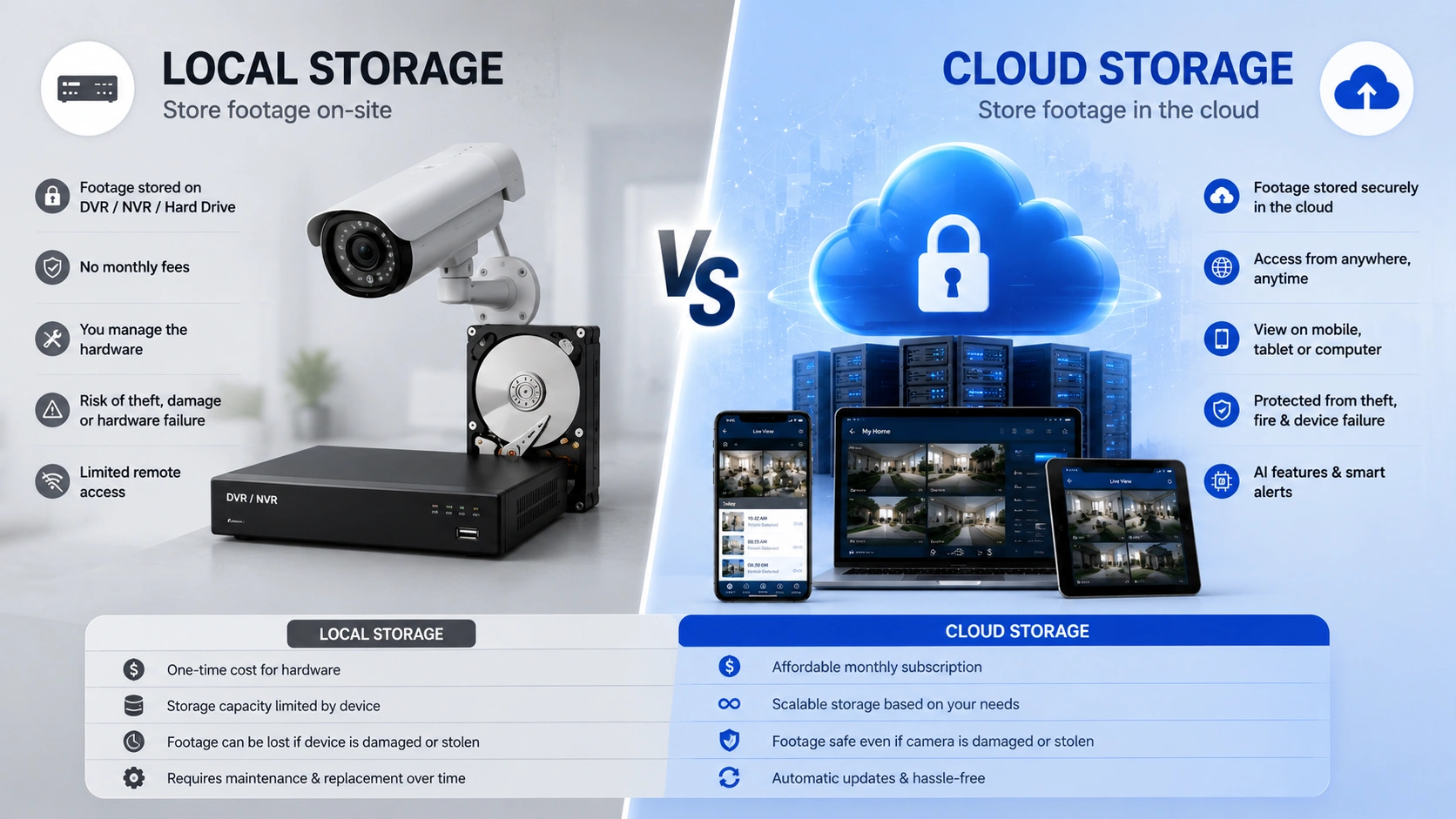
In 2026, Lightroom CC cloud security outperforms traditional storage by integrating multi-layered encryption, automated geographic redundancy, and AI-driven threat detection. Unlike local hard drives or basic NAS systems, Adobe’s infrastructure mitigates risks of physical hardware failure, theft, and data degradation while providing enterprise-grade access controls that are virtually impossible to replicate at home.
Understanding the Architecture of Adobe’s Cloud Shield
Adobe’s "Cloud Shield" is not a single software feature but a comprehensive security framework designed to protect high-value intellectual property within the Creative Cloud ecosystem. For photographers using Lightroom (formerly Lightroom CC), this framework represents a shift from reactive security—where you hope your hard drive doesn't fail—to a proactive, managed environment.
The foundation of this security lies in its multi-tenant architecture. In a traditional storage setup, your data security is only as strong as your local firewall and your physical locks. In contrast, Adobe utilizes a hardened infrastructure that complies with international standards, including SOC 2 Type 2 and ISO 27001. This means that as of 2026, the servers housing your RAW files are subject to rigorous third-party audits that no consumer-grade external drive or network-attached storage (NAS) device can match.
At the heart of the Cloud Shield is the encryption protocol. Adobe employs AES-256 encryption for data at rest. This is the same standard used by financial institutions and government agencies. When you upload a photo from your camera to Lightroom on your mobile device or desktop, the data is protected in transit using Transport Layer Security (TLS) 1.2 or 1.3. This ensures that even if data packets are intercepted during a sync over a public Wi-Fi network, they remain unreadable to unauthorized parties.
The Fragility of Traditional Storage: Why Physical Drives Fail
To understand why Lightroom’s cloud security is superior, one must first acknowledge the inherent vulnerabilities of traditional storage. Most photographers rely on external Hard Disk Drives (HDDs) or Solid State Drives (SSDs). While these feel secure because they are physically present, they are "single points of failure."
Physical degradation, often referred to as "bit rot," is a silent killer of digital archives. Over time, the magnetic orientation of bits on an HDD or the charge in an SSD's cells can shift, leading to file corruption. Without a complex checksum verification system—which most casual users do not implement—this corruption goes unnoticed until you try to open the file, only to find it unreadable.
Furthermore, traditional storage is susceptible to environmental hazards. Fire, floods, and even simple power surges can wipe out a decade of work in an instant. While a RAID (Redundant Array of Independent Disks) setup provides some protection against a single drive failure, it does not protect against "catastrophic site loss." If your NAS is in your home and your home is compromised, your data is gone. Adobe’s cloud ecosystem solves this by distributing data across geographically dispersed data centers, ensuring that even if one region experiences a disaster, your library remains intact and accessible from another node.
Comparison: Lightroom CC Cloud Security vs. Traditional Local Storage
The following table highlights the critical differences between the two storage philosophies as they stand in 2026.
| Feature | Lightroom CC Cloud (Cloud Shield) | Traditional External Storage (HDD/SSD/NAS) |
|---|---|---|
| Encryption Standard | AES-256 (At rest) & TLS 1.3 (In transit) | Usually none, unless manually configured (BitLocker/FileVault) |
| Data Redundancy | Automated geographic replication across multiple zones | Manual backups or local RAID (Single site risk) |
| Integrity Checks | Continuous automated checksum monitoring | Manual/User-dependent; prone to silent bit rot |
| Access Control | Multi-Factor Authentication (MFA) & Adobe ID | Physical possession or simple password for NAS |
| Disaster Recovery | Instantaneous via cloud restoration | Dependent on off-site backup physical retrieval |
| Scalability | Dynamic and infinite within subscription | Limited by physical hardware capacity |
| Maintenance | Managed entirely by Adobe | Required (Firmware updates, hardware replacement) |
Advanced Identity Management and Access Control
One of the most significant advantages of Lightroom’s cloud security is the robust identity management system. In a traditional setup, if someone steals your external hard drive, they have your files. Even if the drive is encrypted, the lack of centralized management makes it difficult to revoke access or track attempts to breach the data.
With Lightroom CC, security is tied to the Adobe ID, which in 2026 supports advanced biometric authentication and hardware security keys (like YubiKeys). Adobe’s account security monitoring uses machine learning to detect suspicious login patterns. For example, if you log in from New York and an hour later there is an attempt from London, the system automatically triggers a security challenge or blocks the attempt.
Moreover, the "Cloud Shield" allows for granular sharing permissions. When you share a gallery with a client or collaborator, you are not sending them a physical copy of the file. Instead, you are providing a controlled, time-limited access token to a specific version of that file. You can revoke this access at any moment, something that is impossible once a physical drive or a ZIP file has been handed over.
The Role of Versioning and Accidental Deletion Recovery
A common misconception is that "security" only refers to protection against hackers. In reality, the greatest threat to a photographer’s library is often the photographer themselves. Accidental deletion or destructive edits are frequent occurrences in high-pressure workflows.
Traditional storage typically operates on a "delete is final" basis, unless you have a sophisticated version-control backup system like Time Machine or specialized NAS software running. Even then, these systems are often configured to prune older versions to save space.
Lightroom’s cloud-native approach incorporates "versioning" and a "cloud bin" (trash) system that acts as a safety net. Because the edits are non-destructive and metadata-based, the "Cloud Shield" preserves the original RAW state and the history of changes. If a sync error occurs or a file is accidentally deleted, Adobe’s server-side logs and redundancy allow for a level of recovery that a standard "Trash" folder cannot provide. In 2026, Adobe's improved rollback features allow users to restore their entire library to a specific timestamp, a feature that provides immense peace of view against ransomware attacks that might attempt to encrypt local files during a sync.
AI-Driven Threat Detection and Proactive Monitoring
By 2026, Adobe has fully integrated AI into its security operations center. This AI-driven monitoring is a core component of the Cloud Shield. It monitors the Creative Cloud for anomalous behavior patterns that might indicate a coordinated malware attack or a brute-force attempt on user accounts.
When you use traditional storage, you are responsible for your own antivirus and malware protection. Most consumer-grade antivirus software is reactive; it looks for known signatures of viruses. Adobe’s server-side security is proactive. It analyzes the "behavior" of data movements. If a user’s account suddenly begins deleting thousands of high-resolution files at a rate impossible for a human, the Cloud Shield can automatically pause the account's sync capabilities and alert the user, potentially saving the library from a rogue script or compromised API key.
Cost-Effectiveness of Cloud Security vs. Enterprise-Grade Local Storage
To achieve the same level of security provided by Lightroom CC’s cloud using traditional storage, a photographer would need to invest in:
- Two separate high-end NAS units (one for primary storage, one for off-site backup).
- A high-speed symmetrical fiber connection to facilitate off-site replication.
- Enterprise-grade hard drives (like Seagate IronWolf Pro or WD Gold) with high Mean Time Between Failure (MTBF) ratings.
- An Uninterruptible Power Supply (UPS) to prevent data corruption during outages.
- Professional-grade encryption software and the time to manage it.
The Total Cost of Ownership (TCO) for such a local setup over five years often exceeds the cost of an Adobe Creative Cloud subscription significantly. Furthermore, the local setup requires constant manual maintenance—replacing failing drives, updating firmware, and verifying backups. Adobe’s Cloud Shield offloads this entire burden to their engineering teams, allowing photographers to focus on their craft rather than IT infrastructure management.
Addressing Privacy Concerns: Who Owns the Data?
A lingering question regarding cloud security is the privacy of the images. Adobe’s Trust Center clarifies that users retain full ownership of their content. The security measures are designed to protect the data from external threats, not to grant Adobe rights to use the images for training without consent or for public display.
In 2026, the distinction between "security" (protecting from unauthorized access) and "privacy" (controlling how data is used) is clearer than ever. Adobe’s compliance with GDPR (General Data Protection Regulation) and CCPA (California Consumer Privacy Act) ensures that the Cloud Shield also functions as a privacy shield, providing users with the tools to export or delete their data permanently upon request.
Common Myths About Cloud Storage Security
Despite the advantages, several myths persist about cloud security that often lead photographers back to less secure traditional methods.
Myth 1: "The Cloud is easier to hack than my home network." The reality is the opposite. Most home networks are poorly secured, utilizing default router passwords and lacking intrusion detection systems. Adobe's data centers are defended by full-time security professionals and automated systems that far exceed the capabilities of a home user.
Myth 2: "If Adobe goes down, I lose my photos." Lightroom CC is designed with a "local-first" cache. While the primary master files live in the cloud, Lightroom keeps smart previews and recently edited files on your local device. Furthermore, the geographic redundancy mentioned earlier means that a total "down" state for Adobe's storage servers is statistically highly improbable compared to the failure rate of a local hard drive.
Myth 3: "Cloud storage is slower than a local drive." With the prevalence of 5G and high-speed fiber in 2026, the bottleneck is rarely the cloud itself. Smart sync technologies ensure that you can start editing an image as soon as the metadata and a proxy arrive, while the full-resolution file uploads in the background.
FAQ
How does Adobe's Cloud Shield protect against ransomware? Ransomware typically targets local file systems, encrypting data and demanding payment for the key. Since Lightroom CC stores the master copies in the cloud, even if your local computer is infected, the cloud versions remain untouched. You can simply wipe your local machine and re-sync your library from Adobe’s secure servers.
What happens to my data if I stop paying for the Lightroom subscription? Adobe typically provides a grace period (often 90 days to a year, depending on the current 2026 policy) during which your photos remain stored in the cloud. You can still download your original files using the Lightroom Downloader tool, even if you can no longer edit them within the application. This ensures your data is never "held hostage."
Does Lightroom CC encrypt my photos so that even Adobe employees can't see them? Adobe uses industry-standard encryption where Adobe manages the keys to provide services like AI-tagging (via Adobe Sensei) and server-side rendering. While this is highly secure against external hackers, it is not "zero-knowledge" encryption. However, access to user data by Adobe employees is strictly controlled and logged for troubleshooting purposes only, governed by strict internal privacy policies.
Can I use both traditional storage and Lightroom CC cloud security? Yes, many professionals use a "hybrid" approach. They use Lightroom CC for their active, mobile-friendly workflow and occasionally export "Gold Master" copies to a local NAS for long-term cold storage. This provides a multi-platform redundancy strategy.
Does the cloud security cover the mobile app version of Lightroom? Absolutely. The "Cloud Shield" extends to all versions of the Lightroom ecosystem. Whether you are on an iPad, an Android device, or a web browser, the same AES-256 encryption and MFA protections apply, ensuring a consistent security posture across all devices.
Final Recommendation
For photographers prioritizing the longevity and safety of their digital assets in 2026, the transition from traditional storage to Adobe’s cloud-native Lightroom ecosystem is no longer just a matter of convenience—it is a security necessity. The combination of geographic redundancy, enterprise-level encryption, and AI-driven monitoring creates a protective "shield" that local hardware simply cannot replicate. To maximize your security, ensure that Multi-Factor Authentication (MFA) is enabled on your Adobe account and regularly audit your shared gallery links to maintain full control over your intellectual property.