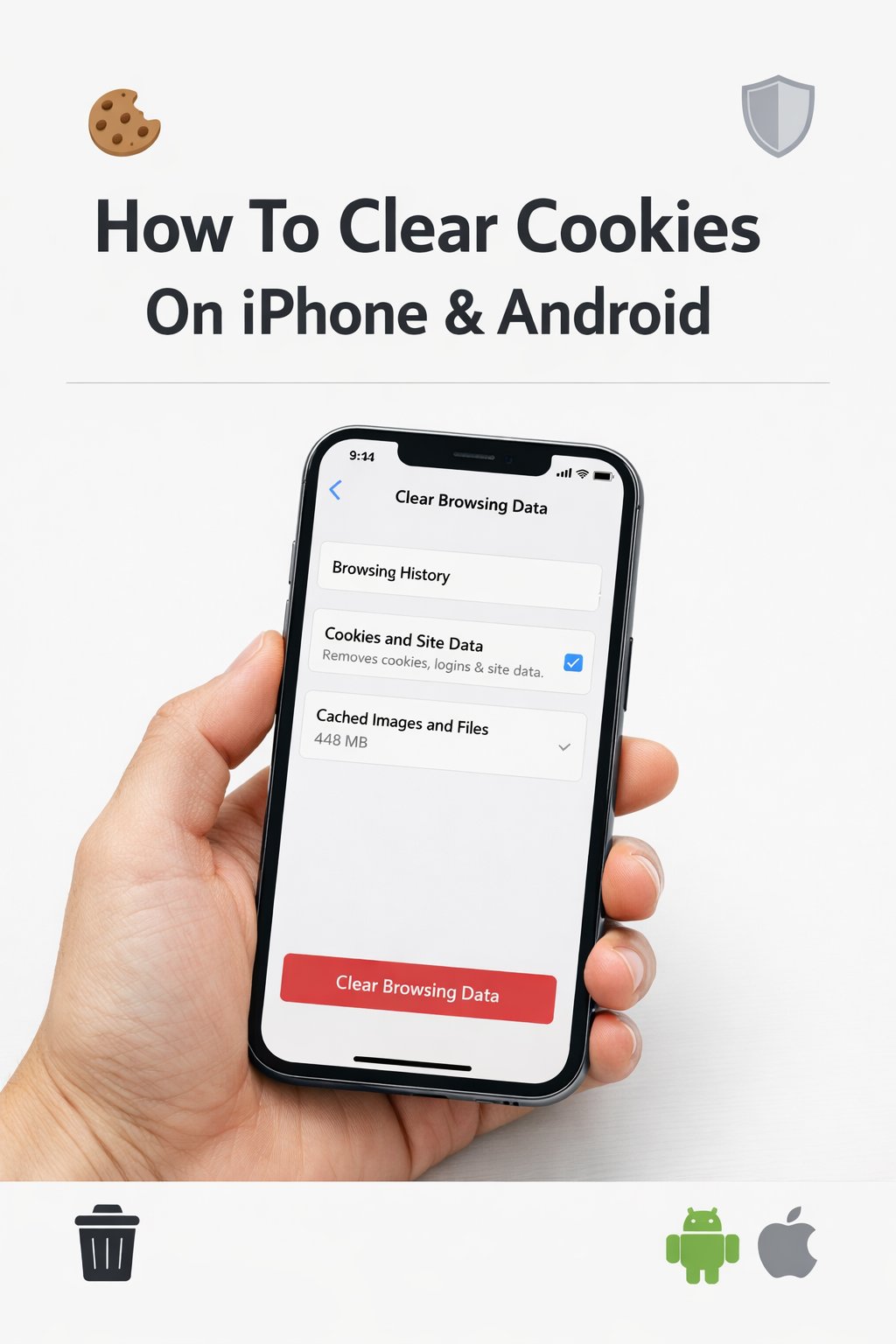
To accept cookies on your iPhone, open the Settings app, scroll down and tap Safari, then ensure the toggle for Block All Cookies is turned off. If you are using a third-party browser like Chrome or Firefox, cookies are generally enabled by default through the app's internal privacy settings.
Cookies are an essential component of the modern mobile web experience. In 2026, as web technologies have become more sophisticated and privacy-centric, understanding how to manage these small data files on your iPhone is crucial for balancing website functionality with personal data security. Whether you are trying to stay logged into your favorite retail site or ensuring a financial portal functions correctly, knowing how to toggle and manage cookie settings is a fundamental skill for every iOS user.
Understanding the Role of Cookies in 2026
Before diving into the procedural steps, it is important to understand what cookies are and why they are necessary on an iPhone. A cookie is a small piece of data sent from a website and stored on your device by your web browser while you are browsing. In the current 2026 digital landscape, cookies serve several primary purposes: session management, personalization, and tracking.
Session management cookies allow websites to recognize users and remember their login information or shopping cart contents as they navigate from page to page. Without these, you would be forced to log in every time you clicked a new link within the same site. Personalization cookies remember your preferences, such as language settings or theme choices. Finally, tracking cookies—which have seen significant regulation and technical shifts in recent years—are used to observe user behavior across multiple sites to build profiles for targeted advertising.
On an iPhone running the latest versions of iOS, Apple employs a technology known as Intelligent Tracking Prevention (ITP). This system uses on-device machine learning to identify and block trackers that attempt to follow you across the web, while still allowing the functional "first-party" cookies that keep websites working. Therefore, "accepting cookies" on an iPhone usually refers to allowing these functional cookies while still benefiting from Apple’s built-in privacy protections.
How to Enable Cookies in Safari
Safari remains the primary gateway to the internet for the vast majority of iPhone users. Because it is deeply integrated into the iOS ecosystem, its cookie settings are managed through the main system Settings app rather than within the browser app itself.
Step-by-Step Instructions for Safari
To ensure Safari is set to accept the cookies necessary for standard browsing, follow these steps:
- Open the Settings App: Locate the gear icon on your Home Screen or within the App Library and tap to open it.
- Navigate to Safari: Scroll down through the list of applications and system settings until you find Safari. Tap it to enter the browser's configuration menu.
- Locate Privacy & Security: Scroll down to the section labeled Privacy & Security. In iOS 19 and 20, Apple has consolidated many of these features to make them more accessible.
- Toggle "Block All Cookies": Look for the switch labeled Block All Cookies. To accept cookies, this switch must be OFF (gray). If it is green (on), Safari will reject every cookie from every website, which will cause most modern websites to malfunction.
- Configure Advanced Settings: For more granular control, tap on Advanced at the bottom of the Safari settings menu. Here, you can find the Privacy sub-menu, where you can toggle "Prevent Cross-Site Tracking." For most users, it is recommended to keep "Prevent Cross-Site Tracking" ON while keeping "Block All Cookies" OFF.
Why "Block All Cookies" is Usually Disabled
By default, Apple leaves the "Block All Cookies" option disabled. This is because a total block is highly disruptive. Most modern web applications rely on "First-Party" cookies to function. If you enable the total block, you will find that you cannot log into email services, social media platforms, or banking apps. Furthermore, many websites will display "Cookie Error" messages or enter an infinite redirect loop.
Accepting Cookies in Third-Party Browsers
While Safari is the default, many users prefer Google Chrome, Mozilla Firefox, or Microsoft Edge for their cross-platform syncing capabilities. On iOS, these browsers operate differently than they do on a Mac or PC because they are required to use Apple's WebKit engine. Consequently, their cookie management is often handled within the app's own internal settings.
Google Chrome on iPhone
Chrome for iOS does not have a "Block All Cookies" toggle in the same way the desktop version does, primarily because the underlying iOS architecture prevents browsers from blocking first-party cookies entirely without affecting the whole system. However, you can manage how Chrome handles site data:
- Open the Chrome app on your iPhone.
- Tap the three dots (...) in the bottom right (or top right, depending on your layout) to open the menu.
- Select Settings.
- Tap on Privacy and Security.
- Ensure that Allow Cross-Website Tracking is toggled according to your preference. While this doesn't "enable" cookies (which are on by default), it allows the browser to utilize cookies for cross-site functionality.
Mozilla Firefox on iPhone
Firefox is known for its "Enhanced Tracking Protection." To ensure you are accepting the necessary cookies in Firefox:
- Open the Firefox app.
- Tap the hamburger menu (three lines) in the bottom right corner.
- Select Settings.
- Navigate to Tracking Protection.
- If set to "Strict," some cookies may be blocked that are necessary for certain sites. Setting this to Standard ensures that most functional cookies are accepted while still blocking known social media trackers and cross-site tracking cookies.
Managing and Deleting Existing Cookies
Accepting cookies is only one half of the management equation. To maintain a fast and private browsing experience, you must occasionally clear or manage the cookies you have already accepted. Over time, cached data and cookies can become corrupted, leading to site errors or sluggish performance.
Clearing Safari Cookies Without Losing History
One of the most useful features in 2026 is the ability to delete cookies for specific sites without wiping your entire browsing history or logging out of every website.
- Go to Settings > Safari.
- Scroll to the bottom and tap Advanced.
- Tap Website Data.
- Wait for the list to load. You will see a list of every website that has stored cookies or data on your iPhone.
- To delete specific cookies, swipe left on a site name and tap Delete.
- To clear everything, tap Remove All Website Data.
This granular control is vital if a single website is acting up. Instead of a "nuclear option" that clears your entire digital footprint, you can target the specific offender.
The Technical Difference: First-Party vs. Third-Party Cookies
When you "accept cookies" on your iPhone, you are usually interacting with two distinct types of data. Understanding the difference is key to modern digital literacy.
| Feature | First-Party Cookies | Third-Party Cookies |
|---|---|---|
| Origin | Created by the website you are currently visiting. | Created by a domain other than the one you are visiting. |
| Primary Use | Remembering logins, carts, and site settings. | Cross-site tracking, retargeting ads, and analytics. |
| iPhone Status | Allowed by default (essential for site function). | Often blocked by Apple's Intelligent Tracking Prevention. |
| User Impact | Improves convenience and site stability. | Often perceived as a privacy risk or "stalking" ads. |
| Recommendation | Keep enabled for a functional web experience. | Use iOS settings to limit or block for better privacy. |
In 2026, the industry has largely moved away from intrusive third-party cookies due to privacy regulations like GDPR and CCPA, as well as Apple’s aggressive privacy stances. Most websites now use "Privacy Manifests" to declare exactly what data they are collecting, and the iPhone’s operating system enforces these declarations.
Troubleshooting Cookie Issues on iPhone
Even if you have followed the steps to accept cookies, you might still encounter issues where a website claims cookies are disabled. This is a common frustration, but it is usually solvable through a few specific checks.
Private Browsing Mode
If you are using Private Browsing Mode in Safari (indicated by a dark address bar), Safari does not remember your cookies after you close the tab. Some websites detect this as cookies being "disabled" because they cannot write permanent data to your device. If a site requires cookies to function, try opening it in a standard Safari tab.
Date and Time Settings
This is a technical quirk that many users overlook. Cookies often have an expiration date. If your iPhone’s Date & Time settings are incorrect (e.g., set to a year in the past), your browser may think a freshly issued cookie has already expired and will immediately delete it. Ensure your iPhone is set to "Set Automatically" under Settings > General > Date & Time.
Lockdown Mode
Introduced for high-security environments, Lockdown Mode severely restricts how your iPhone handles web technologies. If you have Lockdown Mode enabled, many types of cookies and complex web scripts are blocked by default. You can disable this under Settings > Privacy & Security > Lockdown Mode if you find it is breaking too many websites.
Content Blockers
If you use third-party "Ad Blockers" or "Content Blockers" downloaded from the App Store, these apps may be over-enthusiastic in their filtering. They can sometimes block the scripts that set cookies. Check Settings > Safari > Extensions to see if an active extension is interfering with your ability to accept cookies.
Privacy Implications in 2026
As we navigate 2026, the act of accepting cookies carries different weight than it did a decade ago. With the rise of AI-driven data processing, cookies provide the raw data that many algorithms use to predict consumer behavior. While accepting first-party cookies is necessary for a functional experience, users should remain vigilant about "Cross-Site Tracking."
Apple’s App Tracking Transparency (ATT) and Intelligent Tracking Prevention (ITP) work in the background to ensure that when you accept cookies to log into your bank, those cookies aren't being shared with a social media giant to show you ads for loans later that day. By keeping "Block All Cookies" off but "Prevent Cross-Site Tracking" on, you are utilizing the "sweet spot" of modern iPhone privacy—functionality without the surveillance.
Common Mistakes to Avoid
- Leaving "Block All Cookies" On Permanently: Many users turn this on thinking it will make them "invisible," only to find they can't even use basic search engines properly.
- Confusing Cookies with Cache: While related, they are different. Cookies store your identity/preferences; the cache stores images and site files to make loading faster. Clearing one doesn't always solve the problems of the other.
- Ignoring Browser Updates: In 2026, browser exploits are patched rapidly. If your browser is out of date, it may handle cookies insecurely or fail to process the latest privacy headers from modern websites.
- Neglecting Individual App Settings: Remember that apps like Facebook or Instagram have their own internal "In-App Browsers." These browsers often have their own cookie policies and settings that are independent of your system-wide Safari settings.
Frequently Asked Questions
Why does my iPhone keep asking me to accept cookies on every site?
This is usually due to regional laws (like those in the EU or parts of the US) that require websites to get explicit consent. Even if your iPhone is configured to accept cookies, the website must still ask you legally. If you find you are asked every time you revisit the same site, you might be in Private Browsing mode, or your browser is clearing cookies upon exit.
Does accepting cookies drain my iPhone battery?
No, cookies themselves do not drain battery. They are tiny text files that sit passively in your storage. However, the processes that use cookies—such as constant background syncing or tracking scripts—can contribute to marginal battery usage, but the impact is negligible compared to screen brightness or cellular data usage.
Is it safe to accept cookies on a public Wi-Fi network?
Accepting cookies is generally safe on public Wi-Fi as long as the website uses HTTPS (look for the lock icon in the address bar). HTTPS encrypts the data, including the cookie, so that hackers on the same network cannot "sniff" your session cookie and hijack your account.
How do I accept cookies for just one specific website?
iOS does not currently offer a "whitelist" feature where you block all cookies but allow them for one site. The most effective method is to keep "Block All Cookies" off, and then use the Website Data menu in Safari settings to manually delete data for sites you don't trust, while leaving the ones you do trust alone.
Can cookies give my iPhone a virus?
No. Cookies are plain text files. They are not executable programs, which means they cannot run code or install malware on your iPhone. The worst a cookie can do is track your browsing habits or take up a tiny amount of storage space.
Practical Recommendation
For the vast majority of iPhone users in 2026, the best configuration is a balanced approach. We recommend navigating to Settings > Safari and ensuring that Block All Cookies is Disabled, while Prevent Cross-Site Tracking and Hide IP Address from Trackers are both Enabled. This setup allows you to enjoy a seamless web experience where sites remember your login and preferences, while Apple’s privacy hardware and software protect you from being tracked by third-party advertisers across the internet. If you encounter a specific site that won't load, your first troubleshooting step should always be to check if you are in Private Browsing mode before making any permanent changes to your security settings.