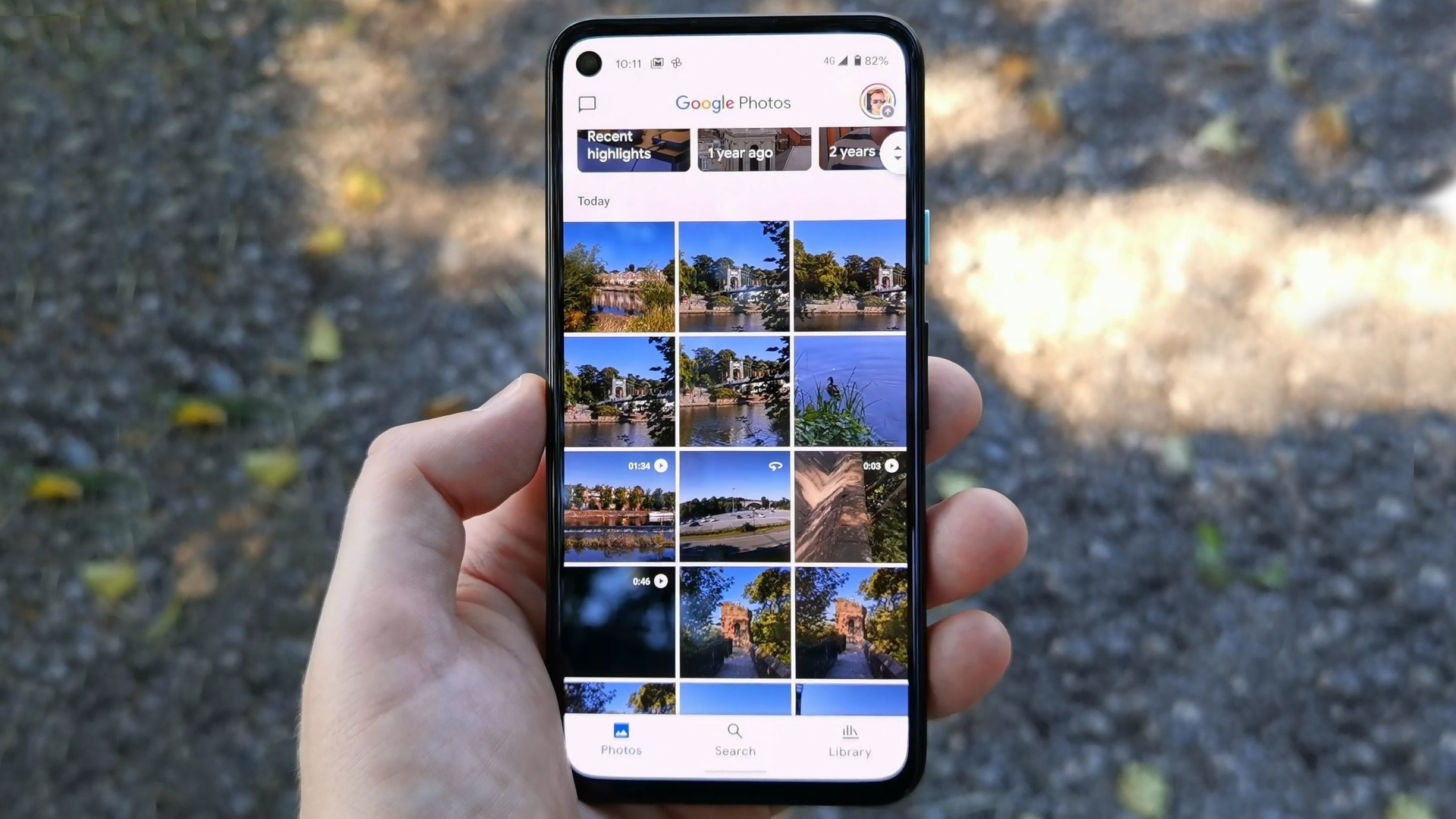
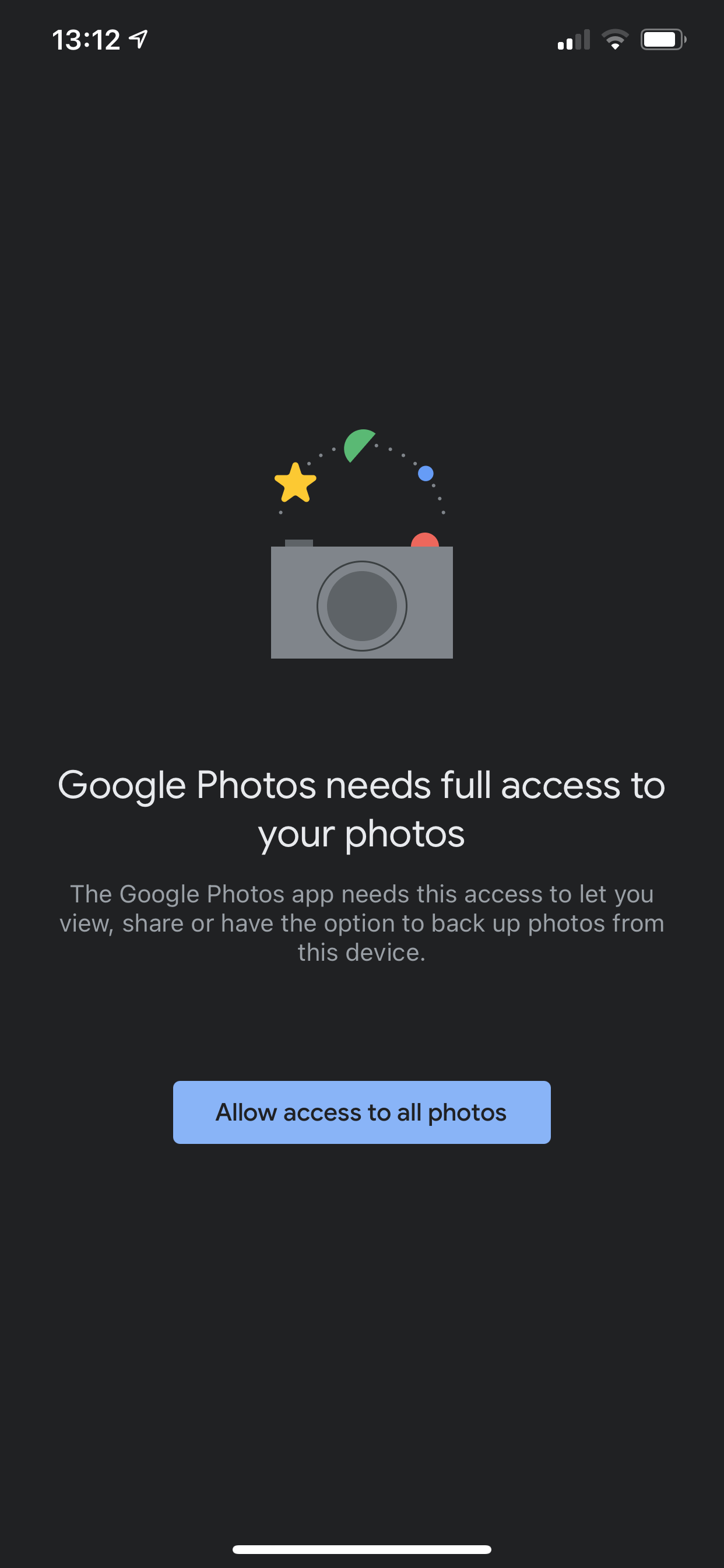
Allowing Google Photos to access your media library is the essential first step to backing up, organizing, and syncing your visual memories across devices. When you grant this permission, you enable the application to scan your local storage for images and videos, which it then processes for cloud synchronization, AI-driven search, and collaborative sharing. Without these specific permissions enabled within your operating system’s privacy settings, the Google Photos app remains unable to see, upload, or manage any content stored locally on your device, effectively rendering its core backup and management features non-functional.
Understanding Permission Requirements for Google Photos
The Google Photos application functions as both a local gallery manager and a cloud-based storage client. To operate effectively, it requires permission to interface with the device’s file system. In modern mobile operating systems—specifically Android and iOS—privacy protocols are designed to restrict applications from accessing your personal data by default. When you first install and launch the application, you are prompted to grant these access rights; however, if you denied these prompts or if your device settings were updated by a security patch, you may need to manually re-enable access to restore functionality.
Granting access does not grant Google ownership of your photos; rather, it establishes a functional bridge that allows the application to read the file paths of your images. Once access is granted, the application can verify which files have been backed up to your Google Account and which remain stored only locally. This is a binary system: the app either has full access to the requested library or it is entirely blocked. There is no middle ground where the app can "partially" see your files, which is why troubleshooting permissions is often the most direct path to resolving issues with sync errors or empty photo feeds.
How to Allow Access on Android Devices
On Android, permissions are managed through the centralized Settings menu. Because Android versions vary slightly across manufacturers, the precise path may differ marginally, but the core architecture remains consistent.
- Access System Settings: Locate the Settings icon (typically a gear-shaped icon) on your device’s home screen or app drawer.
- Navigate to Apps: Scroll down to find the "Apps," "Applications," or "Apps & Notifications" menu.
- Locate Google Photos: Tap on "See all apps" if necessary, then scroll down the list until you find the Google Photos icon.
- Modify Permissions: Tap on "Permissions" or "App permissions."
- Grant Storage or Photos Access: Look for the "Photos and videos" or "Files and media" permission category. Select "Allow" or "Allow all access."
- Verify Sync: Return to the Google Photos app and observe the status bar at the top or within the settings to see if the library begins to initialize.
If you are using a newer version of Android (14 or higher), you might also see an option for "Select photos," which allows you to grant access to specific folders rather than the entire library. For full Google Photos functionality, it is recommended to grant access to the entire library to ensure automatic backup services are not interrupted.
How to Allow Access on iOS Devices
Apple’s iOS provides a robust privacy framework that strictly separates app access to the Photo Library. If you previously selected "No Access" or "Select Photos" and now wish to grant full access, follow these steps:
- Open Settings: Navigate to your iPhone or iPad’s main Settings menu.
- Find the Application: Scroll down until you see the alphabetical list of installed apps. Find "Photos" (the Google Photos icon) and tap it.
- Adjust Privacy Settings: Tap on "Photos."
- Grant Full Access: You will see options including "None," "Select Photos," and "Full Access." Select "Full Access" to allow Google Photos to see your entire library.
- Background Refresh: While in this menu, ensure that "Background App Refresh" is toggled on. This allows Google Photos to continue backing up your images even when the app is not actively open on your screen.
Troubleshooting Common Access Issues
Even after granting permissions, you may occasionally encounter scenarios where the app still fails to detect your photos. This often points to secondary system configurations or account-level issues.
Cache and Storage Conflicts
Sometimes, the application’s internal cache becomes corrupted, causing it to display a blank screen even after access has been granted. On Android, you can go to your app settings, select Google Photos, and choose "Clear Cache." This does not delete your photos—it merely forces the app to rebuild the index of your local files.
The "Backup" Toggle
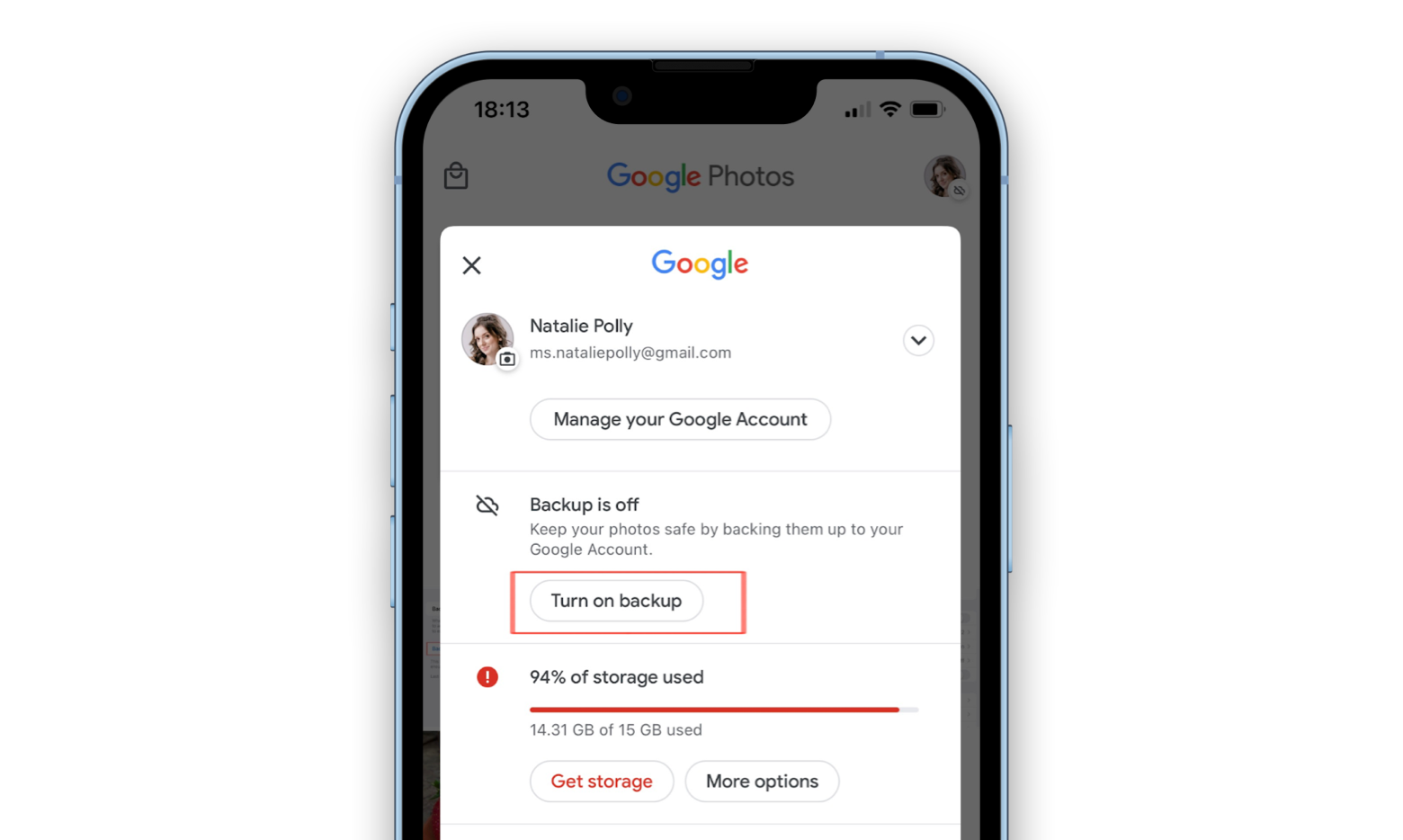
A common user error involves confusing "access" with "backup." You may have successfully granted Google Photos access to see your images, but if the "Backup" toggle inside the Google Photos app settings is turned off, the app will refuse to upload your content to the cloud. Navigate to the app, tap your profile icon, select "Photos settings," and verify that "Backup" is toggled on for your specific account.
Network Constraints
If the app has permission but you are connected to a restricted network (such as a corporate VPN or a throttled cellular connection), the backup process may hang indefinitely. Ensure your device is connected to a stable Wi-Fi network and that your battery level is not triggering a "Low Power Mode" that restricts background data usage.
Comparison of Access Levels Across Platforms
| Feature | Android (13+) | iOS (17+) | Purpose |
|---|---|---|---|
| Full Access | Supported | Supported | Allows app to back up everything |
| Partial Access | Supported | Supported | Limits app to specific albums/files |
| Background Sync | System-controlled | Manual toggle | Enables auto-upload while idle |
| Reset Prompt | Manual setting | Manual setting | Restores initial request dialog |
This table illustrates that both major mobile operating systems prioritize user control, often providing a "limited access" tier that can inadvertently stop background backups. Always opt for "Full Access" if you intend for Google Photos to serve as your primary backup solution.
FAQ: Frequently Asked Questions
Why does Google Photos need access to all my photos?
Google Photos requires full access to your media library to perform background backups and to identify and group images based on the people, places, and things depicted within them. Without full access, the service cannot index your library, leading to incomplete search results and broken backup sequences.
Will allowing access share my photos publicly?
No. Granting access allows the Google Photos app to read your local files so they can be uploaded to your private cloud storage. These photos remain private to your Google account unless you manually choose to share them with others via a link or a shared album.
What happens if I choose "Select Photos" instead of "Full Access"?
If you select specific photos, the Google Photos application will be blocked from "seeing" any images you did not explicitly pick. This will prevent the app from backing up any new photos you take in the future, as the app will not have permission to access the camera roll folder where new files are saved.
Can I revoke access at any time?
Yes. You can return to your device’s privacy settings at any point and remove permission for Google Photos. Doing so will immediately stop the app from syncing, and it will no longer be able to display images that were not already cached or uploaded to the cloud.
Does the app need access to location services?
While "Photos" permission is separate from "Location" permission, granting location access is recommended. It allows Google Photos to organize your pictures by location and enables the "Map View" feature, which visualizes where your photos were taken.
Why is my backup stuck at "Getting your photos ready"?
This is often a sign of a conflict between your device's battery-saving settings and the Google Photos app. Ensure the app has permission to use data in the background and that your phone is connected to power if the library is exceptionally large, as the initial indexing process is resource-intensive.
Next Actions and Expert Recommendations
For the most seamless experience, ensure your Google Photos app is updated to the latest version available in your app store. If you are experiencing persistent issues, verify that your Google Account storage is not full, as an exhausted storage quota can sometimes present as a failure to "see" new photos or sync them. If you have recently changed devices, perform a clean reinstall of the app to reset the permission handshake, and always keep your device OS updated to the latest version to ensure compatibility with Google's latest security frameworks.