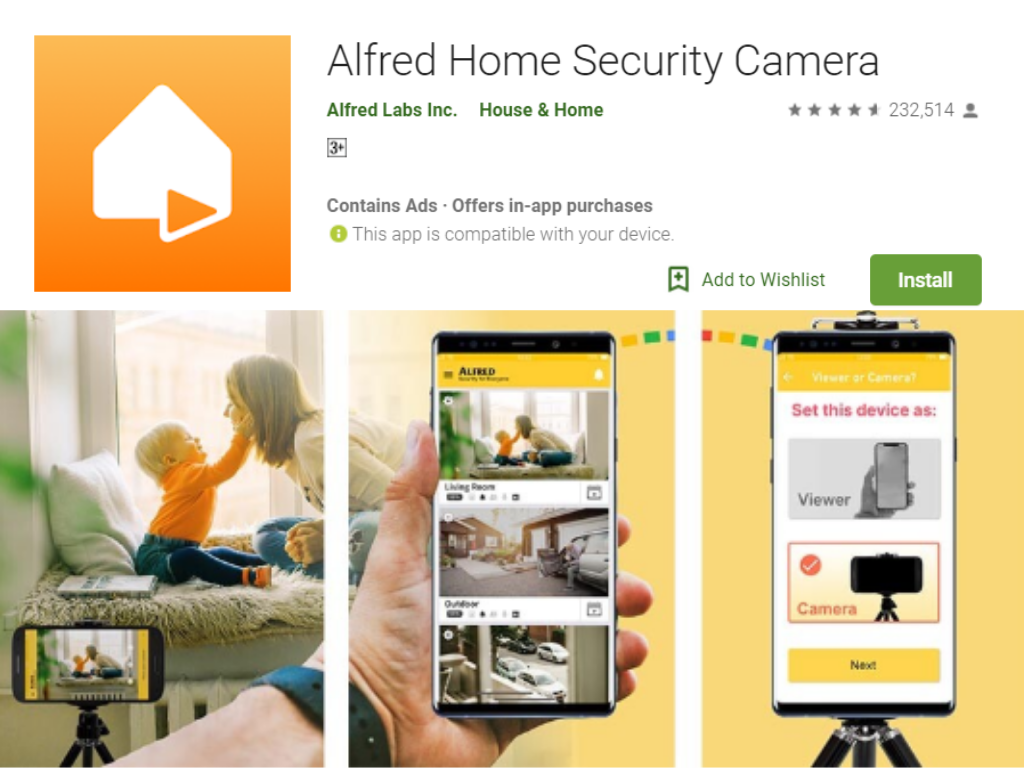
Alfred Home Security (AlfredCamera) backs up all motion-triggered video recordings directly to a secure cloud server. Free accounts retain recorded event clips in the cloud for seven days, while AlfredCamera Premium extends cloud retention to 14 days. Continuous 24/7 loop recording, however, is cached locally on the camera device rather than uploaded indefinitely.
Understanding Alfred Camera Cloud Storage: Architecture and Mechanics
AlfredCamera functions by turning spare smartphones, tablets, or dedicated AlfredCam hardware into surveillance cameras. When configuring this DIY security ecosystem, understanding where your video files actually travel—and where they live—is critical for both physical security and digital privacy.
The architecture relies on a split-role system: the Camera device captures environmental data, while the Viewer device (or web portal) monitors feeds and adjusts configuration settings. When you place a Camera device in your home, it does not continuously upload high-bitrate video streams to external servers every second of the day. Doing so would consume hundreds of gigabytes of mobile or broadband bandwidth, overwhelm typical residential Wi-Fi upload channels, and cause severe thermal throttling on mobile phone processors.
Instead, AlfredCamera uses an event-driven cloud architecture backed by Amazon Web Services (AWS). Live monitoring creates a peer-to-peer or relay connection (often established via WebRTC and secure signaling protocols) between your Viewer and Camera. However, when the software registers movement, it initiates a secure cloud backup sequence:
- Motion Detection: The Camera device's sensor identifies pixel variance within designated detection zones.
- Local Buffer Encoding: The device packages the preceding seconds and the active motion event into an encoded video clip (typically H.264).
- Encrypted Cloud Ingestion: The clip is dispatched across an encrypted HTTPS/TLS connection to Alfred’s central cloud storage infrastructure.
- Viewer Notification: A push notification fires to the Viewer device, linking directly to the cloud-hosted recording in your Event Book.
Because the footage resides on remote cloud infrastructure, the physical destruction, theft, or sudden disconnection of the camera phone does not erase footage captured prior to the incident. If an intruder enters, spots the camera phone, and smashes it, the motion event that captured their entry has already completed its transmission to the cloud.
Free Tier vs. Alfred Premium: Cloud Retention and Technical Limits
Alfred offers two operating tiers: the free, ad-supported tier and AlfredCamera Premium. While both tiers include automatic cloud backups for motion events, they differ substantially in retention schedules, clip duration, and video resolution.
| Feature | Alfred Free Tier | AlfredCamera Premium |
|---|---|---|
| Cloud Storage Duration | 7 Days (rolling FIFO deletion) | 14 Days (rolling FIFO deletion) |
| Maximum Motion Clip Length | Up to 30 Seconds | Up to 120 Seconds (Extended) |
| Cloud Video Resolution | Standard Definition (SD / 480p) | High Definition (HD / 720p-1080p) |
| Cloud Recording Cooldown | Standard Cooldown Interval | Reduced Cooldown Interval |
| Ad Support | In-app advertisements enabled | Ad-free interface |
| Local Manual Downloads | Unlimited (Manual save to device) | Unlimited (Manual save to device) |
| Motion Detection Zoom / AI Filter | Basic Motion Detection | AI Person Detection & Cloud Filter |
Free Tier Limitations
Under the free tier, motion clips are stored on the cloud for seven days. Alfred uses a First-In, First-Out (FIFO) automated purge. At the 168-hour mark after creation, any clip stored in your Event Book that has not been manually favorited or downloaded to your device is permanently scrubbed from the cloud servers. Clips in the free tier are compressed to standard definition (SD), which minimizes bandwidth but lowers the visual clarity of distant license plates or fine facial features.
Premium Cloud Capabilities
AlfredCamera Premium doubles the storage lifespan to 14 days. Beyond the extended window, the video pipeline receives priority bandwidth, enabling High Definition (HD) recording and playback. Premium also extends the maximum duration of an individual motion recording up to 120 seconds. If an activity persists, the camera continues capturing the scene rather than cutting off at the standard 30-second ceiling. Furthermore, Premium integrates cloud-side artificial intelligence filters, such as Person Detection, reducing false alarms triggered by pets, fluttering curtains, or shifting sunlight.
Continuous Recording vs. Cloud Motion Events
A common point of confusion among home security users is the distinction between Motion Detection Events and Continuous (24/7) Recording.
Cloud Motion Events
Motion events are strictly event-driven. They only generate a file when the camera's software algorithm detects a significant change in pixels. These short files (ranging from 5 to 120 seconds) are the only files that Alfred uploads automatically to the cloud. They populate the "Event Book" inside the application and remain accessible anywhere in the world through your mobile data or remote Wi-Fi network.
Continuous Recording (Local Loop)
Alfred also offers a Continuous Recording feature. When enabled, the camera device records video continuously in an uninterrupted loop. However, continuous recording is not stored indefinitely in the cloud.
Continuous recording saves data in a rolling local cache directly on the Camera device's internal storage or an attached MicroSD card (if using the specialized AlfredCam hardware). The system constantly overwrites the oldest footage once the local storage threshold is reached (typically keeping between 8 to 24 hours of rolling footage, depending on the available hardware capacity).
If you want to preserve a specific moment captured during continuous recording that did not trigger a motion event, you must open the timeline on your Viewer app and manually record or clip the sequence. That manual capture can then be exported and uploaded to cloud environments or your phone's local gallery.
How to Access, Download, and Save Cloud Footage Permanently
Because cloud footage expires automatically after 7 or 14 days, critical evidence—such as proof of a package theft or property damage—must be moved to permanent storage before the rolling purge occurs.
Step-by-Step Retrieval via Mobile App
- Open the AlfredCamera application on your Viewer phone.
- Select the specific camera feed from your device list.
- Tap the Event tab (the calendar/book icon) at the bottom of the display to view the motion log.
- Scroll through the chronological feed to locate the event time stamp.
- Tap the event clip to launch playback.
- Tap the Three Dots (...) or the Share/Download icon on the playback interface.
- Select Download. The video file transfers from the Alfred AWS cloud server directly into your smartphone’s native photo gallery or internal storage folder.
Preserving Clips in the "Moment" Folder
Alfred provides an in-app archival folder often designated as "Moments." When you mark a video as a favorite or move it to Moments, the platform protects that video file from the standard 7- or 14-day automated deletion cycle.
However, relying exclusively on an app-hosted folder for legal evidence is not recommended. If account credentials are lost, servers undergo maintenance, or the account is accidentally unlinked, access may be interrupted. Always download a local copy (MP4 format) to your phone or transfer the file to an independent personal cloud drive such as Google Drive, Microsoft OneDrive, or an external hard drive.
Security, Encryption, and Data Privacy Protocols
When backing up domestic video feeds to a commercial cloud, digital privacy is as vital as physical security. Video feeds originating from bedrooms, hallways, and living rooms require robust protection against unauthorized interception.
Data in Transit
All communication between your Camera devices, the Alfred cloud backend, and your Viewer devices is routed through encrypted channels. Alfred employs industry-standard Transport Layer Security (TLS) and Secure WebSockets (WSS) protocols. This prevents man-in-the-middle (MitM) packet sniffing on unsecured public Wi-Fi networks or compromised home routers.
Data at Rest
Once a motion clip reaches the cloud, it resides on encrypted server volumes within secure data centers (primarily hosted by Amazon Web Services). These facilities maintain rigorous compliance standards, including ISO 27001 and SOC 2 certifications. The stored video objects are mapped strictly to your account token.
Authentication and Access Control
AlfredCamera leverages third-party identity providers, allowing sign-in via Google accounts, Apple IDs, or dedicated email registrations. To maximize the security of your cloud-backed video:
- Enable Multi-Factor Authentication (MFA): Because Alfred links with Google or Apple ecosystems, activating two-factor authentication on those parent accounts prevents attackers from credential-stuffing their way into your cloud footage.
- Trust Circle Management: Alfred includes a "Trust Circle" feature that permits family members or housemates to view camera feeds. Members added to your Trust Circle can access live feeds and motion events, but administrative controls—such as deleting cameras or altering core cloud storage configurations—remain restricted to the primary account administrator.
Troubleshooting Cloud Backup Failures
If your Alfred Camera is detecting motion but the clips are missing from your cloud Event Book, the breakdown typically lies within network stability, operating system battery management, or localized storage bottlenecks.
1. Operating System Battery Optimization (Camera Device)
When using an older Android or iOS phone as the camera, the operating system's aggressive background power management often kills Alfred's background processes.
- Android Fix: Navigate to Settings > Apps > AlfredCamera > Battery. Set the battery usage to Unrestricted. Disable "Adaptive Battery" or "Power Saving Mode," which cuts background Wi-Fi transmission when the device is left untouched.
- iOS Fix: Ensure Guided Access is enabled or prevent the phone from locking automatically if using legacy configurations. Disable low-power mode completely.
2. Network Upload Bandwidth Bottlenecks
Most residential internet packages offer high download speeds but severely limited upload speeds. If your camera phone is positioned at the fringe of your Wi-Fi router’s coverage, the connection may support basic ping signals but drop the connection during an intensive video upload.
- Verify that your camera phone has an upload speed of at least 2 Mbps to 4 Mbps dedicated solely to its stream.
- Switch the camera phone from a congested 5 GHz Wi-Fi band to a 2.4 GHz band if the device is situated several walls away from the access point, as 2.4 GHz offers superior physical penetration.
3. Cache Overload on Legacy Devices
Old smartphones with full internal storage cannot build the temporary video cache needed before transmitting the file to the cloud. If an Android device has zero bytes of free internal flash memory, the camera application will fail to package the recorded event, causing an upload failure. Ensure your Camera phone maintains at least 1 GB of free internal storage for processing operations.
Maximizing Alfred's Cloud Performance: Practical Setup Tips
Optimizing how your camera captures footage ensures that every meaningful event reaches the cloud without filling your timeline with irrelevant artifacts.
- Define Clear Motion Detection Zones: Avoid pointing the camera at tree branches, television screens, or public sidewalks. Continuous motion triggers continuous cloud uploads, which can trip rate-limits, drain batteries, and clutter your Event Book with unusable footage.
- Maintain Permanent AC Power: Running a cloud-upload security camera on battery power is unreliable. Over time, the battery degrades, and during peak processing (encoding and uploading simultaneously), the sudden power draw can cause the phone to reboot. Use a high-quality charging brick and a durable, heat-resistant cable.
- Manage Ambient Heat: Smartphones running camera sensors continuously and transmitting data via Wi-Fi generate substantial internal heat. Excessive heat prompts thermal throttling, which cuts Wi-Fi performance and degrades video encoding. Keep camera phones out of direct sunlight and remove thick protective cases to facilitate passive cooling.
Frequently Asked Questions
Does Alfred Camera backup footage to personal cloud storage like Google Drive or Dropbox?
AlfredCamera does not natively sync motion clips automatically to third-party personal cloud providers like Google Drive, Dropbox, or personal NAS (Network Attached Storage) devices. All automated event backups route strictly to Alfred’s proprietary cloud infrastructure. However, once you manually download a clip from the Event Book to your Viewer device, you can configure your smartphone’s operating system to back up that specific folder to Google Photos, iCloud, or Dropbox automatically.
What happens to cloud-backed videos if the camera phone is stolen or broken?
Any motion clip that finished uploading to the cloud before the camera phone was destroyed or stolen remains accessible in your Event Book. Because the data lives on remote servers rather than solely on the phone's local memory card, you can immediately log into the Alfred application or the Alfred WebViewer from another phone, tablet, or computer to review, download, and preserve the footage of the perpetrator.
Can deleted cloud events be recovered?
No. Once a video clip is manually deleted from the Event Book or removed via the automated rolling purge (after 7 days on the Free tier or 14 days on Premium), it is permanently scrubbed from the cloud servers. Alfred does not maintain a user-accessible "trash can" or recovery archive for purged files. Critical incidents must be downloaded locally before their scheduled expiration date.
Does Alfred cloud recording include two-way audio?
Yes. Motion clips backed up to the cloud include both video and synchronized audio captured by the Camera device’s internal microphone. However, background two-way talk audio (such as you speaking through the Viewer phone to a person in the room) is only recorded during active communication sessions depending on the app's recording mode and permission settings.
Will Alfred still upload clips to the cloud if the home Wi-Fi goes down?
No. Alfred requires an active, uninterrupted internet connection to upload motion events to its cloud storage. If your home Wi-Fi drops, the camera cannot reach the cloud servers. However, if your camera phone contains an active cellular SIM card with mobile data enabled, the application can automatically failover to cellular data to upload clips, provided you have granted the app permission to use cellular data in its settings.
Recommended Next Steps
To verify that your cloud setup is functioning correctly, perform an end-to-end operational check:
- Trigger a Test Event: Walk across the camera’s detection zone while monitoring the device.
- Confirm Cloud Ingestion: Wait 30 seconds, open the Event Book on your Viewer device, and ensure the motion clip appears with clear audio and video.
- Execute a Test Download: Select the clip and download it directly to your camera roll. Verify that the file plays natively on your phone without software errors.
- Secure the Host Account: Ensure your linked Google or Apple account has two-factor authentication enabled to prevent unauthorized access to your cloud video archive.