Airtable functions as a powerful, highly customizable CRM (Customer Relationship Management) system by combining the simplicity of a spreadsheet with the structural integrity of a relational database. Unlike rigid legacy CRM platforms, Airtable allows teams to build bespoke workflows for lead tracking, deal management, and automated client communication tailored to their specific operational needs.
The shift toward composable software has made Airtable a leading choice for businesses that find traditional CRMs either too restrictive or unnecessarily complex. As of 2026, the platform has matured significantly, offering advanced AI capabilities and enterprise-grade interface tools that transform a simple set of tables into a sophisticated sales machine. However, making the transition requires a clear understanding of relational data structures and the specific limitations of a non-native CRM environment.
Why Use Airtable as Your CRM?
The primary reason organizations choose Airtable over dedicated CRM software like Salesforce or HubSpot is flexibility. Traditional CRMs are built around a pre-defined logic of "Leads," "Contacts," and "Deals." If your business model doesn't fit that mold—for example, if you manage complex multi-party partnerships or project-based sales—forcing your data into a standard CRM can be frustrating.
Airtable operates as a "no-code" platform, meaning you define the objects and the relationships between them. This allows for:
- Custom Data Schemas: You can track any data point imaginable without needing a developer to add custom fields.
- User Adoption: Because the interface is familiar (resembling a spreadsheet), sales teams often find it less intimidating than the dense menus of an enterprise CRM.
- Cost Efficiency: For small to mid-sized teams, Airtable’s seat-based pricing often provides more value than the high-tier "Pro" or "Enterprise" plans required by other CRMs to access basic automation features.
- Integrated Workflows: Since Airtable is often used for project management and content production, having your CRM in the same ecosystem eliminates data silos.
The Architecture of an Airtable CRM
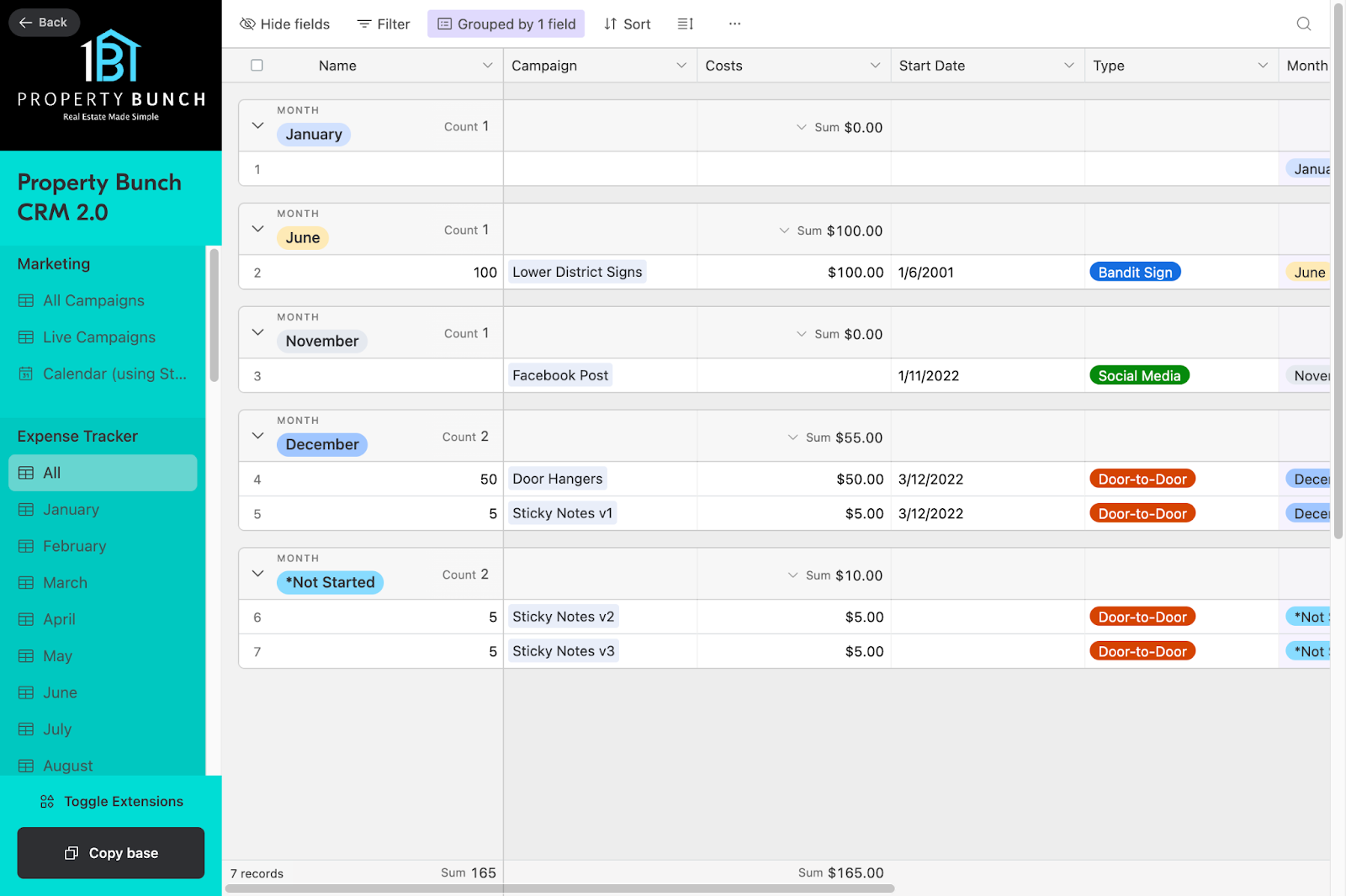
To build an effective CRM, you must move beyond the "one-sheet" mentality. A spreadsheet is flat; a CRM is relational. In Airtable, this means creating multiple tables and connecting them using Linked Records.
1. The Accounts Table
This is the foundation of your CRM. It contains the organizations or entities you do business with. Fields typically include the company name, website, industry, and a "Rollup" field that calculates the total value of all deals associated with that account.
2. The Contacts Table
Contacts are the individual people at those companies. By linking the Contacts table to the Accounts table, you create a many-to-one relationship (multiple people working at one company). This allows you to see every interaction with a specific person while maintaining a high-level view of the organization they belong to.
3. The Opportunities (Deals) Table
This is where the sales magic happens. Each record represents a potential sale. You will track the deal stage (e.g., Discovery, Proposal, Negotiation, Closed-Won), the estimated value, and the expected close date. By linking this to both a Contact and an Account, you create a 360-degree view of your sales pipeline.
4. The Interactions Table
One of the biggest mistakes in DIY CRMs is trying to track notes inside the "Notes" field of the Contacts table. Instead, create an Interactions table. Every call, email, or meeting becomes a new record linked to a Contact. This creates a chronological "Activity Feed" that any team member can audit.
Leveraging Airtable AI and Automations in 2026
By 2026, Airtable’s native automation and AI features have become the backbone of its CRM functionality. These tools allow lean teams to perform like large-scale sales organizations.
Native AI Summarization
Airtable AI can be configured to automatically summarize the "Interactions" table. For example, it can look at the last five meeting notes for a specific lead and generate a "Next Steps" summary in the Opportunities table. This saves sales reps hours of manual review before a follow-up call.
Automated Lead Routing
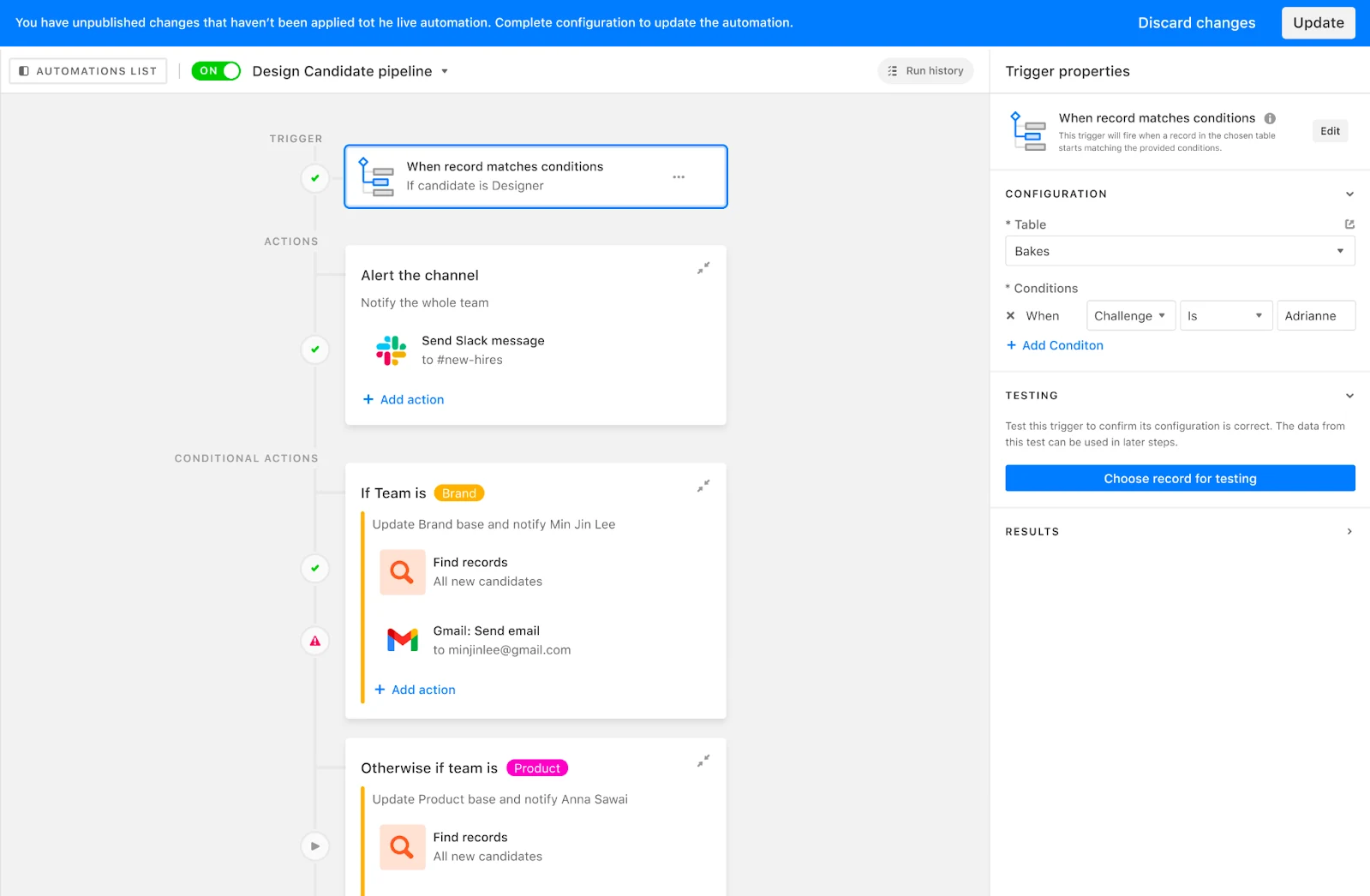
Using Airtable’s internal automation triggers, you can set up logic that assigns leads based on territory, industry, or workload. When a new lead enters via an Airtable Form, the system can immediately notify the correct representative via Slack or email.
Dynamic Interface Designer
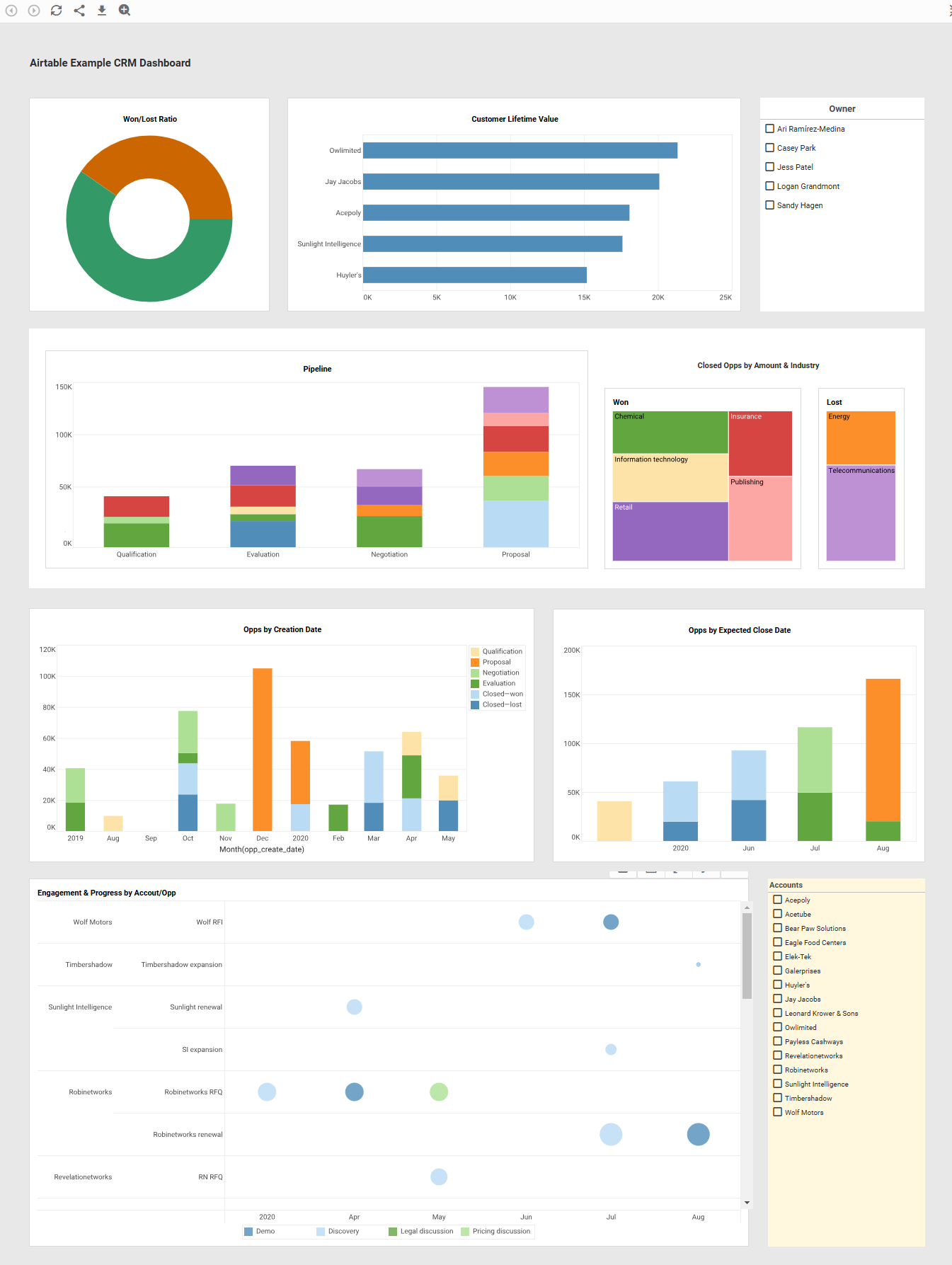
The biggest evolution in Airtable is the Interface Designer. Rather than having your sales team work in a grid of rows and columns, you can build a custom "Sales Dashboard." This interface can show a salesperson only their active deals, a calendar of their upcoming meetings, and a Kanban board of their pipeline. Interfaces provide a clean, "app-like" experience that protects the underlying data structure from accidental deletions.
Comparison: Airtable vs. Traditional CRMs
Deciding whether to use Airtable requires a side-by-side look at how it stacks up against industry giants.
| Feature | Airtable (2026) | HubSpot / Salesforce |
|---|---|---|
| Customization | Infinite; build any structure. | High, but often requires "Dev Ops" or consultants. |
| Ease of Use | High; spreadsheet-style interface. | Moderate to Low; steep learning curve. |
| Email Integration | Requires third-party tools or API for full sync. | Native two-way email and calendar sync. |
| Reporting | Strong visual charts; highly flexible. | Robust, specialized sales forecasting built-in. |
| Record Limits | Up to 125k–500k per base (Plan dependent). | Virtually unlimited for most business use cases. |
| Cost | Scalable; pay-per-seat. | Can become very expensive with "Add-ons." |
Step-by-Step Guide to Building Your CRM
Building an Airtable CRM involves more than just entering data; it requires designing a system. Follow these steps to ensure a robust setup.
Step 1: Define Your Sales Stages
Before touching the software, write down your sales process. Common stages include:
- Lead/Inquiry: New interest.
- Qualification: Determining if they are a fit.
- Discovery: Deep dive into their needs.
- Proposal: Sending the quote.
- Closing: Final negotiations.
- Closed-Won / Closed-Lost: The final result.
Use a Single Select field in your Opportunities table for these stages. This allows you to use the "Kanban" view, which lets you drag and drop deals from one stage to another.
Step 2: Set Up Linked Records
Ensure that your "Contacts" table has a "Link to another record" field pointing to the "Accounts" table. Similarly, the "Opportunities" table should link to both "Accounts" and "Contacts." This connectivity is what allows you to click on a company name and instantly see every person you know there and every deal you've ever pitched to them.
Step 3: Create Data Entry Forms
Do not let team members enter data directly into the grid if possible. Use Airtable Forms for lead intake and "Interface Forms" for updating deal progress. This ensures that required fields (like "Email" or "Deal Value") are never left blank, maintaining data integrity.
Step 4: Configure Rollups for Reporting
Use Rollup fields to answer business-critical questions. For example, in the "Accounts" table, you can create a Rollup field that looks at the "Opportunities" table, filters for "Closed-Won" deals, and sums the "Value" field. This gives you the "Lifetime Value" (LTV) of that customer automatically.
Common Mistakes and How to Avoid Them
Even experienced users fall into traps when treating Airtable as a CRM.
- Over-complicating the Base: Do not try to track everything on day one. Start with Accounts, Contacts, and Opportunities. You can add "Invoices," "Proposals," and "Competitors" later.
- Ignoring Permissions: In Airtable, if someone has "Editor" access to a base, they can usually see everything. If you have sensitive commission data, you must use Interface-only permissions or the Enterprise "Verified Data" features to restrict access.
- Neglecting Backups: While Airtable is a cloud-based service with its own backups, it is best practice to use a tool like Zapier or a dedicated Airtable backup service to archive your data periodically to an external source (like a CSV in Google Drive) for disaster recovery.
- Lack of Email Sync: Airtable does not natively "grab" your emails from Gmail or Outlook like HubSpot does. You must use the Airtable for Gmail/Outlook add-ons or an automation tool like Make.com to push emails into your "Interactions" table.
Scalability and Limitations
While Airtable is powerful, it is not infinite. As of 2026, the record limits per base are:
- Free: 1,000 records.
- Team: 50,000 records.
- Business: 125,000 records.
- Enterprise Scale: Up to 500,000 records.
If your business generates tens of thousands of leads per month, you may hit these limits within a few years. At that point, you would either need to archive old data or move to a more robust SQL-based system. Furthermore, Airtable's permissions can be "all or nothing" within a base, which can be a challenge for large organizations needing strict row-level security.
Frequently Asked Questions
Can Airtable replace Salesforce?
For many small and mid-market companies, yes. Airtable can handle the lead tracking, pipeline management, and reporting that 90% of Salesforce users need. However, for massive enterprises requiring complex "Apex" coding, massive data volumes, or highly regulated security compliance, Salesforce remains the industry standard.
How do I track emails in Airtable?
Airtable does not automatically sync your inbox. To track emails, you can use the official Airtable extension for Chrome or Outlook, which allows you to "clip" an email and send it to a specific record. Alternatively, you can use an automation tool like Make or Zapier to automatically create a record in your "Interactions" table every time you receive an email from a contact in your database.
Is my data secure in an Airtable CRM?
Airtable uses industry-standard encryption for data at rest and in transit. For higher security needs, the Enterprise plan offers SSO (Single Sign-On), SCIM provisioning, and enhanced audit logs. However, because Airtable makes it easy to share "View Links," users must be careful not to accidentally create a public link to their entire client database.
Can I use Airtable as a CRM on mobile?
Yes, Airtable has a native mobile app for iOS and Android. It is excellent for looking up contact information or adding a quick note after a meeting. However, building complex bases or configuring advanced automations is much more effective on the desktop web version.
Does Airtable have a "Click-to-Call" feature?
Airtable does not have a native VOIP (Voice over IP) system. However, if you have a phone number field, clicking it on a mobile device will trigger your phone’s dialer. On a desktop, you can use extensions or "Button" fields that trigger calls through apps like RingCentral or Zoom via an API.
Next Actions for Implementation
If you are ready to move your sales operations into Airtable, your first action should be to audit your current data. Clean up your existing spreadsheets or export your data from your current CRM into CSV format.
- Start with a Template: Do not start from scratch. Use the Airtable CRM Template and customize it to save hours of setup time.
- Define Your Primary Keys: Ensure each table has a unique, clear primary field (the first column). For Contacts, this should be their full name; for Accounts, the company name.
- Build One Interface: Before inviting your team, build a "Sales Rep Dashboard" in the Interface Designer. Show it to your top salesperson and get their feedback on the layout.
- Automate One Task: Set up an automation that sends an email notification to yourself when a deal's value is greater than a certain amount. This helps you realize the power of the platform immediately.