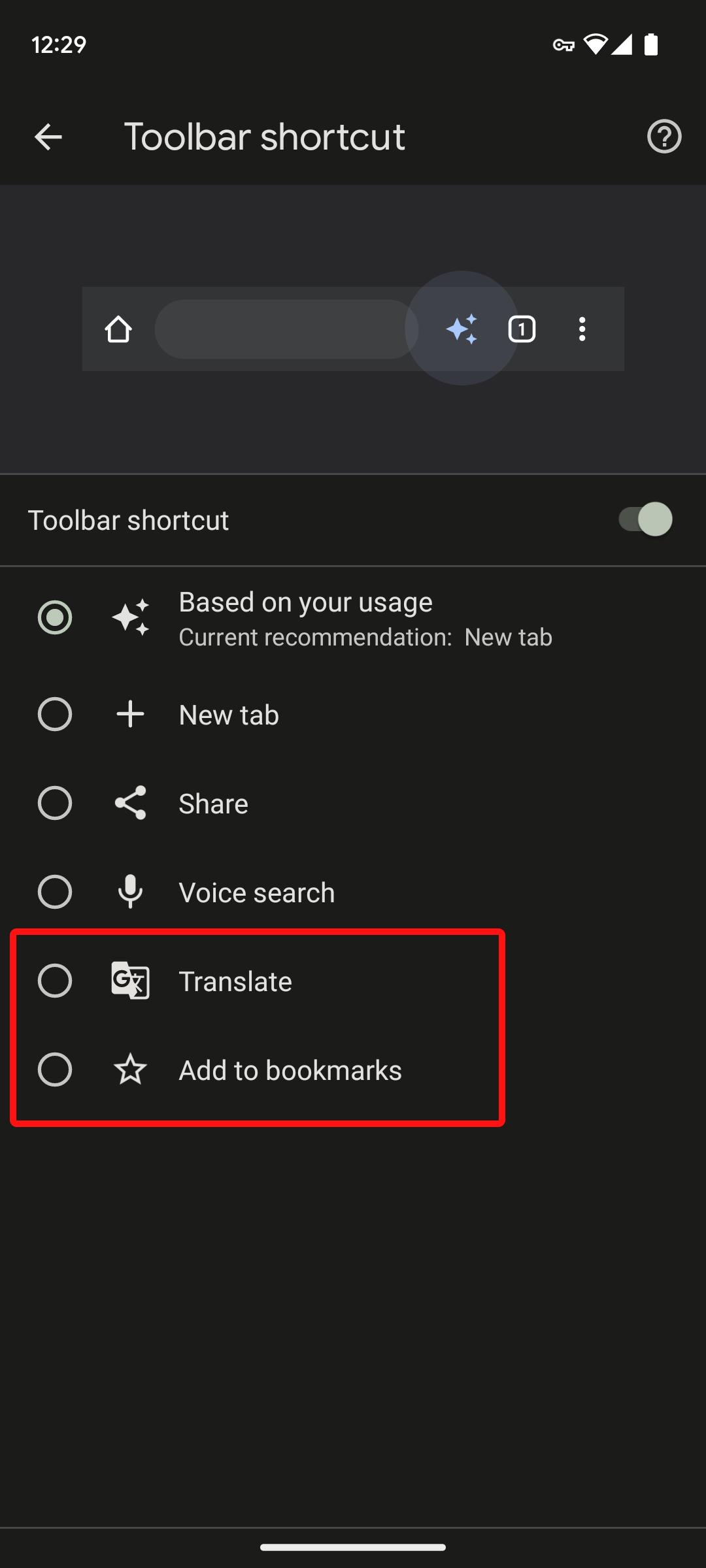
The evolution of the advanced toolbar in modern software interfaces has introduced powerful productivity enhancements alongside persistent design controversies regarding customization complexity, screen real estate management, and user adaptation curves. As software developers push the boundaries of contextual utility and modular design, understanding these new features and the surrounding debates helps professionals optimize their digital workflows while anticipating future interface paradigm shifts.
Introduction to the Advanced Toolbar Evolution
Modern digital workspace applications—ranging from content management systems and developer integrated development environments (IDEs) to creative suites and productivity software—rely heavily on interface toolbars to deliver core tools. Historically, toolbars were static, rigid strips of icons pinned to the top or side of a window, offering a one-size-fits-all set of functions. However, the maturation of user interface (UI) and user experience (UX) design has transformed these static strips into dynamic, contextual, and deeply customizable advanced toolbars.
These modern iterations incorporate artificial intelligence (AI) predictions, real-time collaboration widgets, modular widgets, and deeply nested command palettes. Yet, this evolution has not occurred in a vacuum. While software engineers and power users celebrate the granular control and efficiency gains offered by advanced toolbars, usability researchers and everyday users frequently raise concerns about cognitive overload, interface clutter, and steep learning curves. Examining this landscape requires a balanced look at what these features entail, why they are implemented, and the ongoing debates shaping their development in 2026.
Core Characteristics of Advanced Toolbars
An advanced toolbar distinguishes itself from a legacy toolbar through architectural flexibility, contextual awareness, and integration with broader software ecosystems. To understand why these systems provoke such intense discussion, one must examine the specific mechanical changes that define them.
Contextual Adaptability and AI-Driven Layouts
Traditional toolbars presented every available tool simultaneously or required manual toggling of specific toolbars. Advanced toolbars leverage machine learning algorithms and contextual listeners to modify their display dynamically. For instance, when a user selects a vector path in a design application, the toolbar instantly swaps out text-formatting icons for node-manipulation parameters.
Furthermore, AI-driven sorting mechanisms monitor user behavior over time. If a specific user frequently accesses a buried menu item—such as a specific export filter or text-wrapping utility—the advanced toolbar can automatically promote that action to the primary display tier. This predictive layout aims to minimize mouse travel and menu diving, saving precious seconds during intensive workflows.
Modular Micro-Widgets and Command Palettes
Modern software architectures favor modularity. Advanced toolbars often house micro-widgets—miniature applications or status monitors embedded directly into the bar, such as real-time compilation status, word counts, or live collaboration indicators.
Coupled with these widgets are integrated command palettes (often invoked via keyboard shortcuts like Ctrl+Shift+P or Cmd+Shift+P). These palettes merge traditional toolbar clicking with text-based fuzzy search. Users can type natural language queries or command codes directly into a toolbar-anchored search bar to execute complex routines without navigating hierarchical drop-down menus.
| Toolbar Generation | Layout Paradigm | Customization Level | Primary Input Method | Common User Pain Point |
|---|---|---|---|---|
| Legacy Toolbar | Static, hardcoded | None or basic rearranging | Mouse clicks | Screen waste, missing niche tools |
| Modular Toolbar | User-configured grids | High (drag-and-drop slots) | Mouse and hotkeys | Setup fatigue, configuration drift |
| Advanced / AI Toolbar | Contextual, predictive | Granular, automated overrides | Fuzzy search, AI predictions | Unpredictability, cognitive load |
The New Features Fueling Modern Productivity
Software vendors frequently market advanced toolbars as the ultimate solution for workflow efficiency. Several breakthrough features stand out in contemporary software releases.
1. Multi-Tiered Docking and Floating Panels
Advanced toolbars are no longer bound to the perimeter of the application window. Users can often detach, split, and dock toolbars across multi-monitor setups, or collapse them into minimalist floating heads-up displays (HUDs). This flexibility caters to professionals working on expansive canvas environments, such as video editors and 3D modelers, who need maximum viewing area for their primary workspace while keeping essential tool sets close to the cursor.
2. Cross-Application Macro Integration
Power users can now bind complex, multi-step macros directly to a single custom button on an advanced toolbar. These macros can bridge external APIs, trigger local scripts, and execute software-specific automation routines. Instead of opening terminal windows or navigating external automation software, the toolbar functions as a localized control deck for the entire system stack.
3. Real-Time Collaborative Badging
In collaborative environments, modern toolbars display live presence indicators directly adjacent to tool groups. Users can see which team members are currently modifying specific assets, lock tool parameters to prevent conflicting edits, and launch integrated chat or voice threads straight from the toolbar interface.
Ongoing Debates and Design Controversies
Despite these technological advancements, advanced toolbars remain a lightning rod for debate within the UX design and user community. The tension generally lies between the desires of power users and the needs of casual or novice users.
Cognitive Load Versus Efficiency
The primary argument in favor of advanced toolbars is speed: reducing clicks translates to higher productivity. However, UX researchers frequently point out the paradox of choice. When a toolbar dynamically shifts its contents based on AI predictions or contextual triggers, the user's spatial memory is disrupted.
In a static toolbar, a user relies on muscle memory—knowing that icon X is always in the top-left corner. In an advanced, dynamically shifting toolbar, the user must visually scan the bar on every context switch to locate their tools. This constant visual re-evaluation increases cognitive load, leading to mental fatigue over long working sessions.
Interface Clutter and Screen Real Estate
As toolbars absorb more features—widgets, search bars, collaboration badges, and multi-tiered buttons—they consume valuable vertical or horizontal screen space. On laptop screens or lower-resolution displays, an over-engineered advanced toolbar can crowd out the primary working canvas. This has sparked counter-movements advocating for minimalist, hidden-by-default interfaces where tools only appear upon explicit user summons.
Customization Fatigue
Advanced toolbars offer near-infinite customizability. Users can spend hours tweaking layouts, building custom icons, and mapping scripts. Critics argue that this shifts the burden of good design from the software developer to the end-user. Instead of providing an intuitive out-of-the-box experience, applications sometimes rely on the excuse that "users can just customize it," leading to setup fatigue and inconsistent workflows across teams.
Comparative Analysis of Toolbar Design Philosophies
To better grasp how different software ecosystems approach these challenges, it is useful to compare their underlying philosophies regarding tool accessibility.
- The Minimalist Approach (e.g., Modern Word Processors): Prioritizes clean design and hidden complexity. Toolbars are stripped down to the bare essentials, relying heavily on contextual pop-up menus that appear right next to selected text. This reduces clutter but can frustrate power users who want persistent access to advanced formatting parameters.
- The Maximalist Power-User Approach (e.g., Professional DAW and CAD Software): Embraces dense, highly configurable advanced toolbars with multiple rows, docked side panels, and macro integrations. This maximizes immediate access for trained professionals but presents a nearly impenetrable barrier to entry for beginners.
- The Hybrid AI Approach (e.g., Modern IDEs and Creative Suites): Attempts to balance minimalism and power by showing a clean default state while dynamically expanding toolbars or offering fuzzy-search command palettes based on user intent.
Troubleshooting Common Advanced Toolbar Issues
For users struggling to adapt to or manage modern advanced toolbars, several practical steps can resolve common friction points:
- Mitigating Unpredictability (Resetting AI Layouts): If an AI-driven toolbar is constantly rearranging tools and breaking your muscle memory, dive into the application settings to lock the toolbar layout. Most enterprise software allows you to disable predictive sorting and enforce a static user configuration.
- Reclaiming Screen Real Estate: If toolbars are crowding your workspace, look for "Compact Mode" or "Auto-Hide" toggles. Utilizing keyboard shortcut alternatives for commands you frequently access via the toolbar can allow you to hide the toolbar entirely.
- Resolving Customization Drift: If shared team workstations suffer from inconsistent toolbar setups, export your custom toolbar profile layout (.xml or .json format, depending on the software) and deploy it across all team machines to standardize the workspace environment.
Conclusion and Strategic Recommendations
Advanced toolbars represent a significant leap in software capability, blending contextual intelligence, modular widgets, and deep customization. However, they are not a universal upgrade for every user type. When evaluating software featuring advanced toolbars—or when designing custom workflows within your organization—balance the pursuit of micro-efficiency against cognitive load and onboarding friction. For power users, invest the time to master command palettes and custom macro docking. For teams and casual users, lock down standardized, predictable layouts to minimize interface fatigue and maintain steady operational focus.