Playing games at 1080p resolution on a 1440p monitor is entirely possible, but it usually results in a softer, slightly blurry image compared to native 1080p displays. This occurs because 1080p does not scale evenly into 1440p, forcing the monitor or GPU to use interpolation to fill the extra pixels.
The Technical Reality of Resolution Mismatch in 2026
As we move through 2026, 1440p (Quad HD) has firmly established itself as the "sweet spot" for PC gaming, offering a significant clarity boost over the aging 1080p (Full HD) standard without the extreme hardware demands of 4K. However, many gamers still find themselves needing to run games at 1080p on their 1440p panels. This may be due to playing highly competitive shooters where frame rate is prioritized over fidelity, or because a demanding new title pushes even modern mid-range GPUs to their limits.
The fundamental issue is the mathematical relationship between the two resolutions. A 1080p image consists of 1920 x 1080 pixels (approximately 2.07 million pixels). A 1440p display consists of 2560 x 1440 pixels (approximately 3.69 million pixels). When you divide the horizontal and vertical dimensions (2560/1920 and 1440/1080), you get a ratio of 1.33:1.
Unlike 4K (3840 x 2160), which is exactly four times the pixel count of 1080p (a clean 2:1 ratio per axis), 1440p requires "one and a third" pixels to represent a single pixel of 1080p data. Because physical pixels cannot be split, the display must use interpolation algorithms to guess what color the "partial" pixels should be. This process, often referred to as bilinear scaling, results in a loss of sharpness and a characteristic "fuzziness" that is immediately noticeable to the trained eye.
Why 1080p Looks "Blurry" on a 1440p Screen
To understand why the image quality degrades, we must look at how displays handle non-native signals. When a 1440p monitor receives a 1080p signal, it has two choices: display the image in a small box in the center of the screen (1:1 pixel mapping) or stretch the image to fill the panel. Most users choose to stretch the image.
Interpolation and Artifacting
During the stretching process, the monitor’s internal scaler or the computer's GPU applies interpolation. In a 1.33:1 scaling scenario, the software looks at two adjacent pixels and creates a hybrid color for the space between them. On a native 1080p screen, a single black line against a white background is exactly one pixel wide. On a 1440p screen trying to display that same 1080p line, the line may end up being blurred across two physical pixels to compensate for the fractional math. This creates a "smearing" effect, particularly visible in high-contrast areas like text or fine geometric lines in games.
The Pixel Density (PPI) Factor
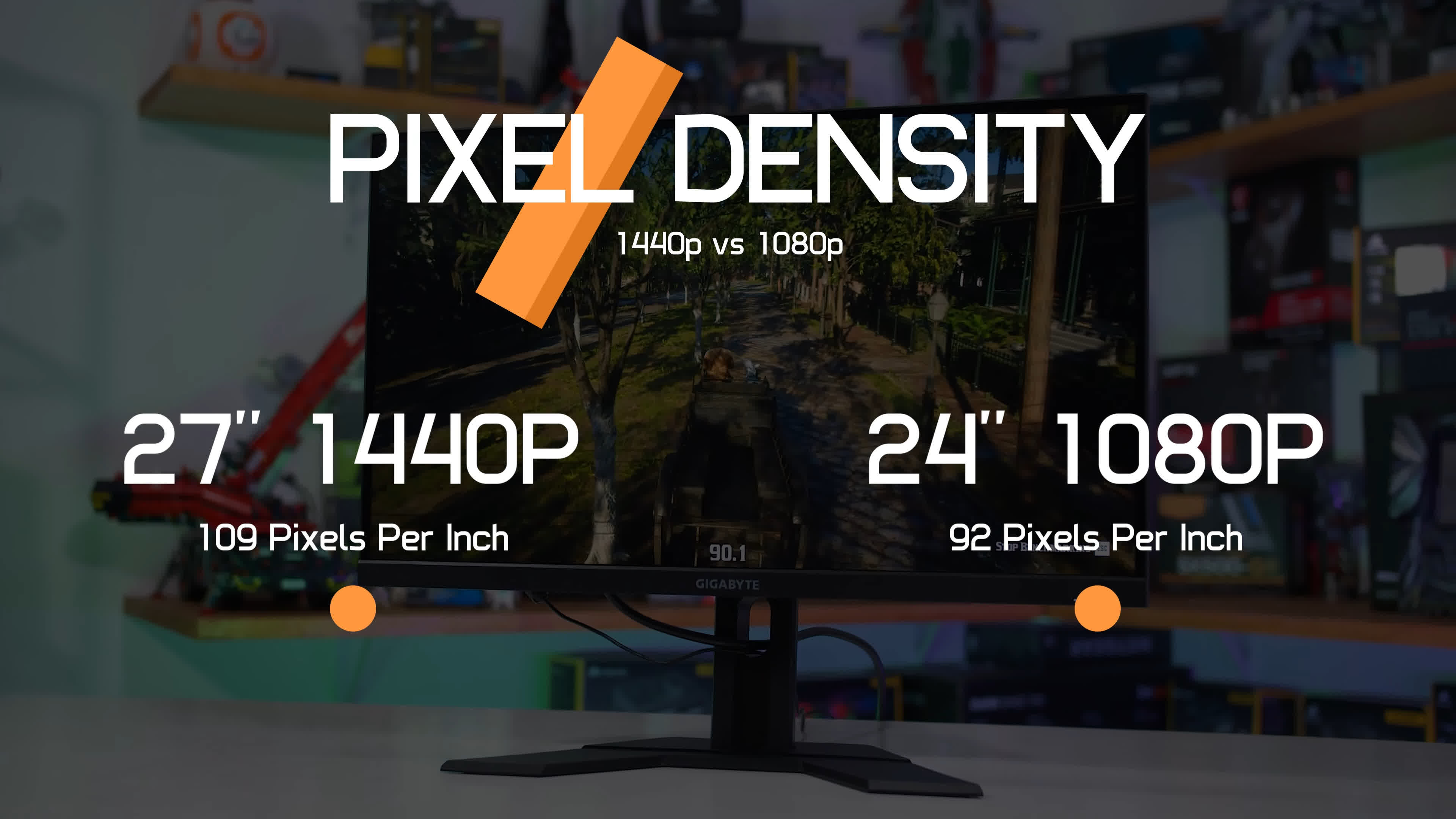
Pixel density, measured in Pixels Per Inch (PPI), plays a massive role in perceived clarity. Most 1440p monitors are 27 inches in size, giving them a density of about 108 density. A standard 1080p monitor is usually 24 inches, resulting in roughly 92 PPI. When you display 1080p on a 27-inch 1440p screen, you are essentially looking at a 1080p image stretched across a larger physical area than it was intended for, while also suffering from the interpolation blur mentioned above. This "double hit" to quality is why a 1080p game often looks significantly worse on a high-end 1440p monitor than it does on a cheap, native 1080p office monitor.
Modern Solutions: AI Upscaling and Image Reconstruction
In 2026, the "blurry 1080p" problem is less of a hardware limitation and more of a software challenge that has largely been solved by AI-driven technologies. If you own a 1440p monitor, you should rarely resort to lowering your "Base Resolution" to 1080p in the game settings. Instead, you should utilize upscaling technologies.
DLSS, FSR, and XeSS
NVIDIA’s Deep Learning Super Sampling (DLSS), AMD’s FidelityFX Super Resolution (FSR), and Intel’s XeSS have revolutionized how we handle resolution. These tools work by rendering the game internally at a lower resolution (like 1080p) and then using sophisticated AI models or spatial upscaling filters to reconstruct the image to 1440p.
- DLSS (NVIDIA): Uses dedicated Tensor cores on RTX GPUs. In 2026, DLSS 4.0/5.0 provides results that often look better than native 1440p, effectively eliminating the blur associated with traditional 1080p scaling.
- FSR (AMD): A more universal solution that works on almost any GPU. While FSR 3.1 and subsequent versions have narrowed the gap, it still occasionally shows more "shimmering" in fine details compared to DLSS, but it is infinitely superior to simply setting your resolution to 1080p.
- XeSS (Intel): Similar to DLSS, it uses XMX instructions on Intel Arc GPUs to provide high-quality reconstruction.
By using these technologies, you get the performance benefits of 1080p (higher frame rates) while maintaining the sharp edges and UI clarity of a native 1440p output.
GPU-Level Scaling and Integer Scaling
If a game does not support modern upscaling (such as an older title or an indie game), you have to rely on GPU-side scaling. Both NVIDIA and AMD have introduced features to mitigate the blur of non-native resolutions.
Integer Scaling
Integer Scaling is a technique where the GPU multiplies pixels by whole numbers. For example, it would turn one pixel into a 2x2 or 3x3 block of pixels. While this is perfect for 4K (where 1080p maps perfectly to a 2x2 grid), it is problematic for 1440p because 1.33 is not an integer. If you force integer scaling on a 1440p monitor at 1080p, you will likely end up with a centered image surrounded by large black bars (letterboxing), as the GPU cannot "fit" the math to the full screen without blur.
NVIDIA Image Scaling (NIS) and Radeon Super Resolution (RSR)
These are driver-level features that apply a high-quality sharpening filter after the image is upscaled.
- NIS: Can be enabled in the NVIDIA Control Center. It upscales the image and applies a "directional scaling and sharpening" pass.
- RSR: Found in the AMD Software: Adrenalin Edition, this uses the same algorithm as FSR 1.0 but applies it to the entire screen output, making it compatible with any game.
Comparative Impact: 1080p vs. 1440p vs. Upscaled 1440p
The following table compares the visual and performance characteristics of different ways to handle 1080p content on a 1440p monitor in 2026.
| Method | Visual Clarity | Performance Gain | Recommended Use Case |
|---|---|---|---|
| Native 1440p | Excellent | 0% (Baseline) | General gaming on capable hardware. |
| 1080p Native (Lowered Res) | Poor (Blurry) | ~30-50% | Emergency only; very old GPUs. |
| 1080p + Integer Scaling | Sharp (Small) | ~30-50% | Retro games or pixel art styles. |
| 1440p + DLSS/FSR (Quality) | Near-Native | ~25-40% | Modern AAA titles; best balance. |
| 1440p + DLSS/FSR (Performance) | Good | ~60-80% | Competitive gaming or ray-tracing. |
| 1080p + GPU Sharpening (NIS/RSR) | Moderate | ~30-50% | Games without built-in AI upscaling. |
Practical Optimization Steps
If you must run 1080p on your 1440p monitor, follow these steps to ensure the best possible experience:
- Check for In-Game Upscalers First: Before changing your display resolution, look for "Resolution Scale," "DLSS," "FSR," or "XeSS" in the game’s video settings. Set the "Display Resolution" to 1440p and the "Upscaling" to "Quality" or "Balanced."
- Use GPU Scaling: Open your GPU control panel (NVIDIA Control Panel or AMD Software). Ensure that "Scaling" is performed by the GPU, not the Display. GPUs generally have much more powerful processing chips than the budget scalers found inside monitors.
- Adjust Sharpening: If the image looks soft, use the NVIDIA or AMD sharpening sliders. A value between 10% and 30% usually restores some edge definition without creating "halos" around objects.
- Consider Windowed Mode: If the blur of a full-screen stretched 1080p image is too distracting, try running the game in "Windowed Mode" at 1080p. The window will be smaller, but every pixel will be perfectly sharp (1:1 mapping).
- Monitor Settings: Some high-end gaming monitors have built-in sharpening (often called "Super Resolution" or "VividPixel"). Exercise caution with these, as they can interfere with GPU-level settings.
Hardware and Panel Differences
The type of panel technology you use—OLED, IPS, or VA—also affects how 1080p looks on a 1440p screen.
- OLED (The 2026 Standard): OLED panels have near-instantaneous response times. This prevents "motion blur" from being added on top of "resolution blur." Because OLEDs have such high contrast, the fuzziness of 1080p scaling is often more visible because the edges are so clearly defined by the individual self-emissive pixels.
- IPS: These panels offer great color but can suffer from "IPS Glow." In a scaled 1080p environment, the glow can sometimes mask the blur, but generally, IPS provides a standard, predictable scaling experience.
- VA: VA panels often have slower transition times in dark colors (black smearing). When you combine VA black smearing with 1080p interpolation blur, the result can be a very "muddy" image in dark games like horror titles or space simulators.
Frequently Asked Questions
Why does 1080p look better on my old monitor than my new 1440p one?
This is due to native pixel mapping. On a 1080p monitor, the signal matches the physical grid of the screen 1:1. On a 1440p monitor, the 1080p signal has to be "stretched" across a grid it doesn't fit into, requiring the monitor to create "fake" pixels to fill the gaps, which results in blur.
Does 1080p gaming on a 1440p monitor cause input lag?
Generally, no. Modern GPUs and high-quality monitor scalers add negligible latency (usually less than 1ms) when scaling resolution. If you use "GPU Scaling" in your settings, the latency is almost zero because the GPU handles the math during the frame rendering process.
Is it worth buying a 1440p monitor if I only have a mid-range GPU?
Yes, especially in 2026. With the prevalence of DLSS and FSR, you can enjoy the benefits of 1440p for desktop work and media consumption while using upscaling to maintain high frame rates in demanding games. The jump in clarity for daily tasks is worth the trade-off.
Can I fix the blur by just turning up the sharpness?
Sharpening can help "define" edges, but it cannot recreate lost data. If you turn sharpness up too high, you will see "ringing" artifacts (white outlines around objects) and increased visual noise. It is a band-aid, not a cure.
Does 1080p look better on a 4K monitor than a 1440p monitor?
Technically, yes. Because 4K is exactly 2x the horizontal and vertical resolution of 1080p, a 4K monitor can use "Integer Scaling" to turn every single 1080p pixel into a perfect 2x2 block of 4K pixels. This results in an image that is perfectly sharp, albeit "blocky," without any interpolation blur.
Final Recommendation: Use Reconstruction, Not Resolution
The era of simply lowering your resolution in a menu is largely over. If you are using a 1440p monitor in 2026, the best way to handle 1080p gaming is to keep your display resolution at native 1440p and utilize an AI upscaler like DLSS or FSR. This provides the performance of 1080p with a visual fidelity that far exceeds what a simple 1080p signal can offer. Only resort to native 1080p scaling if you are playing a legacy title that does not support modern reconstruction techniques, and in those cases, ensure "GPU Scaling" is enabled in your driver settings to minimize the inevitable blur.