To host a smooth video call for three people, you must prioritize network stability with at least 3 Mbps symmetrical bandwidth, select a platform optimized for low-latency Selective Forwarding Unit (SFU) architecture, and utilize external audio hardware to prevent echo. Focus on environment control and hardware offloading to ensure consistent 1080p performance.
Video conferencing for small groups of three individuals presents a unique technical sweet spot. Unlike large webinars, a three-person call allows for high-fidelity, bidirectional communication where non-verbal cues are critical. However, it also introduces specific challenges, such as audio masking when participants talk simultaneously and the demand for higher per-stream quality. By 2026, standardizing these seven professional practices ensures that technical friction does not interfere with the collaborative objective.
1. Choose a Platform Optimized for Small Group Dynamics
Selecting the right software is the foundational step in ensuring a glitch-free experience. For a three-person call, you are looking for a platform that balances ease of access with high-performance codecs. By 2026, most mainstream platforms have transitioned to the AV1 video codec, which offers superior compression compared to H.264, allowing for 4K or high-bitrate 1080p video even on moderate connections.
For professional or formal settings, Google Meet remains a top choice due to its browser-based nature, which eliminates the need for participants to download software. For more intensive collaborative work, Zoom provides superior "Gallery View" layouts that are perfectly balanced for three people, placing one participant at the top and two below, or three side-by-side without significant letterboxing.
If the goal is high-end content creation or a "recordable" interview among three people, platforms like Riverside.fm are preferable. These services record locally on each participant’s machine and upload the high-quality files to the cloud, bypassing the "smoothing" artifacts often seen in traditional streaming. When choosing, consider the "Selective Forwarding Unit" (SFU) architecture used by most modern apps, which manages the distribution of video streams efficiently without taxing the host’s local processor as much as older peer-to-peer (P2P) systems did.
2. Optimize Your Network Infrastructure for Low Latency
In a three-person call, the "smoothness" is defined more by latency (ping) and jitter than by raw download speed. While a 3-way HD call requires roughly 3-5 Mbps of bandwidth, high latency will cause participants to talk over each other because of the split-second delay in audio transmission.
To minimize these issues, the host and participants should ideally use a wired Ethernet connection. If Wi-Fi is the only option, utilizing the 6GHz band (Wi-Fi 6E or Wi-Fi 7) is essential in 2026 to avoid interference from household appliances and neighboring networks.
You can check your current network health using tools like the Cloudflare Speed Test, which provides specific data on "jitter"—the variance in latency. If your jitter is above 30ms, your video will likely stutter or freeze.
Steps to optimize the network include:
- Closing Background Applications: Apps like OneDrive, Dropbox, or Steam updates can consume "bursty" bandwidth, causing sudden drops in video quality.
- QoS Settings: Access your router settings to enable Quality of Service (QoS), prioritizing "Real-Time Communication" or "VoIP" traffic over other household data.
- ISP Throttling Check: Ensure your internet service provider isn't throttling UDP traffic, which is the protocol most video conferencing apps use for real-time data.
3. Prioritize High-Fidelity Audio Hardware and Environments
Audio is the most important element of any video call. If the video fails, the meeting can continue; if the audio fails or echoes, the meeting ends. In a three-person configuration, the risk of "audio masking"—where one person's background noise triggers the platform's noise-gate and cuts off another speaker—is high.
Avoid using the built-in microphone and speakers on your laptop. This creates a feedback loop that the software must work hard to cancel, often resulting in "underwater" sounding voices. Instead, use a dedicated USB condenser microphone or a high-quality headset.
Room acoustics also play a significant role. Hard surfaces like windows and bare walls cause sound waves to bounce, creating reverb. Hosting the call in a room with "soft" elements—carpets, curtains, or even bookshelves—will significantly improve the clarity of your voice. For the best results, use "monitoring" headphones so you can hear yourself and others clearly without the audio leaking back into your microphone.
4. Configure Professional Visual Aesthetics and Lighting
A "smooth" call also refers to the visual professionalism and the absence of distracting visual artifacts. The key to a clear image isn't just a high-resolution camera; it is the amount of light hitting the subject's face.
Even a 4K webcam will produce a grainy, "noisy" image in a dark room because the sensor has to digitally boost the signal, creating visual "snow." To fix this, use a three-point lighting setup or a simple ring light placed directly behind your camera. This ensures your face is evenly lit and separated from the background.
Key considerations for 3-person visual harmony:
- Camera Angle: Position the camera at eye level. Looking down into a laptop camera is unflattering and makes eye contact difficult.
- Background Management: Use a clean, non-distracting background. While "Blur Background" features have improved by 2026, they can still consume significant CPU cycles, which might lead to lag on older machines.
- Frame Rate: Ensure your camera is set to 30fps or 60fps. Avoid higher settings if your bandwidth is limited, as it increases the data load without providing much benefit for a standard meeting.
5. Master Software Configuration and Stream Settings
Most users leave their video conferencing software on "Auto" settings, but manual adjustments can lead to a much smoother experience for a three-person group. Since there are only three participants, you can often afford to force HD (1080p) settings if your hardware allows.
In the software settings, look for "Hardware Acceleration." This offloads the video processing from your CPU to your Graphics Processing Unit (GPU), preventing your computer from overheating and slowing down. Furthermore, disable "Touch Up My Appearance" or heavy AR filters if you notice your computer fan spinning loudly, as these features are computationally expensive.
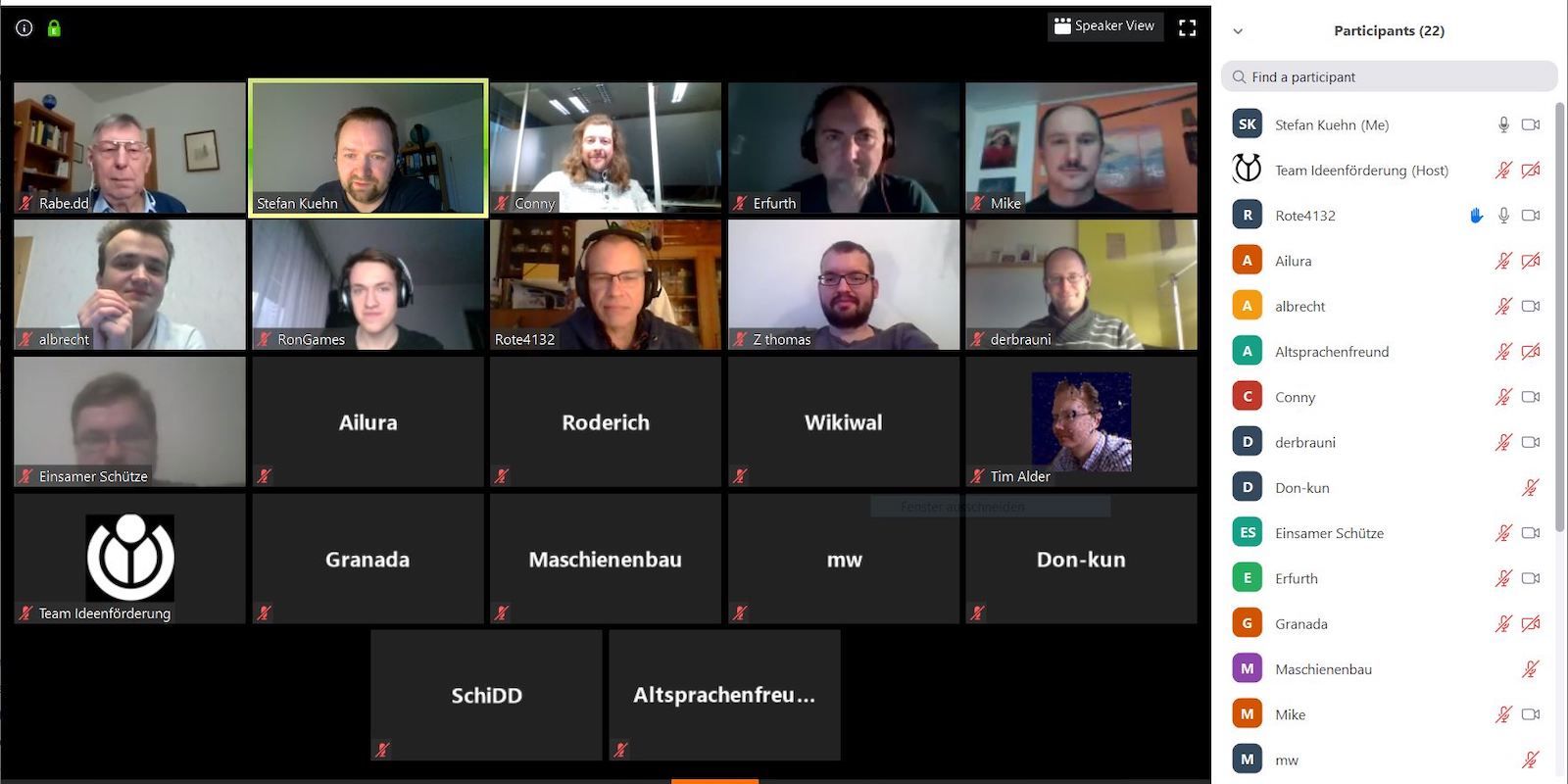
For a three-person call, the Gallery View is almost always superior to "Speaker View." Speaker view can be jarring in a small group as the software tries to guess who is talking, often switching rapidly between people during short interjections or even coughs. Gallery view keeps all three participants visible at all times, preserving the feeling of a shared space.
6. Establish a Structured Meeting Protocol and Etiquette
Technical smoothness is often interrupted by human behavior. With three people, the conversation is intimate enough that participants may feel comfortable interrupting, but digital latency makes this messy.
To ensure a smooth flow, the host should:
- Distribute an Agenda: Knowing who will speak first and what topics will be covered prevents "dead air" and the awkwardness of people talking at once.
- The "One-Second Rule": Encourage participants to wait one second after someone finishes speaking before responding. This accounts for the 100-300ms of latency inherent in global internet routing.
- Screen Sharing Protocol: If someone needs to share a screen, ensure they have the document open and ready before the call. Switching between windows while sharing often causes the video stream to lag as the encoder struggles with the changing pixels.
7. Implement Proactive Troubleshooting and Backup Systems
Even the best-prepared host can encounter issues. A smooth call for three people requires a "Plan B." If a participant’s connection drops, the flow of the meeting is ruined for the remaining two.
Before the call, send a backup link or a phone-in number. Most professional platforms, including Microsoft Teams, provide a PSTN (phone) bridge. If one person's internet becomes unstable, they can quickly switch to their cellular data or a voice-only phone call to stay connected to the audio while the video recovers.
Furthermore, keep a "Technical Check" at the start of the meeting. Spend the first 60 seconds confirming that everyone can see and hear each other clearly. If someone’s audio is "choppy," suggest they turn off their outgoing video temporarily to prioritize audio bandwidth.
Platform Comparison for 3-Person Video Calls
| Feature | Google Meet | Zoom | Microsoft Teams | Riverside.fm |
|---|---|---|---|---|
| Ideal For | Quick, browser-based syncs | Collaborative sessions | Enterprise/Internal | High-quality recording |
| Max Resolution | 1080p | 1080p (Business) | 1080p | 4K (Local) |
| Ease of Use | High (No download) | Medium (App needed) | Medium (Complex UI) | Low (Specific setup) |
| Key 2026 Tech | AI Noise Removal | AV1 Support | Mesh Integration | Local Recording |
| 3-Person Layout | Balanced Grid | Flexible Gallery | Together Mode | Side-by-Side |
Frequently Asked Questions
Does a 3-person call use more data than a 2-person call?
Yes. In a 1-on-1 call, your computer only has to download one video stream. In a 3-person call, your computer must download two separate video streams while uploading your own. This effectively doubles the download bandwidth requirement compared to a peer-to-peer 1-on-1 call.
What is the best camera for a 3-person professional call?
By 2026, a dedicated 4K webcam with a larger sensor (like those from Sony or Logitech) is recommended. These cameras handle low light better and provide a wider field of view, which can be useful if you are sharing your physical space with a whiteboard or props.
Can I host a smooth call on a mobile device?
While possible, it is not recommended for a "smooth" professional experience. Mobile devices often throttle processor speed to manage heat during video calls, leading to frame rate drops. Additionally, mobile Wi-Fi antennas are generally less stable than those found in desktop computers or laptops.
How do I stop my laptop fan from being so loud during a call?
Loud fans usually mean the CPU is working too hard. You can reduce this by lowering your resolution from 1080p to 720p, closing all other browser tabs and apps, and ensuring your laptop is on a hard, flat surface to allow for proper airflow.
Why is my video "smooth" but my audio "choppy"?
This is usually due to packet loss. Video software can often hide packet loss by "guessing" the next frame (pixel interpolation), but audio cannot be guessed. If you lose a packet of audio, you hear a "pop" or a silence. Moving closer to your router or switching to Ethernet usually fixes this.
Final Recommendation
To guarantee a smooth video call for three people, the host should perform a "tech dry run" five minutes before the scheduled start. Check your lighting, ensure your USB microphone is selected as the primary input (rather than the system default), and use a wired connection. For the highest stability in 2026, use a dedicated application like Zoom or Teams rather than a browser-based tool if your hardware is older, as dedicated apps often have better access to hardware acceleration.