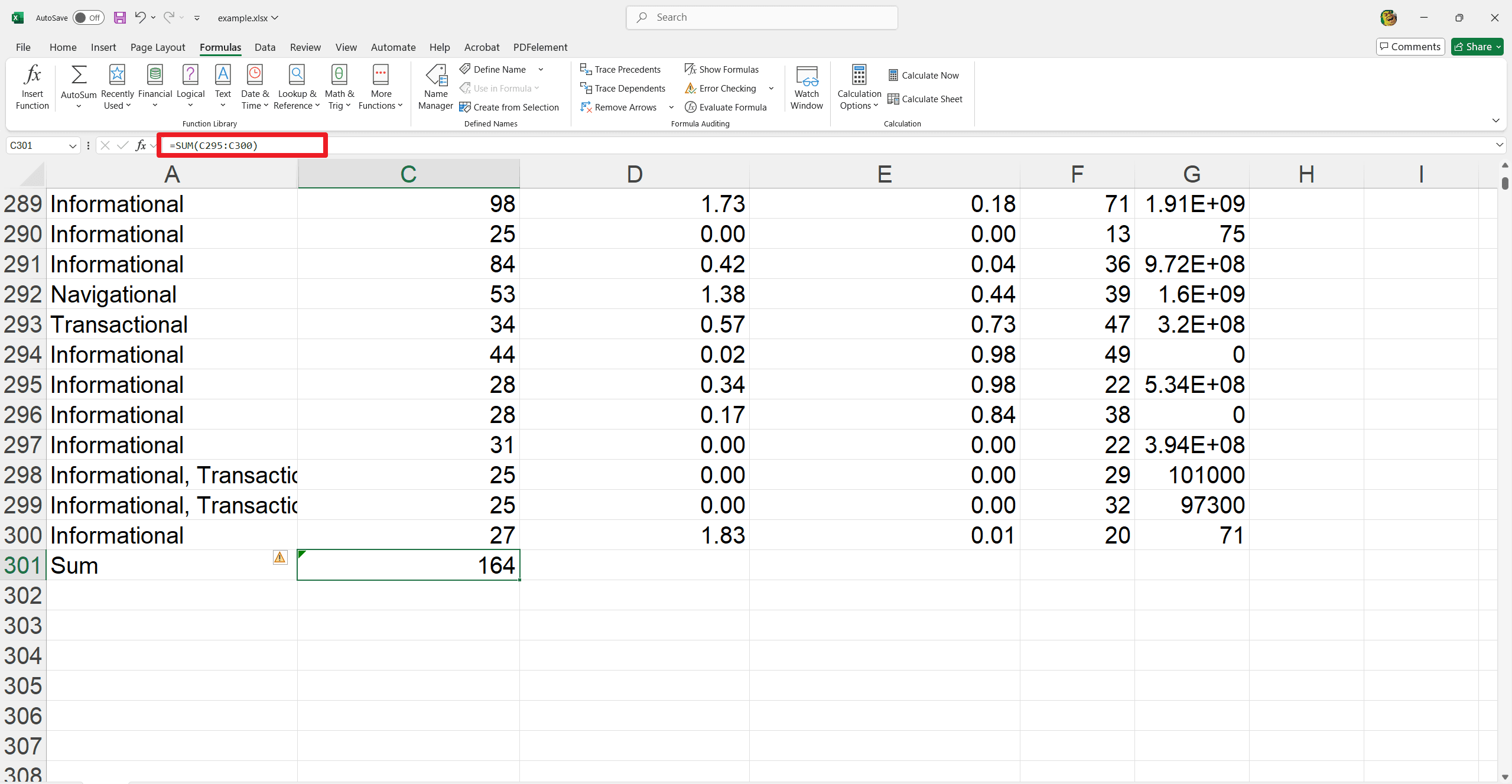
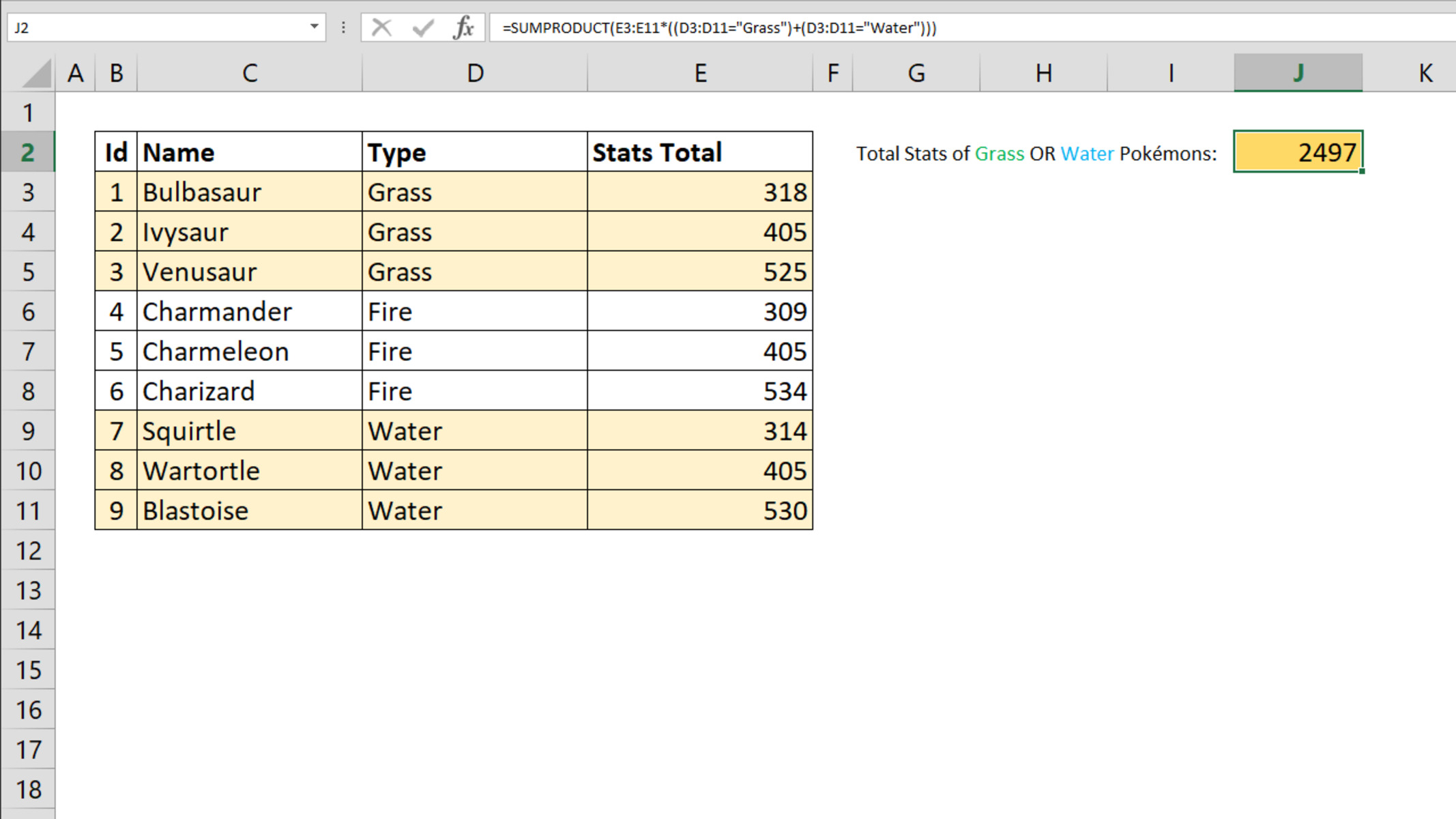
Adding a sum in Excel is the fundamental building block for data analysis, financial reporting, and personal budgeting. By utilizing the SUM function or simple arithmetic operators, you can aggregate numerical values across individual cells, entire ranges, or non-contiguous data points. This process ensures accuracy, saves significant time compared to manual calculation, and forms the bedrock of more complex spreadsheet modeling.
Understanding the Basics of Summation
At its core, Excel treats any collection of numbers within a cell range as data that can be manipulated through formulas. To add numbers, you must instruct Excel to perform an operation by starting your entry with an equals sign (=). Without this, Excel treats your input as simple text. Once the equals sign is placed, you have several primary methods to calculate a total, ranging from basic cell referencing to utilizing built-in functions designed for efficiency.
The Role of Formulas and Functions
A formula is a user-defined calculation, such as =A1+A2+A3. While effective for small datasets, this approach becomes cumbersome when dealing with hundreds or thousands of rows. A function, conversely, is a pre-defined formula that performs calculations on specific values in a specific order. The SUM function is the most commonly used tool in Excel because it handles ranges, such as A1:A100, far more elegantly than individual cell references.
Method 1: Using the SUM Function
The SUM function is the industry standard for adding numerical data. Its syntax is straightforward: =SUM(number1, [number2], ...) where "number" can be a cell reference, a range, or an explicit number.
- Select the target cell: Click the cell where you want the total to appear.
- Enter the formula: Type
=SUM(followed by the range of cells you wish to add. For example, if your data is in the first column from row 1 to row 10, type=SUM(A1:A10). - Close and execute: Type the closing parenthesis
)and press Enter.
Excel instantly calculates the result. If you change any value within the range A1:A10, the SUM result will update automatically, maintaining the integrity of your dataset.
Method 2: The AutoSum Feature
For those who prefer a graphical interface, AutoSum is an automated shortcut found in the Ribbon. This feature analyzes your data and automatically writes the SUM formula for you.
- Location: Navigate to the "Home" tab or the "Formulas" tab on your Excel ribbon.
- Execution: Click the "AutoSum" button (represented by the Greek sigma symbol Σ).
- Verification: Excel will draw a "marquee" (a blinking border) around the cells it believes you want to sum. If the selection is correct, press Enter. If not, click and drag your mouse to select the correct range before pressing Enter.
AutoSum is particularly useful because it detects the orientation of your data. If you have a column of numbers, AutoSum searches vertically; if you have a row of numbers, it searches horizontally.
Method 3: Using Arithmetic Operators
Sometimes, you do not need a complex function for simple tasks. If you only need to add two or three specific cells that are not adjacent, using the plus (+) operator is a valid approach.
- Syntax:
=A1+B1+C1 - When to use: This method is ideal for quick, ad-hoc calculations where you are not performing an analysis on a continuous block of data.
- Limitation: This method is prone to error if you add or delete rows, as the cell references will not adjust to include new data points automatically. For professional-grade spreadsheets, the SUM function remains superior.
Handling Non-Contiguous Data
Often, your data may be scattered across different areas of a worksheet. You do not need to move data to sum it. The SUM function allows you to include multiple ranges or individual cells separated by commas.
- Formula structure:
=SUM(A1:A5, C1:C5, E1) - Logic: Excel calculates the sum of the first range (A1 through A5), adds it to the sum of the second range (C1 through C5), and finally adds the value in cell E1. This is highly effective for reconciling accounts from different categories or summarizing partitioned data tables.
Common Errors and Troubleshooting
Even experienced users encounter issues when summing data. Understanding these errors is critical for data verification.
The #VALUE! Error
This error occurs when you attempt to sum cells that contain text rather than numbers. Even a single cell formatted as text that looks like a number can break a formula.
- Fix: Ensure all cells in your range are formatted as "Number" or "General." Look for hidden spaces or apostrophes that might force Excel to read a number as text.
The #NAME? Error
This typically occurs due to a typo in the function name. If you type =SUMM(A1:A10) instead of =SUM(A1:A10), Excel will return this error because it does not recognize the function name.
- Fix: Check your spelling and ensure the function name is typed correctly.
Circular Reference Warning
A circular reference occurs when a formula refers to its own cell. For example, if you type =SUM(A1:A10) inside cell A10, Excel enters a loop where it tries to calculate the sum of a range that includes the answer cell itself.
- Fix: Place your sum formula outside of the data range you are adding.
Comparison of Summation Methods
| Method | Best For | Pros | Cons |
|---|---|---|---|
| SUM Function | Large datasets / Ranges | Dynamic and handles many cells | Requires manual typing |
| AutoSum | Quick, adjacent data | Fastest way to insert a formula | Sometimes guesses the wrong range |
| Plus Sign (+) | Simple, specific cells | Very intuitive | Not scalable for large ranges |
| Subtotal Function | Filtered lists | Ignores hidden/filtered rows | More complex syntax |
Advanced Tips for Efficient Summing
Once you have mastered basic summation, consider these techniques to improve your workflow in 2026.
Using the Status Bar
If you only need to see the total of a few cells without creating a permanent formula, highlight the cells with your mouse. Look at the bottom right of the Excel window on the Status Bar. Excel will display the "Sum," "Average," and "Count" of the selected cells automatically. This is a non-destructive way to verify your totals.
Summing Filtered Data
If you use the Filter feature to hide certain rows, a standard SUM function will still add the hidden rows. To only sum the visible data, use the SUBTOTAL function: =SUBTOTAL(9, A1:A10). The "9" tells Excel to perform a sum, but it ignores any rows hidden by filters.
Keyboard Shortcuts
Speed is essential for professional spreadsheet users.
- AutoSum Shortcut: Press
Alt+=on your keyboard. This is a massive time-saver for anyone working with dense financial models. - Selecting Data: Use
Ctrl+Shift+Arrow Keyto highlight large blocks of data instantly, then apply your SUM formula.
Why Data Accuracy Matters
Adding sums in Excel is not merely about arithmetic; it is about data integrity. In corporate, financial, or academic settings, a miscalculated sum can lead to faulty decisions or broken reports. Always verify your ranges by double-clicking the cell with the formula to see the highlighted range. Furthermore, consistent use of functions over hard-coded arithmetic ensures that when your raw data is updated, your totals remain current without requiring manual recalculation.
Frequently Asked Questions
Can I sum cells that contain dates? Yes. In Excel, dates are stored as sequential serial numbers. If you sum dates, Excel will display the result as a serial number. To fix this, change the format of the result cell to "Date" or "General" to view the expected value.
What is the difference between SUM and SUMIF? The SUM function adds every cell in a range. The SUMIF function adds only those cells that meet a specific criteria, such as "sum all sales greater than 500." Use SUM for total accumulation and SUMIF for conditional reporting.
Does Excel limit how many cells I can sum? Excel can handle hundreds of thousands of cells in a single SUM formula. The limitation is usually computer memory and the physical size of the worksheet, but for standard professional tasks, the capacity is virtually unlimited.
Why does my sum not update when I change the numbers?
Check your "Calculation Options" under the "Formulas" tab. If "Calculation Options" is set to "Manual," Excel will not update formulas until you press F9. Ensure it is set to "Automatic."
Can I sum values across different sheets?
Yes. You can use the syntax =SUM(Sheet1!A1, Sheet2!A1) to add values from different tabs. You can also use a 3D reference like =SUM(Sheet1:Sheet3!A1) to sum cell A1 across all sheets between Sheet1 and Sheet3.
Final Recommendation
To master summation in Excel, begin by making Alt + = your primary tool. It is the fastest, most reliable way to sum columns and rows. As your needs grow, transition to the full =SUM() function for complex datasets, and always verify your ranges visually before finalizing your work. Consistent application of these methods will significantly reduce errors and improve your overall spreadsheet productivity.