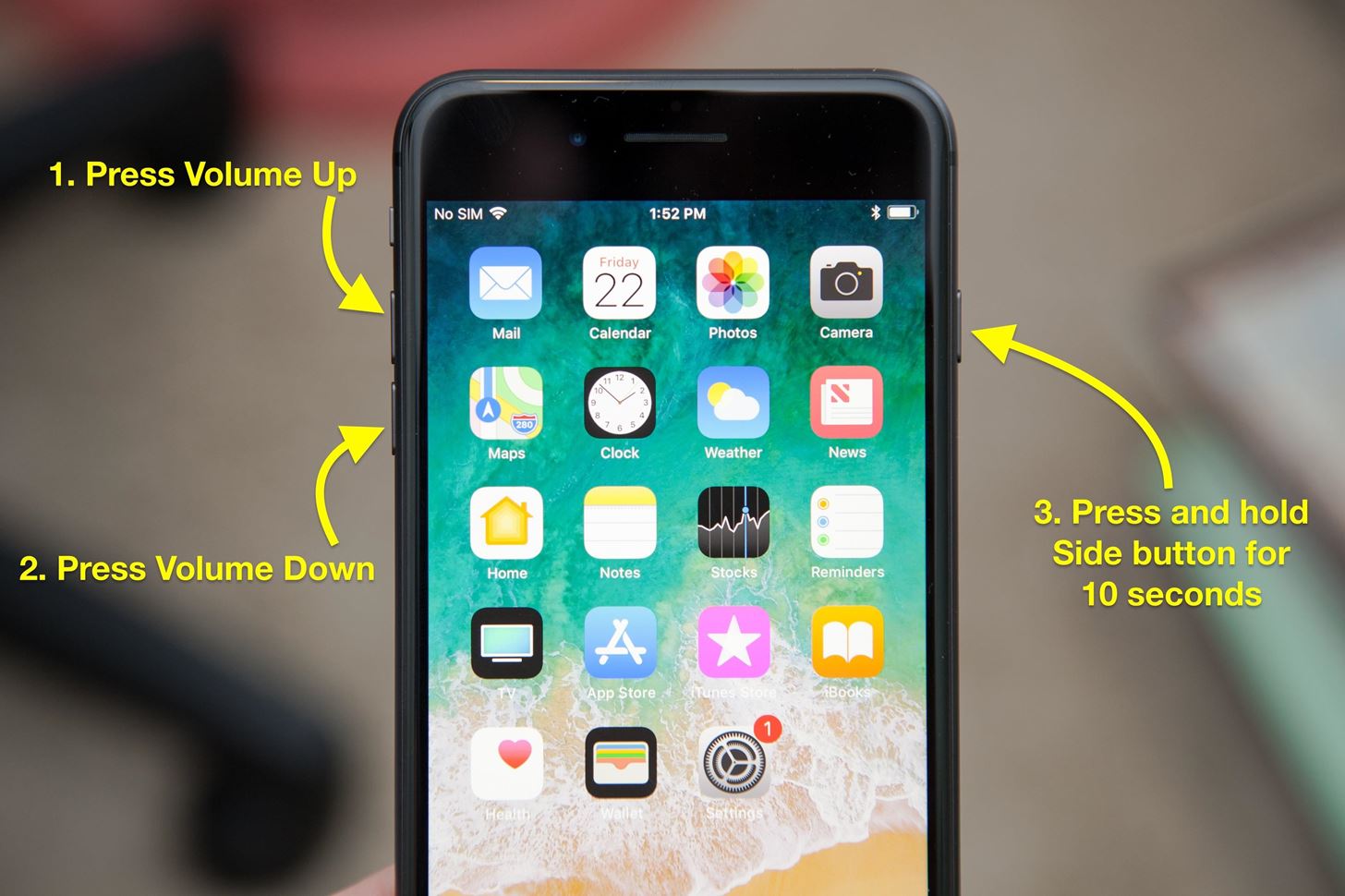
Performing a hard restart on an iPhone 6 is a simple yet vital troubleshooting procedure that forces the device to shut down and reboot completely when it becomes unresponsive, freezes, or experiences severe software glitches. By holding down the Home and Side buttons simultaneously until the Apple logo appears, users can clear the temporary memory cache and resolve many common performance issues without losing any personal data or settings.
Understanding the iPhone 6 Architecture and System Resets
The iPhone 6, released by Apple in September 2014, relies on the Apple A8 chip and the iOS operating system. Like all smartphones, it occasionally encounters software conflicts, frozen screens, and unresponsive applications. When an application crashes or the SpringBoard (the iOS home screen manager) encounters a fatal error, standard touch inputs become useless. In these scenarios, software-based restart methods—such as navigating through the Settings app or holding down only the power slider—fail because the operating system is no longer processing user inputs correctly.
A hard restart, technically known as a forced restart, bypasses the normal software shutdown sequence. It sends a hardware-level signal to the device's power management integrated circuit (PMIC) to cut and restore power instantly. This action forces the central processing unit (CPU) and random-access memory (RAM) to reset entirely. Crucially, a hard restart is distinct from a factory reset. While a factory reset erases all user data and restores the device to its original state, a hard restart preserves all photos, messages, apps, and preferences intact. It is a completely safe, non-destructive diagnostic tool that should always be your first line of defense against unexpected device freezing.
Prerequisites and Important Safety Precautions Before You Begin
Before initiating a hard restart on your iPhone 6, verifying a few baseline conditions ensures the process goes smoothly and protects your device from potential complications. While a forced reboot is inherently safe, performing it under the wrong circumstances can occasionally mask underlying hardware or battery problems.
- Battery Charge Level: Ensure your iPhone 6 has at least a small amount of battery charge. If the device's lithium-ion battery is entirely depleted, a hard restart will fail because the hardware lacks the residual power required to boot back up. If your screen remains completely black and unresponsive even after attempting a hard restart, connect the phone to an Apple-certified Lightning cable and a reliable power source for at least 15 to 30 minutes before trying again.
- Unplug Accessories: Disconnect any wired headphones, Lightning cables, or external docks connected to the device. While rare, faulty accessories can occasionally short-circuit the data lines or create electrical interference that prevents the phone from registering the hardware button combination properly.
- Data Safety: Reassure yourself that your personal data remains secure. A hard restart does not delete user files. However, if your device was actively saving a document or syncing data when it froze, those specific unsaved changes might be lost.
- Physical Button Condition: Check the physical responsiveness of the Home button (located below the screen) and the Side/Sleep/Wake button (located on the right edge of the device). If either button is physically damaged, jammed with debris, or unresponsive, the button combination required for the hard restart will not register.
The 5 Steps to Perform a Hard Restart on iPhone 6
Executing the forced reboot sequence requires precise timing and simultaneous button actuation. Follow these five sequential steps carefully to reset your device.
- Locate the Two Essential Hardware Buttons: Identify the Sleep/Wake button (the power button) on the right-hand side edge of your iPhone 6 and the Home button centered directly below the touchscreen display. You will need to press both of these buttons at the exact same time.
- Press and Hold the Sleep/Wake Button: Using your right index finger or thumb, firmly press and hold down the Sleep/Wake button on the side of the device. Do not release it yet.
- Simultaneously Press and Hold the Home Button: While continuing to hold the Sleep/Wake button, use your other hand or finger to press and hold the circular Home button down on the front face of the device. Both buttons must be depressed concurrently.
- Maintain Pressure Through the Screen States: Keep holding both buttons down firmly. Ignore any visual anomalies, error messages, or the standard red "slide to power off" slider if it briefly appears on your display. Continue holding the buttons down continuously. Keep holding them until the screen goes completely black and the backlight turns off.
- Release the Buttons Upon Seeing the Apple Logo: Continue holding the buttons until the white Apple logo appears against the black screen background. As soon as the Apple logo becomes visible, immediately release both the Sleep/Wake button and the Home button. Allow the iPhone 6 to complete its normal boot sequence, which typically takes between 30 to 60 seconds. Once the lock screen appears, enter your passcode to resume normal usage.
| Step | Action Item | Target Button | Duration / Condition |
|---|---|---|---|
| 1 | Identify hardware controls | Sleep/Wake & Home buttons | Locate both physical buttons before starting. |
| 2 | Initiate side button press | Sleep/Wake button (Right side) | Press and hold down firmly. |
| 3 | Add home button press | Home button (Front face) | Hold concurrently with the side button. |
| 4 | Maintain continuous pressure | Both buttons simultaneously | Hold past any sliders until the screen goes dark. |
| 5 | Complete the reboot cycle | Release both buttons | Let go immediately when the Apple logo appears. |
Comparing iPhone Restart Methods
Understanding when to use a hard restart versus other device power states prevents unnecessary frustration and ensures you apply the correct troubleshooting technique for your specific situation.
- Standard Restart: Used when the phone is fully responsive and you simply want to clear the system cache during routine maintenance. You hold down the Sleep/Wake button until the power slider appears, swipe it to the right, and then turn the device back on by holding the Sleep/Wake button again.
- Hard Restart (Forced Restart): Used when the device is completely frozen, touch input is unresponsive, apps refuse to close, or the screen is black with no response. It forces a hardware-level power cycle without requiring software confirmation on the display.
- DFU Mode (Device Firmware Update): Used for advanced troubleshooting, such as restoring a device that will not boot past the Apple logo or downgrading iOS firmware. DFU mode requires connecting the phone to a computer running iTunes or Finder and executing a precise sequence of button presses to communicate directly with the bootloader.
Troubleshooting Common Issues During a Hard Restart
Sometimes, attempting a hard restart does not yield the expected result on the first try. If you encounter hurdles during the process, apply these targeted troubleshooting adjustments.
The Apple Logo Appears But Gets Stuck in a Boot Loop
If your iPhone 6 displays the Apple logo, remains stuck on that screen for several minutes, and then turns black or restarts endlessly, the operating system is experiencing a deeper software corruption. This condition is commonly known as a boot loop. To resolve this, you may need to connect your iPhone 6 to a computer via a USB-to-Lightning cable, open Finder or iTunes, and place the device into Recovery Mode by holding the Home button while connecting the cable. Once recognized by the computer, you can choose to update the iOS software without losing data, or restore the device if the system files are beyond repair.
The Buttons Are Unresponsive or Stuck
If pressing the buttons yields no reaction whatsoever, the physical switches may be worn out or obstructed by dirt, lint, or physical damage. Inspect the seams around the Home button and the Side button. Clean them gently with a dry, clean, soft-bristled toothbrush or a cotton swab dampened lightly with isopropyl alcohol. Ensure no liquid enters the device interior. If the mechanical click of the button is entirely gone, the internal flex cable may require professional repair or replacement.
The Screen Remains Completely Black
If your screen stays black and the Apple logo never appears after holding the buttons for 20 seconds, your battery may be completely dead or the display assembly may have failed. Plug the phone into a known-working Apple wall adapter using an official cable. Look for the low-battery charging icon on the screen. If no icon appears after 15 minutes, the issue is likely power-related rather than a simple software freeze.
Frequently Asked Questions
Will performing a hard restart delete my photos or text messages?
No, performing a hard restart on an iPhone 6 will not delete your photos, text messages, contacts, apps, or any other personal data. This procedure only forces the hardware components to power down and reboot, clearing temporary system memory (RAM). Your stored files remain completely safe and intact in the flash storage.
How long should I hold the buttons down during a hard restart?
You should hold both the Sleep/Wake button and the Home button down simultaneously for approximately 10 to 15 seconds. Continue holding them until the screen turns black and the white Apple logo appears. If you release the buttons too early, the phone will either do nothing or simply trigger standard power-off prompts.
What should I do if my iPhone 6 screen is frozen and won't respond to the buttons?
If physical button combinations fail because the phone is entirely unresponsive to hardware signals, your battery may be completely depleted. Connect the device to a verified power charger and wait 15 minutes. If it still fails to respond, the issue may stem from a hardware failure requiring evaluation by an Apple Authorized Service Provider.
Can a hard restart fix a phone that won't charge?
Generally, no. A hard restart addresses software freezes and unresponsive system processes. If your iPhone 6 refuses to charge, the root cause is usually physical: lint packed inside the Lightning port, a damaged charging cable, a failing wall adapter, or a degraded battery cell that can no longer hold an electrical charge. Cleaning the port carefully with a non-conductive toothpick often resolves physical charging blockages.
How often is it safe to perform a hard restart on an iPhone 6?
You can safely perform a hard restart as often as necessary when your device experiences freezing or software crashes. However, because it cuts power abruptly without a graceful system shutdown, it should be reserved for troubleshooting unresponsive states rather than used as a routine daily power-off method. Always use the standard software slider shutdown when your phone is responding normally.
Conclusion and Next Actions
Performing a hard restart is an essential, risk-free skill for managing software freezes on an iPhone 6. By mastering the five-step button sequence—holding the Sleep/Wake and Home buttons simultaneously until the Apple logo appears—you can quickly recover control of an unresponsive device without sacrificing personal data. If occasional freezes persist after a hard restart, ensure your applications are updated, back up your data regularly via iCloud or a computer, and evaluate your device's battery health through the iOS settings menu to determine if further hardware maintenance is required.