To activate your Postmates Fleet Card (now widely referred to as the Uber Plus Card), open the Uber Driver app, navigate to the Account tab, select Plus Card, and tap Activate Card. Enter the required card details or scan the card as prompted to enable "Order & Pay" deliveries immediately.
The landscape of the gig economy has evolved significantly since Uber’s acquisition of Postmates. As we move through 2026, the branding may still lean on the familiar "Postmates" name for legacy users, but the technical infrastructure is fully integrated into the Uber Driver ecosystem. The Fleet Card remains a vital tool for couriers looking to maximize their earnings by accepting "Order & Pay" requests from merchants that do not have a direct integrated tablet system with the platform.
Understanding the Role of the Fleet Card in 2026
The Postmates Fleet Card is a specialized debit card issued to couriers. It is not intended for personal use or for receiving your weekly earnings. Instead, its sole purpose is to facilitate transactions at restaurants and retail stores where the customer has placed an order, but the merchant has no formal payment arrangement with the delivery platform.
In 2026, the distinction between a "Postmates" delivery and an "Uber Eats" delivery is nearly invisible to the driver, as both are managed through the same interface. However, the physical card remains a requirement for a specific subset of high-value orders. By activating this card, you effectively expand your "available" delivery pool. Without it, the algorithm will only send you "Pre-paid" orders, which limits your volume, especially in suburban areas or with niche local boutiques.
Why Activation is Necessary
Activation serves as a security handshake between your physical card and your digital driver profile. Until the card is activated:
- Order Visibility: You will not see "Order & Pay" opportunities in the app.
- Transaction Security: The card remains a "dead" piece of plastic, preventing fraud if it were intercepted in the mail.
- Account Compliance: While not mandatory for all drivers, having an active card is often a prerequisite for reaching "Diamond" or higher tiers in driver loyalty programs, as it demonstrates a willingness to handle complex orders.
Prerequisites for Card Activation
Before you can successfully link the card to your account, you must ensure several administrative and technical conditions are met. Failure to satisfy these prerequisites is the most common reason for activation errors.
Account Verification and Background Checks
Your driver account must be in "Active" status. This means your annual 2026 background check must be cleared, and your documents (Insurance, Registration, and Driver’s License) must be up to date. If your account is "Waitlisted" or "Under Review," the Plus Card menu option may be hidden or unresponsive.
The Physical Card Package
You must have the physical card in hand. Most drivers receive their card via USPS within 5 to 10 business days of completing their first 10 deliveries or requesting one through the "Help" section of the app. The card will arrive in a discrete envelope and will feature either the Uber "Plus" branding or, in some legacy regions, the Postmates "Fleet" logo. Both function identically within the current app.
App Version Requirements
Ensure you are running the latest version of the Uber Driver app. In 2026, legacy versions of the Postmates Fleet app are entirely deprecated and will not allow for card management. Visit the Google Play Store or Apple App Store to verify that no updates are pending.
Step-by-Step Activation Guide
The activation process is designed to be streamlined, taking less than two minutes if you have your card ready.
Step 1: Accessing the Account Menu
Open the Uber Driver app on your mobile device. Ensure you are "Offline" before attempting to change account settings, as being "Online" can sometimes cause the menu to refresh during the process. Tap the three horizontal lines (hamburger menu) in the top-left or bottom-right corner (depending on your OS version).
Step 2: Navigating to the Plus Card Section
From the main menu, select Account. Within the Account submenu, look for a tab labeled Plus Card. If you do not see this option, it may be tucked under Documents or Work Hub. The "Work Hub" is where Uber centralizes new earning opportunities like "Order & Pay."
Step 3: Entering Card Information
Once you select "Activate Card," you will typically be given two options:
- Scan Card: Use your phone’s camera to automatically capture the card number and expiration date. This is the fastest method and reduces the chance of typos.
- Manual Entry: Enter the 16-digit card number and the CVV on the back. You may also be asked for the last 4 digits of the card or a specific "Package ID" found on the mailing insert.
Step 4: Confirmation and Opt-in
After entering the details, the app will communicate with the server to validate the card. You should see a "Success" message. Crucially, the app will then ask if you want to Opt-In to Order & Pay orders. You must toggle this to "On" to begin receiving these specific requests.
How to Use the Fleet Card for Deliveries
Once activated, the workflow for your deliveries will change slightly when you accept a card-based order. It is important to understand the operational differences to avoid delays or out-of-pocket expenses.
- Accepting the Order: These orders are clearly marked with a "Plus Card Required" or "Order & Pay" badge.
- Placing the Order: Unlike standard deliveries, you may need to go to the counter and place the order yourself. In 2026, many restaurants allow you to place these orders via their own mobile apps, but you must use the Fleet Card for payment.
- Paying with the Card: When the order is ready, swipe the card as a Credit transaction. The card does not typically require a PIN. The platform authorizes the exact amount of the expected total plus a small buffer for taxes and tips.
- Uploading the Receipt: After payment, you are required to take a clear photo of the itemized receipt. This is a non-negotiable step for fraud prevention and customer billing.
Comparison of Driver Payment Methods (2026)
| Feature | Fleet / Plus Card | Instant Pay | Weekly Direct Deposit |
|---|---|---|---|
| Primary Purpose | Paying for customer orders | Withdrawing earnings early | Receiving regular pay |
| Activation Required? | Yes, via App | Yes, link debit card | Yes, link bank account |
| Cost to Driver | Free | Small fee per transfer | Free |
| Impact on Earnings | Increases order volume | Provides liquidity | Standard |
| Funds Source | Platform-funded | Driver's earned balance | Platform-funded |
Troubleshooting Common Activation Issues
Even with a streamlined app, drivers often encounter hurdles. Here is how to resolve the most frequent problems reported in 2026.
"Invalid Card Number" Error
This usually occurs due to a manual entry error or a regional mismatch. Double-check that you are not confusing a "0" (zero) with an "O" (letter). If the error persists, the card may have been deactivated by the distributor before arrival due to a shipping delay. In this case, you must request a "Replacement Card" through the app.
The Plus Card Option is Missing
If the option to activate a card does not appear in your account menu, it is likely because:
- Your city/market does not currently support "Order & Pay" deliveries.
- You are a new driver who has not yet completed the required "trial" number of standard deliveries.
- Your account is flagged for a document update.
Card Declined at Merchant
A "Declined" message at the point of sale is rarely a problem with the card itself and more often a system issue.
- Incorrect Total: If the merchant’s prices have increased and significantly exceed the app’s estimate, the card will decline. You must use the app to "Request an Increase" in funds.
- Wrong Merchant: The card is GPS-locked. If you are at the wrong restaurant branch, the card will not work.
- Debit vs. Credit: Always run the card as Credit. If the terminal forces a PIN, try using "0000" or simply hitting "Enter," but "Credit" is the standard protocol.
Security and Best Practices for Fleet Card Holders
The Fleet Card is a financial tool, and treating it with the same care as a personal credit card is essential for maintaining your standing on the platform.
Preventing Fraud and Deactivation
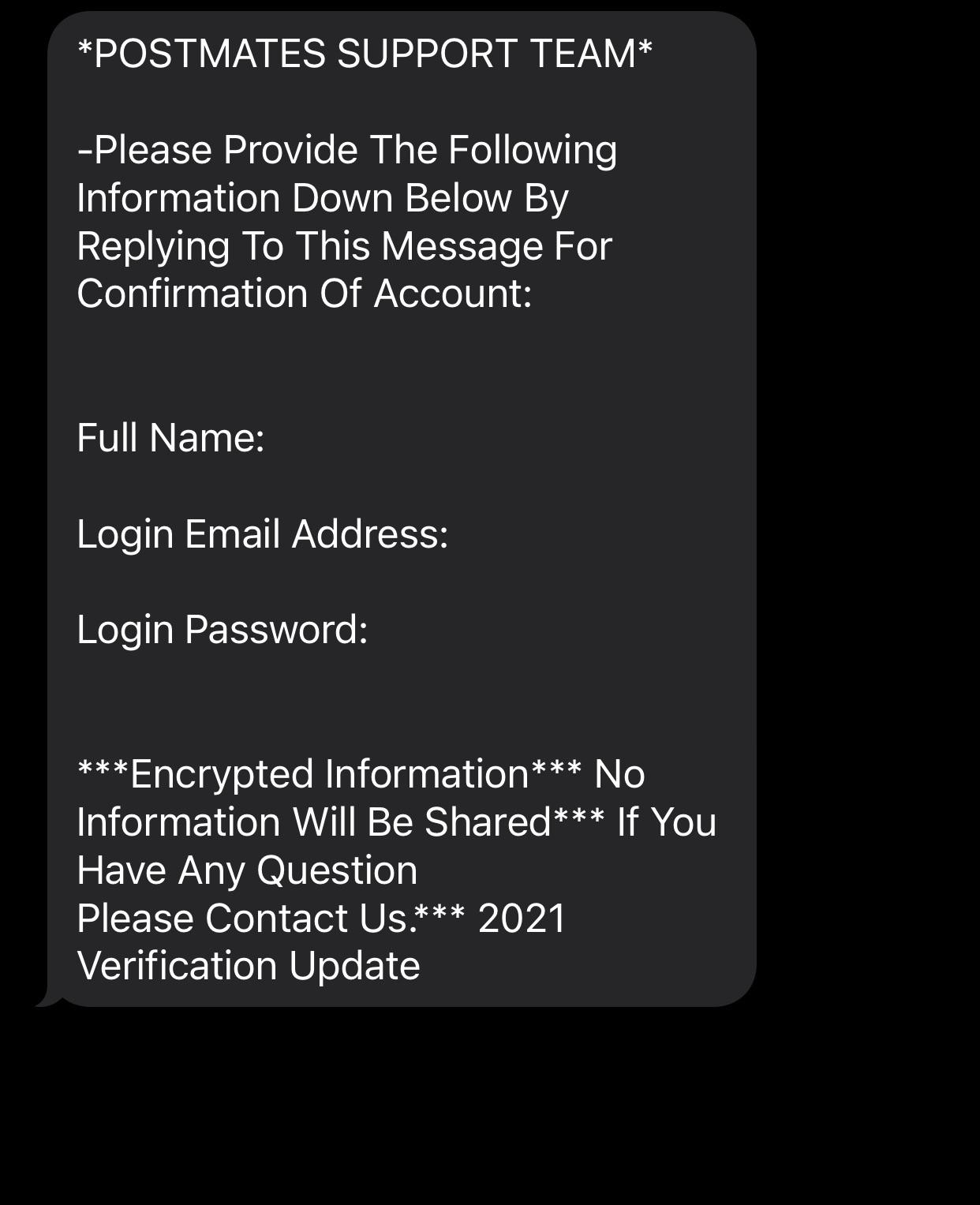
Never share your card details with anyone claiming to be "Support" over the phone. Real support staff will never ask for your card number or the CVV. In 2026, sophisticated phishing scams often target drivers by promising "bonus" credits in exchange for card verification. Ignore these.
Handling a Lost or Stolen Card
If your card is lost, you must report it immediately in the app. Go to Account > Plus Card > Report Lost or Stolen. This will instantly freeze the card. You can then order a new one. While waiting for the replacement, you can still perform standard "Pre-paid" deliveries, but your "Order & Pay" access will be paused.
Maintenance and Expiration
Like any plastic card, the magnetic stripe or chip can wear out. If you find you have to swipe the card multiple times at every merchant, proactive replacement is better than waiting for it to fail during a high-stakes delivery. Check the expiration date periodically; the platform usually sends a replacement automatically 30 days before expiry.
Frequently Asked Questions
Can I use my personal card if I forget my Fleet Card?
While you can technically pay out-of-pocket and request a reimbursement, it is highly discouraged. The reimbursement process can take several days and requires a perfect, itemized receipt. In 2026, the platform has become more restrictive regarding manual reimbursements to prevent tax reporting errors. It is always better to cancel the order (selecting "Forgot Plus Card") or go back and get it.
Does the Postmates Fleet Card affect my credit score?
No. The card is a pre-funded corporate debit card. It is not a line of credit extended to you, and your usage of it is not reported to credit bureaus. There is no credit check required to receive or activate the card.
Can I use the card for gas or car maintenance?
Absolutely not. The card is only authorized for specific merchant transactions tied to an active delivery on your screen. Attempting to use the card for personal purchases like gas or food is considered "Platform Fraud" and typically results in immediate and permanent deactivation of your driver account.
How do I get a new card if mine is damaged?
Navigate to the Help section in the Uber Driver app. Search for "Plus Card" and select "I need a new Plus Card." You can choose to have it mailed to your registered address. Some "Greenlight Hubs" (driver support centers) may also have them in stock for in-person pickup, though you should check local availability first.
Is the card required to deliver for Postmates in 2026?
It is not strictly required for all drivers. You can still earn money by delivering pre-paid orders from major chains (like McDonald's or Starbucks) that are integrated with the system. However, having the card is considered "best practice" for full-time couriers because it unlocks more "Order & Pay" opportunities, which often carry higher base pay and better tips.
Final Actionable Recommendation
If you have recently received your Postmates Fleet Card, activate it immediately, even if you do not plan on doing "Order & Pay" deliveries right away. Having the card ready prevents you from being locked out of high-paying opportunities during "Boost" periods or holidays when demand for boutique restaurant delivery spikes. Once activated, keep the card in a dedicated slot in your wallet or vehicle organizer to ensure you are never caught at a merchant without it. If you encounter a decline at a merchant, always use the in-app "Support" chat first rather than calling, as the chat system can see the real-time transaction logs and authorize a fund increase instantly.