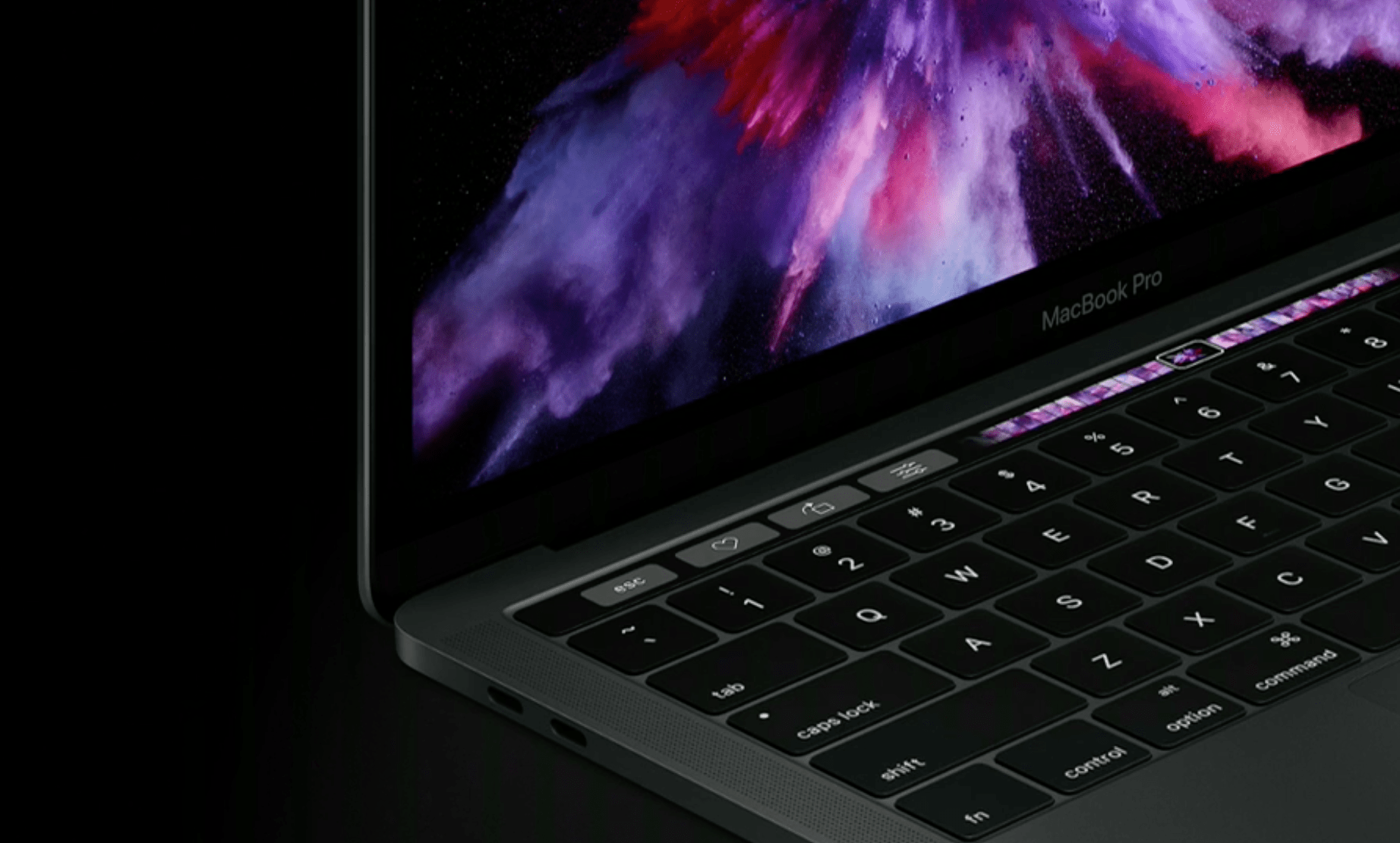
As of 2026, standard retail MacBook Pro models do not feature integrated touch screens. While Apple has recently moved toward incorporating touch technology into high-end laptop displays according to industry roadmaps, the vast majority of MacBook Pros in use rely on the Force Touch trackpad and keyboard for navigation.
For over a decade, the question of whether a touch-enabled MacBook Pro exists has been a point of significant confusion for consumers. This confusion stems from several factors: the presence of the now-discontinued Touch Bar, the ability to use an iPad as a touch-enabled second screen via Sidecar, and persistent rumors regarding Apple’s internal development of touch-sensitive OLED panels. To understand the "reality" of touch screen options for the MacBook Pro, one must distinguish between native hardware, software-driven workarounds, and third-party modifications.
The Current Reality: Do Native Touch Screen MacBooks Exist?
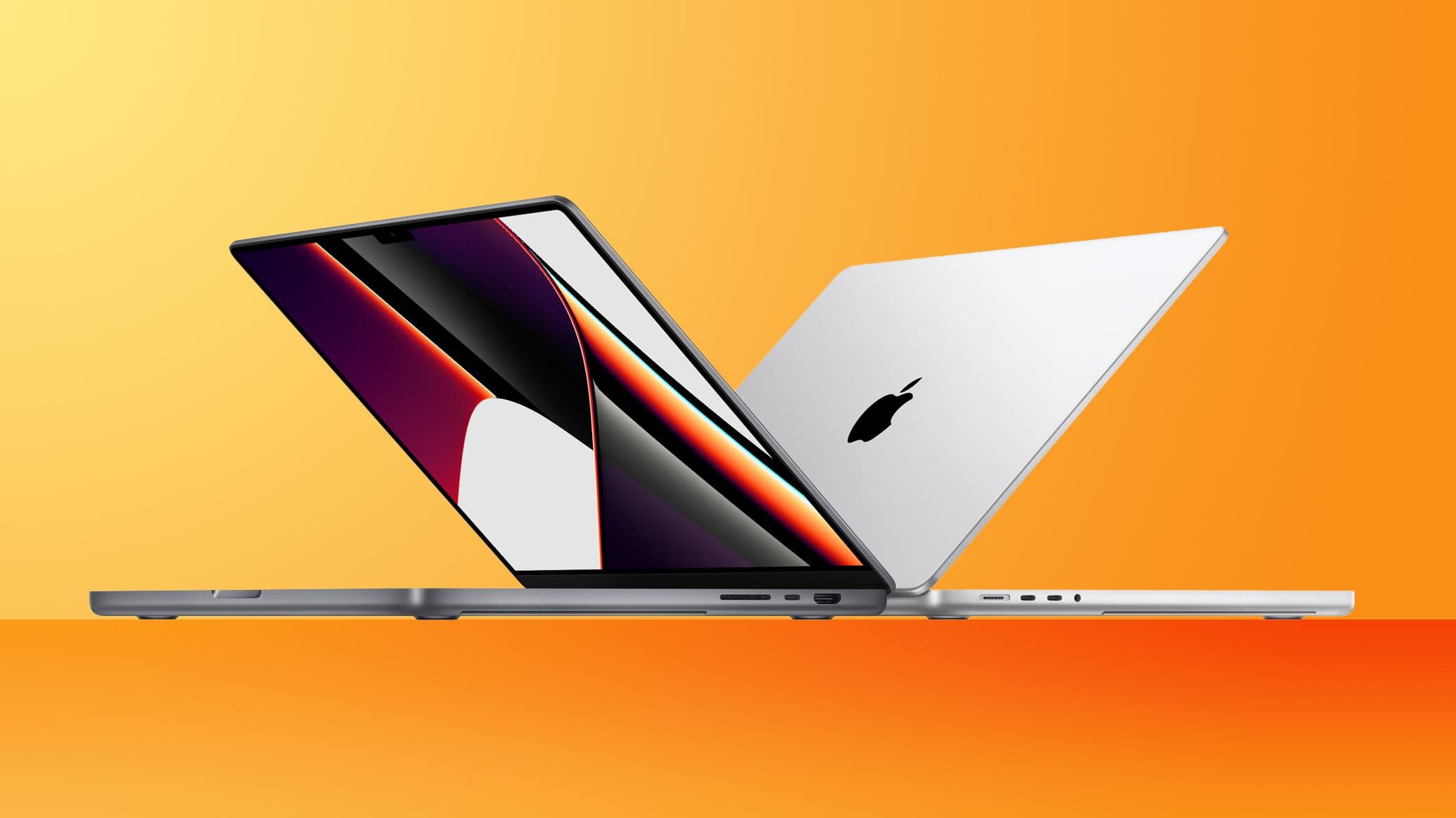
If you walk into an Apple Store or browse the official website in early 2026, you will find that the flagship MacBook Pro 14-inch and 16-inch models still prioritize the Liquid Retina XDR display without a touch layer. Apple’s hardware philosophy has historically separated the "lean-back" touch experience of the iPad from the "lean-forward" precision experience of the Mac.
However, the definition of "real" has become nuanced. While you cannot buy a standard MacBook Pro with a screen that responds to finger taps like an iPhone, there are three distinct ways users "interact" with touch on a Mac:
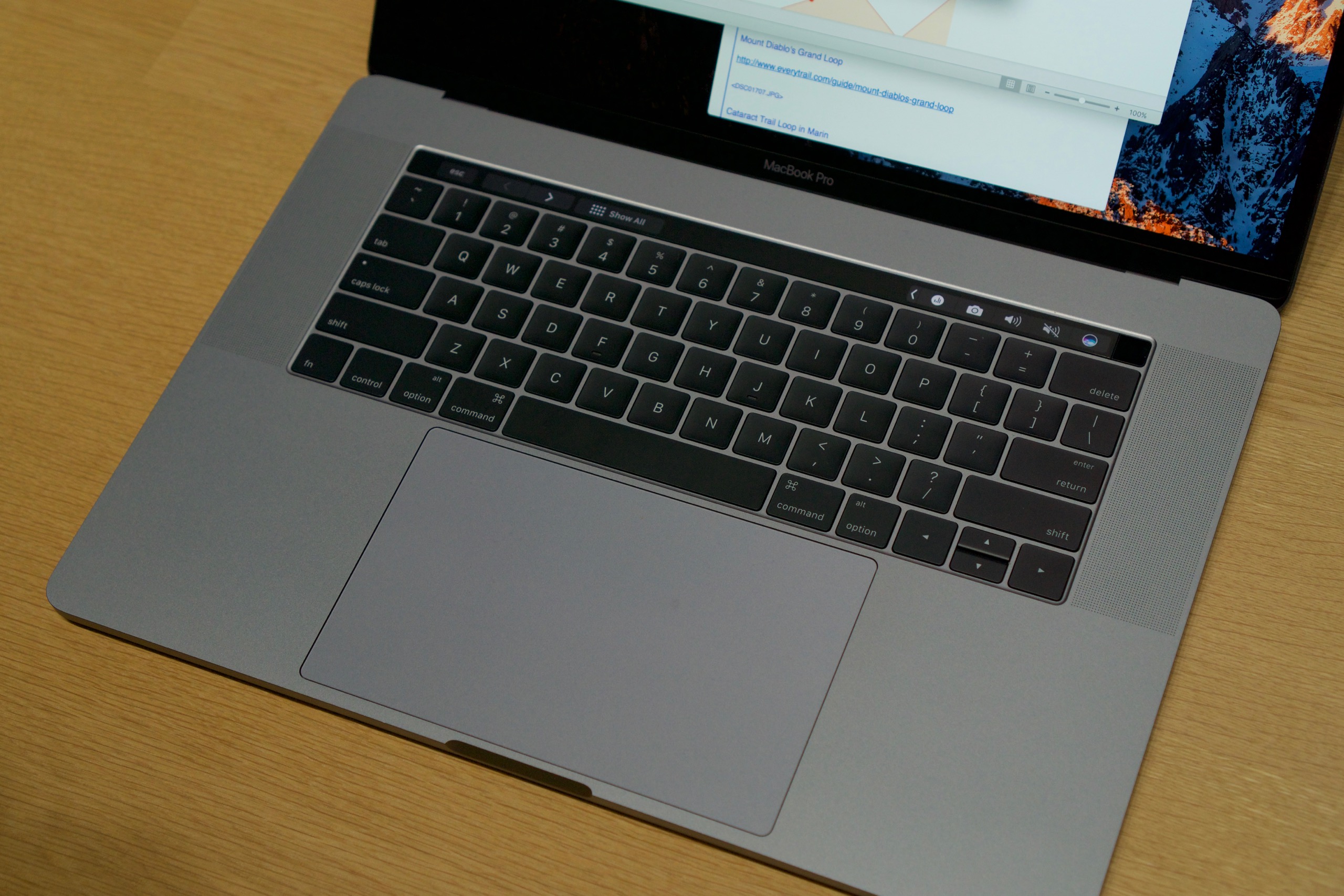
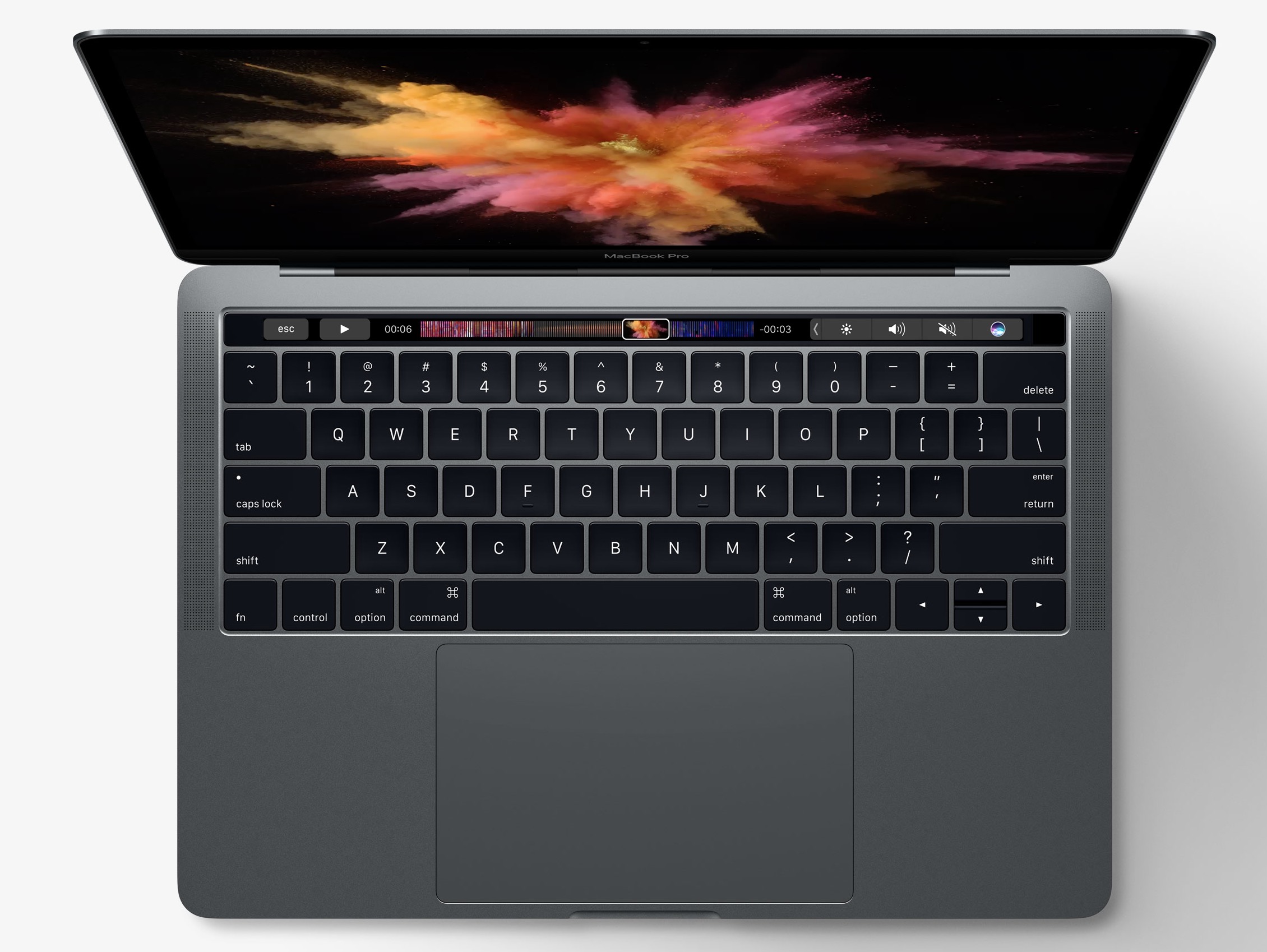
- The Legacy Touch Bar: Found on older MacBook Pro models (specifically the 13-inch variants and older 15/16-inch models), this was a thin multi-touch OLED strip above the keyboard. It was not a touch screen in the traditional sense, but it offered touch-sensitive controls.
- Sidecar and iPad Integration: This is the most common way users achieve a "touch MacBook" experience. By linking an iPad to a MacBook Pro, the iPad becomes a secondary monitor that supports touch and Apple Pencil input for macOS apps.
- The Emerging 2025-2026 Roadmap: Recent technical shifts and supply chain reports indicate that Apple is finally transitioning toward touch-integrated displays for future specialized models. These are largely considered the first "real" native touch options, though they are currently positioned as premium, niche configurations rather than the baseline standard.
Why Apple Resisted the Touch Screen for Decades
To understand why touch screen MacBook Pro options have felt "unreal" for so long, we must look at the ergonomic and philosophical hurdles the company cited for years. Steve Jobs famously introduced the concept of "Gorilla Arm" in 2010, arguing that vertical touch screens are ergonomically catastrophic.
The Ergonomic "Gorilla Arm" Effect
When a user interacts with a vertical screen for extended periods, their arm begins to feel heavy and fatigued. Unlike an iPad, which is held in the hand or laid flat, a MacBook Pro screen is positioned at an angle that requires the user to reach across the keyboard. This repetitive motion is less efficient than using a high-precision trackpad located right beneath the fingers.
macOS User Interface (UI) Design
The macOS interface is built around a precision pointer (the cursor). Buttons, close markers, and menu items in macOS are significantly smaller than their counterparts in iPadOS. For a touch screen MacBook Pro to be "real" and functional, Apple would need to overhaul the entire UI to accommodate the "hit target" of a human finger, which is much larger than a pixel-perfect cursor. Until recently, Apple argued that doing so would compromise the power-user features of the Mac.
Display Quality and Weight
Adding a capacitive touch layer to a MacBook Pro’s display assembly traditionally adds thickness and weight. For a laptop line defined by its "Pro" portability and color-accurate Liquid Retina XDR panels, any degradation in optical clarity or increase in bulk was seen as a deal-breaker.
The Touch Bar: A Half-Step Toward Interactivity
From 2016 to 2023, the closest thing to a "real" touch option on the MacBook Pro was the Touch Bar. This was a controversial feature that replaced the physical function keys with a dynamic, touch-sensitive glass strip.
The Touch Bar was Apple’s attempt to provide touch benefits without the ergonomic drawbacks of a vertical screen. It provided:
- Contextual shortcuts for apps like Final Cut Pro and Photoshop.
- Predictive text suggestions.
- A slider for volume and brightness.
- Emoji pickers and tab navigation in Safari.
Despite its innovation, the Touch Bar was eventually phased out in favor of physical function keys. Professional users complained about the lack of tactile feedback and the accidental triggers that occurred during typing. By 2026, the Touch Bar is considered a legacy feature, existing only on refurbished units or older stock. Its failure reinforced the idea that if Apple were to do touch again, it would have to be on the main display.
How to Get Touch Functionality on a MacBook Pro Right Now
If your workflow requires a touch screen but you are committed to the MacBook Pro ecosystem, you have several "real" options that don't involve waiting for future hardware releases.
1. Using Sidecar with an iPad
Apple’s Sidecar feature allows you to use an iPad as a second display for your Mac. When connected, you can move your macOS windows onto the iPad screen. While you cannot use your finger to "touch" the macOS interface on the iPad (Apple limits this to avoid UI frustration), you can use the Apple Pencil. This makes the iPad a high-end digitizer for the MacBook Pro, perfect for illustrators and designers.
2. Third-Party Hardware: Luna Display and Duet Display
Before Sidecar became a native feature, companies like Astropad (Luna Display) and Duet Display created hardware and software bridges to turn iPads and even iPhones into touch screens for the Mac. These options often provide more flexibility than Sidecar, such as full touch-gestures that mimic a native touch screen experience.
3. External Touch Monitors
You can connect a third-party touch-enabled monitor to your MacBook Pro via USB-C. While macOS does not natively support multi-touch gestures (like pinching to zoom) on external displays without specific drivers, basic "tap-to-click" functionality usually works. To get a truly integrated feel, users often install third-party drivers like UPDD (Universal Pointing Device Driver), which maps touch coordinates to macOS more effectively.
Technical Comparison: MacBook Pro vs. Touch Alternatives
| Feature | MacBook Pro (Standard) | MacBook Pro + Sidecar | Windows 2-in-1 (e.g., Surface) |
|---|---|---|---|
| Native Touch Screen | No | Yes (on the iPad) | Yes |
| Stylus Support | No | Yes (Apple Pencil) | Yes (Surface Pen) |
| Primary Input | Trackpad / Keyboard | Hybrid | Touch / Pen / Keyboard |
| UI Optimization | Optimized for Cursor | Desktop UI on Tablet | Tablet-Optimized Windows |
| Ergonomics | Excellent (Laps/Desks) | Good (Dual Setup) | Variable (Tablet Mode) |
| Finger Multi-Touch | No | Limited (Gestures only) | Full |
The 2025-2026 Transition: Is the Rumor Finally Real?
The narrative around touch screen MacBooks changed significantly in 2023 when major reports from Bloomberg suggested that Apple engineers were actively working on a touch-enabled MacBook Pro.
By 2026, the industry consensus is that Apple has reached a turning point. Several factors have made a "real" touch MacBook Pro more viable:
- The M-Series Chips: Since MacBooks now use the same architecture (Apple Silicon) as iPads, running touch-optimized code is technically simpler than ever before.
- OLED Adoption: As Apple transitions the MacBook Pro from Mini-LED to OLED displays, they can utilize "on-cell" touch technology. This allows the touch sensors to be built directly into the display stack, preventing the added thickness that Steve Jobs once criticized.
- The Convergence of Apps: Many iPad apps now run natively on macOS. Since these apps were designed for touch, having a touch-sensitive screen on the Mac makes them significantly more usable.
While these touch-enabled models are beginning to appear in high-end configurations, they are marketed as "Pro" tools for creators who need to bridge the gap between sketching and traditional computing.
Common Myths and Misunderstandings
When searching for "are macbook pros touch screen options real," many users encounter misleading information. It is important to debunk these common myths:
- The "Secret Settings" Myth: There is no hidden software setting in macOS that enables touch on a standard MacBook Pro screen. The hardware lacks the necessary digitizer layer to register touch.
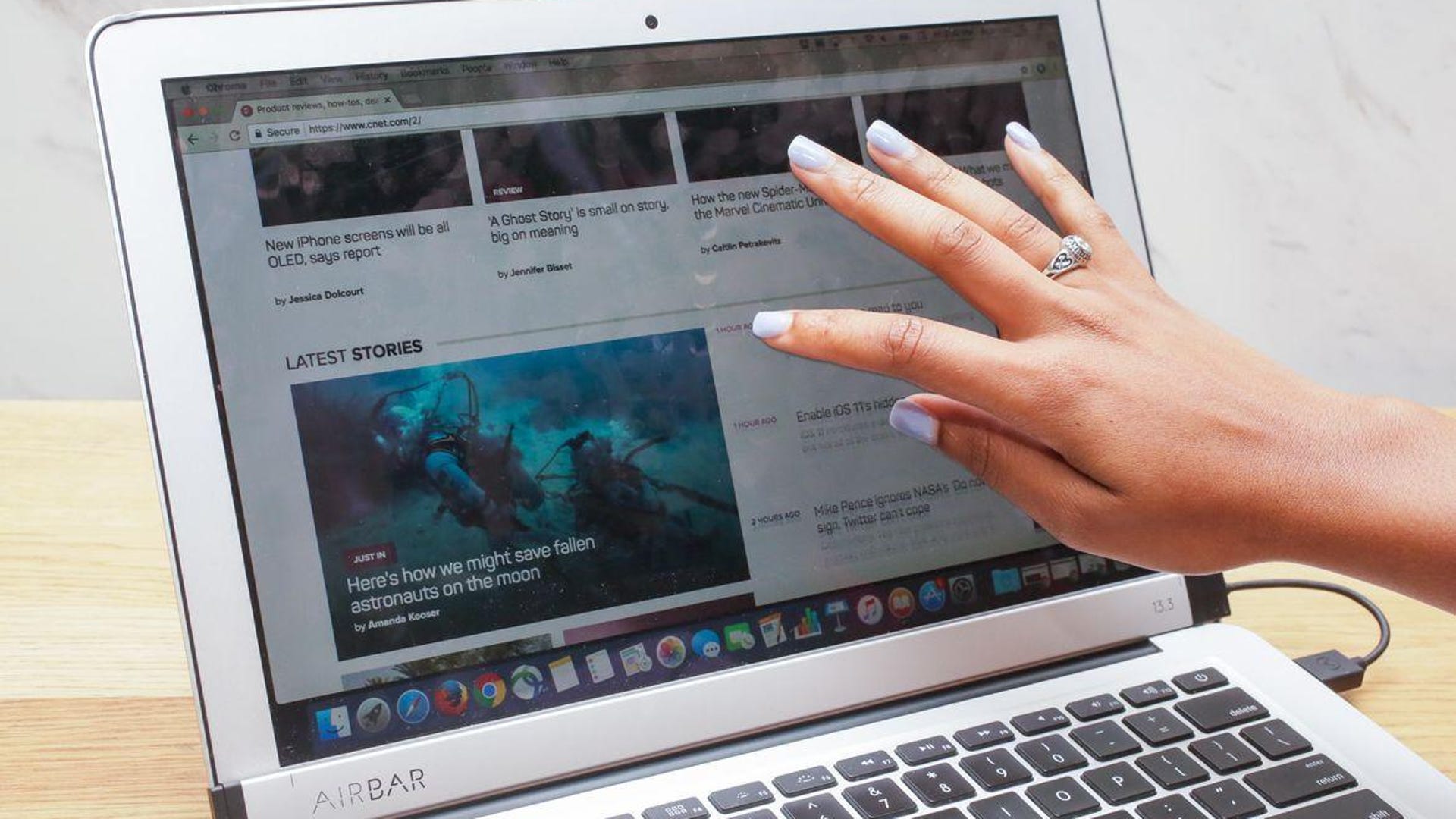
- The Screen Overlay Scam: You may see "capacitive films" or "clip-on frames" advertised online that claim to turn your MacBook into a touch screen. These are generally low-quality infrared sensors that map your finger's position to the mouse cursor. They are prone to calibration issues and do not provide a "real" touch experience.
- Confusing the MacBook with the iPad Pro: With the release of the Magic Keyboard for iPad, many people see an iPad Pro and mistake it for a MacBook. The iPad Pro has a touch screen and runs iPadOS; the MacBook Pro has a trackpad and runs macOS.
Professional Advice for Buyers in 2026
If you are currently in the market for a laptop and "touch" is a non-negotiable requirement, you must evaluate your needs carefully.
If you need touch for creative work (drawing, photo editing): Do not buy a MacBook Pro expecting a native touch screen. Instead, invest in a MacBook Pro paired with an iPad Pro. The combination of the two devices via Sidecar remains the most powerful and ergonomic creative workstation in the Apple ecosystem. The iPad provides the precision of the Apple Pencil, while the MacBook provides the processing power for heavy applications.
If you need touch for general navigation and productivity: You might find the MacBook Pro’s lack of a touch screen frustrating if you are coming from the Windows ecosystem. In this case, consider whether your workflow can be fully transitioned to an iPad Pro with a Magic Keyboard. For many users, iPadOS has become powerful enough to replace a laptop for 90% of tasks, providing a "real" touch experience in a laptop-like form factor.
If you want the "First Generation" Native Touch MacBook: Keep a close watch on Apple’s late-2025 and 2026 "Special Event" announcements. If you are willing to pay a premium for the emerging OLED touch-integrated models, be prepared for a first-generation experience. Early reviews suggest that while the hardware is impressive, macOS is still evolving to make touch interactions feel as seamless as they do on an iPhone.
Frequently Asked Questions
Can I upgrade my current MacBook Pro to have a touch screen?
No. The display assembly of a MacBook Pro is a sealed unit that does not include a touch digitizer. There is no internal component you can add to enable native touch. Your only options for adding touch are external monitors or software bridges like Sidecar.
Does the Apple Pencil work on a MacBook Pro trackpad?
No. The MacBook Pro trackpad uses capacitive technology and Force Touch sensors designed for fingers, not the active digitizer technology required for the Apple Pencil. The Apple Pencil only works on compatible iPad models.
Why does my MacBook Pro screen look like a touch screen?
Modern MacBook Pro screens use a glossy glass finish and very thin bezels, which is a design language shared with the iPad and iPhone. Additionally, the launchpad and icon layouts in macOS are designed to look consistent with iOS, which can lead to the visual impression that the device should be touch-compatible.
Are there any MacBook models with a touch screen?
Technically, no "Mac" branded computer has ever been sold with a native touch screen as a standard feature prior to the 2025/2026 rumors. Every MacBook (Air and Pro) released to date has relied on the trackpad as the primary pointing device.
Is macOS difficult to use with a touch screen?
In its current state, macOS is not optimized for touch. The "close," "minimize," and "expand" buttons in the corner of windows are roughly 10-12 pixels wide, making them very difficult to hit with a finger. Furthermore, macOS relies heavily on "right-click" and "hover" actions, neither of which translate naturally to a basic touch interface.
Conclusion and Next Actions
To summarize, while the prospect of a native touch screen MacBook Pro is becoming "real" in the 2025-2026 timeframe, it is not a standard feature across the lineup. For the majority of users, the touch screen option remains a combination of hardware and software (MacBook + iPad + Sidecar) rather than a single integrated panel.
If you are looking for that functionality today:
- Verify your model: If you have a MacBook with a Touch Bar, that is the extent of your native touch capability.
- Explore Sidecar: If you own an iPad, go to System Settings > Displays and click the "+" sign to link your iPad as a touch-enabled extension of your Mac.
- Evaluate 2026 Models: Check the technical specifications of the newest OLED MacBook Pro releases to see if the "Touch-Integrated" configuration is available in your region.