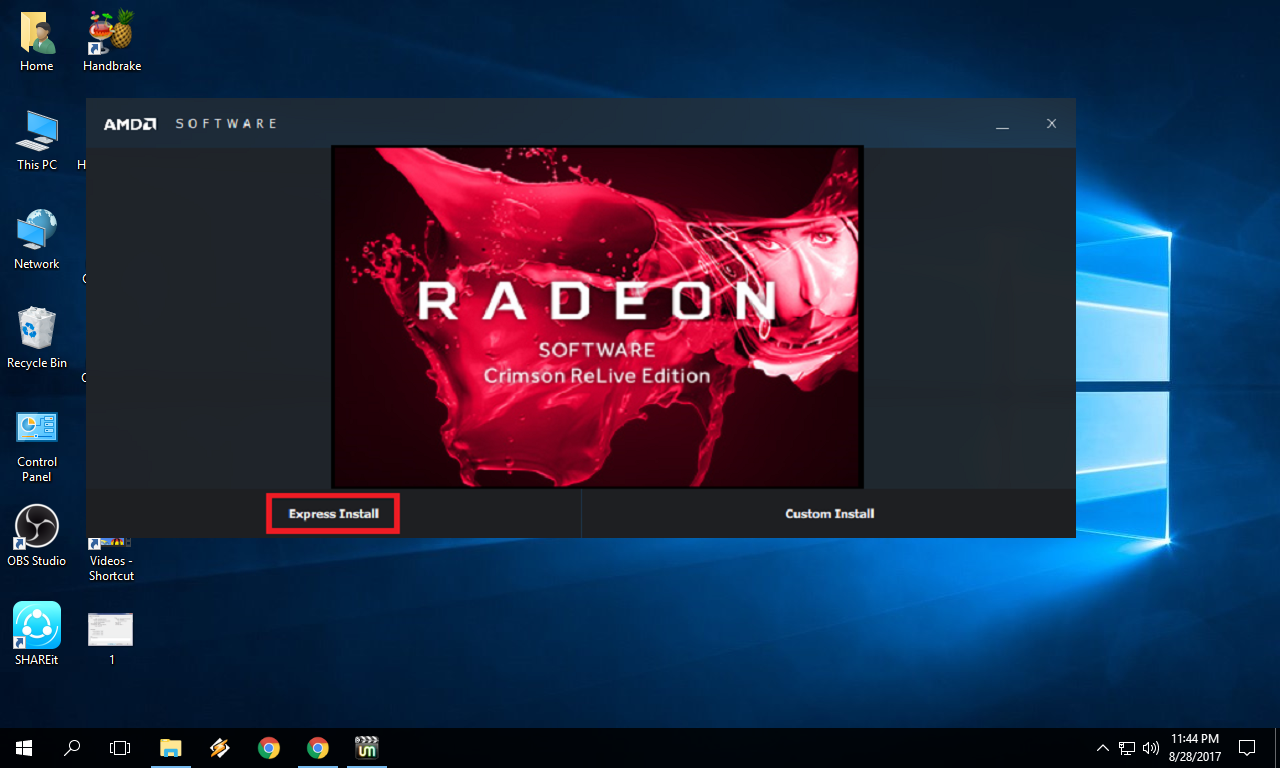
AMD Radeon graphics cards utilize a sophisticated, hybrid driver model on Linux that integrates directly into the kernel, providing most users with a seamless, "plug-and-play" experience without requiring manual installation of proprietary blobs. Official support is primarily delivered through the open-source AMDGPU driver stack, which is baked into the Linux kernel and paired with the Mesa graphics library for OpenGL and Vulkan acceleration, ensuring high performance, broad compatibility, and regular security updates.
The Architecture of AMD Radeon Support on Linux
Unlike operating systems where external driver downloads are the standard, the Linux ecosystem handles AMD Radeon support differently. The "driver" is not a single file to be downloaded, but a complex interaction between the Linux kernel, the Mesa project, and user-space libraries.
The Kernel-Mode Driver: AMDGPU
The core component of support is the amdgpu kernel module. This module is developed directly by AMD engineers and upstreamed to the Linux kernel. Because it is part of the kernel, it is maintained and updated whenever your distribution pulls in a new kernel version. This ensures that when a new GPU architecture is released, support is often ready or in development well before the hardware reaches consumers.
User-Space Acceleration: Mesa
While the kernel handles hardware communication, the Mesa graphics stack provides the OpenGL and Vulkan APIs. This is where the actual translation of game or application code into GPU instructions occurs. Mesa is an independent open-source project, but AMD provides significant upstream contributions to it. For the end-user, keeping your distribution’s Mesa package updated is functionally equivalent to updating a "graphics driver" on other platforms.
Official Support Status and Requirements
By 2026, AMD has solidified its "open-first" strategy. Official support focuses on the open-source stack (AMDGPU + Mesa) for general computing, gaming, and creative workloads.
Distribution Compatibility
Most modern Linux distributions provide excellent out-of-the-box support for AMD Radeon hardware. Distributions that follow a "rolling release" model—such as Arch Linux, openSUSE Tumbleweed, or Fedora—generally provide the most recent versions of the kernel and Mesa, which is crucial for the latest hardware features. Long-term support (LTS) distributions like Ubuntu LTS or Debian may require backports or PPA repositories (Personal Package Archives) to get the latest Mesa versions for newer GPUs.
Proprietary AMD Software (Radeon Software for Linux)
AMD does offer a package known as "Radeon Software for Linux," which is primarily intended for professional workstation users (e.g., ROCm for compute, or enterprise-specific OpenGL configurations). This is not intended for standard desktop gaming. Most casual or professional users should stick to the open-source stack provided by their distribution, as it is better optimized for daily operation.
Installation and Configuration Details
For the vast majority of Linux users, no installation is required. However, verifying your setup and ensuring the correct firmware is installed is a standard administrative task.
Step 1: Verification of Kernel Modules
After installing your OS and plugging in your GPU, you should verify that the system has correctly identified and initialized the card. Open a terminal and run the following command:
lspci -k | grep -A 2 -E "(VGA|3D)"
Look for the line that says "Kernel driver in use." If it states amdgpu, your card is correctly configured. If it shows radeon (for very old hardware) or vesa, you may need to investigate configuration flags in your bootloader.
Step 2: Ensuring Firmware Availability
AMD GPUs require proprietary binary firmware files to initialize correctly. In almost all modern distributions, these are included in the linux-firmware package. If you are using a strictly "libre" distribution (like Parabola or certain configurations of Debian), you may need to explicitly enable the non-free firmware repositories to allow the card to function.
Step 3: Checking OpenGL/Vulkan Versioning
To confirm your system is using the correct hardware acceleration, check the status of your graphics stack with the glxinfo or vulkaninfo tools.
- Install testing utilities: Install
mesa-utilsor thevulkan-toolspackage from your distribution's repository. - Verify OpenGL: Run
glxinfo | grep "OpenGL renderer". This should return your specific GPU model. - Verify Vulkan: Run
vulkaninfo --summary. This confirms that the Vulkan drivers (RADV or AMDVLK) are active.
Comparison of Driver Components
The following table summarizes the components of the AMD Radeon stack on Linux.
| Component | Role | Source/Maintenance |
|---|---|---|
| AMDGPU (Kernel) | Hardware communication, power management | Linux Kernel (Upstream) |
| RADV (Mesa) | Vulkan API support for gaming | Mesa Project |
| RadeonSI (Mesa) | OpenGL API support | Mesa Project |
| ROCm | GPGPU, AI, and Compute workflows | AMD (Official Releases) |
| Firmware | Hardware-specific microcode | linux-firmware package |
Troubleshooting Common Issues
Despite the stability of the AMDGPU stack, users may occasionally encounter issues related to display output, power states, or performance.
Screen Flickering or Black Screens
This is often related to the DisplayPort power-saving features or the interaction between the kernel and the monitor’s EDID (Extended Display Identification Data).
- Fix: Try adding
amdgpu.dc=1oramdgpu.dc=0to your kernel command line parameters in/etc/default/grubto toggle the Display Core (DC) engine.
Performance Limitations in New Games
If you are running the latest AAA titles and experiencing low performance, it is highly likely that your distribution’s Mesa version is outdated.
- Fix: Check your distribution’s documentation for "Mesa edge" or "Mesa backports" repositories. In Ubuntu, the "Kisak Mesa PPA" is a common, community-trusted source for updated graphics libraries.
ROCm Compatibility
If you are installing AMD software for machine learning or heavy compute, ensure that your specific GPU model is listed in the official AMD ROCm documentation. Not all consumer Radeon cards are officially supported for ROCm, though many function with minor environment variables (e.g., HSA_OVERRIDE_GFX_VERSION).
Frequently Asked Questions
Do I need to download drivers from the AMD website? Generally, no. The official way to get support is through the kernel and Mesa drivers already in your system. Only download proprietary packages if you have a specific, documented need for workstation-grade compute software.
What is the difference between RADV and AMDVLK? RADV is the community-developed Vulkan driver included in Mesa, known for high gaming performance. AMDVLK is the official Vulkan driver maintained by AMD. Most users prefer RADV for gaming, while AMDVLK is sometimes preferred for specific professional software.
How do I update my AMD drivers?
Since the drivers are part of the kernel and Mesa, simply perform a system-wide update using your distribution’s package manager (e.g., sudo dnf update or sudo apt upgrade).
My screen resolution is incorrect; what should I do?
Ensure the amdgpu driver is loaded. If it is, verify that your user account is in the video and render groups. Incorrect resolutions often point to the system falling back to an unaccelerated software driver.
Are older Radeon cards still supported?
Cards based on the GCN (Graphics Core Next) architecture are supported by the amdgpu driver, but may require a specific kernel parameter (amdgpu.si_support=1 or amdgpu.cik_support=1) to be enabled at boot, as they were originally managed by the older radeon driver.
Practical Next Steps for Users
If you are currently setting up a new Linux system with an AMD Radeon card, your first priority should be to ensure your system is fully updated. Check your kernel version using uname -r and compare it against the latest stable kernel at kernel.org. If you find your performance is lacking or your hardware is brand new, prioritize migrating to a distribution with a faster release cycle for kernel and Mesa components. Always consult the Arch Linux Wiki entries for "AMDGPU," as it remains the most comprehensive, distribution-agnostic source for configuring these drivers regardless of the specific Linux flavor you are running.