Adding totals in Excel is a fundamental skill that transforms raw data into actionable insights by leveraging the software's built-in calculation engine. Whether you are summing a simple column of expenses or aggregating complex datasets across multiple sheets, Excel offers a variety of methods—ranging from the automated AutoSum feature to precise manual formulas and advanced Table functionalities—to ensure your numerical data is accurate, dynamic, and easy to manage.
Understanding the Logic of Summation in Excel
At its core, Excel functions as a massive grid of cells, each capable of holding constants or formulas. When you "add totals," you are instructing Excel to perform a mathematical operation on a defined range of cells. The most common way to do this is through the SUM function. Unlike basic arithmetic where you might type 10 + 20, Excel formulas refer to cell addresses (e.g., A1 + A2), allowing the result to update automatically whenever the data in those cells changes.
Understanding this dynamic nature is crucial. If you hard-code numbers into a formula, your total will not reflect updates to your source data. By referencing cell ranges, you create a robust system that handles data entry, modifications, and long-term record-keeping without requiring manual recalculation.
Method 1: The AutoSum Shortcut
For most users, the quickest way to calculate a total is the AutoSum feature. Excel is designed to recognize blocks of contiguous numbers and automatically suggest a sum range.
- Select the cell: Click the empty cell directly below a column of numbers or to the right of a row of numbers.
- Activate AutoSum: Navigate to the Home tab on the Ribbon and click the AutoSum button (represented by the Greek sigma symbol: Σ). Alternatively, use the keyboard shortcut
Alt+=(on Windows) orCommand+Shift+T(on macOS). - Verify the range: Excel will draw a moving border around the cells it intends to sum. If the selection is correct, press Enter. If it is incorrect, simply click and drag to select the desired cells before pressing Enter.
AutoSum is highly efficient because it eliminates the need to manually type the SUM function syntax, reducing the likelihood of typographical errors or missed brackets.
Method 2: Manual Formula Construction
When your data is not neatly arranged in a contiguous block, or when you need to perform calculations across non-adjacent cells, manual formula construction is necessary.
To write a manual formula:
- Type the equals sign (
=) in a cell. Every calculation in Excel must begin with this character to signal to the software that the following content is a formula, not text. - Type the function name,
SUM, followed by an opening parenthesis(. - Input your references. You can click cells to add them individually (e.g.,
=SUM(A1, B5, C10)) or define a continuous range using a colon (e.g.,=SUM(A1:A50)). - Type the closing parenthesis
)and press Enter.
Using manual formulas provides the flexibility required for complex financial modeling or data analysis where specific criteria or non-contiguous data points must be aggregated.
Method 3: Utilizing Excel Tables for Automatic Totals
One of the most underutilized features for managing totals is the Excel Table (not just a range of cells formatted with borders). Tables are structured objects that provide significant automation benefits.
To convert a data range into a Table:
- Highlight your data range.
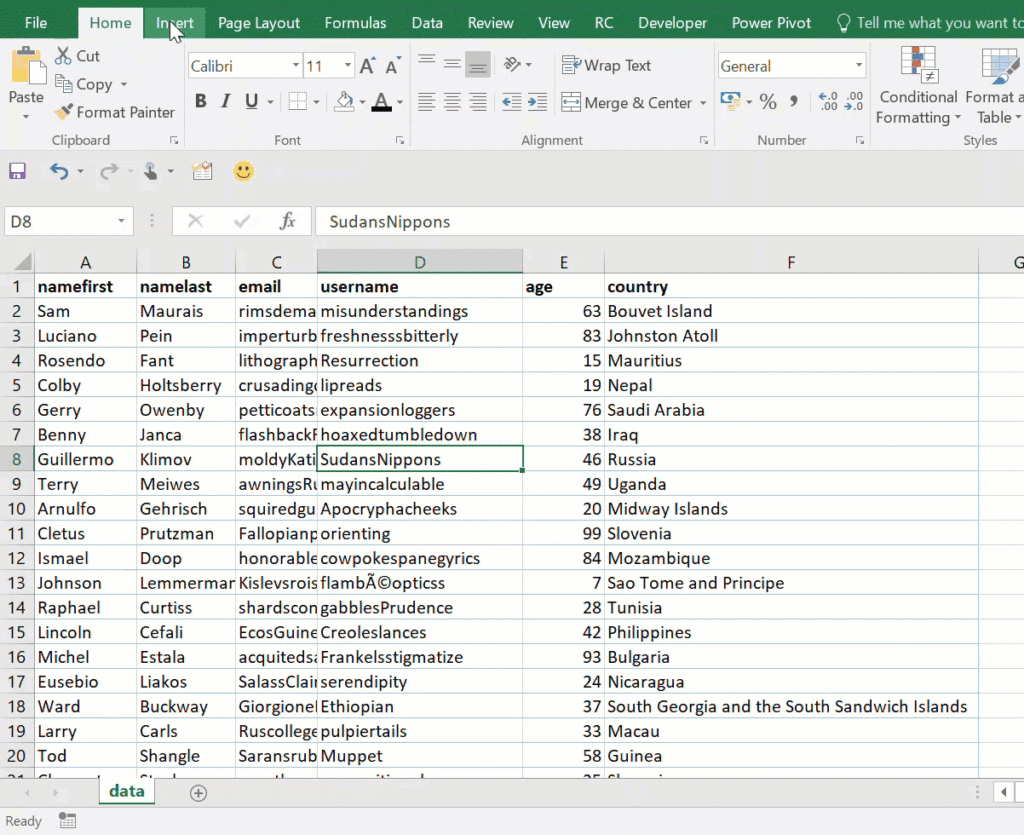
- Go to the Insert tab and select Table (or press
Ctrl+T). - Once the table is created, go to the Table Design tab that appears on the Ribbon.
- Check the box labeled Total Row.
Excel will automatically add a row at the bottom of your table. By clicking on any cell in this new row, a dropdown menu appears, allowing you to choose from various aggregation types, such as Sum, Average, Count, or Max. The advantage here is that if you add new rows of data to the table, the Total Row automatically expands and recalculates, ensuring your totals are always up to date.
Comparing Summation Methods
| Feature | AutoSum | Manual Formula | Table Total Row |
|---|---|---|---|
| Ease of Use | Immediate | Requires Syntax | Setup required |
| Best For | Ad-hoc totals | Custom ranges | Large, growing datasets |
| Automation | Static | Static | Dynamic |
| Complexity | Low | Medium | High |
Handling Common Errors and Troubleshooting
Even with simple addition, users occasionally encounter errors that can disrupt reporting.
The #VALUE! Error
This error occurs if your formula attempts to perform math on a cell that contains text rather than a number. Ensure that cells in your range do not contain hidden spaces or text characters. You can use the ISNUMBER() function to check the validity of your data if you are troubleshooting a large set.
The 0 Result
If your formula returns 0 despite having numbers in the cells, it is often due to the numbers being formatted as "Text." If a cell has a small green triangle in the top-left corner, it indicates a format mismatch. Highlight the range, click the warning icon, and select Convert to Number.
Circular References
If your formula for a column total is placed inside that same column, Excel will throw a Circular Reference error. Always place your total formulas in a separate row or column to avoid the calculation engine entering an infinite loop.
Advanced Summation: Conditional Totals
Sometimes, you do not want to add everything; you want to add totals based on specific criteria. For this, Excel provides the SUMIF and SUMIFS functions.
- SUMIF: Adds cells that meet a single condition. For example,
=SUMIF(A1:A10, ">100")will add all cells in the range A1:A10 that are greater than 100. - SUMIFS: Adds cells that meet multiple criteria. For example, if you want to sum sales for a specific salesperson in a specific region, you would use
=SUMIFS(Range_to_Sum, Criteria_Range1, Criteria1, Criteria_Range2, Criteria2).
These functions are essential for anyone managing budgets, inventory, or sales logs where categorization is required for meaningful analysis.
Best Practices for Data Integrity
To ensure your totals remain accurate as your workbooks grow, follow these professional standards:
- Label your totals: Always maintain a clear label (e.g., "Total Revenue") adjacent to your total cells so that other users—or your future self—can identify the purpose of the number.
- Avoid hard-coding: Never type a number directly into a formula. If a value is constant, put it in a separate cell and reference that cell. This makes it significantly easier to update figures later.
- Use absolute references sparingly: When dragging formulas, understand the difference between relative references (A1, which changes when copied) and absolute references ($A$1, which stays fixed). Mastery of the dollar sign is the difference between a functional spreadsheet and a broken one.
- Audit your formulas: Use the Formula Auditing group under the Formulas tab to "Trace Precedents." This visualizes exactly which cells are feeding into your total, which is invaluable for debugging large, complex models.
Frequently Asked Questions
What is the difference between SUM and AutoSum?
There is no functional difference in the result. AutoSum is merely a user interface shortcut that inserts the SUM function for you. It identifies the range based on proximity, saving you the time of selecting the cells manually.
Can I sum numbers that are spread across different worksheets?
Yes. To do this, type =SUM( and then click on the first worksheet tab, select the cell, then type a comma, click the next tab, and select the cell. The formula will look like =SUM(Sheet1!A1, Sheet2!A1). You can also sum a range across sheets using =SUM(Sheet1:Sheet3!A1).
Why does my sum not update when I change a number?
Check your calculation settings. Go to the Formulas tab, click Calculation Options, and ensure it is set to Automatic. If it is set to Manual, Excel will only recalculate when you press F9.
How can I sum cells that contain error values?
If you have a range with #N/A or other errors, a standard SUM formula will fail. Use the AGGREGATE function instead. It allows you to perform a sum while ignoring hidden rows, errors, or nested subtotals. Use =AGGREGATE(9, 6, A1:A10) where 9 indicates Sum and 6 tells Excel to ignore error values.
Is it possible to sum values based on cell color?
Excel does not have a native function to sum by cell color. To achieve this, you must either use a VBA (Visual Basic for Applications) macro to create a custom function or use a helper column to flag the data you wish to sum, then use SUMIF on that flag.
How do I handle large datasets without slowing down Excel?
If your workbook contains thousands of rows with complex formulas, consider converting your data to an Excel Table or using PivotTables. PivotTables are highly optimized for aggregation and often perform significantly faster than massive arrays of SUMIF or SUMIFS formulas.
Final Recommendation
For daily tasks, prioritize using Excel Tables with the Total Row enabled. This approach provides the most scalable, professional, and error-resistant way to manage totals. By moving away from loose ranges and toward structured tables, you reduce the risk of formula drift, improve the readability of your data, and ensure that your totals update automatically as your information grows. Start by converting one of your existing lists into a table to experience the improved workflow efficiency firsthand.