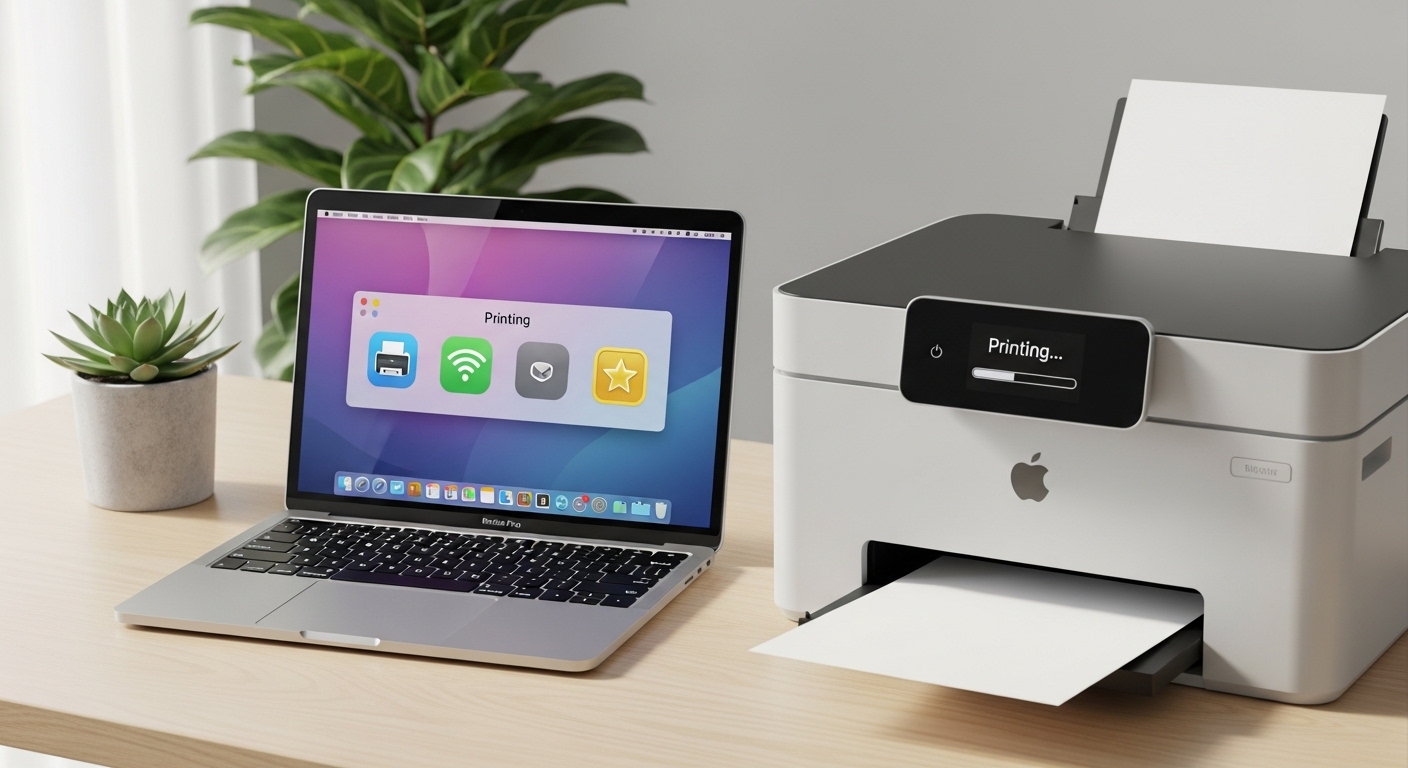
Finding the right printer for an Apple computer involves ensuring seamless wireless connectivity, robust driver support, and effortless integration with macOS and iOS. Apple devices rely heavily on AirPrint for driverless printing, making compatible models exceptionally straightforward to set up, manage, and operate directly from a MacBook, iMac, or iPad without downloading clunky third-party utility software.
Selecting a printer that harmonizes with the macOS ecosystem requires careful consideration of connectivity standards, print volume, and output quality. While almost any modern Wi-Fi-enabled printer can connect to a Mac, the best options leverage native Apple protocols, offer reliable duplex printing, and integrate smoothly with AirPrint and the CUPS (Common UNIX Printing System) architecture underpinning macOS.
This comprehensive review evaluates five of the best printers for Apple computers, examining their core features, performance metrics, ongoing costs, and real-world suitability for home users, remote workers, and creative professionals.
Understanding Apple Compatibility: AirPrint and CUPS
Before diving into specific product reviews, it is essential to understand why certain printers work better with Apple computers than others. Apple pioneered AirPrint, a built-in technology that allows users to print full-quality documents and photos from a Mac, iPhone, or iPad without needing to install separate drivers.
When a printer is AirPrint-certified, macOS instantly recognizes it on the local wireless network. The computer communicates directly with the printer, transmitting PostScript or PDF data streams seamlessly. This eliminates the frustration of outdated driver software breaking after a major macOS system update.
Furthermore, macOS utilizes the CUPS printing pipeline. While modern AirPrint standards mean most users will never need to manually configure a CUPS queue, having a printer with robust network protocols (such as Bonjour for zero-configuration networking) ensures that your Apple computer will always find and communicate with the device instantly.
1. Brother HL-L2350DW: Best Budget Monochrome Laser Printer
For users who primarily print text documents, invoices, or academic papers and do not require color, a monochrome laser printer is the most cost-effective and reliable choice. The Brother HL-L2350DW stands out as an exceptional value option for Apple computer users.
| Feature | Specification |
|---|---|
| Print Technology | Monochrome Laser |
| Print Speed | Up to 32 pages per minute (ppm) |
| Connectivity | Wi-Fi, USB 2.0, AirPrint |
| Paper Capacity | 250-sheet adjustable paper tray |
| Duplex Printing | Automatic (two-sided) |
Performance and Value
The Brother HL-L2350DW delivers sharp, professional-grade text at speeds up to 32 pages per minute. Because it uses laser technology instead of liquid ink, text remains crisp, smudge-proof, and resistant to highlighter bleeding. It does not suffer from clogged print heads if left unused for weeks—a common issue with inkjet printers.
Integration with macOS
Setting up this printer on a Mac is completely frictionless. Thanks to full AirPrint support, you simply plug the printer into power, connect it to your Wi-Fi network using the control panel, and your MacBook or iMac will detect it immediately. You can send documents straight from Pages, Microsoft Word, or Preview without installing proprietary Brother utility software.
Pros and Cons
- Pros: Exceptionally low cost per page, compact footprint that fits easily on a desk, rapid first-page-out time, and reliable wireless connection stability.
- Cons: Monochrome only (no color printing), lacks a flatbed scanner or copier, and the manual feed slot can be finicky with heavy cardstock.
2. HP LaserJet Pro M283fdw: Best All-in-One Color Laser Printer
If your workflow demands color presentations, marketing materials, and occasional scanning, copying, or faxing, an all-in-one color laser printer like the HP LaserJet Pro M283fdw is a powerhouse addition to an Apple-centric home office.
Feature Set and Capabilities
The M283fdw prints, copies, scans, and faxes, featuring an automatic document feeder (ADF) that holds up to 50 sheets for multi-page scanning. It achieves print speeds of up to 22 pages per minute for both black-and-white and color documents. Color output is vibrant and clean, making it suitable for business graphics and professional proposals.
Ecosystem Integration
HP designs its hardware with modern wireless standards in mind. The M283fdw supports Apple AirPrint, Wi-Fi Direct, and HP's Smart app for macOS and iOS. When connected to a local network, macOS discovers the printer instantly. Scanning is equally streamlined; users can initiate scans directly from Apple's native Image Capture utility or Preview app without needing third-party scanner drivers.
Pros and Cons
- Pros: Fast multi-page scanning via ADF, robust color laser output, excellent wireless range, and strong security features to protect office networks.
- Cons: Replacement toner cartridges represent a significant upfront investment, and the physical footprint is notably larger than single-function printers.
3. Epson EcoTank ET-2850: Best High-Yield Inkjet Printer
Traditional inkjet printers are notorious for expensive ink cartridges that run out unexpectedly. The Epson EcoTank ET-2850 solves this pain point by replacing traditional cartridges with high-capacity refillable ink tanks.
The EcoTank Advantage
Instead of cartridges, the ET-2850 uses bottled ink that you pour directly into internal reservoirs. A single set of included ink bottles yields thousands of pages—roughly equivalent to dozens of standard ink cartridges. This drastically reduces the cost per page, making it ideal for households or small businesses with moderate-to-high color printing demands.
macOS Compatibility and Print Quality
The ET-2850 supports AirPrint out of the box. When printing photos or graphic-heavy PDFs from an Apple computer, Epson's PrecisionCore technology produces accurate color rendering and smooth gradients. While laser printers excel at text, inkjet printers like the EcoTank deliver superior photo reproduction on glossy paper.
Pros & Cons
- Pros: Unmatched ink economy, includes up to two years of ink in the box, compact design for an ink tank system, and high-resolution photo printing.
- Cons: Higher initial hardware purchase price compared to entry-level cartridge printers, and print speeds are slower than laser alternatives.
4. Brother MFC-J4335DW: Best Everyday Inkjet All-in-One
For users who want the versatility of an inkjet printer—scanning, copying, and color photo printing—without breaking the bank on upfront equipment costs, the Brother MFC-J4335DW strikes an ideal balance.
Everyday Usability
Marketed under Brother's "INEEDINK" / Investment-Tank umbrella, this printer utilizes high-capacity cartridges designed to last for months without replacement. It features an automatic document feeder, a 150-sheet paper tray, and intuitive front-loading cartridge bays. Print quality for everyday documents is sharp, and color graphics render cleanly.
Mac Integration
Apple users will appreciate the seamless driverless setup via AirPrint. Furthermore, Brother's scan-to-network capabilities integrate smoothly with macOS file systems, allowing scanned PDFs to route directly to shared network folders or desktop directories with minimal configuration.
Pros and Cons
- Pros: Affordable initial price point, user-friendly touchscreen interface, reliable automatic two-sided printing, and high-capacity replacement cartridges.
- Cons: Bulky plastic construction, and photo printing on glossy paper is adequate but not professional-grade.
5. Canon PIXMA TR8520: Best for Creative Professionals and Photos
Creative professionals, photographers, and design students using Apple computers often require specialized color accuracy and high-resolution photo output. The Canon PIXMA TR8520 is tailored specifically to meet these creative demands.
Photo and Graphic Performance
Using a five-color individual ink system—including a pigment black for text and dye-based colors for photographs—the TR8520 produces rich, gallery-quality photo prints with smooth tonal gradations. It handles various paper weights effortlessly, from standard multipurpose paper to heavy matte cardstock and glossy photo paper.
Apple Ecosystem Synergy
Apple's built-in photo management in macOS (via the Photos app) pairs wonderfully with Canon’s printing architecture. You can crop, color-correct, and adjust images natively on a Mac and send them straight to the printer using AirPrint, ensuring that what you see on your Retina display matches the physical print.
Pros and Cons
- Pros: Outstanding photo output quality, compact home-office footprint, SD card slot for direct printing, and auto-duplexing capabilities.
- Cons: Individual ink tanks can deplete quickly if you print many heavy color documents, and standard print speeds are relatively modest.
Comparative Evaluation of Printers for Apple Computers
To help you determine which model fits your specific printing habits, review the side-by-side comparison below:
| Printer Model | Type | Best For | AirPrint Support | Auto-Duplex | Estimated Ongoing Cost |
|---|---|---|---|---|---|
| Brother HL-L2350DW | Monochrome Laser | Text, Documents, Home Office | Yes | Yes | Low |
| HP LaserJet Pro M283fdw | Color Laser | Small Business, Multi-use | Yes | Yes | Moderate to High |
| Epson EcoTank ET-2850 | Color Ink Tank | High-Volume Color, Families | Yes | Yes | Very Low |
| Brother MFC-J4335DW | Color Inkjet | Everyday Versatility | Yes | Yes | Moderate |
| Canon PIXMA TR8520 | Color Inkjet | Photos, Design, Creative Work | Yes | Yes | Moderate to High |
Common Mistakes to Avoid When Buying a Printer for Mac
Purchasing a printer without checking specific compatibility details can lead to severe frustration. Avoid these common pitfalls:
- Assuming All Wi-Fi Printers Support AirPrint: While most modern printers do, older or ultra-budget models may require legacy drivers that are incompatible with recent macOS releases. Always verify AirPrint certification.
- Ignoring Connection Types: Ensure the printer supports dual-band Wi-Fi (2.4 GHz and 5 GHz) or features an Ethernet port if your home network uses advanced mesh routers that segregate device bands.
- Overlooking Physical Dimensions: Measure your desk space before ordering. Multi-function laser printers and ink-tank systems often have wide footprints that require dedicated furniture.
- Failing to Calculate Page Yield Costs: A cheap printer often features expensive replacement cartridges. Always calculate the cost per page based on your expected monthly print volume.
Frequently Asked Questions
Do I need to install driver software on my Mac to use these printers?
No. All recommended printers in this review support Apple AirPrint. When you connect the printer to your local Wi-Fi network, macOS detects it automatically and provisions the necessary communication protocols without requiring you to download third-party software or manufacturer apps.
Can I print directly from my iPhone or iPad to these printers?
Yes. Because these models support Apple AirPrint, any iOS or iPadOS device connected to the same Wi-Fi network will instantly recognize the printer, allowing you to print emails, web pages, and photos with a few taps.
What should I do if my Mac cannot find the printer on the network?
First, ensure both your Mac and the printer are connected to the exact same Wi-Fi network frequency (e.g., both on the 2.4 GHz band). Restarting both your Wi-Fi router and the printer often resolves discovery issues. If problems persist, go to System Settings > Printers & Scanners, remove the existing printer queue, and re-add the device.
Are laser printers better than inkjet printers for Apple users?
It depends entirely on your usage. If you print primarily black-and-white text documents, spreadsheets, and forms, a laser printer is faster, cheaper to run over time, and immune to ink drying out. If you print color photographs, graphics, or require scanning and copying in compact spaces, an inkjet or ink-tank printer is superior.
Do these printers support Apple's Time Machine or network backup features?
Standard consumer printers do not act as network storage drives and do not support Time Machine backups. Time Machine requires an external hard drive connected directly to your Mac or a network-attached storage (NAS) device.
Final Recommendation and Next Actions
Selecting the ideal printer for your Apple computer ultimately boils down to your primary output needs. If you print high volumes of text and want zero maintenance hassle, purchase the Brother HL-L2350DW. If your workflow requires frequent color printing and scanning without the fear of expensive cartridge replacements, invest in the Epson EcoTank ET-2850.
Before making a final purchase, measure your workspace, verify your typical monthly print volume, and ensure your home Wi-Fi network is robust enough to handle stable wireless printing across all your Apple devices.