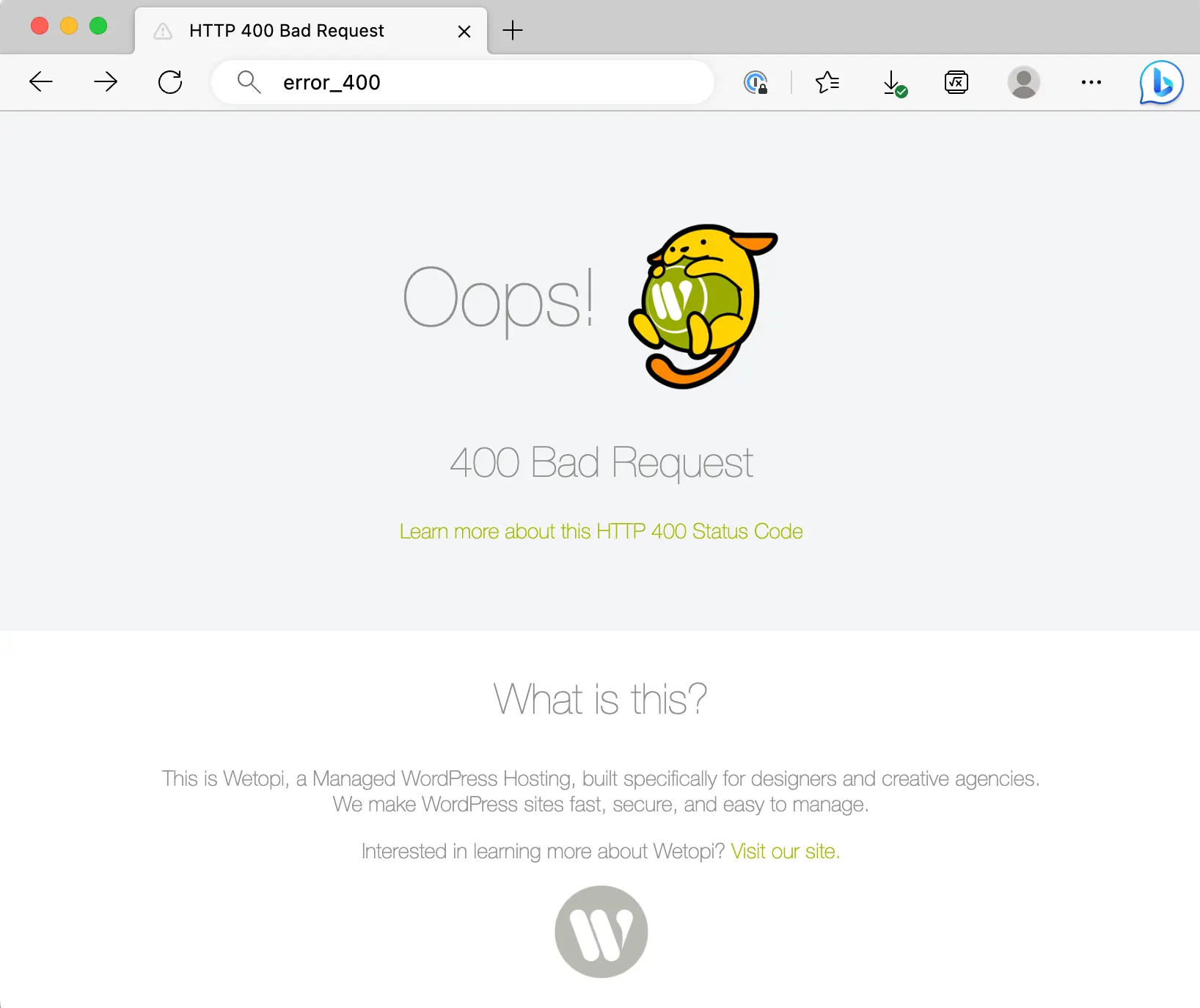
A 400 Bad Request error on a Chromebook occurs when the web server cannot process a request due to perceived client-side issues, such as corrupted cookies, an oversized browser cache, or malformed URL syntax. To fix it, you should clear your browser’s cookies and cache, disable interfering extensions, or synchronize your system clock.
Understanding the 400 Bad Request Error in ChromeOS
When you encounter a 400 Bad Request error on your Chromebook, the communication between your device and the remote server has reached a stalemate. Unlike 500-series errors, which indicate a problem on the server's end, a 400-series error is categorized by the Hypertext Transfer Protocol (HTTP) as a client-side error. This means the server has received your request but has deemed it invalid, corrupted, or impossible to fulfill based on the data sent by your Chrome browser.
In the context of ChromeOS in 2026, this error is frequently tied to the way the browser manages session data. Because Chromebooks rely almost entirely on the Google Chrome browser for both web navigation and application execution (via Progressive Web Apps or PWAs), any minor corruption in the browser's local storage can manifest as a persistent 400 error across multiple sites. The server is essentially saying, "I see you're trying to talk to me, but the 'packet' of information you sent is formatted incorrectly or contains garbage data I don't recognize."
Common iterations of this error include:
- 400 Bad Request: The generic status code.
- HTTP Error 400: A standardized variation.
- Request Header Fields Too Large: A specific type of 400 error where the cookies or headers sent by the Chromebook exceed the server's size limit.
- Your browser sent a request that this server could not understand.
Primary Causes of 400 Errors on Chromebooks
To resolve the issue effectively, it is important to identify why the Chromebook is sending "bad" requests. In 2026, the architecture of ChromeOS has become more streamlined, yet the complexity of web headers and security tokens has increased, leading to several common culprits.
1. Corrupted Cookies and Cache
Cookies are small files stored on your Chromebook that hold session data, login information, and user preferences. If a cookie becomes "stale" or corrupted during a sync or a sudden shutdown, it may send an invalid identification token to the server. The server, unable to verify the token, rejects the entire request. Similarly, a bloated cache—meant to speed up loading times—can sometimes serve outdated versions of scripts that conflict with the current requirements of the live website.
2. Request Header Limits
Many modern websites have strict limits on the size of HTTP headers. If you have been logged into a site for a long time or use multiple subdomains on the same platform (common with Google Workspace or Microsoft 365), your cookies can accumulate to the point where they exceed the server's header size limit. This results in a "Request Header Fields Too Large" error, which is a specific subset of the 400 code.
3. Malformed URL Syntax
While less common with modern auto-complete features, a 400 error can be triggered by a typo in the URL. Specifically, the use of illegal characters (like certain symbols or improperly encoded spaces) can confuse the server’s parsing engine. On a Chromebook, this often happens when clicking a poorly formatted link from a third-party Android app or a Linux terminal command.
4. Browser Extensions and Security Tools
Chromebooks thrive on extensions, but some "ad-blockers" or privacy tools modify outgoing requests to strip away tracking data. If an extension modifies a header too aggressively, the server may view the request as malformed.
Step-by-Step Troubleshooting Guide
Follow these steps in order, starting from the least invasive to the most comprehensive.
Step 1: Perform a Hard Refresh
Before digging into settings, attempt a "Hard Refresh." On a Chromebook, this is done by holding the Refresh key (the circular arrow above the numbers) and pressing the Power button (or simply pressing Ctrl + Shift + R in the browser). Unlike a standard refresh, this forces the browser to bypass its local cache and request all assets entirely from the server. If the error was caused by a temporary caching glitch, this will resolve it immediately.
Step 2: Test in Incognito Mode
Open a new Incognito window by pressing Ctrl + Shift + N. Navigate to the problematic site. Incognito mode disables most extensions and uses a fresh, temporary pool of cookies and cache.
- If the site works: The problem is almost certainly a corrupted cookie or a faulty extension in your main profile.
- If the site still fails: The issue may be related to your network connection, DNS settings, or the server itself.
Step 3: Clear Cookies and Site Data for the Specific Website
You do not always need to clear your entire browser history to fix a 400 error. You can target the specific site that is failing.
- Click the lock icon or the settings icon located to the left of the URL in the address bar.
- Select Cookies and site data.
- Click on Manage on-device site data.
- Remove the cookies for that specific site by clicking the "trash" icon next to the site name.
- Refresh the page.
Step 4: Clear the Entire Browser Cache (The Broad Approach)
If targeting a single site doesn't work, or if you are getting 400 errors across multiple domains, you should perform a broader cleanup.
- Open Chrome and press Ctrl + Shift + Backspace to open the "Clear browsing data" menu.
- Set the Time Range to All time.
- Ensure Cookies and other site data and Cached images and files are checked.
- Click Clear data.
Note: This will sign you out of most websites, so ensure you have your login credentials ready.
Step 5: Check System Date and Time
Security certificates and HTTP requests are time-sensitive. If your Chromebook’s system clock is out of sync with the global standard, the server may reject your request as a security precaution.
- Click the clock in the bottom right corner of your shelf.
- Select the Settings (gear) icon.
- Go to Advanced > Date and time.
- Ensure Set time zone automatically is toggled on. If you are using a VPN, ensure the time zone matches the location of your VPN server, as discrepancies here frequently cause 400 and SSL errors.
Technical Comparison: HTTP 400 vs. Related Errors
Understanding the distinction between various status codes can help you determine if the problem is truly your Chromebook or the service provider.
| Error Code | Meaning | Common Cause on Chromebook | Responsibility |
|---|---|---|---|
| 400 Bad Request | Malformed Request | Corrupt cookies/oversized headers | Client (User) |
| 401 Unauthorized | Lack of Credentials | Session expired or wrong password | Client (User) |
| 403 Forbidden | No Permission | IP blocking or restricted folder access | Server/Admin |
| 404 Not Found | Page Doesn't Exist | Broken link or moved content | Server (Site Owner) |
| 500 Internal Error | Server Crash | Server-side script failure | Server (Site Owner) |
| 503 Service Unavailable | Server Overload | Maintenance or traffic spikes | Server (Site Owner) |
Advanced Solutions for Persistent 400 Errors
If the standard fixes do not work, the issue may lie deeper within the ChromeOS system configuration or network stack.
Reset Chrome Settings to Default
Sometimes, flags (experimental features) or deep-seated profile settings can cause browsing conflicts.
- Open Chrome Settings.
- Select Reset settings on the left-hand menu.
- Click Restore settings to their original defaults.
- Confirm the reset. This will disable all extensions and reset your homepage and tab settings but will not delete your bookmarks, history, or saved passwords.
Flush DNS and Change DNS Servers
A corrupted DNS cache can direct your request to an incorrect or outdated server IP, which then rejects the "bad" request.
- Type
chrome://net-internals/#dnsinto your address bar. - Click the Clear host cache button.
- Next, go to your Chromebook Settings > Network > Wi-Fi > [Your Network].
- Expand the Network section and scroll to Name servers.
- Switch from "Automatic name servers" to Google name servers (8.8.8.8 and 8.8.4.4). This ensures you are using a reliable, updated directory of the web.
Addressing Managed Chromebook Issues (Education/Enterprise)
If your Chromebook is managed by a school or employer, certain policies might be causing the 400 error. For instance, a mandatory proxy or a forced extension could be interfering with headers. In these cases, individual troubleshooting often fails because the settings are "locked." You can check if your device is managed by going to chrome://policy. If you see a long list of active policies, you may need to contact your IT department to resolve a global configuration error.
The Last Resort: Powerwash
If 400 errors are appearing in system apps, the Play Store, and the browser simultaneously, your ChromeOS profile may be corrupted. A Powerwash resets the Chromebook to its factory state.
- Back up all files in your "Downloads" folder to Google Drive.
- Go to Settings > Advanced > Reset settings.
- Click Powerwash and follow the prompts.
- Sign back in with your Google Account to resync your data.
FAQs about 400 Bad Request on Chromebooks
Can a VPN cause a 400 Bad Request error?
Yes. VPNs change your IP address and often route your traffic through different DNS servers. If the VPN encapsulates your data incorrectly or if the server you are trying to reach has blacklisted the VPN's IP range, it may return a 400 error. Try disconnecting your VPN to see if the error persists.
Why do I only get the 400 error on one specific website?
When the error is site-specific, it almost always points to corrupted cookies for that specific domain. The site might have updated its security protocols, and your browser is still trying to use an old, incompatible session token. Following the "Clear site-specific data" steps above usually solves this.
Does a 400 error mean my Chromebook has a virus?
No. ChromeOS is highly resistant to traditional viruses. A 400 Bad Request is a standard communication error, not an indicator of malware. However, a malicious or poorly coded extension could technically cause this behavior, which is why testing in Incognito mode is a vital diagnostic step.
Could my internet service provider (ISP) be responsible?
It is possible, though unlikely. If your ISP is using a transparent proxy or a "parental control" filter that modifies web traffic, it could inadvertently corrupt the request headers. To test this, connect your Chromebook to a mobile hotspot. If the error disappears, the issue lies with your home network configuration or ISP.
Is the "Request Header Fields Too Large" error different?
Technically, it is a 431 Request Header Fields Too Large error, but most servers report it under the generic 400 Bad Request umbrella. It simply means your browser sent too much information in the "background" of the request. Clearing cookies is the 100% effective fix for this specific subtype.
Best Practices for 2026
As we navigate the web in 2026, ChromeOS has become more integrated with cloud services than ever. To minimize the frequency of 400 Bad Request errors, users should maintain a lean set of extensions and avoid keeping hundreds of tabs open for weeks at a time, as this leads to "token bloat" in the browser’s memory. Regularly updating your Chromebook is also essential, as Google frequently releases patches for the Chrome browser engine that improve how the device handles modern HTTP/3 and QUIC protocols.
If you have followed all the steps above—clearing data, checking the clock, disabling extensions, and testing different networks—and the error remains, the problem is likely an outage or a misconfiguration on the website's server. In such cases, the only solution is to wait for the site administrator to rectify the issue. You can verify this by checking the site's status on a third-party monitoring service or trying to access the site from a different device entirely.