To perform a soft reset on your iPhone 12, press and hold the Side button and either Volume button simultaneously until the "slide to power off" slider appears. Swipe the slider, wait 30 seconds for the device to shut down, then press and hold the Side button again until the Apple logo appears to restart it.
Performing a soft reset is the most fundamental troubleshooting step for any smartphone user. Despite the iPhone 12 now being a seasoned veteran in the Apple ecosystem as of 2026, it remains a highly capable device. However, as software like iOS continues to evolve and demand more from the A14 Bionic chip, occasional glitches, app freezes, or connectivity hiccups are inevitable. Understanding the nuances of a soft reset—and how it differs from a force restart—is essential for maintaining the longevity and performance of your device.
The Logic Behind a Soft Reset
A soft reset is essentially a software-controlled power cycle. Unlike a factory reset, which wipes all user data and returns the device to its original out-of-the-box state, a soft reset preserves every photo, message, and setting on your iPhone 12.
The primary purpose of this action is to clear the device’s volatile memory (RAM). When you use your iPhone 12 throughout the day, various background processes, cached files, and application instructions populate the RAM. Occasionally, these processes can conflict with one another or fail to close properly, leading to "memory leaks" that slow down the interface or cause specific features—like Wi-Fi or Bluetooth—to stop responding. By initiating a soft reset, you command the operating system to shut down all active processes in an orderly fashion, effectively "cleaning the slate" for the hardware without risking data integrity.
Prerequisites for a Successful Reset
Before you initiate a reset on your iPhone 12, there are a few conditions you should verify to ensure the process goes smoothly:
- Battery Levels: Ensure your device has at least 10% battery life. If the phone dies mid-shutdown, it can occasionally cause file system errors, though this is rare in modern iOS versions.
- Physical Button Integrity: The iPhone 12 relies on the Side button (located on the right edge) and the Volume buttons (on the left edge). If these buttons are physically damaged or stuck, the standard soft reset method will not work, and you will need to use the software-based alternative found in the Settings menu.
- Active Transfers: Avoid resetting your device while an iOS update is installing or while you are actively backing up data to iCloud or a computer. Interrupting these processes can lead to corrupted data.
Standard Soft Reset Method: Step-by-Step
This method is used when your iPhone 12 is responsive to touch but is perhaps acting sluggish or experiencing minor software bugs.
Step 1: Trigger the Power Menu
Hold down the Side button and the Volume Up (or Volume Down) button at the same time. You must hold them for about two to three seconds. On older iPhones with a Home button, you only had to hold one button, but starting with the iPhone X and continuing through the iPhone 12 series, Apple implemented the dual-button requirement to prevent accidental shutdowns in your pocket.
Step 2: Utilize the Slider
Once the "slide to power off" bar appears at the top of the screen, release the buttons. Place your finger on the power icon and swipe it to the right.
Step 3: The Cooling-Off Period
Your iPhone 12 will not turn off instantly. It needs a moment to close background applications and save system states. In 2026, with the increased complexity of background tasks, it is recommended to wait a full 30 seconds after the screen goes black before attempting to turn it back on.
Step 4: Powering Back On
Press and hold the Side button on the right side of the frame. You do not need to hold the volume buttons this time. Release the button as soon as the white Apple logo appears on the screen. Your device will go through its boot sequence, and you will be prompted to enter your passcode (Face ID is disabled after any restart for security reasons).
The Force Restart: When a Soft Reset Fails
There are times when a standard soft reset is impossible because the screen is frozen or the "slide to power off" menu refuses to appear. In these scenarios, you must perform what is technically known as a Force Restart (often colloquially called a "hard reset," though it still does not delete your data).
The iPhone 12 uses a specific sequence for this that can be tricky for new users:
- Press and quickly release the Volume Up button.
- Press and quickly release the Volume Down button.
- Press and hold the Side button. Keep holding it even when the screen goes black.
- Only release the Side button when you see the Apple logo appear.
This sequence communicates directly with the hardware's power management integrated circuit (PMIC), bypassing the software layer to cut and restore power. It is the "emergency" version of a soft reset.
Comparison of Reset Methods for iPhone 12
Understanding which tool to use for which problem can save you time and prevent unnecessary data loss.
| Feature | Soft Reset (Standard) | Force Restart (Hard) | Factory Reset (Erase) |
|---|---|---|---|
| Trigger Mechanism | Software Menu (Buttons + Slide) | Hardware Button Sequence | Settings Menu / PC / Mac |
| Data Loss | None | None | Complete (All data erased) |
| Best Use Case | Minor lag, app glitches, Wi-Fi issues | Frozen screen, black screen, unresponsive touch | Selling the phone, major OS corruption |
| RAM Impact | Clears and refreshes | Forcefully flushes | Completely wiped |
| Time Required | ~1 minute | ~1 minute | 10–30 minutes |
Common Scenarios Solved by a Soft Reset in 2026
By 2026, the iPhone 12 is a mature device. While it was a flagship at launch, it may now struggle with specific 2026-era technical issues that a soft reset can solve:
1. Cellular and 5G Handover Issues
The iPhone 12 was the first iPhone to feature 5G. As 5G networks have become more complex and dense by 2026, the modem firmware may occasionally get "stuck" when switching between 5G, LTE, and legacy bands. A soft reset re-initializes the cellular modem, often restoring full signal strength and data speeds.
2. Ghost Touching and Screen Lag
If the screen feels "sticky" or gestures don't register correctly, it is often a result of the SpringBoard (the iOS interface manager) becoming overloaded. A soft reset restarts the SpringBoard process without affecting your open tabs or saved data.
3. App Compatibility Issues
Many apps in 2026 are optimized for the latest chips. When running these on the iPhone 12’s A14 chip, the OS might struggle to manage the thermal output or power draw, leading to an app "hanging." Resetting the phone clears the app's temporary cache from the RAM.
4. Battery Drain Anomalies
If you notice your battery percentage dropping rapidly without heavy use, a background process may be stuck in a "high-power state." A soft reset kills all active processes, including the hidden ones responsible for the drain.
Troubleshooting: What if the Buttons Don't Work?
If your Side button or Volume buttons are physically damaged, you can still perform a soft reset using the AssistiveTouch feature or the Settings menu.
- Via Settings: Go to Settings > General > Shut Down. This will bring up the "slide to power off" slider without requiring physical button presses.
- Via AssistiveTouch: Go to Settings > Accessibility > Touch > AssistiveTouch and toggle it on. Tap the floating circle on your screen, select Device > More > Restart. This is a purely software-based way to trigger a soft reset.
Why the Year 2026 Matters for iPhone 12 Users
In 2026, the iPhone 12 is no longer receiving the cutting-edge performance optimizations that newer models enjoy. This means that "system overhead"—the amount of resources the OS uses just to stay running—is higher relative to the phone's total power.
Regular soft resets (perhaps once a week) are a recommended maintenance habit for older hardware. It prevents the accumulation of system logs and temporary files that can lead to "bit rot," a phenomenon where software performance degrades over time due to cluttered file systems.
Frequently Asked Questions
Does a soft reset delete my messages or photos?
No. A soft reset is equivalent to turning a computer off and back on. It only clears the temporary working memory (RAM). All permanent data stored on your iPhone 12's internal storage, such as photos, messages, apps, and contacts, remains perfectly safe and untouched.
How often should I soft reset my iPhone 12?
While modern iOS is very efficient at managing resources, a proactive soft reset once a week is a good practice for an older device like the iPhone 12. It ensures that any minor background errors are cleared before they escalate into major system freezes or battery drain issues.
My iPhone 12 is stuck on the Apple logo after a reset. What do I do?
If your phone hangs on the Apple logo for more than 10 minutes, the soft reset may have triggered a boot loop due to a system file error. In this case, a standard soft reset isn't enough. You will likely need to put the device into Recovery Mode by connecting it to a computer and using the Force Restart button sequence until the "Connect to Computer" screen appears.
Is a soft reset the same as "Reset All Settings"?
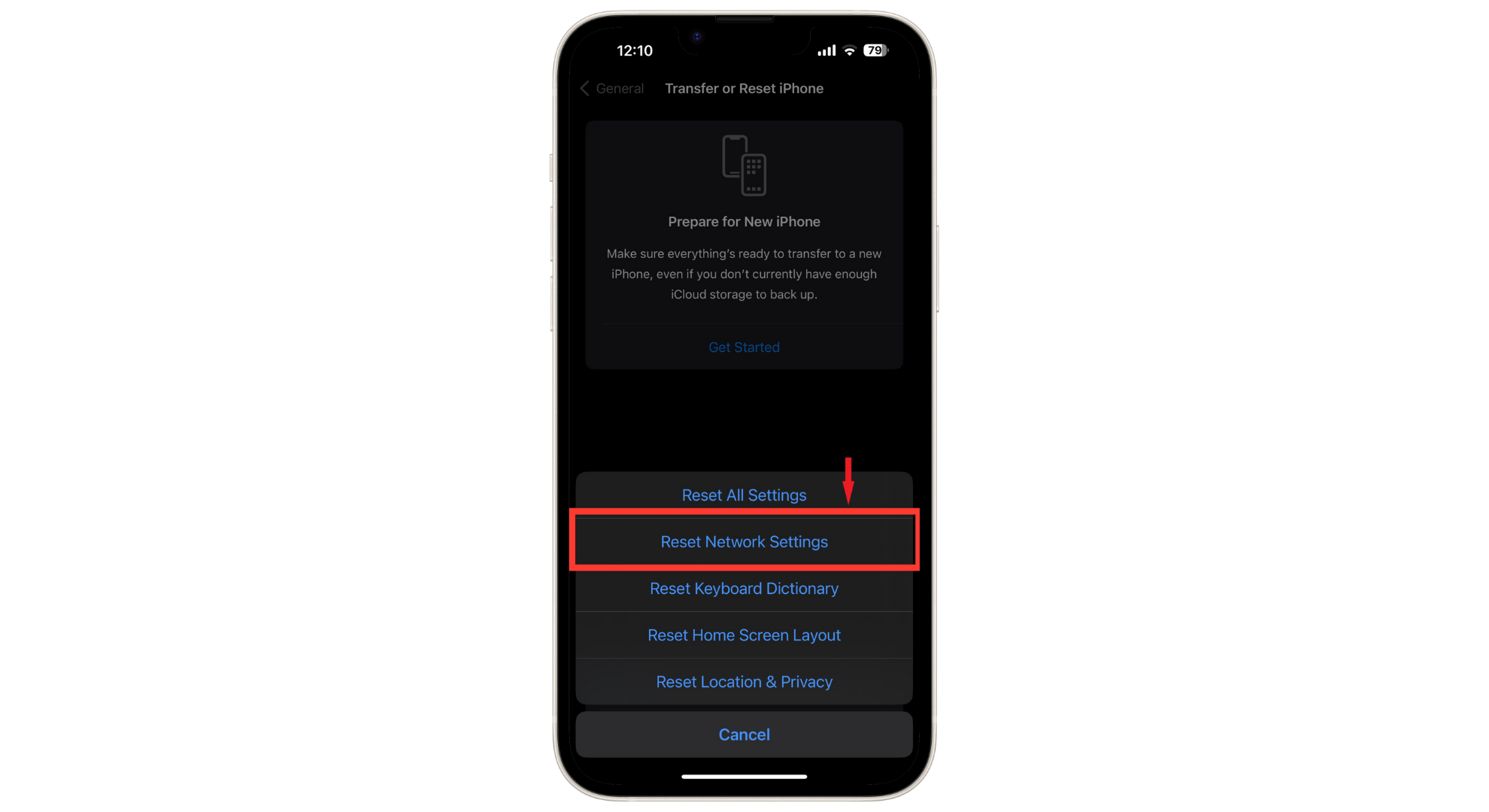
No. "Reset All Settings" is an option in the Settings app that reverts things like Wi-Fi passwords, wallpaper, and privacy settings to their defaults. A soft reset does not change any of your preferences; it simply reboots the operating system.
Can a soft reset fix a cracked screen or hardware failure?
No. A soft reset only addresses software-level malfunctions. If your iPhone 12 has a hardware issue, such as a failing battery, a cracked digitizer, or a broken camera module, a reset will not solve the problem. However, it is always the first step a technician will take to rule out software as the cause.
Practical Recommendations
If you are experiencing persistent issues with your iPhone 12 in 2026, start with a standard soft reset. If the device is unresponsive, immediately move to the Force Restart sequence. Should the problem return shortly after rebooting, check for iOS updates or consider a "Reset All Settings" (which is more intensive than a soft reset but less destructive than a factory reset).
For users who find their device frequently requires resets, it may be time to examine "Battery Health" under Settings > Battery. As the iPhone 12 ages, a degraded battery can lead to "Peak Performance" throttling, which often mimics the software lag that a soft reset is intended to fix. If your battery health is below 80%, a battery replacement may be a more permanent solution than frequent resets.