AppLock Advanced Protection is a specialized security layer designed to prevent unauthorized users from bypassing or uninstalling the AppLock application. By utilizing Android’s Device Administrator permissions, it ensures that your privacy settings remain intact even if someone attempts to remove the software to gain access to your protected photos, messages, and social media applications.
In 2026, mobile security has transitioned from a luxury to a fundamental necessity. As smartphones store increasingly sensitive financial data, private communications, and biometric information, the standard lock screen is often insufficient. Third-party applications like AppLock provide granular control, allowing users to lock individual apps behind secondary authentication layers. However, a common vulnerability of any security app is its susceptibility to being uninstalled by an intruder. This is where the "Advanced Protection" feature becomes the cornerstone of a robust mobile defense strategy.
Understanding AppLock and the Role of Advanced Protection
AppLock is a privacy tool that allows users to create a digital "vault" for their applications. While Android and iOS have introduced native app-locking features over the years, third-party utilities often offer more customization, such as intruder selfies, fake crash screens, and time-based locking.
The primary challenge for these apps is "forced uninstallation." If an unauthorized user gains access to your unlocked phone, they could simply navigate to the settings, uninstall AppLock, and instantly regain access to every application you had previously secured. Advanced Protection was developed specifically to close this loophole. When activated, it prevents the app from being uninstalled or killed by task managers without the master code or administrative override.
How Advanced Protection Functions
Advanced Protection operates by requesting Device Administrator privileges. In the Android ecosystem, this is a high-level permission typically used by enterprise management software to enforce security policies. When you grant this to AppLock:
- Uninstall Restriction: The "Uninstall" button in the system settings for AppLock becomes greyed out or triggers a password prompt.
- Task Management Persistence: The app becomes harder for the system or third-party "RAM cleaners" to shut down, ensuring the lock overlay is always active.
- Force Stop Prevention: It prevents users from using the "Force Stop" command in the App info menu, which is a common tactic used to bypass app lockers.
Implementing the AppLock Advanced Protection Code
Setting up the advanced protection code is a multi-step process that requires careful attention to system permissions. As of 2026, the process remains streamlined but requires navigating through several security prompts to ensure the user is making an informed decision.
Initial Configuration
Before enabling advanced features, you must establish the primary security method. Most users choose between a numeric PIN, a complex pattern, or biometric authentication (fingerprint or facial recognition).
- Step 1: Download and install a reputable AppLock version.
- Step 2: Define your primary unlock code. It is recommended to use a 6-digit PIN rather than the standard 4-digit PIN for significantly higher entropy.
- Step 3: Link a recovery email address. In 2026, multi-factor authentication (MFA) via an authenticator app is often a preferred recovery method over traditional security questions.
Activating Advanced Protection
Once the basic lock is functional, you must manually trigger the advanced layer. This is usually found under the "Protect" or "Security" tab within the app's settings menu.
- Locate Advanced Protection: Toggle the switch for "Advanced Protection."
- Grant Device Admin Rights: A system-level pop-up will appear explaining that the app wants to act as a Device Administrator. Read these terms carefully, as they grant the app the ability to monitor screen-unlock attempts and manage application uninstallation.
- Confirm Activation: Once confirmed, the app is now shielded from basic uninstallation attempts.
The Technicality of App Security: Beyond the PIN
App security is not just about the code you enter; it is about how the application interacts with the Operating System (OS). In 2026, modern app lockers use Accessibility Services and Usage Access permissions to detect when a target app is being launched.
Accessibility Services and Overlay Management
To display a lock screen over an app like WhatsApp or a banking utility, AppLock must know the exact moment that app is brought to the foreground. By using Accessibility Services, the locker can "see" the window change and immediately project its own security overlay. This happens in milliseconds, preventing a "flicker" where the private content is visible for a brief moment before the lock triggers.
The "Disguise" and "Cover" Features
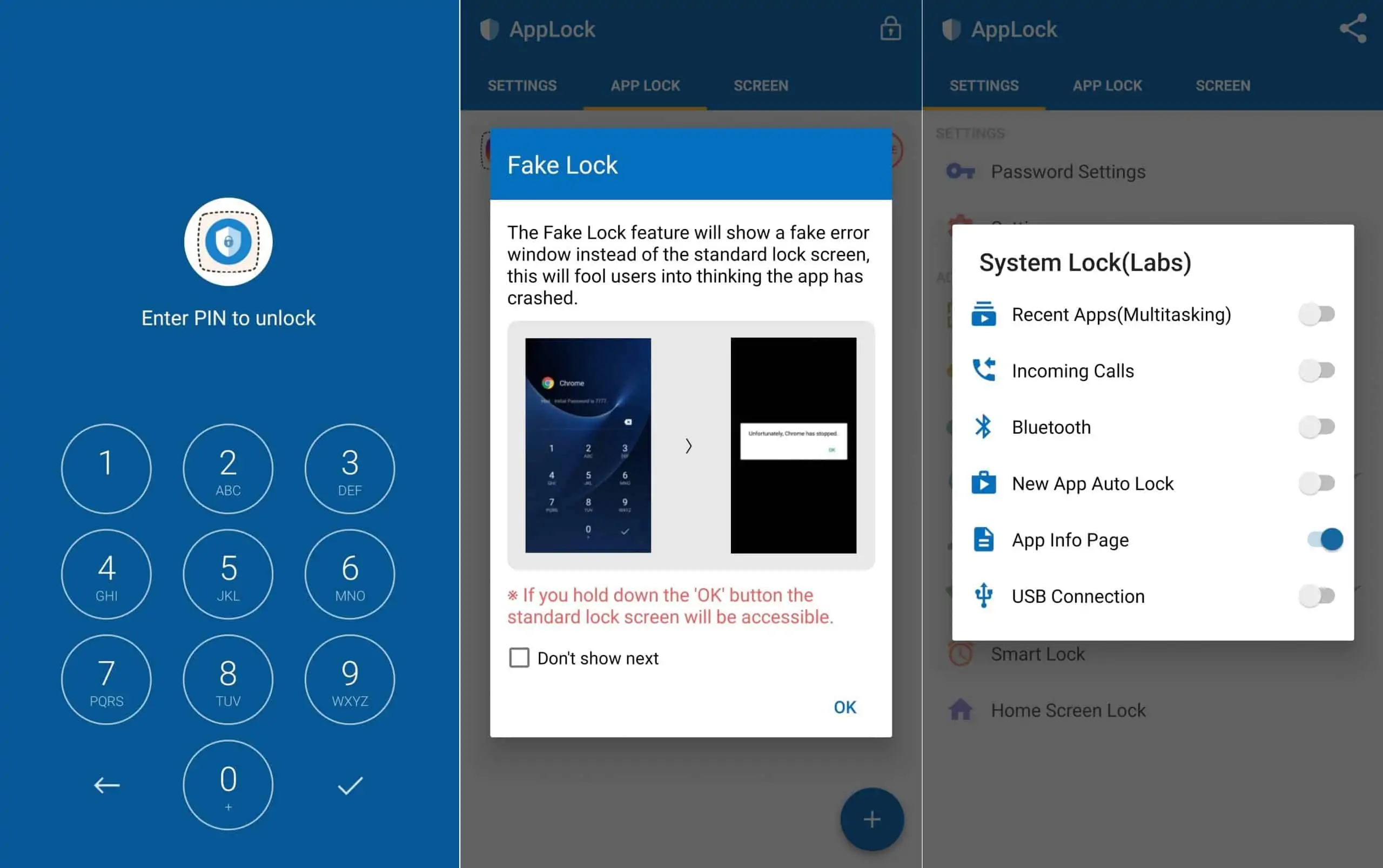
Advanced app security often includes deceptive measures. A common feature is the "Fake Crash" cover. When someone opens a locked app, they see a message stating, "Unfortunately, [App Name] has stopped working." To the intruder, it looks like a software bug. To the owner, a specific gesture (like long-pressing the "OK" button) reveals the hidden PIN pad.
Comparing AppLock Methods and Security Levels
Choosing the right security configuration depends on your specific threat model. Are you protecting your phone from a curious child, or from a sophisticated thief?
| Feature | Standard PIN/Pattern | Biometric (Fingerprint/Face) | Advanced Protection Enabled |
|---|---|---|---|
| Ease of Use | Moderate (Manual entry) | High (Instant access) | Low (Requires admin setup) |
| Resilience to Uninstall | Low | Low | Very High |
| Bypass Difficulty | Moderate (Visual hacking) | High | Very High |
| Recovery Options | Email/Security Question | Backup PIN | Administrative Override |
| System Impact | Negligible | Low | Moderate (Battery/RAM) |
Troubleshooting: What to Do if You Forget the Code
Forgetting your AppLock code can be a stressful experience, especially when Advanced Protection is active, as it prevents you from simply deleting the app to start over. In 2026, there are three primary ways to regain access.
1. Recovery via Linked Email
Most versions of AppLock include a "Forgot Password" link on the lock screen. Clicking this sends a temporary access code to your pre-verified email address. This is the most reliable method. Ensure that your email app itself is not locked, or that you can access your email via a secondary device like a laptop.
2. The Security Question Method
If you opted not to use an email, you likely set a security question during the initial setup. Answers are case-sensitive. If you fail this, you may be locked out for a specific "cooling-off" period, which is a standard security measure to prevent brute-force attacks.
3. Deactivating Advanced Protection for Uninstallation
If you genuinely need to remove the app but have forgotten the code, and the recovery options are unavailable, the situation becomes complex. You must first go to your phone’s Settings > Security > Device Administrators. You must attempt to uncheck AppLock from this list. If the app is functioning correctly, it will ask for the PIN even here. If you are stuck at this stage, you may need to utilize your Google or Apple account's "Find My Device" features to perform a remote factory reset, though this will erase all data on the phone.
Legal and Safety Considerations
When using applications that require Device Administrator permissions, users must be aware of the jurisdictional implications. In some corporate environments, installing third-party lockers with administrative rights may violate IT policies or "Bring Your Own Device" (BYOD) agreements.
Furthermore, while AppLock enhances privacy, it is not a substitute for full-disk encryption. In 2026, most modern smartphones encrypt data at the hardware level. AppLock acts as an access control layer, not an encryption layer. If a highly sophisticated actor removes the storage chip from the device, AppLock cannot protect the data stored within; only the OS-level encryption can do that.
For users in sensitive professions (journalism, legal, medical), it is advised to use AppLock in conjunction with a Virtual Private Network (VPN) and encrypted messaging apps like Signal to ensure end-to-end security.
Best Practices for Mobile App Security in 2026
To maximize the effectiveness of AppLock and Advanced Protection, follow these expert recommendations:
- Avoid Common Patterns: "L," "Z," and "U" patterns are the most common and easiest to guess or see via "smudge attacks" (oily residue left on the screen).
- Enable Intruder Selfie: This feature uses the front-facing camera to take a photo of anyone who enters the wrong code multiple times. This provides tangible evidence of unauthorized access attempts.
- Hide the AppLock Icon: Many versions allow you to hide the AppLock icon from the app drawer. You can then open the app by entering a specific code into the phone's dialer (e.g., #1234).
- Regular Updates: Ensure the app is updated to the latest 2026 build. Developers constantly patch vulnerabilities that could allow new OS versions to bypass the lock overlay.
- Audit Permissions: Periodically check which apps have "Usage Access." If an app doesn't need it, revoke it to minimize the attack surface of your device.
FAQs
Can I uninstall AppLock if I have forgotten my PIN and enabled Advanced Protection?
No, that is the primary purpose of Advanced Protection. It prevents uninstallation without the code. You must use the "Forgot Password" feature to receive a recovery code via your registered email address. If you do not have a recovery email set up, you may be forced to perform a factory reset of the entire device.
Does Advanced Protection drain my battery?
In 2026, the battery impact is minimal, usually less than 1-2% of total daily consumption. However, because the app must stay active in the background to monitor app launches, it does consume a small amount of resources. Most modern Android systems are optimized to handle these persistent services efficiently.
Is AppLock Advanced Protection available on iOS?
The implementation is different on iOS due to Apple's "sandboxing" restrictions. While you can lock apps using Screen Time or specific app-based FaceID settings, third-party apps cannot gain "Device Administrator" rights in the same way they do on Android. Advanced Protection, in its administrative form, is primarily an Android-centric feature.
Will Advanced Protection stop a factory reset?
No. Advanced Protection prevents uninstallation within the operating system. However, if a device is booted into "Recovery Mode," a factory reset can still be performed. This is a safety feature built into hardware to ensure phones don't become permanent "bricks" if software fails.
Can I lock the "Settings" app with AppLock?
Yes, and it is highly recommended. By locking the Settings app, you prevent intruders from changing your security configurations, revoking permissions, or attempting to disable Advanced Protection manually.
Final Recommendation
For users who prioritize mobile privacy, enabling the AppLock Advanced Protection code is a mandatory step. While a basic PIN provides a surface-level barrier, only Advanced Protection ensures that your security measures cannot be easily bypassed through simple uninstallation. For the best results in 2026, combine a 6-digit PIN with biometric authentication, link a secure recovery email, and ensure the "Intruder Selfie" feature is active to maintain a comprehensive record of your device's security status.