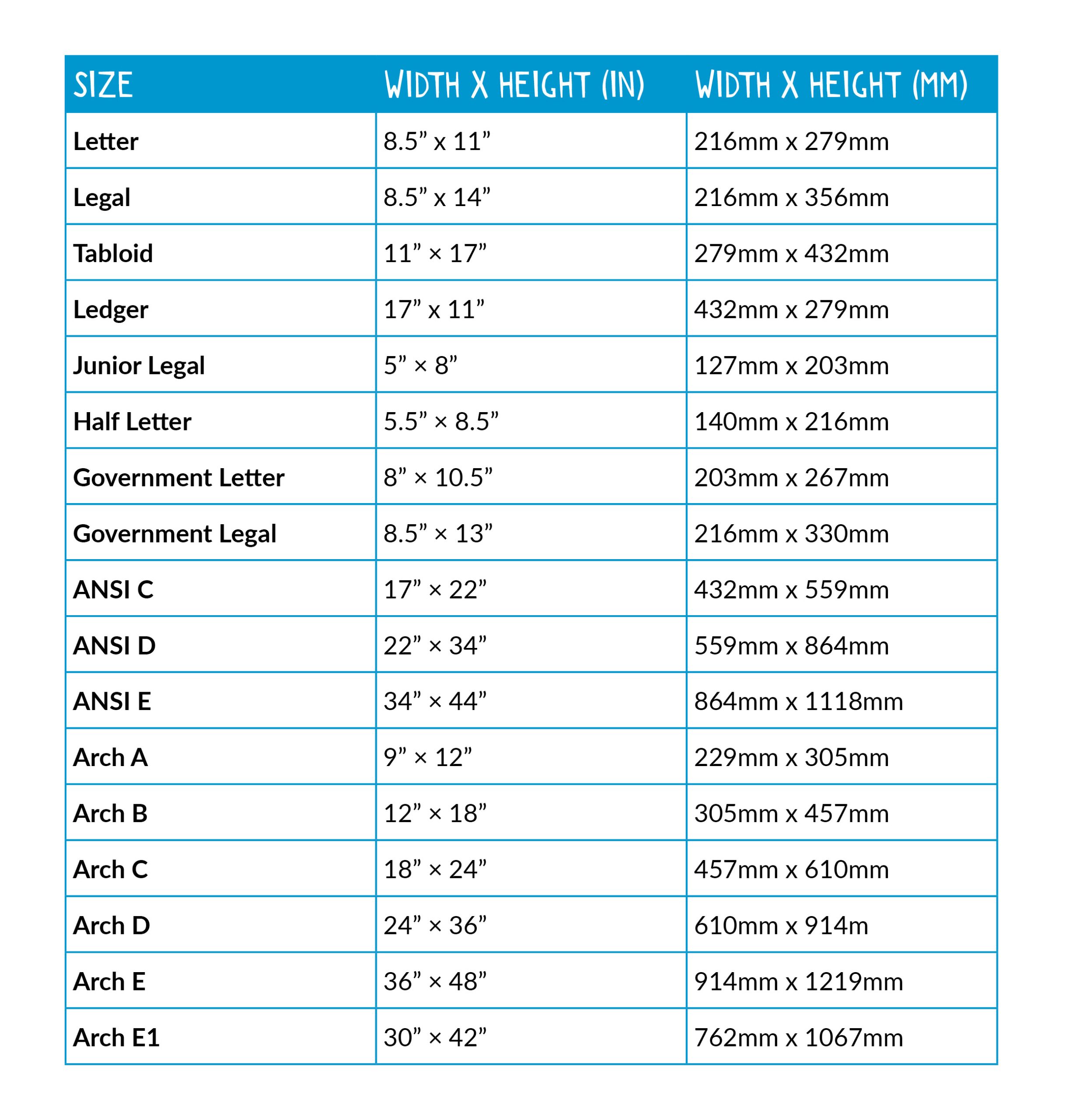
To calculate an 8.5x11 inch document in pixels, you must first define the resolution, typically measured in dots per inch (DPI) or pixels per inch (PPI). At a standard professional print resolution of 300 DPI, an 8.5x11 inch page equals 2550 x 3300 pixels. The exact pixel count varies significantly depending on your intended output, whether for high-quality printing or screen-based viewing.
The Relationship Between Physical Dimensions and Digital Pixels
The concept of "paper size in pixels" is inherently technical because it bridges the gap between the physical world—where objects have fixed measurements in inches or centimeters—and the digital world, where objects consist of a grid of discrete picture elements (pixels). Unlike physical paper, which is immutable in size once cut, a digital file’s pixel dimensions are entirely dependent on the display or print settings chosen at the time of creation.
Pixels do not have a fixed physical size. A pixel is merely a unit of digital information representing a single point of color. To convert inches to pixels, you must employ a "sampling rate," known as resolution. This resolution acts as the multiplier that tells your software how many pixels should be crammed into every inch of physical space. If you change the resolution, the physical size changes, even if the pixel count remains the same, or vice versa.
Determining Resolution: Why 300 DPI is the Industry Standard
In the graphic design and professional printing industry, 300 dots per inch (DPI) is widely regarded as the gold standard for high-quality, crisp output. When you print a file, the printer head places ink droplets onto the paper. If the resolution is too low, the software must "stretch" the pixels to fit the 8.5x11 space, leading to "pixelation" or jagged, blurry edges.
If you are designing a document that will be sent to a professional printing house—such as a brochure, a formal report, or a flyer—you should always set your workspace to 8.5x11 inches at 300 DPI. Calculating this is straightforward multiplication:
- 8.5 inches × 300 pixels/inch = 2,550 pixels
- 11 inches × 300 pixels/inch = 3,300 pixels
Using these dimensions ensures that the final printed output remains sharp and professional, meeting the visual expectations of modern commercial printing hardware.
Digital-Only Considerations: Screen Resolution vs. Print Resolution
When your 8.5x11 layout is intended for digital distribution—such as a PDF meant to be viewed on a monitor, tablet, or smartphone—using 300 DPI is often unnecessary and can result in bloated, sluggish file sizes. Screens typically render images at a lower density than printers.
Historically, 72 DPI was cited as the "screen resolution," though this is largely a legacy standard originating from early Apple Macintosh displays. Modern high-definition (HD) and Retina displays have pixel densities far exceeding this. However, for most general-purpose digital viewing, 150 DPI is often a sufficient balance between file size and image clarity. At 150 DPI, an 8.5x11 page results in 1,275 x 1,650 pixels, which is significantly easier to upload and email than the 300 DPI version.
Pixel Dimensions at Common Resolution Standards
The following table provides a quick reference for the pixel dimensions of a standard 8.5x11 inch page across the most common resolution requirements.
| Resolution (DPI/PPI) | Width (Pixels) | Height (Pixels) | Best Use Case |
|---|---|---|---|
| 72 DPI | 612 | 792 | Basic web thumbnails / Low-res previews |
| 150 DPI | 1,275 | 1,650 | Digital-only PDFs, emails, and tablets |
| 300 DPI | 2,550 | 3,300 | Professional offset and digital printing |
| 600 DPI | 5,100 | 6,600 | Archival scanning and fine art reproduction |
Prerequisites for Designing at Correct Dimensions
Before you begin setting up your document, ensure you have chosen the correct software tool for your specific output. For vector-based design, such as text-heavy layouts or logos, tools like Adobe Illustrator or Affinity Designer are preferred because they are "resolution-independent," meaning they can be scaled to any size without loss of quality. For raster-based imagery or photo editing, programs like Adobe Photoshop or GIMP are the industry standard, where defining the pixel dimensions at the start of your project is critical.
A common mistake designers make is creating a document at a low resolution and attempting to "upscale" it later. If you start with a 612 x 792 pixel file (72 DPI) and try to increase the resolution to 300 DPI, your software will attempt to "guess" the missing data through interpolation. This almost always results in a blurry, muddy image. Always start your project at the highest required resolution to ensure you have maximum flexibility throughout the creative process.
Operational Limitations and Troubleshooting
One of the most frequent issues encountered when dealing with 8.5x11 dimensions is the "bleed" area. Professional printers rarely print to the very edge of the paper; they usually print on a larger sheet and trim it down. If your artwork is meant to extend to the very edge of the page, you must add a "bleed," typically an extra 0.125 inches (1/8") on all sides.
If you are setting up a file for professional print with a standard 0.125-inch bleed, your total document dimensions will become 8.75 x 11.25 inches. When calculating pixels for this, you must adjust accordingly:
- At 300 DPI, your new width would be 2,625 pixels (8.75 × 300).
- Your new height would be 3,375 pixels (11.25 × 300).
Failing to account for bleeds can result in white margins on the edges of your finished product where you intended the design to reach the trim line. If you are uncertain whether your project requires a bleed, check the specifications provided by your printer or the platform you are using to publish the work.
FAQ: Addressing Common Questions
How do I change the DPI of an existing image? To change the DPI without distorting the image, you must adjust the "Image Size" or "Canvas Size" settings in your design software. Ensure that the "Resample" box is unchecked if you only want to change the print resolution metadata, or check it if you wish to change the actual number of pixels in the file.
Why does my 8.5x11 file look different in different programs? Different software applications interpret resolution metadata differently. Some programs prioritize the physical inch measurement, while others look purely at the pixel count. Always verify your "Image Size" or "Document Setup" panel to see the native DPI setting.
Does file size change if I use 300 DPI instead of 72 DPI? Yes. A 300 DPI file contains significantly more pixel data than a 72 DPI file of the same physical dimensions. This leads to a larger file size on your hard drive, which can affect the speed of your computer when processing the file or the time it takes to upload it to a web portal.
Should I use CMYK or RGB for my 8.5x11 document? If the document is for print, you should generally work in CMYK (Cyan, Magenta, Yellow, Black) color mode, as this mimics the ink process. If the document is for screens, RGB (Red, Green, Blue) is the standard and provides a wider color gamut.
Final Recommendations for Your Workflow
When preparing an 8.5x11 design, your workflow should always begin with the end in mind. If the project is for print, establish your canvas at 8.5x11 inches at 300 DPI from the moment you open your software. If you find that the file is too heavy for your system, consider working on individual elements separately before importing them into a high-resolution master file. Always check your printer's requirements for bleed and margin settings before finalizing your export, as these industry-standard specifications can vary between commercial print services. By maintaining these standards, you ensure that your work translates accurately from the screen to the final physical medium.