The Elgato 4K Capture Utility is a dedicated Windows application designed to maximize the performance of Elgato’s high-end capture hardware. It facilitates ultra-high-definition recording, HDR10 support, and advanced features like Flashback Recording. It serves as a streamlined, high-performance alternative to complex broadcasting suites for creators focused on capturing pristine raw footage.
In the landscape of 2026, content creation has shifted toward higher refresh rates and extreme dynamic range. While third-party tools like OBS Studio remain the industry standard for live streaming, the Elgato 4K Capture Utility remains the gold standard for pure, unadulterated recording. This utility is specifically engineered to interface with the internal architecture of Elgato’s 4K-capable cards, ensuring that the handshake between the hardware and the storage drive is as efficient as possible.
Supported Hardware and Ecosystem Compatibility
Before diving into the software’s functionality, it is essential to identify which devices are natively supported. The 4K Capture Utility was built specifically for the PCIe and USB 3.0+ "4K" family of products. This includes the internal 4K60 Pro (Mk.1 and Mk.2) and the external 4K X, HD60 X, and 4K60 S+.
While older cards like the HD60 S+ are compatible, the utility shines when paired with hardware capable of processing 10-bit HDR or high-frame-rate signals (such as 144Hz or 240Hz passthrough). By 2026, the software has evolved to accommodate the 4K X’s USB 3.2 Gen 2 capabilities, allowing for uncompressed-like quality over external connections. It is important to note that the 4K Capture Utility is a Windows-exclusive application. MacOS users generally utilize the "Elgato Capture Device Utility" for firmware updates and basic settings, relying on third-party software for the actual recording.
System Requirements and Performance Architecture
Recording in 4K at 60 frames per second (or higher) is an incredibly resource-intensive task. The software relies heavily on Hardware Encoding. Unlike software encoding (x264), which taxes the CPU, the 4K Capture Utility leverages the NVENC (NVIDIA), VCE (AMD), or QuickSync (Intel) engines found on modern graphics cards.
Recommended Specifications for 2026
- Operating System: Windows 10 or 11 (64-bit).
- CPU: Intel Core i7-series (10th Gen or newer) or AMD Ryzen 7 (3000 series or newer).
- GPU: NVIDIA GeForce RTX 30-series or better for optimal HEVC (H.265) HDR encoding.
- Interface: A dedicated PCIe x4/x16 slot for internal cards or a USB 3.2 Gen 2 port for the 4K X.
- Storage: NVMe SSD is highly recommended. 4K60 HDR footage at high bitrates can exceed 100 Mbps, which can saturate older mechanical hard drives or slow SATA SSDs during sustained recording.
| Feature | 4K60 Pro Mk.2 | 4K X (External) | HD60 X (External) |
|---|---|---|---|
| Max Recording | 4K60 HDR10 | 4K60 HDR10 | 4K30 / 1080p60 HDR |
| Max Passthrough | 4K60 HDR / 1080p240 | 4K144 / 1080p240 | 4K60 HDR / 1080p240 |
| Interface | PCIe 2.0 x4 | USB 3.2 Gen 2 | USB 3.0 |
| VRR Support | Yes | Yes | Yes |
| Multi-Device | Yes (Multiple Cards) | Limited by USB Bandwidth | Limited by USB Bandwidth |
Key Features and Operational Depth
The Elgato 4K Capture Utility is not merely a "record button." It contains several proprietary technologies that solve common pain points for high-end console and PC gamers.
Flashback Recording
One of the most powerful features is Flashback Recording. This functions like a continuous DVR buffer. The software captures video in the background without the user needing to hit record. If a significant event occurs in a game, the user can simply slide the timeline back and hit the record button retrospectively. This ensures that "once-in-a-lifetime" moments are never lost. The length of this buffer is limited only by your available RAM and disk space, and it can be configured in the software settings.
Live Commentary and Audio Routing
The utility allows for a "Live Commentary" track. This feature treats your microphone as a separate entity from the game audio. Crucially, the 4K Capture Utility can save these as separate audio tracks within the MP4 file or export them as distinct files. This is a massive time-saver in post-production, as it allows editors to adjust the volume of the voice-over without affecting the game’s explosions or music.
Stream Link (OBS Integration)
A common conflict arises when a user wants to stream via OBS but also record a high-quality "master copy" via the 4K Capture Utility. Usually, a capture card can only be "seen" by one application at a time. Stream Link acts as a bridge. It allows the 4K Capture Utility to grab the hardware feed and then "hand it off" to OBS Studio with minimal latency. This enables the user to record a 140 Mbps 4K HDR master file in the Elgato software while simultaneously streaming a 6 Mbps 1080p SDR version to Twitch.
HDR10 and HEVC Encoding
The software is designed to handle High Dynamic Range (HDR10) signals. When an HDR signal is detected from a PS5, Xbox Series X, or high-end PC, the utility can record in the HEVC (H.265) format. This preserves the 10-bit color depth. If the user is viewing the preview on an SDR monitor, the software performs real-time tone mapping, allowing the creator to see a vibrant image while the file remains in true HDR for HDR-capable platforms like YouTube.
Optimal Configuration for Professional Quality
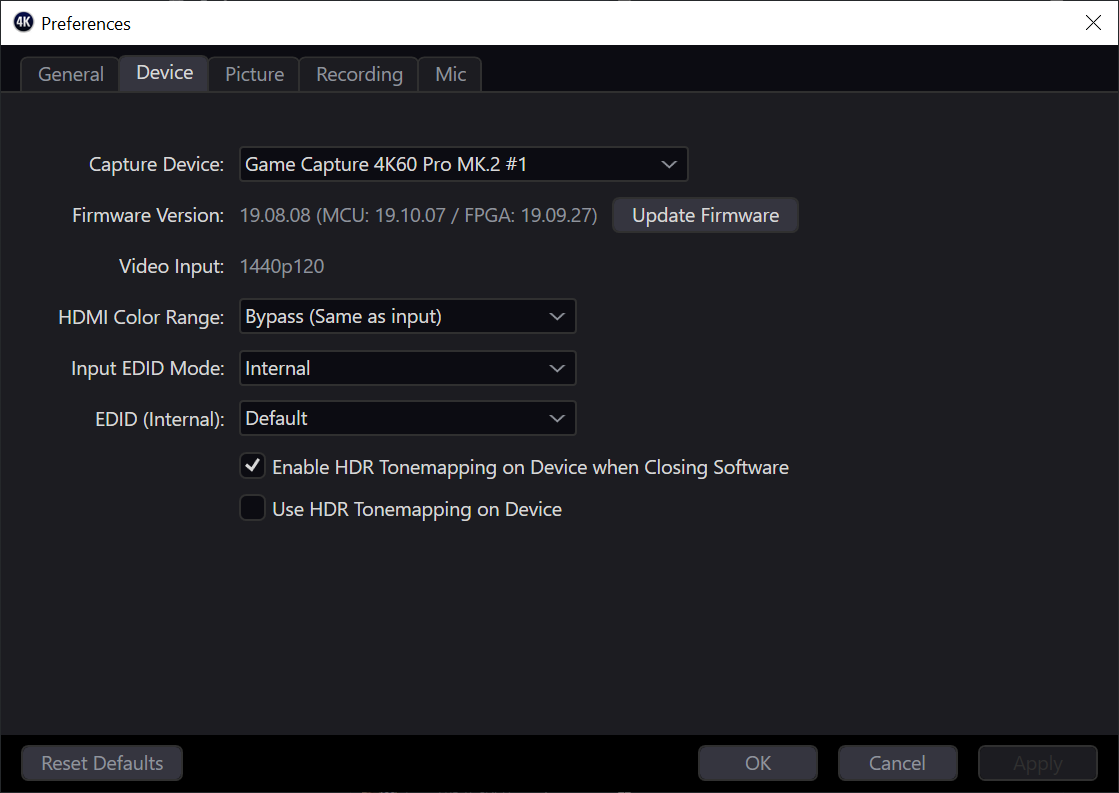
To get the most out of the "4k capture utility elgato," users must navigate the Preferences menu (the gear icon) and adjust specific parameters based on their production goals.
- Device Tab: Here, you can set the EDID (Extended Display Identification Data) Mode. If your passthrough monitor isn't displaying the correct resolution, switching this from "Merged" to "Internal" and selecting "2160p" forces the capture card to tell the gaming console that it is a 4K display, regardless of what the monitor says.
- Picture Tab: While it is usually best to keep these at default to preserve raw footage, you can adjust brightness, contrast, and saturation here if the source signal is coming in "washed out."
- Recording Tab: This is the most critical section.
- Format: Select your GPU’s encoder (e.g., NVIDIA NVENC).
- Bitrate: For 4K60, aim for at least 60 Mbps for YouTube-quality, or 100-140 Mbps for archival/professional editing quality.
- Enable HDR: Ensure this is checked if your source is HDR.
Troubleshooting Common Issues
Even with high-end hardware, technical hurdles such as the "Black Screen" or "No Signal" errors can occur.
Resolving "No Signal" or Black Screens
The most frequent culprit is HDCP (High-bandwidth Digital Content Protection). Sony PlayStation consoles, in particular, enable HDCP by default, which prevents capture cards from seeing the signal to protect against movie piracy. Users must go into the PS5/PS4 settings and manually disable HDCP. Another common cause is an incompatible HDMI cable. For 4K60 HDR, you must use HDMI 2.0 or HDMI 2.1 (Ultra High Speed) cables. Older cables simply do not have the bandwidth to carry the 18Gbps+ required for 4K HDR.
Audio Desynchronization
If audio begins to drift away from the video over long recording sessions, it is often due to a mismatch in Sample Rates. Ensure that your Windows Sound Settings, your microphone, and the 4K Capture Utility are all set to the same rate (typically 48kHz).
Performance Stuttering
If the recorded file is choppy but the game looks fine on your monitor, the encoder is likely overloaded. Lower the bitrate or ensure that "Enable Stream Link" is turned off if you aren't actively using it, as it consumes additional GPU resources to mirror the video feed.
The 4K Capture Utility vs. OBS Studio
| Metric | 4K Capture Utility | OBS Studio |
|---|---|---|
| Primary Goal | High-bitrate recording. | Live streaming and scene composition. |
| Ease of Use | High (Plug and Play). | Medium/Low (Steep learning curve). |
| Features | Flashback recording, simple trim. | Overlays, transitions, multi-source. |
| Resource Impact | Very Low. | Moderate to High. |
| HDR Support | Native and streamlined. | Robust but requires manual setup. |
For most users, the best workflow involves using the 4K Capture Utility for recording "Let's Plays" or cinematic b-roll where quality is the only priority. OBS Studio should be reserved for when you need overlays, alerts, or complex layouts for a live audience.
Library Management and File Exporting
The software includes a "Library" tab that organizes your recordings by date, game title, and resolution. Unlike a standard folder of files, this library allows for Smart Folders. You can create a folder that automatically groups all "Apex Legends" clips or all "HDR" clips together.
While the utility provides a basic trimming tool to cut out the beginning or end of a clip, it is not a full video editor. However, it does allow for a "lossless export" if you have used the Live Commentary feature. You can tell the software to export the file as a single MP4 or to separate the tracks, which prevents the need for "re-encoding" in some instances, preserving the original quality.
Frequently Asked Questions
Does the 4K Capture Utility support 120Hz recording?
Yes, provided you are using a compatible card like the Elgato 4K X or the 4K60 Pro Mk.2. The software can record at high frame rates, which is ideal for fast-paced shooters. However, ensure your monitor and the game are also set to 120Hz/144Hz to maintain consistency.
Can I use the 4K Capture Utility with non-Elgato cards?
No. The 4K Capture Utility is hardcoded to recognize only Elgato hardware. If you are using a capture card from a different brand, you will need to use OBS Studio, PotPlayer, or the manufacturer’s proprietary software.
Why is my HDR footage looking gray and washed out?
This typically happens if you record in HDR but view the file in a video player that does not support HDR-to-SDR tone mapping (like the old Windows Media Player). Using a modern player like VLC or uploading the file to YouTube (which will process the HDR) usually resolves this visual discrepancy.
Is there a limit to how long I can record?
The only limit is your storage capacity. Because the software uses the MP4 (fragmented) or HEVC containers, it is quite stable. However, for extremely long sessions (over 12 hours), it is recommended to ensure your drive is formatted as NTFS, as older formats like FAT32 have 4GB file size limits.
Does the utility work with the Steam Deck or ROG Ally?
Yes. If you use a compatible USB-C dock with HDMI output, you can plug these handhelds into an Elgato capture card. The 4K Capture Utility will treat them as any other console source. This is excellent for capturing high-quality mobile gaming footage.
Strategic Recommendation
For creators in 2026, the Elgato 4K Capture Utility remains an essential tool for those who prioritize video fidelity. If your workflow involves capturing 4K HDR footage for high-end YouTube production, this software provides a more stable and higher-bandwidth environment than most streaming-centric applications.
To begin, ensure your hardware meets the NVENC/HEVC requirements, update your capture card firmware via the device settings, and always perform a "test record" of at least 30 seconds to verify that your audio tracks and HDR tone-mapping are functioning as expected. If you plan to use OBS simultaneously, remember to enable Stream Link in the settings to allow both programs to access the hardware feed.