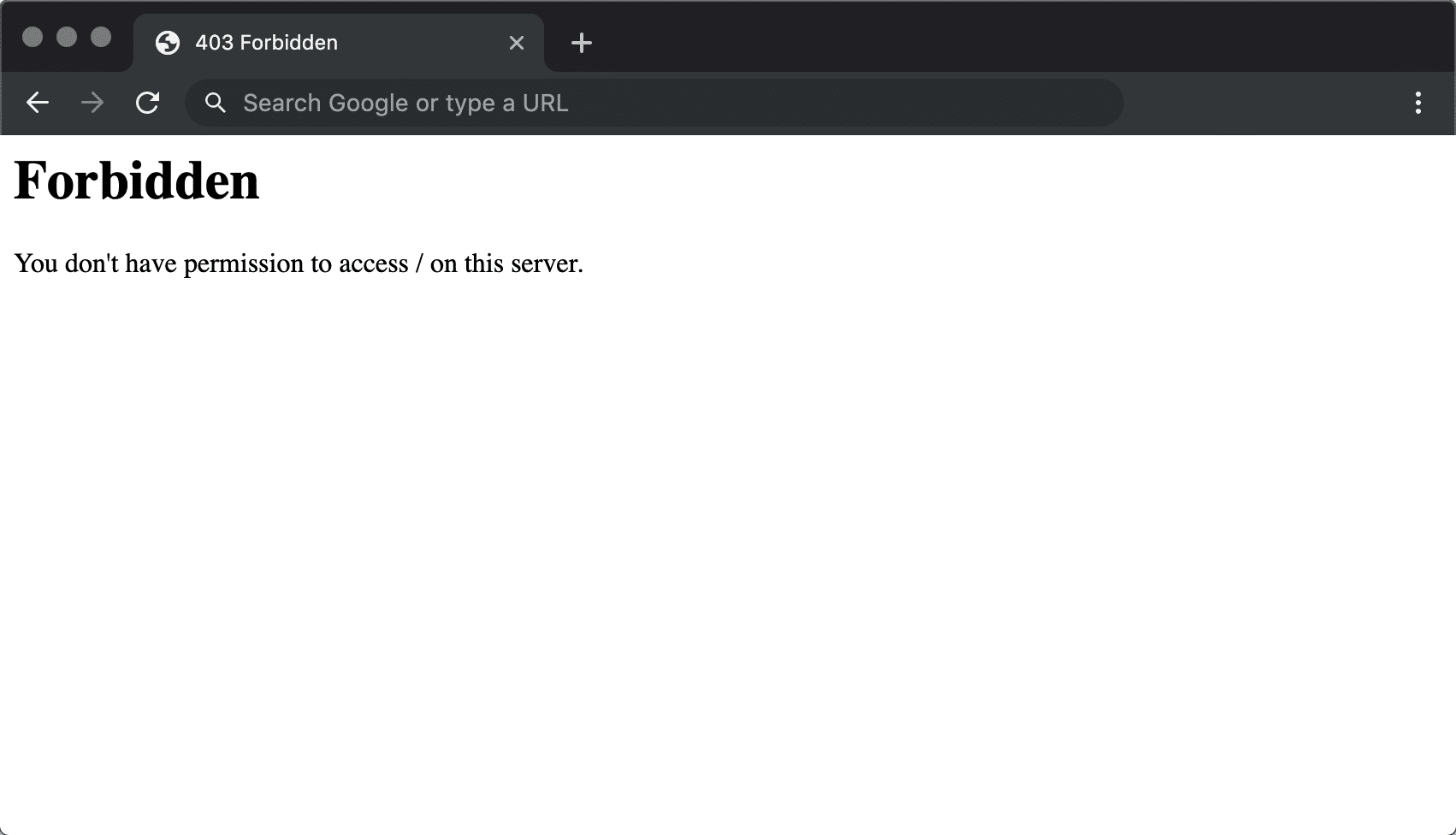
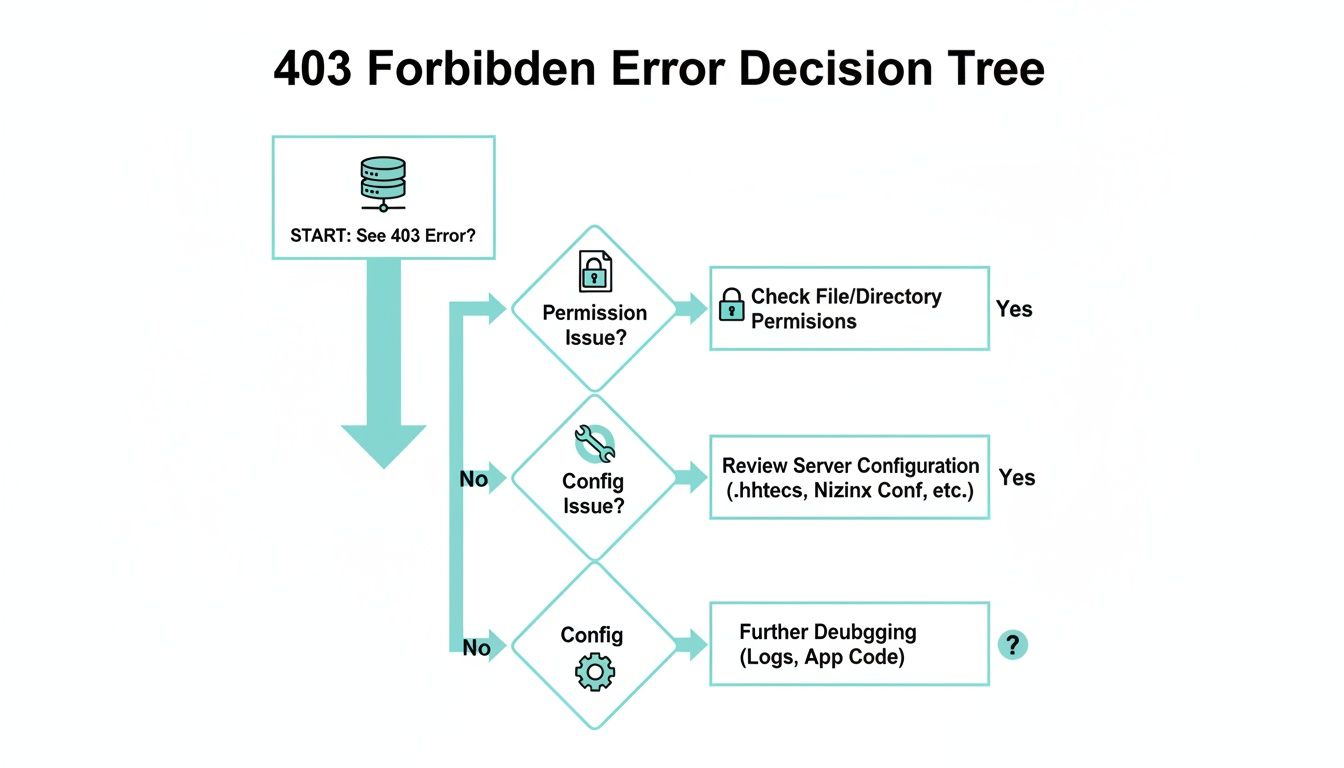
The HTTP 403 Forbidden error in Internet Information Services (IIS) is a status code indicating that the server understands the request but refuses to fulfill it due to permission or configuration restrictions. Unlike a 404 error, the resource exists, but the server has been instructed to deny access to the specific client or request type.
In the landscape of web administration in 2026, the 403 Forbidden error remains one of the most frequent hurdles for developers and system administrators working with Windows Server environments. While the message "You do not have permission to view this directory or page" is clear, the underlying cause in IIS can range from simple file-system permission conflicts to complex IP-based restrictions or SSL requirements. To resolve a 403 error efficiently, one must move beyond the surface-level message and investigate the specific substatus codes that IIS provides.
Understanding the HTTP 403 Forbidden Error in IIS
The HTTP 403 status is part of the 4xx class of HTTP response codes, which are dedicated to client-side errors. However, in the context of IIS, a 403 is often a "server-side misconfiguration" that results in a "client-side denial." Essentially, the IIS worker process (w3wp.exe) has evaluated the request against its security policy and determined that the request does not meet the necessary criteria for execution.
IIS is unique among web servers because it utilizes substatus codes. While a browser might only show a generic "403 Forbidden," the IIS logs and local detailed error pages provide a decimal suffix (e.g., 403.14) that points directly to the root cause. Identifying this subcode is the most critical step in troubleshooting.
Why IIS Refuses Requests
The refusal can stem from several layers of the IIS architecture:
- The NTFS Layer: The physical file system denies the identity running the application pool.
- The IIS Configuration Layer: Features like "Directory Browsing" or "IP Address and Domain Restrictions" are explicitly set to deny access.
- The Application Layer: Managed code (ASP.NET) or modules (URL Rewrite) might be intercepting the request and returning a 403 based on custom logic.
- The Transport Layer: Requirements for SSL/TLS or client certificates are not being met.
Deciphering IIS Substatus Codes
To solve a 403 error, you must first locate the substatus code. If you are browsing the site locally on the server, IIS often displays the detailed error. If you are remote, you should check the IIS logs located by default at %SystemDrive%\inetpub\logs\LogFiles.
The following table outlines the most common IIS 403 substatus codes encountered in 2026 environments:
| Substatus Code | Meaning | Common Cause |
|---|---|---|
| 403.1 | Execute access forbidden | Attempting to run a CGI, ISAPI, or executable in a folder where "Execute" permissions are disabled. |
| 403.2 | Read access forbidden | The "Read" permission is unchecked in IIS for the specific virtual directory or file. |
| 403.3 | Write access forbidden | Attempting to upload or modify a file via HTTP (PUT/POST) where "Write" permissions are disabled. |
| 403.4 | SSL required | The site is configured to "Require SSL," but the request was made over unencrypted HTTP. |
| 403.5 | SSL 128 required | The site requires a higher level of encryption (128-bit) than the client is using. |
| 403.6 | IP address rejected | The client's IP address is explicitly blocked in the "IP Address and Domain Restrictions" module. |
| 403.7 | Client certificate required | The server expects a valid client-side certificate for authentication, but none was provided. |
| 403.8 | Site access denied | The DNS name or domain of the client is restricted by the server configuration. |
| 403.14 | Directory listing denied | The user requested a folder (e.g., example.com/images/), but directory browsing is disabled and no default document exists. |
| 403.16 | Client certificate is untrusted | The client provided a certificate, but the root CA is not in the server's Trusted Root Certification Authorities store. |
| 403.18 | Cannot execute requested URL | The requested URL belongs to a different application pool than the one currently processing the request. |
Common Root Causes and Solutions
1. Directory Browsing and Missing Default Documents (403.14)
This is arguably the most common cause of a 403 error in IIS. It occurs when a user navigates to a folder rather than a specific file (e.g., https://example.com/ instead of https://example.com/index.aspx).
The Scenario:
If you haven't defined a "Default Document" (like index.html, default.aspx, or home.php) or if that file does not exist in the root folder, IIS attempts to list the contents of the directory. For security reasons, "Directory Browsing" is disabled by default in IIS. When IIS finds no default document and sees that directory listing is forbidden, it returns a 403.14.
The Fix:
- Add a Default Document: Open IIS Manager, select your site, and double-click Default Document. Ensure your entry file name is in the list.
- Enable Directory Browsing: If you actually want users to see the file list, select Directory Browsing in IIS Manager and click Enable.
- Verify File Placement: Ensure your files are actually in the physical directory mapped to the site (usually
C:\inetpub\wwwroot\YourSite).
2. Incorrect NTFS Permissions
Even if IIS is configured correctly, the underlying Windows file system (NTFS) might be blocking the request. IIS uses a specific identity to read and execute files, usually the Application Pool Identity.
The Scenario: You've moved a web folder from one drive to another, and the permissions didn't carry over. Now, the IIS worker process can't "see" the files.
The Fix:
- Right-click your web root folder and select Properties > Security.
- Click Edit > Add.
- Type
IIS_IUSRS(this is a local group containing all application pool identities) and grant it Read & execute, List folder contents, and Read permissions. - If you are using a specific identity for your Application Pool, add that specific user (e.g.,
IIS AppPool\YourAppPoolName). - Ensure the anonymous user account (usually
IUSR) also has Read access if your site allows anonymous traffic.
3. IP Address and Domain Restrictions (403.6)
IIS includes a security module that allows administrators to allow or deny access based on the visitor's IP address.
The Scenario: A developer accidentally added a "Deny" rule for a specific subnet, or the server is configured with an "Allow" list that does not include the current user's IP.
The Fix:
- In IIS Manager, select the site or the specific folder.
- Double-click IP Address and Domain Restrictions.
- Review the list for any "Deny" entries.
- Check the "Edit Feature Settings" action on the right to see if the default behavior is set to "Deny" for unspecified clients.
4. SSL and Client Certificate Requirements (403.4 & 403.7)
Modern web standards in 2026 prioritize encrypted traffic. If a site is configured to require SSL, any non-HTTPS request will be met with a 403.4.
The Scenario: You have a "Require SSL" checkbox ticked in the SSL Settings module, but you haven't configured a redirect from HTTP to HTTPS.
The Fix:
- For 403.4: Ensure you are using
https://in the browser. If you want to automate this, install the URL Rewrite module and create a rule to redirect all traffic from port 80 to port 443. - For 403.7: This indicates the server requires a "Client Certificate." Most public websites do not use this. If this is enabled by mistake, go to SSL Settings and change "Client certificates" from "Require" to "Ignore."
Advanced Troubleshooting Techniques
Inspecting IIS Logs
When the browser provides nothing but a generic error, the IIS logs are your source of truth. By default, logs are stored in C:\inetpub\logs\LogFiles\W3SVC[SiteID].
Open the most recent log file and look for the line corresponding to your failed request. Look for three numbers toward the end of the line (e.g., 403 14 0).
- The first number is the HTTP Status (
403). - The second is the Substatus (
14). - The third is the Win32 Status (
0).
A Win32 status other than 0 often points to an OS-level error, such as "Access Denied" (Win32 error 5), which confirms an NTFS permission issue.
Using Failed Request Tracing (FREB)
For complex 403 errors where the substatus code isn't enough, Failed Request Tracing is the ultimate tool. It generates an XML-based report showing every step the request took through the IIS pipeline.
- Install the "Tracing" role service via Server Manager.
- In IIS Manager, select your site and click Failed Request Tracing Rules.
- Add a rule for status code "403".
- Trigger the error in your browser.
- View the generated logs in
C:\inetpub\logs\FailedReqLogFiles. The report will show exactly which module (e.g.,IpRestrictionModule,RequestFilteringModule) issued the 403.
Handler Mappings and Feature Delegation
In some cases, the error occurs because a specific file extension (like .php or .json) is not mapped to a handler, or the handler is locked at the server level.
- Handler Mappings: If you receive a 403.1, check if the resource is trying to execute code. Ensure the "Handler Mappings" for that extension are set to "Unrestricted" or "Execute."
- Feature Delegation: If you are managing a site via a non-administrator account or a remote web.config, ensure the "Feature Delegation" settings in the root IIS server node allow the specific module settings to be overridden at the site level.
Security Best Practices to Avoid 403 Errors
While 403 errors are frustrating, they are often a sign that IIS security is working as intended. To minimize downtime while maintaining a secure posture, consider the following practices:
- The Principle of Least Privilege: Do not grant
Everyonefull control to fix a 403 error. Always use theIIS_IUSRSgroup or the specificAppPoolIdentitywith the minimum required permissions (usually Read/Execute). - Explicit Default Documents: Always define an
index.htmlordefault.aspxin your application root to prevent 403.14 errors. - Use URL Rewrite for HTTPS: Instead of just checking "Require SSL" (which throws a 403.4), use a rewrite rule to gracefully move users to the secure version of your site.
- Centralized Logging: In 2026, many administrators use log aggregators. Ensure your IIS logs are being forwarded to a system like ELK (Elasticsearch, Logstash, Kibana) or Azure Monitor to spot 403 trends that might indicate a brute-force attack or a configuration drift.
Frequently Asked Questions
Why does my site show 403 Forbidden only on the home page?
This is usually a 403.14 error. It happens when you don't have a default document (like index.html) or directory browsing is disabled. IIS doesn't know what to show the user when they arrive at the root URL, so it denies the request. To fix it, check your "Default Document" settings in IIS Manager.
What is the difference between IUSR and IIS_IUSRS?
IUSR is the built-in account used for anonymous access to your website. IIS_IUSRS is a built-in group that includes all Application Pool Identities. For a site to work, the IIS_IUSRS group typically needs "Read" permissions on the physical folder, while IUSR needs permission if you allow anonymous users to browse the site.
Can a URL Rewrite rule cause a 403 error?
Yes. If you have a rule that identifies a request as "malicious" or "unauthorized," you can configure the rule to return an HTTP 403 response. If you are seeing a 403 and your permissions look perfect, check the web.config file for any rules that might be blocking specific User-Agents, IP addresses, or URL patterns.
How do I fix "403.6 IP Address Rejected" if I can't access the server?
If you've accidentally blocked your own IP address and can't access the IIS Manager remotely, you will need to access the server via RDP (Remote Desktop) or a physical console. Once logged in locally, open IIS Manager and navigate to the "IP Address and Domain Restrictions" section to remove your IP from the "Deny" list or add it to the "Allow" list.
Why does 403 Forbidden appear after migrating to a new server?
Migration often breaks NTFS permissions. When files are moved, they sometimes lose the inherited permissions of the web root. Ensure the new folder has the correct permissions for IIS_IUSRS. Additionally, check that all required IIS features (like ASP.NET 4.8 or .NET 6/8 Core Hosting Bundle) are installed on the new server.
Final Recommendation
When faced with a "403 Forbidden" in IIS, stop guessing and start logging. The quickest path to a resolution is identifying the substatus code (e.g., 403.14, 403.6) through the IIS log files or detailed error pages. Once the subcode is known, you can apply the specific fix—whether that is adjusting NTFS permissions for the IIS_IUSRS group, enabling a Default Document, or relaxing an IP restriction. For production environments in 2026, always prefer explicit "Allow" rules and the principle of least privilege to ensure your server remains both functional and secure.